Introduction
This manual provides essential information for setting up, operating, and maintaining your HP 17.3" FHD Laptop. Designed for productivity and connectivity, this laptop features an Intel Core i3-N305 processor, a Full HD IPS anti-glare display, and runs on Windows 11 Pro. Please read this manual thoroughly to ensure proper use and to maximize your laptop's performance.
What's in the Box
Verify that all items are present in the package:
- 1 x HP 17.3" FHD Laptop
- 1 x Power Adapter
- 1 x Instruction Manual (this document)
- 1 x Accessory Kit (includes 32GB USB Flash Drive, Bluetooth Earbuds, Electronic Cleaning Kit, USB-C Hub, 3-in-1 Charging Cable, USB-C Cable)
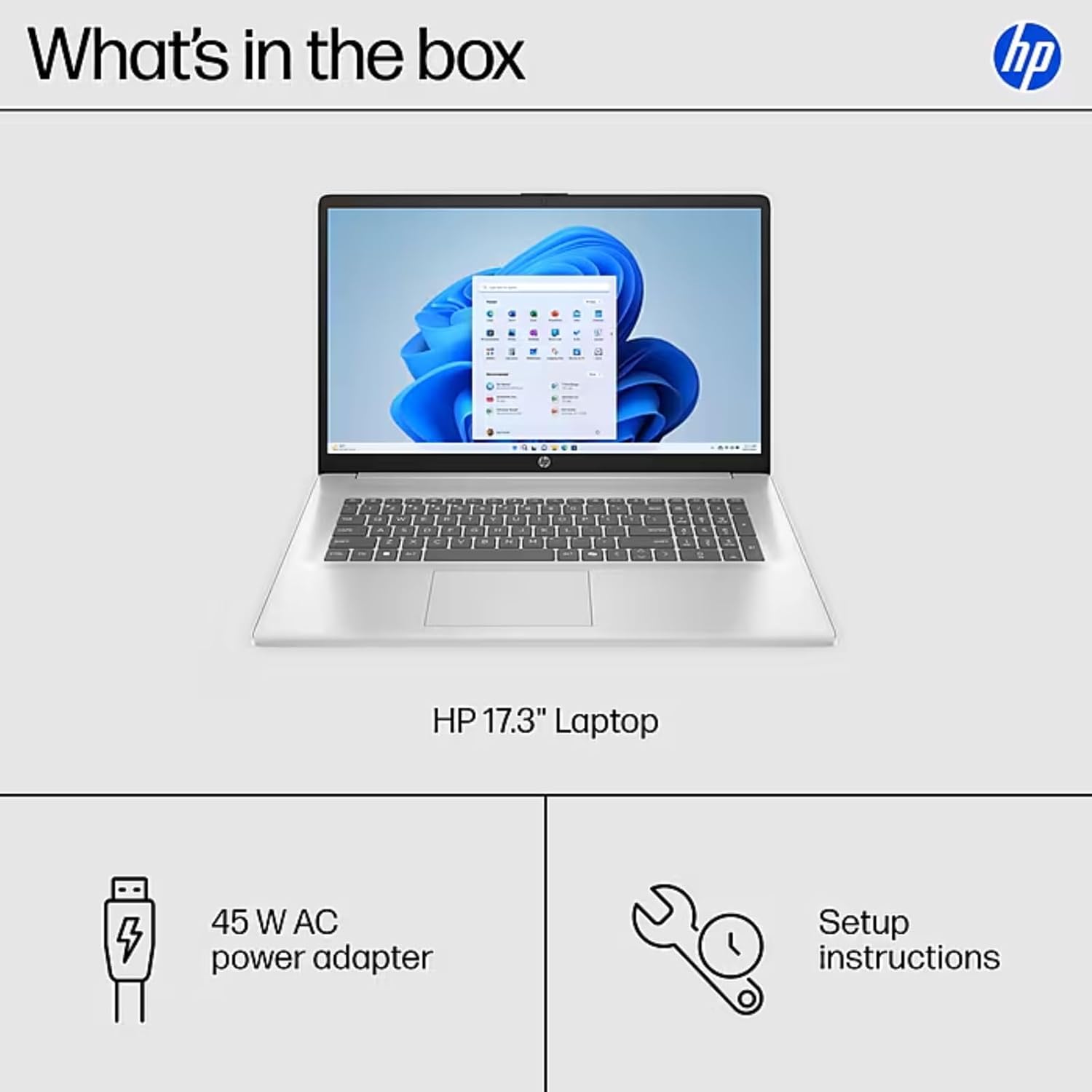
Image: The contents of the HP 17.3" Laptop box, including the laptop, power adapter, and a separate accessory kit.
Setup
- Unpack the Laptop: Carefully remove the laptop and all accessories from the packaging.
- Connect Power: Plug the power adapter into the laptop's AC Smart Pin port and then into a power outlet. Allow the battery to charge for at least 30 minutes before initial use.
- Initial Boot: Open the laptop lid and press the power button. The laptop will guide you through the Windows 11 Pro setup process. Follow the on-screen instructions to configure your language, region, network, and user account.
- Connect to Wi-Fi: During the initial setup, you will be prompted to connect to a wireless network. Select your network and enter the password.
- Install Updates: After setup, it is recommended to check for and install any available Windows updates to ensure optimal performance and security.
Operating Your Laptop
Display Features
The HP 17.3" laptop features a Full HD (1920 x 1080) IPS anti-glare display. This screen provides vibrant colors and wide 178° viewing angles, reducing reflections for comfortable viewing in various lighting conditions. The large screen size is ideal for multitasking, document review, and media consumption.
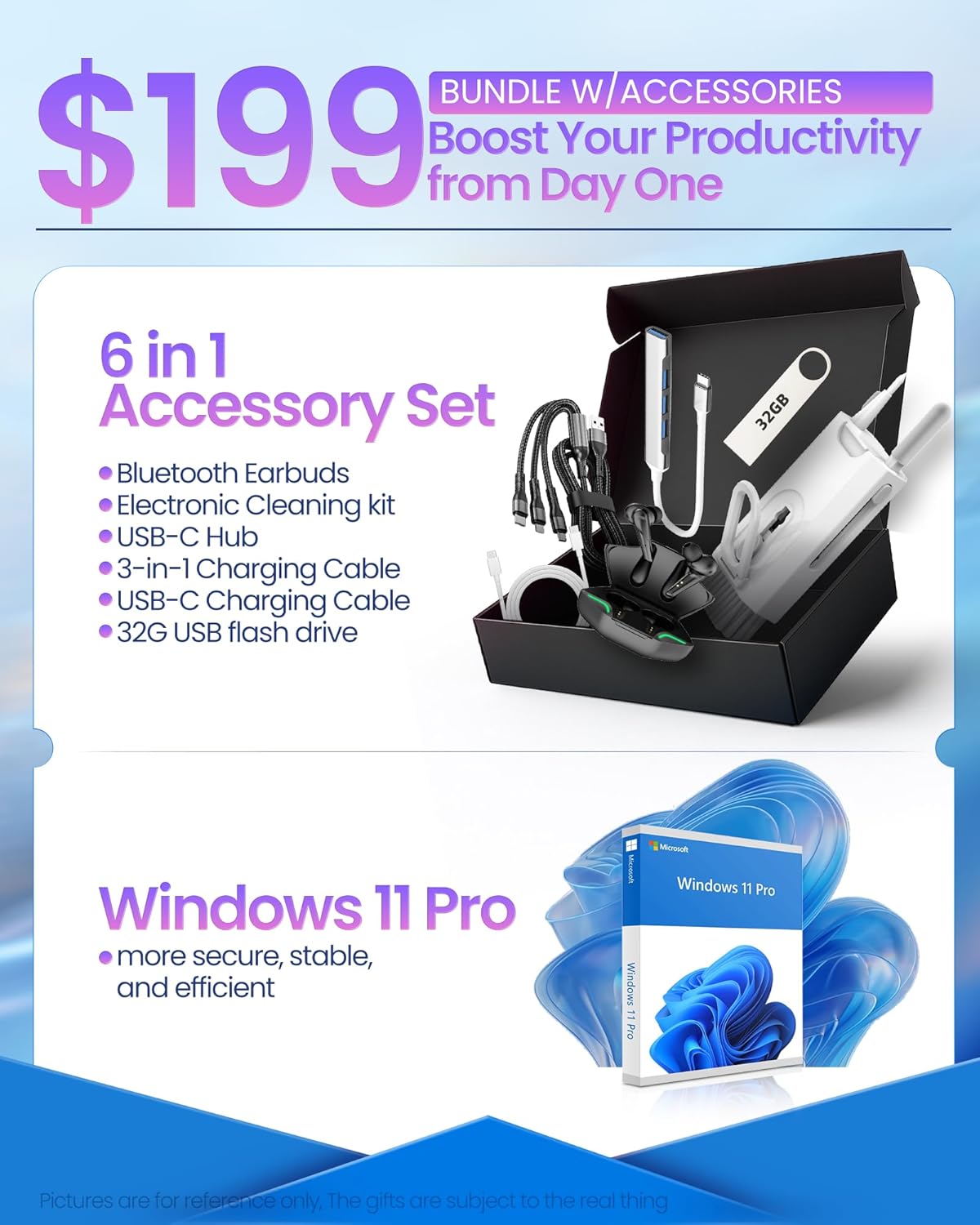
Image: The HP 17.3" laptop showcasing its Full HD display.
Processor and Performance
Equipped with an Intel Core i3-N305 processor (8 cores, up to 3.9 GHz turbo) and Intel UHD Graphics, this laptop delivers efficient performance for daily tasks, schoolwork, and business applications. The 32GB DDR4 RAM ensures smooth multitasking, while the 2TB NVMe SSD provides fast storage access and quick boot times.

Image: The HP laptop running multiple applications, illustrating its multitasking performance.
Copilot AI Key
The dedicated Copilot AI Key provides instant access to AI-powered productivity tools within Windows 11 Pro. Press this key to quickly get assistance with writing, brainstorming, or finding information, streamlining your workflow.

Image: A close-up view of the Copilot key on the HP laptop keyboard.
Ports and Connectivity
The laptop offers a variety of ports for connecting peripherals and external displays:
- 1 x USB 2.0 Type-A
- 1 x USB 3.2 Gen 1 Type-A
- 1 x USB 3.2 Gen 1 Type-C (5 Gbps)
- 1 x HDMI 1.4b
- 1 x Headphone/Mic Combo Jack
- 1 x AC Smart Pin
For wireless connectivity, the laptop supports Wi-Fi 6 and Bluetooth 5.4.

Image: Detailed view of the laptop's side ports.
Product Overview Video
Video: An official overview of the HP 17.3" HD Laptop for Student & Business with Windows 11 Pro, highlighting its features and benefits.
Maintenance
- Cleaning: Use a soft, lint-free cloth to clean the screen and exterior. For stubborn marks, slightly dampen the cloth with water or a screen-safe cleaner. Avoid harsh chemicals.
- Battery Care: To prolong battery life, avoid extreme temperatures. It is recommended to occasionally discharge the battery below 20% and then fully recharge it.
- Software Updates: Regularly install operating system and driver updates to ensure security and optimal performance.
- Storage Management: Periodically clear unnecessary files and applications to maintain sufficient free storage space on your SSD.
- Physical Protection: Transport your laptop in a protective sleeve or bag to prevent scratches and damage.
Troubleshooting
If you encounter issues with your HP laptop, consider the following common solutions:
- Laptop Not Turning On:
- Ensure the power adapter is securely connected to both the laptop and a working power outlet.
- Check if the power outlet is functional by plugging in another device.
- Try holding the power button for 15-20 seconds to perform a hard reset.
- Screen Issues (No Display, Flickering):
- Connect an external monitor to the HDMI port to check if the issue is with the laptop's display or graphics output.
- Restart the laptop.
- Ensure display drivers are up to date via Windows Update or HP Support Assistant.
- Wi-Fi Connectivity Problems:
- Toggle Wi-Fi off and on in Windows settings.
- Restart your router and modem.
- Ensure Wi-Fi drivers are updated.
- Forget the network and reconnect.
- Slow Performance:
- Close unnecessary applications running in the background.
- Check Task Manager for processes consuming high CPU or RAM.
- Ensure Windows and drivers are up to date.
- Run a disk cleanup to free up storage space.
For more advanced troubleshooting or persistent issues, please refer to the HP support website or contact customer service.
Specifications
| Brand | HP |
| Model Name | HP 17 inch Laptop (B5RH2UA#ABA) |
| Operating System | Windows 11 Pro |
| Screen Size | 17.3 inches |
| Screen Resolution | 1920 x 1080 pixels (Full HD) |
| Display Type | IPS, Anti-glare, LED, 178° wide viewing angles |
| Processor | Intel Core i3-N305 (8 cores, up to 3.9 GHz) |
| Graphics | Integrated Intel UHD Graphics |
| RAM | 32GB DDR4 (3200 MHz) |
| Storage | 2TB NVMe SSD |
| Wireless Connectivity | Wi-Fi 6, Bluetooth 5.4 |
| Ports | 1x USB 2.0 Type-A, 1x USB 3.2 Gen 1 Type-A, 1x USB 3.2 Gen 1 Type-C, 1x HDMI 1.4b, 1x Headphone/Mic Combo, 1x AC Smart Pin |
| Battery Life | Up to 9.5 hours (Average: 9 hours) |
| Dimensions (L x W x H) | 15.78" x 10.15" x 0.78" |
| Weight | 4.6 lbs |
| Color | Silver |
Warranty and Support
Your HP 17 FHD Laptop comes with a standard manufacturer's warranty. For detailed information regarding warranty terms, coverage, and duration, please refer to the warranty card included with your product or visit the official HP support website.
For technical assistance, driver downloads, and frequently asked questions, please visit the HP Support website: support.hp.com. You can also contact HP customer service directly for personalized support.