
Introduction
This manual provides detailed instructions for the safe and effective use of your IXROAD 4K Portable Body Camera, Model BC10. Please read this manual thoroughly before operating the device and retain it for future reference.
The IXROAD BC10 is a compact and versatile camera designed for various recording needs, including personal vlogging, POV (Point-of-View) capture, and general portable video recording. It features 4K/60fps video resolution, Electronic Image Stabilization (EIS), a 270° rotatable lens, and support for an external microphone.

Image: The IXROAD 4K Portable Body Camera shown in different application scenarios, including security, vlogging, hiking, skiing, cycling, and meetings.
Product Overview
Package Contents
The standard package for the IXROAD 4K Portable Body Camera BC10 includes:
- IXROAD 4K Body Camera (Model BC10)
- 64GB TF Card
- External Lavalier Microphone
- USB-C Cable
- Rotatable Back Clip
- Lanyard
- Small Pouch
- Bandage
- User Manual (this document)

Image: The IXROAD 4K Portable Body Camera displayed with its accessories, including the external microphone, USB-C cable, 64GB TF card, and mounting clip.
Key Features
- 4K Ultra HD Video Recording: Capture videos at 4K resolution and 60 frames per second (fps) for clear, detailed footage. Supports 2.7K, 1080P, and 720P resolutions.
- Electronic Image Stabilization (EIS): Integrated EIS technology effectively reduces camera shake, ensuring smoother and more stable video recordings.
- 270° Rotatable Lens: The 150° wide-angle lens can be manually rotated up to 270° horizontally, allowing for flexible framing and diverse shooting angles.
- Enhanced Audio: Features both built-in microphones and an included external lavalier microphone for clear audio capture in various environments.
- Wi-Fi App Control: Connect the camera to your smartphone via Wi-Fi using the dedicated app for remote control, live preview, and easy transfer/sharing of media.
- Multi-functional USB-C Port: Supports fast charging, recording while charging, and can function as a webcam when connected to a PC.
- Compact and Lightweight Design: Weighing only 70 grams, the camera is highly portable and easy to carry.
- Versatile Mounting Options: Equipped with a 360° rotatable back clip and a 1/4-inch screw hole for compatibility with standard mounts.
- Multiple Shooting Modes: Includes slow motion, time-lapse, burst photography, and timed photos.
- Night Vision: F2.4 large aperture and Starvis sensor enable relatively clear images in low-light conditions.
Setup
1. Charging the Battery
Before first use, fully charge the camera's built-in 1000 mAh lithium-ion battery. Connect the camera to a power source using the provided USB-C cable. The charging indicator will show the charging status. A full charge typically provides 1.5 to 2 hours of recording time.
2. Inserting the TF Card
Locate the TF card slot on the camera. Insert the included 64GB TF card with the gold contacts facing the correct direction until it clicks into place. Ensure the camera is powered off before inserting or removing the TF card.
3. Attaching the External Microphone (Optional)
For enhanced audio quality, connect the external lavalier microphone to the camera's designated microphone port. The camera allows switching between internal and external microphones in the settings.

Image: The IXROAD 4K Portable Body Camera shown with the external lavalier microphone connected and the 360° rotatable back clip attached.
4. Mounting the Camera
Utilize the 360° rotatable back clip to attach the camera to clothing, backpacks, or other suitable surfaces. The 1/4-inch screw hole at the bottom allows for mounting on tripods or other standard camera accessories.
5. App Installation and Connection
Download the free IXROAD app from your smartphone's app store (App Store for iOS, Google Play for Android). Power on the camera and enable Wi-Fi in the camera settings. On your smartphone, connect to the camera's Wi-Fi network. Once connected, you can control the camera remotely, view live footage, and manage files through the app.

Image: A user interacting with the IXROAD camera via a smartphone app, demonstrating remote control and file management capabilities.
Operating Instructions
Power On/Off
- To power on: Press and hold the power button until the screen illuminates.
- To power off: Press and hold the power button until the screen turns off.
Basic Recording
- Start Recording: Press the record button once to begin video recording.
- Stop Recording: Press the record button again to stop recording.
- Take Photo: In photo mode, press the shutter button to capture a still image.
Lens Rotation
The camera's lens can be manually rotated up to 270° horizontally. Adjust the lens to achieve the desired viewing angle for your recording. The screen will display the live view as you rotate the lens.

Image: A hand rotating the lens of the IXROAD 4K Portable Body Camera, illustrating its 270-degree rotation capability.
Electronic Image Stabilization (EIS)
The camera features built-in EIS to minimize vibrations and produce smoother footage, especially during movement. Ensure EIS is enabled in the camera settings for optimal stability.
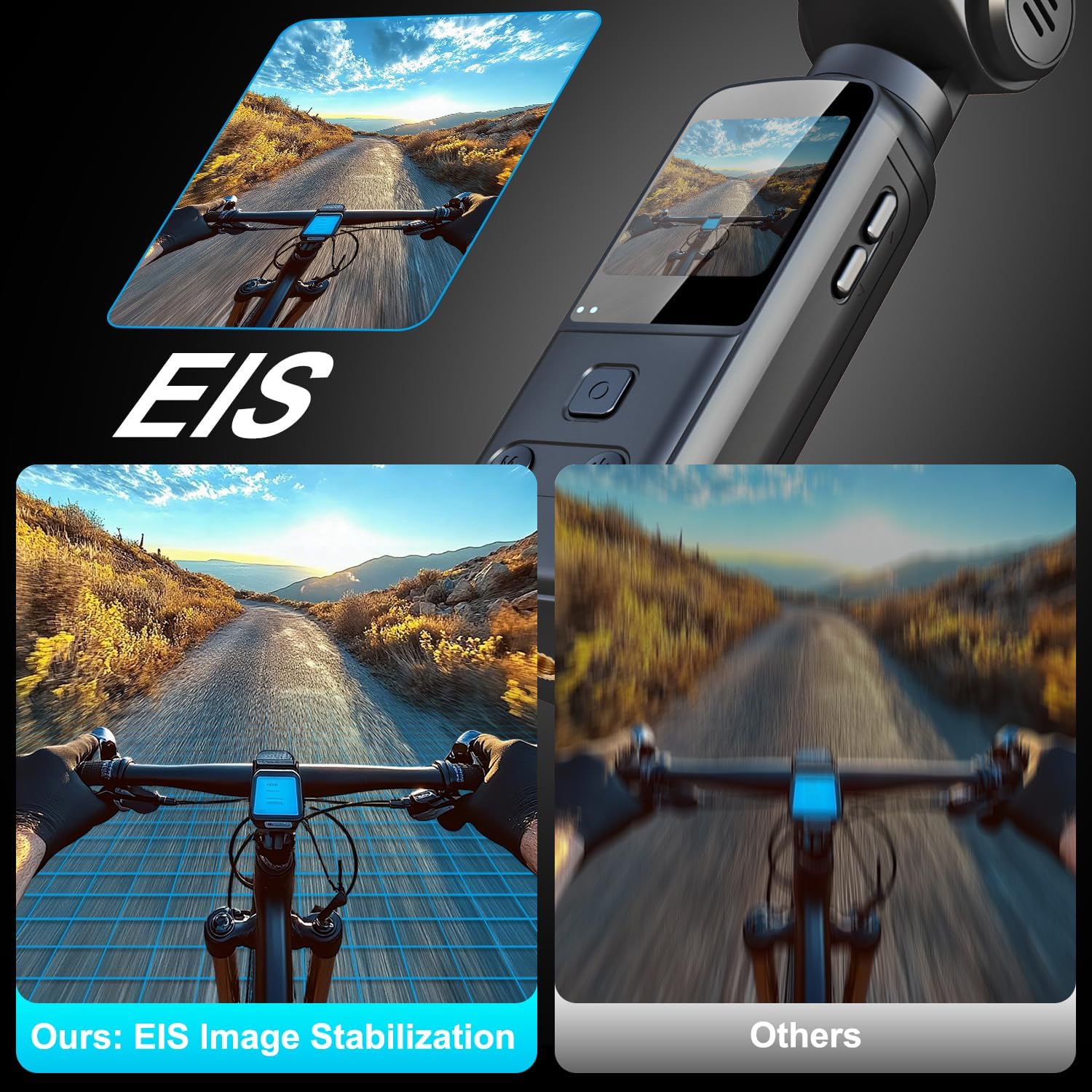
Image: A visual comparison showing the effect of EIS, with a stable image on the left ("Ours: EIS Image Stabilization") and a blurry image on the right ("Others") from a cycling perspective.
Video Resolution Settings
Navigate through the camera's menu to select your preferred video resolution: 4K/60fps, 2.7K, 1080P, or 720P. Higher resolutions consume more storage space and battery life.
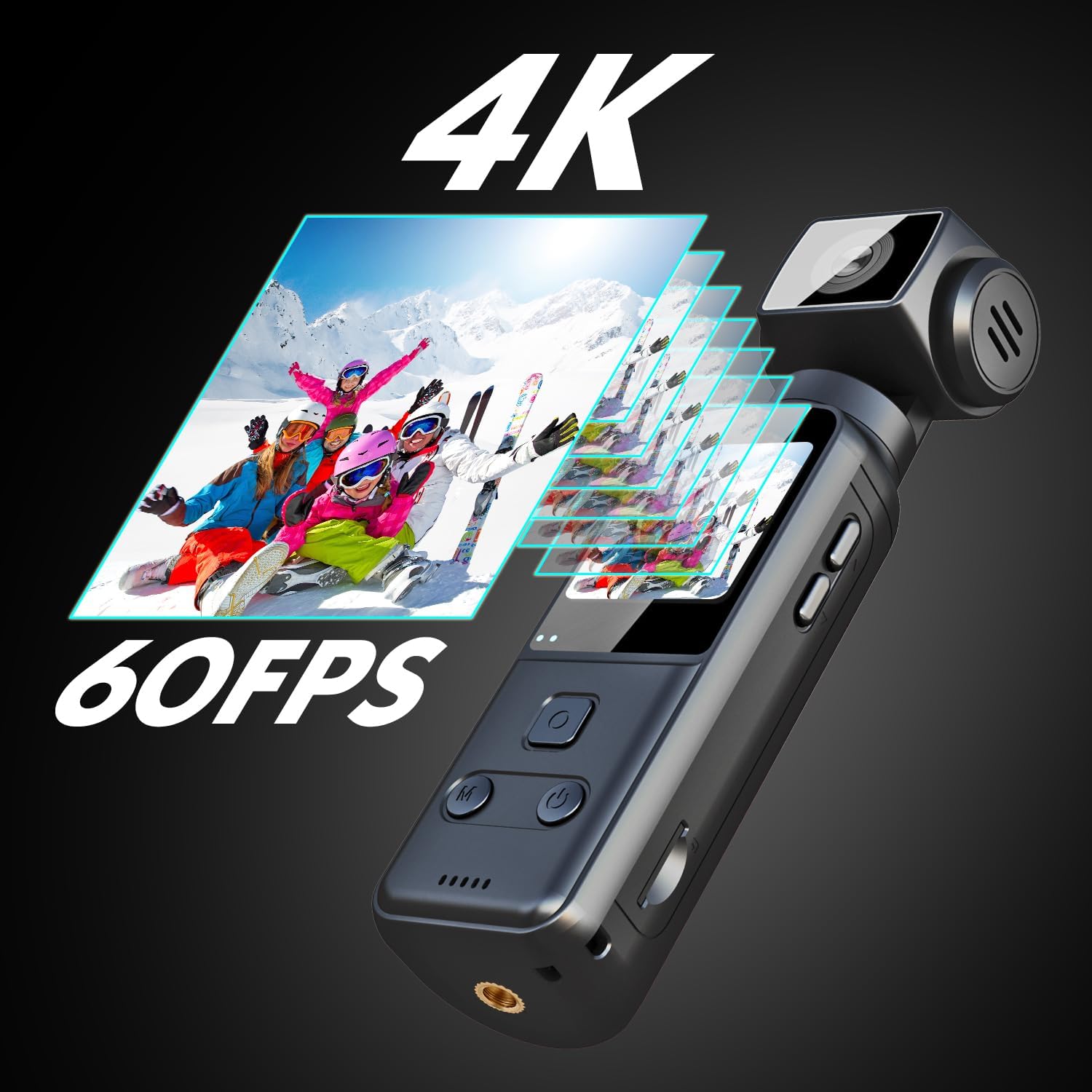
Image: A graphic demonstrating the camera's 4K 60FPS video capability, showing multiple layers of 4K video frames.
Special Recording Modes
- Slow Motion: Records video at a higher frame rate to be played back slower, capturing detailed movement.
- Time-Lapse: Captures a series of still images over an extended period and stitches them into a video, showing changes over time.
- Burst Photo: Takes multiple photos in quick succession (up to 5 photos per second) to capture fast-moving action.
- Loop Recording: Automatically overwrites the oldest video files when the storage card is full, ensuring continuous recording.

Image: A visual representation of time-lapse video, showing a city skyline transitioning from day to night over several hours.

Image: A cat chasing a butterfly, illustrating the detail captured by slow-motion video.

Image: A snowboarder performing a trick, captured in a sequence of burst photos.

Image: A circular graphic illustrating loop recording, showing various scenes being continuously recorded and overwritten.
Webcam Functionality
Connect the camera to your PC or laptop using the USB-C cable. The camera can be selected as a webcam in your computer's settings or video conferencing software.
Maintenance
- Cleaning: Use a soft, dry cloth to clean the camera body. For the lens, use a specialized lens cleaning cloth and solution. Avoid abrasive materials or harsh chemicals.
- Storage: Store the camera in a cool, dry place away from direct sunlight and extreme temperatures.
- Battery Care: To prolong battery life, avoid fully discharging the battery frequently. If storing for extended periods, charge the battery to approximately 50%.
- TF Card Management: Regularly back up important files from the TF card to a computer or cloud storage. Format the TF card periodically to maintain optimal performance.
- Water Resistance: This camera is not waterproof. Avoid exposing it to water or high humidity.
Troubleshooting
| Problem | Possible Cause | Solution |
|---|---|---|
| Camera does not power on. | Low battery; faulty battery; power button issue. | Charge the battery fully. If the issue persists, contact customer support. |
| Cannot record video/take photos. | TF card full; TF card error; no TF card inserted. | Check TF card storage. Format or replace the TF card. Ensure TF card is properly inserted. |
| Video footage is shaky. | EIS is disabled; excessive movement. | Enable EIS in camera settings. Minimize sudden movements during recording. |
| Poor audio quality. | Internal microphone used in noisy environment; external microphone not connected properly. | Ensure external microphone is connected and selected in settings. Reduce ambient noise. |
| Cannot connect to Wi-Fi app. | Wi-Fi not enabled on camera; incorrect password; app issue. | Enable Wi-Fi on camera. Verify Wi-Fi password. Restart camera and smartphone. Reinstall app if necessary. |
Specifications
| Feature | Detail |
|---|---|
| Brand | IXROAD |
| Model | BC10 |
| Color | Black |
| Product Type | Palm-sized Camera |
| Screen Size | 1.33 inches |
| Image Stabilization | Digital (EIS) |
| Video Resolution | 4K/60fps, 2.7K, 1080P, 720P |
| Effective Still Resolution | 16 Megapixels |
| Lens Aperture | f/2.4 |
| Lens Rotation | 270° Manual Horizontal Rotation |
| Focal Length | 28mm |
| Focus Type | Fixed Focus |
| Connectivity | USB, Wi-Fi |
| Supported Storage | Micro SD (64GB TF Card included) |
| Battery Type | Lithium-ion (1000 mAh) |
| Battery Life | Approx. 1.5 - 2 hours (depending on usage) |
| Product Dimensions (L x W x H) | 2.5 x 3.2 x 12.3 cm |
| Item Weight | 70 Grams |
| Waterproof Level | Not Waterproof |
| Included Components | Camera, 64GB TF Card, Back Clip, Lanyard, Small Pouch, USB-C Cable, External Microphone |
Warranty and Support
The IXROAD 4K Portable Body Camera BC10 comes with a 30-day refund policy and a 12-month manufacturer's warranty. For any product-related inquiries, technical assistance, or warranty claims, please contact IXROAD customer support. 24-hour online service is available.
Please refer to your purchase documentation for specific contact details or visit the official IXROAD website for support information.
Note: No official product videos from the seller were available in the provided data to embed in this manual.


