Introduction
The ChefsTemp ProTemp S1 Smart Grill Gauge Thermometer Hub (BGE Version) is designed to upgrade your Big Green Egg or Primo XL Oval grill into a high-tech cooking machine. This device allows for precise temperature monitoring and control with built-in Wi-Fi and Bluetooth connectivity, enabling remote tracking of ambient grill temperatures and internal meat temperatures. It supports up to 4 wireless probes and can integrate with the optional ChefsTemp Breezo Fan for automated airflow control, ensuring consistent cooking results.

Image: The ChefsTemp ProTemp S1 Smart Grill Gauge Thermometer Hub, displaying ambient and internal temperatures.
Setup
1. Initial Charging
Before first use, fully charge the ProTemp S1 Main Unit for approximately 4 hours using the provided USB-A to USB-C charging cable and charging block. Ensure the device is fully charged for optimal performance.
2. S1 Installation on Grill
The ProTemp S1 BGE Version is designed to replace the existing dial gauge on Big Green Egg or Primo XL Oval grills. No tools are required for this process.
- Carefully remove your grill's existing temperature gauge.
- Insert the S1 Base Unit into the opening. Secure it from underneath with the provided wing nut.
- Attach the S1 Main Unit to the S1 Base Unit. It should slide in and twist securely into place.

Image: A person installing the ChefsTemp ProTemp S1 onto the lid of a Big Green Egg grill, replacing the traditional gauge.
3. Breezo Fan Installation (Optional)
If using the optional ChefsTemp Breezo Fan, follow these steps:
- Open the bottom vent of your grill.
- Attach the Breezo fan to the mounting plate.
- Insert the Breezo fan with the mounting plate into the bottom vent opening. Secure it by closing the vent to hold it in place.
- Connect the Breezo fan to power using the provided USB-C to USB-C cable (for power bank use) or USB-A to USB-C cable (for wall adapter).
- For low and slow cooking, ensure the grill's bottom vent is almost completely closed, allowing only minimal airflow for the fan to control.

Image: The ChefsTemp ProTemp S1 thermometer on the grill lid and the Breezo fan attached to the bottom vent.
4. App Download and Pairing
Download the ChefsTemp app from your device's app store. Ensure your phone is connected to a 2.4GHz Wi-Fi network, as the S1 does not support 5GHz networks.
- Open the ChefsTemp app and grant all necessary permissions.
- In the app, select "Add Device" and choose "ProTemp S1".
- Follow the on-screen instructions to activate Bluetooth on your S1 and pair it with your phone.
- Once Bluetooth is connected, proceed to the Wi-Fi setup screen. Select your 2.4GHz Wi-Fi network and enter the password.
Video: A step-by-step guide on how to pair your S1 device with Wi-Fi in the ChefsTemp app.
5. Firmware Update
After successful pairing, check for firmware updates for both your S1 and Breezo fan (if applicable) within the app's settings to ensure you have the latest features and bug fixes.
6. Adding Wireless Probes (Optional)
The ProTemp S1 supports up to 4 wireless probes. To add a probe:
- In the ChefsTemp app, navigate to "My Connections" and select "Add New Probe" under the "MY PAIRED PROBES" section.
- The app will search for nearby probes. Select your probe when it appears.
- Ensure probes are fully charged for optimal Bluetooth connection.
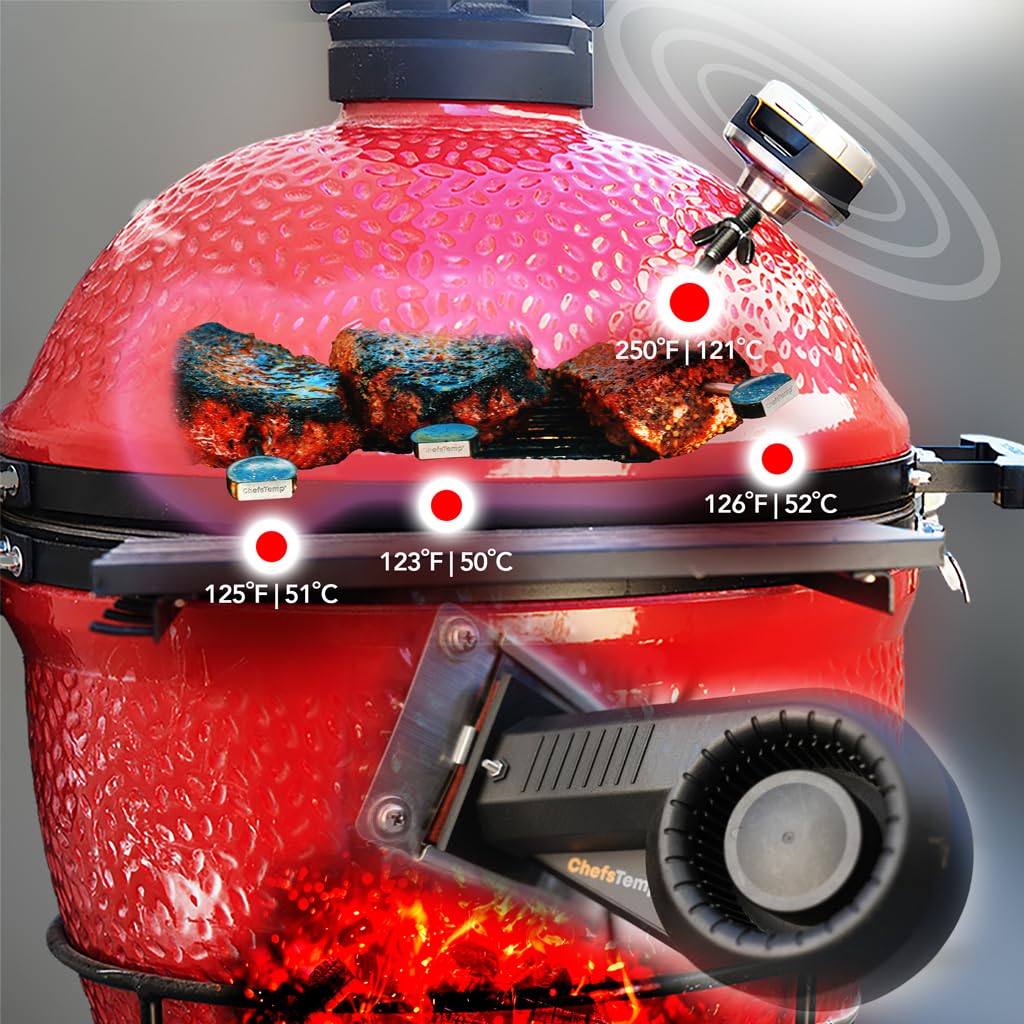
Image: Multiple wireless probes inserted into cuts of meat cooking inside a Kamado-style grill.
Operating
1. Temperature Monitoring
The S1 displays both ambient grill temperature and internal probe temperatures. You can monitor these directly on the S1's large digital display or remotely via the ChefsTemp app on your smartphone or smartwatch.

Image: The ChefsTemp ProTemp S1 thermometer displaying temperatures, alongside a smartphone and smartwatch showing the ChefsTemp app interface.
2. App Control and Alarms
Use the ChefsTemp app to set target temperatures for your grill and individual probes. Configure high and low temperature alarms to receive real-time alerts on your phone or watch, ensuring your cook stays within desired parameters.

Image: A person monitoring grill temperatures and settings using the ChefsTemp app on a smartphone.
3. Breezo Fan Control (Optional)
If using the Breezo fan, the app allows you to set a target ambient temperature. The Breezo fan will automatically adjust air intake to maintain this temperature, providing precise and stable heat control for your grill.
Video: A demonstration of how to set up and use the ChefsTemp ProTemp S1 and Breezo fan for precise temperature control on a grill.
4. Multi-Device Monitoring
The ChefsTemp app allows you to monitor pit temperatures across up to 3 S1 devices simultaneously. You can seamlessly switch between devices with a swipe on the app screen.
Maintenance
1. Charging
The S1 Main Unit has large rechargeable batteries, lasting up to 40 hours with Wi-Fi or 300 hours with Bluetooth only. Recharge using a 5V2A DC adapter. Do not use an AC adapter or an adapter with more than 20W for charging.
2. Cleaning
The S1 Main Unit has an IP54 water-resistance rating, protecting against splashing or light rain. It should not be exposed to heavy rain. The S1 Base is completely water-resistant. To clean, wipe the units with a damp cloth. Do not soak.
Troubleshooting
If you experience connectivity issues or unstable readings, consider the following:
1. Bluetooth Disconnection (Probe to Base)
Ensure your probes are fully charged. Probes can only pair with one device at a time. If a probe is paired with another device, disconnect it and re-pair it with your S1. Check the contact points on the probe charger for a secure connection.
2. Wi-Fi Disconnection (Base to Phone/Router)
Verify your phone and S1 are connected to a 2.4GHz Wi-Fi network. The S1 does not support 5GHz networks. If the Wi-Fi icon on your S1 is flashing, it indicates an unstable connection. Try restarting the app or your phone/base unit. Move the S1 closer to your router (ideally under 10 meters with no obstacles). Walls, metal objects, and other electronics can cause interference. An outdoor Wi-Fi access point may be necessary for extended range.
Video: Troubleshooting guide for app disconnected notifications and missing temperature readings on ChefsTemp devices.
3. Unstable Temperature Readings
If probe temperatures are flickering or disappearing on the S1 screen, ensure the device is not in "loop mode" (cycling through all probes). Refer to specific ChefsTemp videos for details on this feature.
4. Reset Function
If needed, you can reset your S1 by inserting a small pin (like a paper clip or toothpick) into the reset button hole on the bottom of the S1. Hold it for a moment until the screen resets.
Video: Instructions on how to use the reset function on the ChefsTemp S1 device.
Specifications
- Package Dimensions: 7.6 x 5.63 x 4.49 inches; 1.21 Pounds
- Item Model Number: BGE Version
- Batteries: 1 Nonstandard Battery batteries required. (included)
- Manufacturer: ChefsTemp
- Brand: ChefsTemp
- Special Feature: Alarm, App Companion, Large Display, Programmable, Wi-Fi Support
- Color: black and silver
- Included Components: ProTemp S1 Main Unit, ProTemp S1 Base Unit, User Manual, Type-C charging cable
- Outer Material: Stainless Steel
- Specification Met: FCC
- Display Type: Digital
- Connectivity Technology: Bluetooth, Wi Fi
- Product Care Instructions: Do Not Soak, Wipe Clean
Warranty and Support
ChefsTemp offers lifetime customer support for the ProTemp S1. If you encounter any issues with the product, please reach out to their team for quick and satisfactory resolution. They are committed to making things right, with no hassle or expiration worries.


