
1. Introduction
This manual provides detailed instructions for the RK ROYAL KLUDGE RK M30 Wireless Gaming Mouse. Please read this guide thoroughly to ensure proper setup, operation, and maintenance of your device. This mouse offers tri-mode connectivity, a high-precision sensor, and programmable buttons for an optimized user experience.
2. Package Contents
The RK ROYAL KLUDGE RK M30 Wireless Gaming Mouse package includes the following items:
- RK M30 Gaming Mouse
- Wireless Dongle
- User Manual
- USB-C Cable
- PTFE Mouse Feet
3. Product Overview
The RK M30 is an ultra-lightweight gaming mouse designed for precision and comfort. It features a PAW3311 sensor, tri-mode connectivity, and customizable buttons.
- Ergonomic Design: The mouse is shaped to fit comfortably in your hand, reducing strain during extended use.
- Ultra-Lightweight: Weighing only 43g, it allows for quick and effortless movements.
- High-Precision Sensor: Equipped with a PAW3311 sensor for accurate tracking.
- Durable Switches: Built with switches rated for 50 million clicks.
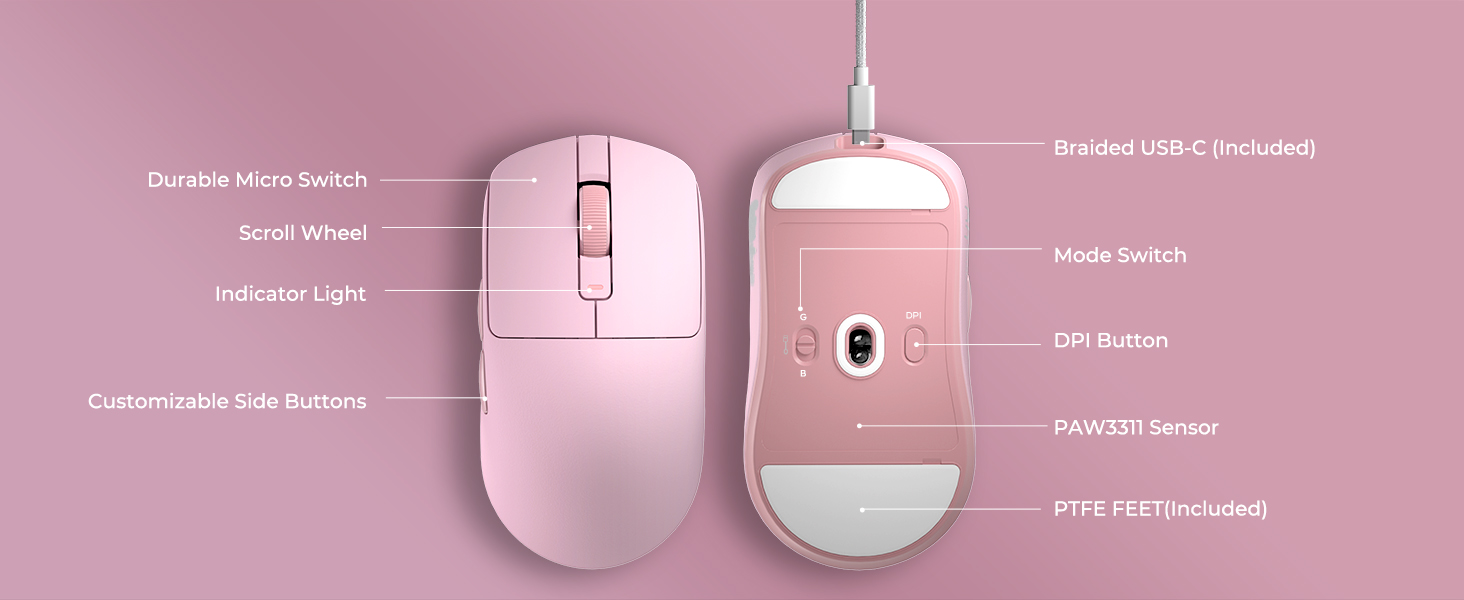
Figure 3.1: Labeled diagram of the RK M30 Wireless Gaming Mouse components (top and bottom views).

Figure 3.2: Mouse dimensions and supported grip styles.
4. Setup
4.1 Charging the Mouse
The RK M30 mouse is equipped with a rechargeable battery. To charge:
- Connect the included USB-C cable to the mouse's front port.
- Connect the other end of the USB-C cable to a power source (e.g., computer USB port, USB wall adapter).
- The indicator light on the mouse will show the charging status.
4.2 Connectivity Modes
The RK M30 supports three connection modes: 2.4G Wireless, Bluetooth 5.1, and USB-C Wired. Use the mode switch on the bottom of the mouse to select your preferred connection.

Figure 4.1: Tri-mode connection options for the RK M30 mouse.

Figure 4.2: Bottom view of the mouse with mode switch and DPI button.
4.2.1 2.4G Wireless Mode
- Insert the wireless dongle into an available USB port on your computer.
- Slide the mode switch on the bottom of the mouse to the 'G' position (2.4G wireless).
- The mouse should connect automatically.
4.2.2 Bluetooth 5.1 Mode
- Slide the mode switch on the bottom of the mouse to the 'B' position (Bluetooth).
- Long press the DPI button on the bottom of the mouse to initiate pairing mode. The indicator light will flash.
- On your computer or device, search for Bluetooth devices and select "RK M30" to pair.
4.2.3 USB-C Wired Mode
- Connect the included USB-C cable to the mouse and to a USB port on your computer.
- Slide the mode switch on the bottom of the mouse to the middle position (wired).
- The mouse will function as a wired device and charge simultaneously.
5. Operating Instructions
5.1 DPI Adjustment
The mouse features 6 adjustable DPI levels for precise control:
- Press the DPI button on the bottom of the mouse to cycle through the preset DPI settings (800, 1600, 3200, 6400, 12800, 24000).
- Each DPI level is indicated by a specific color on the indicator light.
- For custom DPI settings, use the official RK software.
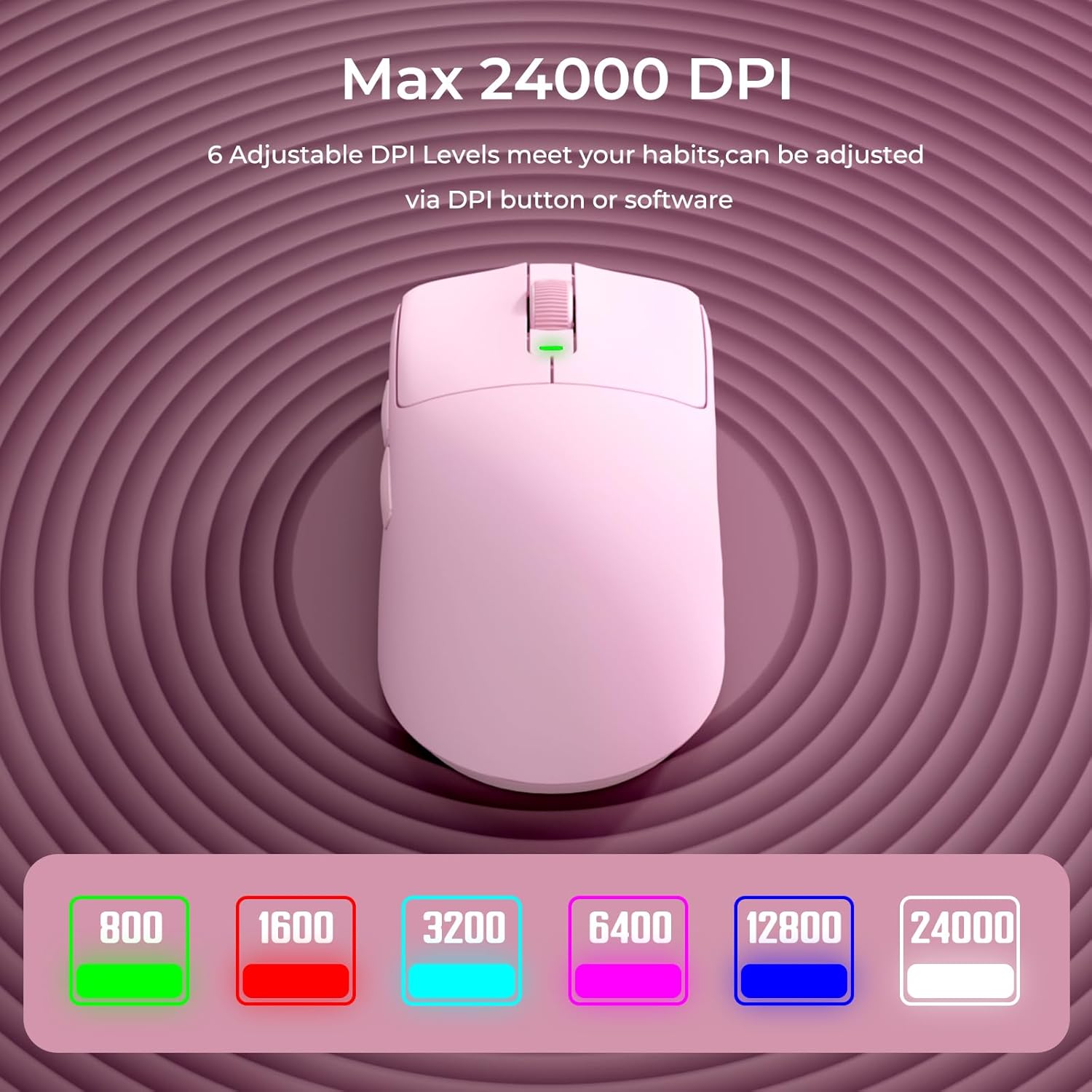
Figure 5.1: Adjustable DPI levels and their corresponding indicator light colors.
5.2 Polling Rate
The mouse supports a 1000Hz polling rate in 2.4G wireless and wired modes, providing a 1ms response time. Polling rate can be adjusted via software to 125Hz, 500Hz, 750Hz, or 1000Hz.

Figure 5.2: High polling rate for responsive performance.
5.3 Programmable Buttons and Custom Software
The RK M30 features 5 programmable buttons. To customize these buttons:
- Download and install the official RK software from the manufacturer's website.
- Use the software to assign macros, shortcuts, or DPI shifts to the buttons according to your preferences.

Figure 5.3: RK M30 custom software interface.
6. Battery Management
The RK M30 is equipped with a 250mAh rechargeable battery.
- A full charge provides approximately 24 hours of use in default mode (1000Hz report rate).
- Battery life can extend up to 36 hours at a 125Hz report rate, adjustable via software.
- Charge the mouse when the indicator light shows low battery or when performance degrades.

Figure 6.1: Battery life indication for the RK M30 mouse.
7. Maintenance
- Cleaning: Use a soft, dry cloth to clean the mouse surface. Avoid using harsh chemicals or abrasive materials.
- Storage: Store the mouse in a dry environment away from extreme temperatures.
- PTFE Feet: The included PTFE mouse feet are designed for smooth gliding. Replace them if they show significant wear to maintain optimal performance.
8. Troubleshooting
- Mouse not responding:
- Ensure the mouse is charged.
- Check the mode switch on the bottom of the mouse to confirm the correct connection mode (2.4G, Bluetooth, or Wired) is selected.
- For 2.4G wireless, ensure the dongle is securely inserted into a USB port. Try a different USB port.
- For Bluetooth, ensure the mouse is in pairing mode and correctly paired with your device.
- For wired mode, ensure the USB-C cable is securely connected.
- DPI changes unexpectedly:
- This can sometimes occur due to accidental presses of the DPI button.
- If the issue persists, check the custom software for any conflicting settings or update the mouse firmware if available.
- Poor tracking or lag:
- Ensure the mouse sensor is clean and free of debris.
- Use on a suitable mouse pad or surface.
- For wireless modes, ensure there is no significant interference from other wireless devices.
- Check battery level; low battery can affect performance.
- Battery life shorter than expected:
- Battery life can vary based on usage patterns, polling rate settings, and environmental factors.
- Ensure the mouse is fully charged before use.
- Lowering the polling rate via software can extend battery life.
9. Specifications
| Feature | Detail |
|---|---|
| Product Dimensions | 4.71 x 2.47 x 0.04 inches |
| Item Weight | 1.45 ounces (43g) |
| Model Number | RKM30 |
| Batteries | 1 A battery required (included) |
| Connectivity Technology | 2.4G Wireless, Bluetooth 5.1, USB-C Wired |
| Special Features | Ergonomic Design, Lightweight, Programmable Buttons, Rechargeable |
| Movement Detection Technology | Optical (PAW3311 Sensor) |
| Max DPI | 24,000 |
| Polling Rate | Up to 1000Hz |
| Battery Capacity | 250mAh |
10. Warranty and Support
For warranty information or technical support, please refer to the official RK ROYAL KLUDGE website or contact their customer service directly. Keep your purchase receipt for warranty claims.