
1. Introduction
This manual provides essential information for setting up, operating, maintaining, and troubleshooting your jumper 2-in-1 16-inch Convertible Laptop J1. Please read this manual thoroughly to ensure proper use and to maximize the lifespan of your device.
The jumper J1 is a versatile 2-in-1 laptop featuring a 16-inch IPS FHD 360-degree touchscreen, powered by an Intel Celeron N processor. It includes 16GB RAM, 640GB storage (512GB SSD + 128GB eMMC), a fingerprint reader for secure access, a backlit keyboard, and WiFi 6 connectivity. Its convertible design allows for multiple usage modes, adapting to various tasks and environments.

Image 1.1: The jumper 2-in-1 16-inch Convertible Laptop J1, showcasing its touchscreen and fingerprint reader features.
2. Setup
2.1 Unboxing and Initial Inspection
Carefully remove the laptop and all accessories from the packaging. Verify that all components listed in the 'What's in the Box' section are present and undamaged. The package should include the laptop, power adapter, and this instruction manual.
2.2 Powering On and Initial Charge
- Connect the power adapter to the DC-in port on the laptop and then to a power outlet.
- Allow the laptop to charge for at least 30 minutes before initial use, or until the battery indicator shows sufficient charge.
- Press the power button, typically located on the side or top right of the keyboard, to turn on the laptop.
2.3 Windows 11 Home Setup
Follow the on-screen instructions to complete the initial setup of Windows 11 Home. This process typically involves selecting your region, language, connecting to a Wi-Fi network, and creating a user account.
2.4 Fingerprint Reader Setup
For enhanced security, set up the fingerprint reader:
- Navigate to Windows Settings > Accounts > Sign-in options.
- Locate 'Fingerprint Recognition (Windows Hello)' and follow the prompts to register your fingerprints.

Image 2.1: The integrated fingerprint reader located on the side of the laptop for quick and secure login.
2.5 Connecting to Wi-Fi
To connect to a wireless network:
- Click the Wi-Fi icon in the taskbar.
- Select your desired network from the list and click 'Connect'.
- Enter the network password if prompted. The laptop supports WiFi 6 (802.11ax) for faster and more stable connections.
3. Operating Instructions
3.1 Convertible Modes
The 360-degree hinge allows the laptop to transform into four distinct modes:
- Laptop Mode: Traditional laptop setup for typing and productivity.
- Stand Mode: Fold the keyboard back to prop up the screen, ideal for presentations or media viewing.
- Tent Mode: Position the laptop like a tent, suitable for touch-based interactions in confined spaces.
- Tablet Mode: Fold the keyboard completely behind the screen for a full tablet experience.

Image 3.1: The laptop demonstrating its flexibility across Laptop, Stand, Tablet, and Tent modes.
3.2 Touchscreen Functionality
The 16-inch IPS display features a 1920x1200 resolution and supports multi-touch gestures. Use standard touch gestures such as tap, swipe, pinch-to-zoom, and two-finger scroll for navigation and interaction.

Image 3.2: The laptop in Stand Mode, suitable for sharing content or presentations.
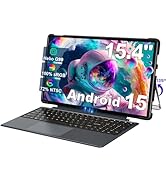
Image 3.3: The laptop in Tablet Mode, offering a comfortable experience for drawing or entertainment.
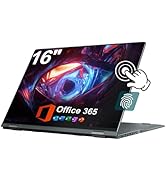
Image 3.4: The laptop in Tent Mode, ideal for hands-free viewing or yoga sessions.
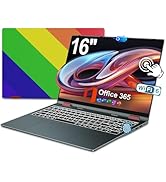
Image 3.5: The laptop in traditional Laptop Mode, suitable for work meetings and video conferencing.
3.3 Keyboard and Backlight
The laptop features a full-size keyboard with a backlight. To activate or deactivate the keyboard backlight, press the Fn + Spacebar keys simultaneously.

Image 3.6: Illustration of activating the backlit keyboard using the Fn + Spacebar key combination.
3.4 Hideable Camera
The integrated camera includes a physical toggle for privacy. Slide the switch next to the camera lens to cover or uncover it, ensuring your privacy when the camera is not in use.

Image 3.7: The hideable camera feature, showing the physical toggle to cover the lens for privacy.
3.5 Storage and Memory
The laptop is equipped with 16GB RAM for efficient multitasking and 640GB of storage, comprising a 512GB SSD and 128GB eMMC. The SSD is upgradeable up to 2TB, allowing for significant expansion of storage capacity.

Image 3.8: Visual representation of the laptop's 16GB RAM and 640GB storage (512GB SSD + 128GB eMMC), highlighting the upgradeable SSD slot.
3.6 Ports and Connectivity
The laptop offers various ports for external device connectivity:
- 3 x USB 3.0 Ports
- 1 x HDMI Port
- 1 x Type-C Port (Full Featured)
- 1 x Micro SD Card Slot
- 1 x Headphone Port
- DC-in Port for power
Bluetooth connectivity is also available for wireless peripherals.

Image 3.9: Overview of the laptop's various input/output ports for connecting external devices.
3.7 Battery Management
The laptop is equipped with a 53.2WH battery, providing up to 8 hours of usage on a single charge under typical conditions. To optimize battery life:
- Adjust screen brightness.
- Close unnecessary applications.
- Utilize Windows power-saving modes.

Image 3.10: Visual representation of the laptop's battery capacity and estimated usage time.
4. Maintenance
4.1 Cleaning the Device
To maintain the laptop's appearance and functionality:
- Use a soft, lint-free cloth for cleaning the screen and chassis.
- For stubborn marks, slightly dampen the cloth with water or a screen-safe cleaner.
- Avoid harsh chemicals, abrasive materials, or excessive moisture.
- Regularly clean the keyboard and touchpad to remove dust and debris.
4.2 Software Updates
Keep your operating system and drivers updated to ensure optimal performance and security. Windows Update can be accessed via Settings > Windows Update.
4.3 Storage Optimization
Periodically manage your storage to free up space and improve performance:
- Delete unnecessary files and applications.
- Utilize cloud storage for large files.
- Run Windows Disk Cleanup utility.
4.4 Cooling System
The laptop features a bottom-mounted fan for efficient cooling. Ensure that the vents are not obstructed during use to prevent overheating and maintain optimal performance.

Image 4.1: The laptop's cooling system, showing the bottom vents designed for heat dissipation.
5. Troubleshooting
This section addresses common issues you might encounter. For more complex problems, please refer to the support section.
5.1 Power Issues
- Laptop does not turn on: Ensure the power adapter is securely connected and the outlet is functional. Try a different power outlet. If the battery is completely drained, allow it to charge for a period before attempting to power on.
- Battery not charging: Verify the power adapter is correctly connected to both the laptop and the power source. Check for any damage to the adapter or cable.
5.2 Display Problems
- Screen is blank: Ensure the laptop is powered on. Try adjusting the screen brightness. If an external monitor is connected, disconnect it to see if the internal display activates.
- Touchscreen unresponsive: Restart the laptop. Ensure the screen is clean and free of debris. Check for any pending system updates that might include touchscreen driver fixes.
5.3 Connectivity Issues
- Cannot connect to Wi-Fi: Ensure Wi-Fi is enabled in Windows settings. Restart your router and the laptop. Verify the Wi-Fi password.
- Bluetooth device not connecting: Ensure Bluetooth is enabled on both the laptop and the device. Make sure the device is in pairing mode and within range.
5.4 Performance Issues
- Laptop is slow: Close unnecessary applications. Check Task Manager for processes consuming high CPU or RAM. Ensure sufficient free storage space. Run a malware scan.
- Overheating: Ensure cooling vents are clear. Use the laptop on a hard, flat surface. Consider reducing workload during extended use.
6. Specifications
The following table outlines the key technical specifications of the jumper 2-in-1 16-inch Convertible Laptop J1:
| Feature | Specification |
|---|---|
| Model Name | J1 |
| Screen Size | 16 Inches |
| Screen Resolution | 1920 x 1200 pixels (FHD) |
| Processor | Intel Celeron N (up to 1.7 GHz, 4 Cores) |
| RAM | 16 GB DDR |
| Hard Drive | 640 GB SSD (512GB SSD + 128GB eMMC, SSD upgradeable to 2TB) |
| Graphics Coprocessor | Intel UHD Graphics |
| Operating System | Windows 11 Home |
| Wireless Type | 2.4 GHz Radio Frequency, 5 GHz Radio Frequency, 802.11ax (WiFi 6) |
| USB Ports | 3 x USB 3.0 Ports |
| Battery Life | Up to 8 Hours (53.2WH) |
| Item Weight | 5.05 pounds |
| Product Dimensions | 14.37 x 9.6 x 0.79 inches |
| Color | Gray |
| Special Features | 360° Rotation, Backlit Keyboard, Fingerprint Reader, Hideable Camera |
7. Warranty and Support
7.1 Warranty Information
Your jumper J1 laptop comes with a 1-year limited warranty from the date of purchase, covering manufacturing defects. Please retain your proof of purchase for warranty claims. The warranty does not cover damage caused by misuse, accidents, unauthorized repairs, or normal wear and tear.
7.2 Customer Support
For technical assistance, warranty inquiries, or further support, please contact jumper customer service through the official jumper website or your point of purchase. Have your model number (J1) and purchase details ready when contacting support.