
1. Introduction
Thank you for choosing the Jufodrca 9.7-inch HD Touch Screen Car Radio. This system is designed to enhance your driving experience with advanced features and seamless integration into compatible Cadillac models. This manual provides essential information for installation, operation, and maintenance of your new car radio.
Compatibility: This car radio is compatible with Cadillac ATS, SRX, XTS, and CTS models manufactured between 2013 and 2018.
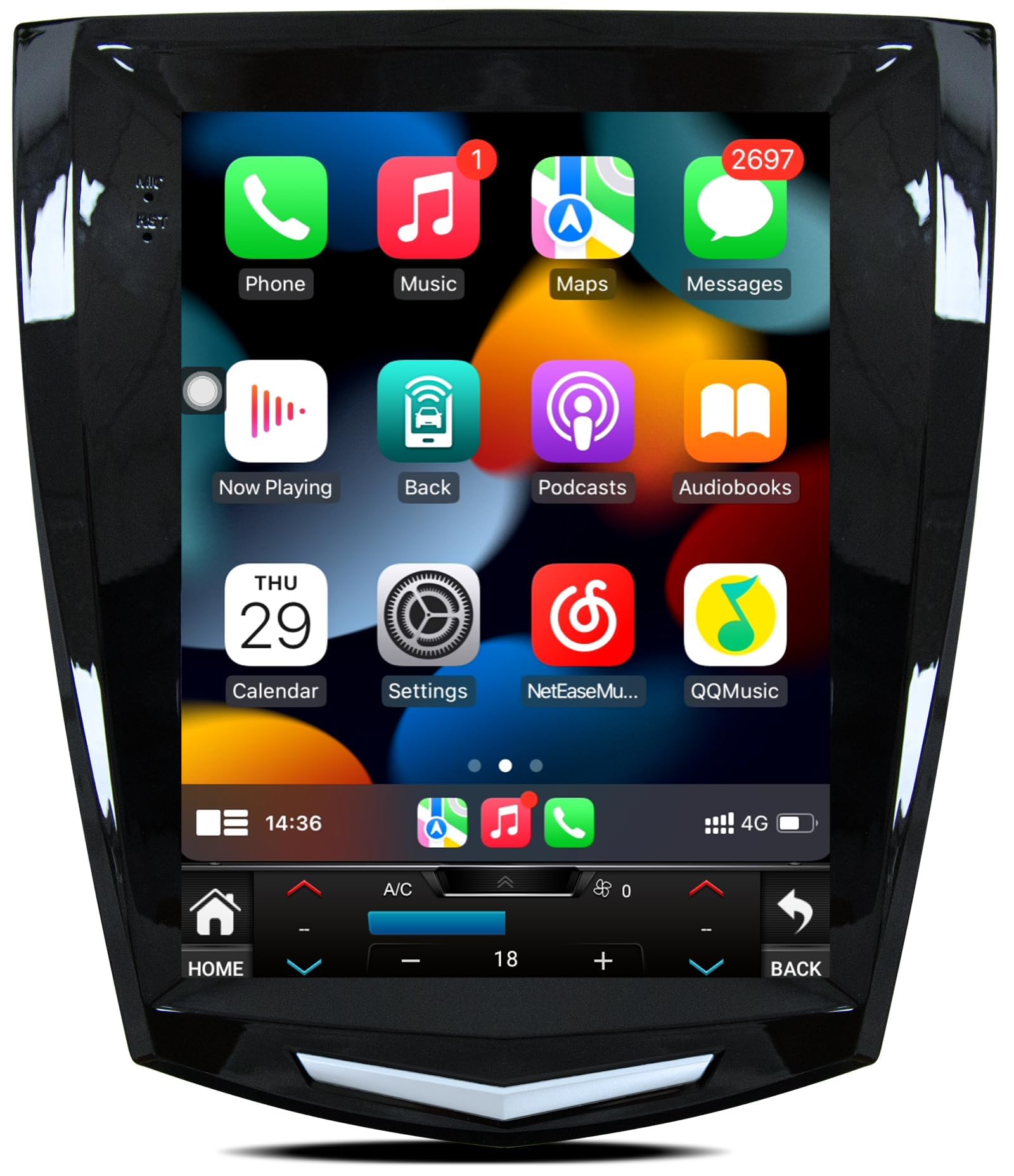
Image: The Jufodrca 9.7-inch Car Radio installed in a Cadillac dashboard, demonstrating its fit and modern interface. Insets show various Cadillac dashboard configurations, indicating which are compatible and which are not.
2. Package Contents
Please verify that all items listed below are included in your package:
- 1x Car Radio Unit
- 1x Canbus Box
- 1x Power Cable
- 1x RCA Cable
- 1x Crowbar (for trim removal)
- 2x USB Cables (6-pin and 4-pin)
- 1x Backup Camera
- 1x GPS Antenna
- 1x Microphone (3.5mm)
- 1x Antenna Adapter
3. Setup and Installation
This car radio features a plug-and-play design for simplified installation. A detailed wiring diagram is included with the product. For visual guidance, please refer to the installation video below.
3.1. Wiring Connections Overview
Before beginning installation, ensure the vehicle's power is off. Connect the following components to the main unit:
- GPS Antenna: Connect the GPS antenna to the designated port on the back of the radio unit.
- 4G Antenna: Connect the 4G antenna to its respective port.
- Rear Camera Signal Wire: Plug the 10-pin rear camera signal wire into the appropriate input.
- USB Cables: Connect both the 6-pin and 4-pin USB cables to their ports.
- RCA Cable: Connect the 20-pin RCA cable for audio/video inputs and outputs.
- Microphone: Plug in the 3.5mm microphone for hands-free calling and voice commands.
- Power Cable: Connect the main power cable to the unit.
- Canbus Box: Connect the Canbus box to the 8-pin connector on the power cable harness. This ensures proper communication with your vehicle's systems.
Always ensure all connections are secure before powering on the unit.
Video: A step-by-step guide demonstrating the connection of various cables and components to the Jufodrca car radio unit, including GPS antenna, 4G antenna, rear camera signal wire, USB cables, RCA cable, microphone, power cable, and Canbus box.
4. Operating Instructions
4.1. Wireless CarPlay & Android Auto
Connect your smartphone wirelessly via Bluetooth and Wi-Fi to access navigation, music, messaging, and voice commands directly on the 9.7-inch screen. This feature supports both Apple CarPlay and Android Auto.

Image: The car radio display showing the Wireless CarPlay and Android Auto interfaces, with examples of voice commands like "Hi Siri, call Lucy" and "OK Google, play music."
4.2. GPS Navigation & 5G WiFi
The unit includes built-in GPS navigation that functions offline with the provided GPS antenna. Connect to 5G WiFi for real-time navigation services and access to online map applications. The 5G WiFi offers faster internet speeds compared to 2.4G WiFi.

Image: The car radio screen displaying GPS navigation with a route and distance, and a separate panel illustrating 5G WiFi connectivity with icons for popular social media and streaming applications.
4.3. Bluetooth 5.0
Utilize Bluetooth 5.0 for stable, hands-free calls and seamless music streaming from your mobile device. The system supports quick pairing and reliable connections.

Image: A visual representation of Bluetooth 5.0 connectivity, showing a smartphone successfully paired with the car radio, along with icons indicating supported functions like GPS navigation, phone calls, and FM/RDS radio.
4.4. FM Radio & DSP Sound
The FM radio provides access to local broadcasts, news, and entertainment. The built-in Digital Sound Processor (DSP) allows for sound customization with a 32-band equalizer, optimizing your audio experience.
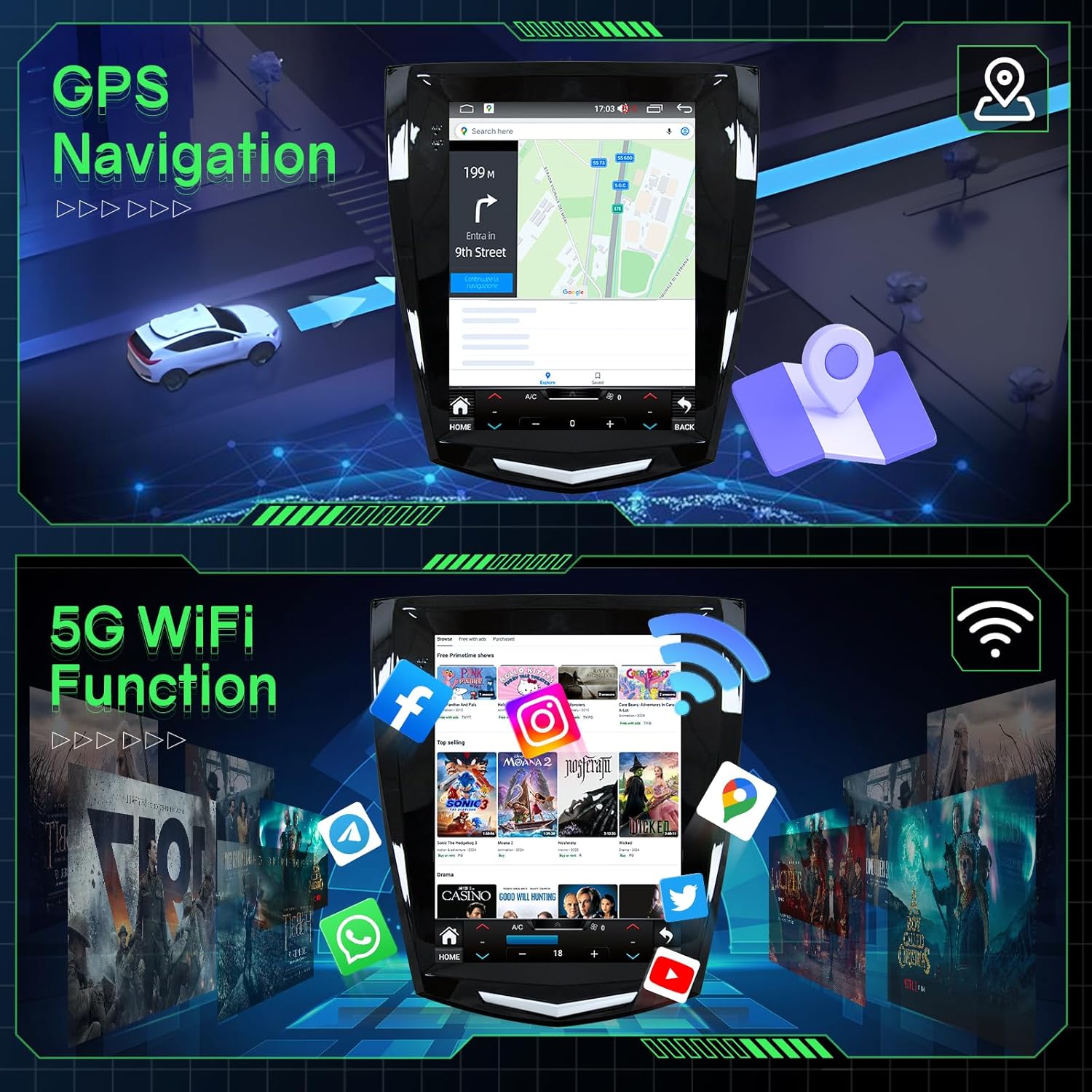
Image: The car radio displaying the FM radio interface with frequency selection. Below, a diagram illustrates the Digital Sound Processor (DSP) capabilities, highlighting sound quality and DSP adjustment features.
4.5. Steering Wheel Controls (SWC)
Maintain control of your media and volume without taking your hands off the steering wheel. The system supports integration with your vehicle's existing steering wheel controls.

Image: A car steering wheel with control buttons, and the car radio screen displaying the interface for learning and assigning functions to these steering wheel controls. A separate panel shows the view from a rear camera.
4.6. 1080P AHD Backup Camera
The included 1080P AHD backup camera automatically activates when you shift into reverse, providing a clear view of the area behind your vehicle for safer parking and maneuvering.
5. Specifications
| Feature | Description |
|---|---|
| Brand | Jufodrca |
| Model Name | Jufodrca Car Radio |
| Screen Size | 9.7 Inches |
| Display Type | LED, Capacitive Touch Screen |
| Resolution | 1024x768 |
| Operating System | Android 13 |
| Processor | 8-Core |
| RAM | 4GB |
| Internal Storage | 32GB |
| Connectivity | Bluetooth 5.0, USB, Wi-Fi (5G) |
| Navigation System | Built-in GPS (North America maps) |
| Audio Features | DSP, RDS, EQ, HiFi, FM Radio, Stereo Output |
| Additional Features | Wireless CarPlay, Android Auto, SWC, Mirror Link, 1080P Rear View Camera |
| Product Dimensions | 10.91"L x 5.87"W x 12.21"H |
| Item Weight | 2.25 Pounds |
6. Maintenance
To ensure the longevity and optimal performance of your Jufodrca car radio, follow these maintenance guidelines:
- Cleaning: Use a soft, dry cloth to clean the screen and exterior. Avoid abrasive cleaners or solvents that may damage the surface.
- Software Updates: Periodically check for software updates to ensure you have the latest features and performance enhancements. Follow the on-screen instructions for any available updates.
- Temperature: Avoid exposing the unit to extreme temperatures, both hot and cold, for extended periods.
- Connections: Ensure all cables and connections remain secure. Loose connections can lead to intermittent functionality.
7. Troubleshooting
If you encounter any issues with your car radio, please refer to the following common troubleshooting steps:
- No Power: Check all power cable connections. Ensure the vehicle's ignition is on. Verify the fuse in the power cable.
- No Sound: Check speaker connections. Ensure the volume is not muted or set too low. Verify audio settings in the system menu.
- GPS Signal Loss: Ensure the GPS antenna is properly connected and has a clear view of the sky. Move the antenna if necessary.
- CarPlay/Android Auto Connection Issues: Ensure Bluetooth and Wi-Fi are enabled on your smartphone and the car radio. Try restarting both devices.
- Backup Camera Not Displaying: Check the 10-pin rear camera signal wire connection. Ensure the camera is receiving power and is properly installed.
- Steering Wheel Controls Not Working: Verify the Canbus box connection and ensure it is correctly configured in the system settings.
If these steps do not resolve the issue, please contact Jufodrca customer service for further assistance.
8. Warranty and Support
Jufodrca is committed to providing excellent customer support. If you have any questions regarding installation, functionality, or require technical assistance, please do not hesitate to contact our professional customer service team. We are always here to assist you.
For warranty information, please refer to the documentation provided with your purchase or contact customer support.


