
1. Introduction
This manual provides comprehensive instructions for the setup, operation, maintenance, and troubleshooting of your Samsung QN83S95FAEXZA 83-inch OLED HDR Pro 4K Smart TV and the accompanying HW-Q990F Q Series Soundbar System. Please read this manual thoroughly before using your new products to ensure safe and optimal performance.

Image 1.1: The Samsung QN83S95FAEXZA 83-inch OLED 4K Smart TV bundled with the HW-Q990F Q Series Soundbar, subwoofer, and rear speakers.
2. Setup
2.1 Unpacking
Carefully remove all components from the packaging. Ensure all parts listed in the packing contents are present. Retain packaging materials for future transport or service needs.
2.2 TV Placement
Place the TV on a stable, level surface or mount it securely to a wall using a compatible VESA mount (400mm x 400mm). Ensure adequate ventilation around the TV. The Glare Free screen minimizes reflections, allowing for flexible placement even in brightly lit rooms.

Image 2.1: Front view of the Samsung QN83S95FAEXZA 83-inch OLED 4K Smart TV.
2.3 Soundbar System Placement
Position the HW-Q990F soundbar centrally below your TV. Place the subwoofer on the floor near the soundbar, ensuring it has clear space for optimal bass performance. The rear speakers should be positioned behind your primary listening area, equidistant from the center, for an immersive surround sound experience.

Image 2.2: The Samsung HW-Q990F Soundbar system, including the soundbar, subwoofer, and two rear speakers.
2.4 Connections
Connect the TV and soundbar to power outlets. Use an HDMI cable to connect the soundbar's HDMI eARC/ARC port to the TV's HDMI eARC/ARC port for optimal audio transmission, including Dolby Atmos. Additional devices like gaming consoles or Blu-ray players can be connected to the TV's remaining HDMI ports.

Image 2.3: Rear panel of the Samsung QN83S95FAEXZA TV, showing HDMI, USB, LAN, and other connectivity options.

Image 2.4: Rear panel of the Samsung HW-Q990F Soundbar, highlighting HDMI and optical audio input ports.
2.5 Initial Power On and Setup Wizard
After connecting all cables, power on the TV and soundbar. Follow the on-screen instructions to complete the initial setup, including network connection, channel scanning, and smart features configuration. The TV will guide you through connecting the soundbar wirelessly if not already connected via HDMI eARC.
3. Operating the TV
3.1 Remote Control Functions
Use the provided remote control to navigate the TV's interface. Common functions include power on/off, volume control, channel selection, source input, and accessing the Smart Hub for applications and settings.
3.2 Smart TV Features (Tizen OS)
Your Samsung TV runs on the Tizen Smart TV platform, providing access to various streaming services (Netflix, Prime Video, Disney+, Hulu, Apple TV, YouTube, HBO Max, Peacock, Sling, and more), web browsing, and other applications. Navigate the Smart Hub to discover and launch your preferred content.
3.3 Picture Settings
Access the picture settings menu to customize your viewing experience. Key features include:
- NQ4 AI Gen3 Processor: This processor utilizes 128 neural networks to enhance picture quality and optimize sound, providing an exceptional 4K experience.
- OLED HDR Pro: Delivers powerful brightness and richer contrast, revealing new details and highlights.
- Glare Free: The screen technology significantly reduces reflections, ensuring clear visibility even in bright environments.
- Motion Xcelerator 165Hz: Provides smooth motion for sports and tear-free gaming. 4K 165Hz is available with compatible PC-connected games.
- 4K AI Upscaling Pro: Enhances lower-resolution content to near-4K quality.
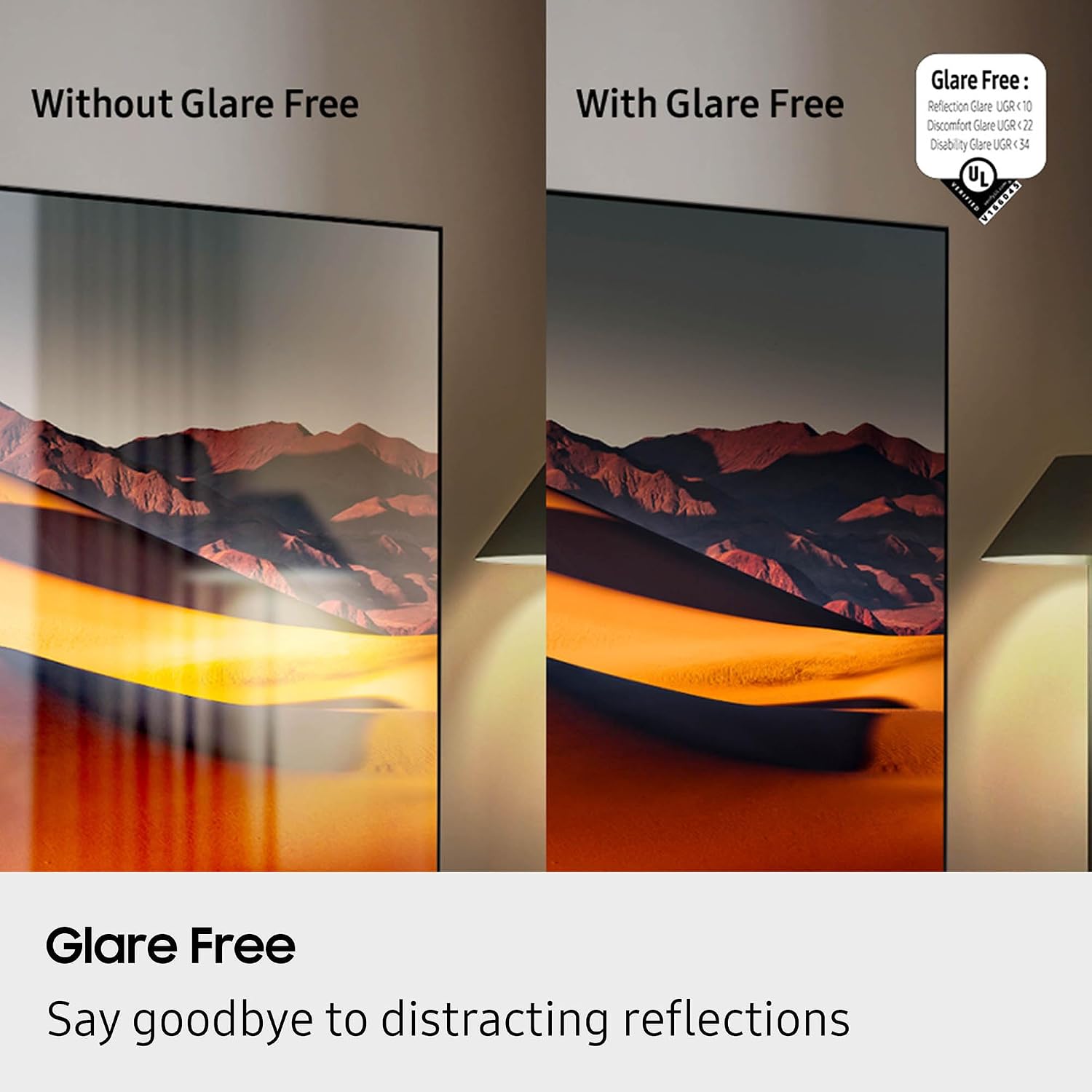
Image 3.1: Visual comparison demonstrating the effectiveness of the Glare Free screen technology.

Image 3.2: Illustrates the enhanced brightness and contrast provided by OLED HDR Pro compared to standard dynamic range (SDR).
Image 3.3: A visual representation of the NQ4 AI Gen3 Processor, the core of the TV's intelligent processing.
4. Operating the Soundbar System
4.1 Powering On/Off
The soundbar system can be powered on or off using its dedicated remote control or by syncing with your TV's power state via HDMI eARC.
4.2 Connecting to TV
For the best audio experience, connect the soundbar to your TV using the HDMI eARC port. This enables features like Q-Symphony Pro, which synchronizes the TV speakers with the soundbar for an enhanced audio stage, and Wireless Dolby Atmos for immersive 3D sound without additional cables.

Image 4.1: Diagram showing how Wireless Dolby Atmos creates a 3D sound experience, with sound projecting from above and around the listener.
4.3 Sound Modes
The HW-Q990F offers various sound modes to optimize audio for different content types (e.g., Standard, Surround, Game Pro, Adaptive Sound). Refer to the soundbar's specific manual for detailed instructions on selecting and customizing these modes.
5. Maintenance
5.1 Cleaning the Screen
To clean the TV screen, gently wipe it with a soft, dry microfiber cloth. For stubborn smudges, lightly dampen the cloth with water or a specialized screen cleaner. Do not use alcohol, solvents, or abrasive cleaners, as these can damage the Glare Free coating and screen surface.

Image 5.1: Example of a screen cleaning kit, typically including a spray and microfiber cloths, suitable for delicate screen surfaces.
5.2 Software Updates
Periodically check for and install software updates to ensure your TV and soundbar have the latest features and performance enhancements. This can usually be done through the TV's settings menu under 'Support' or 'Software Update'.
5.3 General Care
Keep the TV and soundbar system away from direct sunlight, heat sources, and excessive dust. Ensure proper ventilation for all components to prevent overheating.
6. Troubleshooting
If you encounter issues, refer to the following common troubleshooting steps:
- No Power: Ensure all power cables are securely connected to the devices and the wall outlet. Test the outlet with another device.
- No Picture: Verify the correct input source is selected on the TV. Check HDMI cable connections between the TV and any external devices.
- No Sound from Soundbar: Confirm the soundbar is powered on and the correct input is selected. Ensure the TV's audio output is set to the soundbar (e.g., HDMI eARC or Optical). Check volume levels on both the TV and soundbar.
- Remote Control Not Working: Replace the batteries in the remote. Ensure there are no obstructions between the remote and the device's sensor.
- Network Connection Issues: Restart your router and modem. Reconnect the TV to your Wi-Fi network through the settings menu. For wired connections, check the Ethernet cable.
For more detailed troubleshooting or persistent issues, consult the full e-manual available on your TV or visit the Samsung support website.
7. Specifications
7.1 Samsung QN83S95FAEXZA 83-inch OLED 4K Smart TV
- Model: QN83S95FAEXZA
- Screen Size: 83 Inches (211 cm visible diagonal)
- Display Technology: OLED
- Resolution: 4K UHD (3840 x 2160)
- Processor: NQ4 AI Gen3 Processor
- Refresh Rate: 120Hz (Up to 165Hz for PC connected games)
- HDR Support: OLED HDR Pro, Auto HDR Remastering
- Special Features: Glare Free, Ultra Viewing Angle, Real Depth Enhancer, Motion Xcelerator 165Hz, Film Mode, 4K AI Upscaling Pro, Color Booster Pro, Dolby Atmos, OTS+, Q-Symphony Pro, Tizen Smart TV, Samsung Health, Eco Sensor, Eco Power Saving/Off
- Connectivity: Wi-Fi 5, Bluetooth Audio, HDMI x 4 (1x eARC), USB-A x 3, USB-C x 1, Ethernet (LAN)
- Mounting: VESA 400mm x 400mm
- Dimensions (WxDxH): 72.6" x 12" x 44.2" (with stand)
- Weight: 114.4 Pounds
- Color: Graphite Black
- Energy Efficiency: Energy Star Compliant
7.2 Samsung HW-Q990F Q Series Soundbar System
- Model: HW-Q990F
- Channels: 11.1.4 Channel
- Components: Soundbar, Wireless Subwoofer, Wireless Rear Speakers
- Audio Features: True 11.1.4Ch Full Surround Sound, Wireless Dolby Atmos, Q-Symphony Pro
- Connectivity: HDMI eARC, Optical Digital Audio, Bluetooth
8. Warranty and Support
8.1 Product Warranty
Your Samsung TV and Soundbar System are covered by a manufacturer's warranty. Please refer to the warranty card included with your product or visit the official Samsung website for detailed terms and conditions, including warranty duration and coverage.
8.2 Extended Protection Plans
Extended protection plans, such as a 4-Year Protection Plan, may be available for purchase to provide additional coverage beyond the standard manufacturer's warranty. Consult your retailer or Samsung for more information.
8.3 Customer Support
For technical assistance, service requests, or further inquiries, please contact Samsung Customer Support. You can find contact information and additional resources on the official Samsung Brand Store or by visiting the Samsung support website.