
CICYSTORE V90S
Powkiddy V90S Retro Handheld Console User Manual
Model: V90S | Brand: CICYSTORE
Introduction
The Powkiddy V90S is a compact, foldable retro handheld gaming console designed for portability and extensive game compatibility. It features a clamshell design, a 3.5-inch IPS screen, and dual TF card slots for expandable storage. This manual provides essential information for setting up, operating, maintaining, and troubleshooting your V90S console.
The V90S is preloaded with a stock open-source Linux operating system and supports various emulators, allowing you to enjoy a wide range of classic games.
Safety Information
Warning: Please keep this product out of reach of children under 3 years old.
Always handle the console with care. Avoid dropping or exposing it to extreme temperatures or moisture. Do not attempt to disassemble the device, as this may void your warranty and cause damage.
What's in the Box

This image displays the complete package contents of the Powkiddy V90S, showing the console, the preloaded TF card, the USB-C charging cable, and the quick-start guide, all neatly arranged next to the packaging box.
- V90S Console ×1
- 64GB TF Card (Preloaded) ×1
- USB-C Charging Cable ×1
- Quick-Start Guide ×1
- Packing box ×1
Note: A screen protector is not included as the clamshell design naturally protects the screen.
Setup
1. Initial Charging
Before first use, fully charge your Powkiddy V90S console. Connect the included USB-C charging cable to the console's USB-C port and the other end to a compatible USB power adapter (not included). The battery typically charges in 2-3 hours.
2. Inserting TF Cards

This image illustrates the dual TF card slot design of the Powkiddy V90S, highlighting how additional storage can be added to expand the game library.
The V90S features two TF card slots:
- TF1 Slot: This slot is for the system's operating system and preloaded games. The 64GB card included with your console should be inserted here.
- TF2 Slot: This slot is for additional game ROMs and media. You can insert an additional TF card (up to 256GB) into this slot to expand your game library.
Gently push the TF cards into their respective slots until they click into place. To remove, push again until they spring out.
Operating Instructions
1. Powering On/Off
- To power on, open the clamshell and press and hold the power button located on the side of the console until the screen illuminates.
- To power off, navigate to the system menu and select the shutdown option, or press and hold the power button until the device powers down.
2. Basic Navigation
Use the D-pad for directional navigation through menus and game selections. The A, B, X, Y buttons are used for selection and actions within games. The START and SELECT buttons perform various functions depending on the game or menu context.
3. Playing Games

This image highlights the extensive compatibility of the Powkiddy V90S, capable of running games from over 20 different emulators, including popular systems like PSP, Dreamcast, PS1, N64, and various classic consoles.
The console comes with a 64GB TF card preloaded with over 10,000 games across more than 20 systems. To play a game:
- Navigate to the desired emulator or game list from the main menu.
- Select the game you wish to play using the D-pad and A button.
- The game will load. Some games may require specific button configurations or settings adjustments within the emulator menu.
Ethical Note: Preloaded games are for hardware testing purposes. Users are encouraged to own original copies of games they play.
4. Adding More Games (ROMs)
To add more games, you will typically need to transfer ROM files to the TF2 card. Connect the TF2 card to a computer using a card reader. Organize your ROMs into appropriate folders for each emulator (e.g., "GBA" for Game Boy Advance games, "PS1" for PlayStation 1 games). Once transferred, reinsert the TF2 card into the console, and the system should detect the new games.
5. Open-Source Operating System
The V90S comes with a stock open-source Linux OS. For advanced users, the console supports alternative firmware like ArkOS (for potentially better PSP performance) and RetroArch (for advanced shaders and rewind features). Custom themes are also supported. Refer to online communities and forums for detailed instructions on installing custom firmware.
6. Connectivity
- USB-OTG: The USB-C port supports USB On-The-Go (OTG), allowing you to connect external controllers or other USB peripherals via an adapter (not included).
- HDMI Output: The console supports HDMI output via a separate adapter (sold separately), allowing you to connect it to a larger display.
Maintenance
1. Battery Care
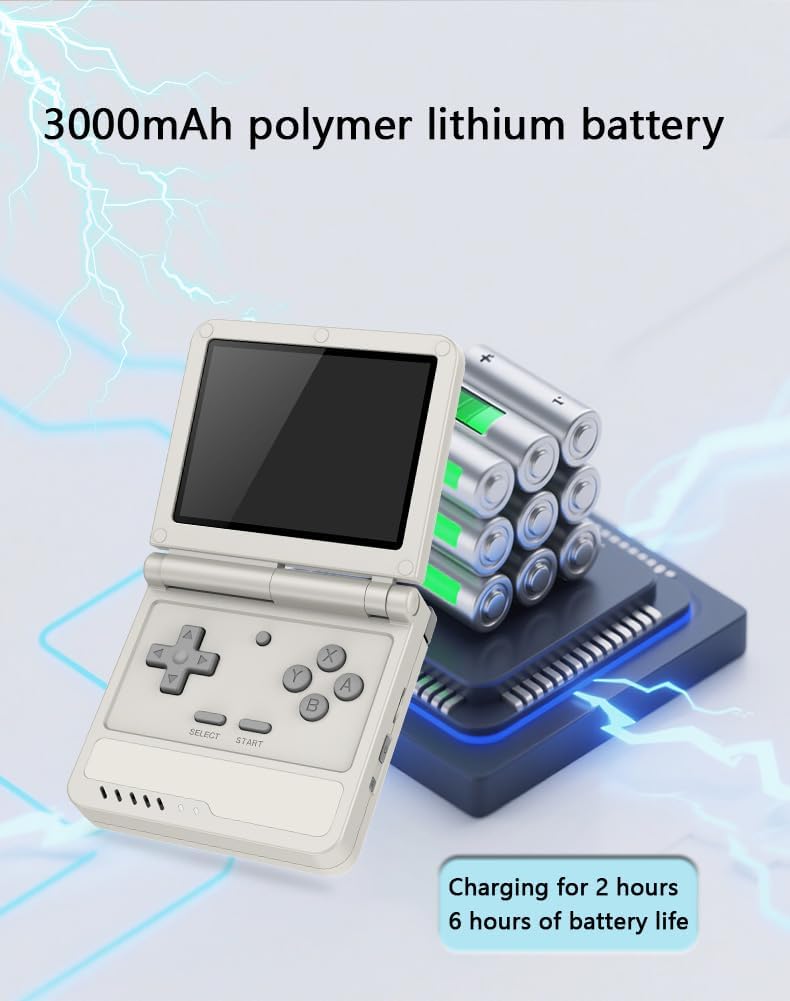
This image depicts the internal 3000mAh polymer lithium battery of the Powkiddy V90S, indicating that it charges in 2 hours and provides up to 6 hours of battery life.
The V90S is equipped with a 3000mAh polymer lithium battery, providing approximately 4-6 hours of playtime depending on the game and usage. To prolong battery life:
- Avoid fully discharging the battery frequently.
- Charge the console using the provided USB-C cable and a standard 5V USB charger.
- If storing the console for an extended period, charge it to about 50% capacity.
2. Cleaning
Use a soft, dry, lint-free cloth to clean the exterior of the console. For the screen, use a microfiber cloth specifically designed for electronics. Do not use harsh chemicals or abrasive materials, as they may damage the finish or screen.
3. Storage
When not in use, fold the console to protect the screen. Store it in a cool, dry place away from direct sunlight and extreme temperatures. The clamshell design provides natural screen protection.
Troubleshooting
| Problem | Possible Cause | Solution |
|---|---|---|
| Console does not power on. | Low battery; TF card not inserted correctly. | Charge the console for at least 30 minutes. Ensure the TF1 card is properly inserted. |
| Games are not loading or crashing. | Corrupted ROM file; incorrect emulator settings; TF card issue. | Try a different ROM file. Check emulator settings. Reinsert or reformat the TF card (backup data first). |
| Screen is blank or flickering. | Software glitch; hardware issue. | Perform a hard reset (hold power button for 10 seconds). If problem persists, contact customer support. |
| Console freezes during operation. | Software error; insufficient memory for current task. | Hold the power button until the console shuts down, then restart. Avoid running too many background processes if applicable. |
Specifications
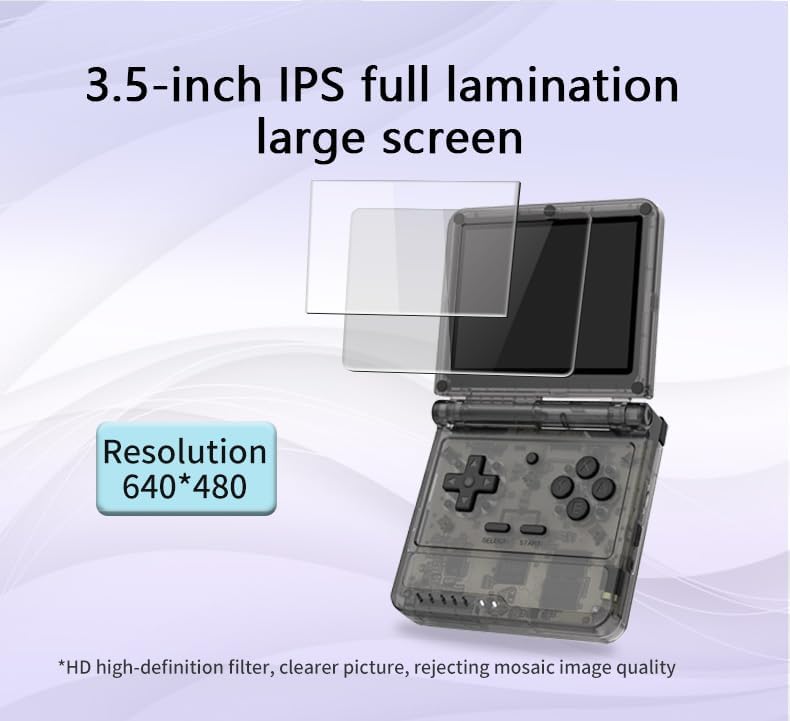
This image highlights the 3.5-inch IPS full lamination screen of the Powkiddy V90S, emphasizing its 640x480 resolution for clear retro gaming visuals.
- Model: V90S
- Screen: 3.5-inch IPS Full Lamination Display
- Resolution: 640x480 pixels
- Processor: Quad-core CPU
- Storage: Dual TF Card Slots (TF1 for OS/System, TF2 for Games; supports up to 256GB in TF2)
- Included Storage: 64GB TF Card (preloaded)
- Battery: 3000mAh Polymer Lithium Battery
- Battery Life: Approximately 4-6 hours (depending on usage)
- Charging Time: 2-3 hours via USB-C
- Connectivity: USB-OTG (for external controllers), HDMI output (via adapter, sold separately)
- Dimensions (Folded): 3.5 x 3.35 x 1.04 inches (8.9 x 8.5 cm)
- Weight: 11.2 ounces (189g)
- Material: Plastic
- Controller Type: Button Control (D-pad, A/B/X/Y, L/R, Start, Select)
- Operating System: Open-source Linux (supports custom firmware like ArkOS, RetroArch)
Warranty and Support
For warranty information and technical support, please refer to the contact details provided in your product packaging or visit the official CICYSTORE website. Keep your purchase receipt as proof of purchase for any warranty claims.
For common questions and community support regarding custom firmware or game compatibility, consider exploring online forums dedicated to retro handheld consoles.
Ask a question about this manual
Ask about setup, troubleshooting, compatibility, parts, safety, or missing instructions. Manuals+ will review the question and use this page’s manual context to help answer it.