1. Introduction
The JIMIMAX JC261 is a 4G Live Video Dash Cam designed to provide advanced monitoring and security for your vehicle. Featuring ADAS (Advanced Driver Assistance System), built-in GPS tracking, SOS alerts, and 24-hour remote monitoring capabilities, this device enhances driving safety and vehicle management. This manual will guide you through the setup, operation, and maintenance of your JC261 dash cam.
2. Package Contents
Before installation, please verify that all items listed below are included in your package:
- JC261 Dash Cam
- IP67 Waterproof Rear Camera (0.5m cable)
- 10m Extension Cable for Rear Camera
- Bracket with 3M sticker
- Backup 3M sticker
- Card lock with screwdriver
- Relay (4pin, 12v)
- Relay Cable (4pin)
- SOS Alarm Button
- Power Cable
- Installation Tool

Figure 2.1: Contents of the JIMIMAX JC261 Dash Cam package.
3. Product Overview
The JC261 dash cam offers dual camera recording with a 1080P front camera and an optional 720P interior or rear camera. It integrates 4G connectivity for real-time video streaming and remote management via web and mobile applications.

Figure 3.1: Dual Live Stream Video Dashcam capabilities.
Key features include:
- 4G & WiFi Connectivity: For live video streaming and remote access.
- GPS Location: Built-in GPS for accurate tracking.
- Voice Prompt: For real-time alerts and notifications.
- ADAS: Advanced Driver Assistance System for enhanced safety.
- Timeline Playback: 180-day historical playback of routes, mileage, speed, and alert videos.
- Remote Listen-In: Ability to listen to conversations inside the vehicle.
- Talk to Driver: Two-way communication with the driver.
- Snapshot & Video Record: Capture images and record video remotely.

Figure 3.2: Overview of JC261 Dash Cam features.
4. Setup
4.1 Device Installation
The JC261 dash cam is designed for windshield mounting. Ensure a clear line of sight for both the front camera and the optional rear/interior camera. Use the provided 3M stickers and bracket for secure attachment. Connect the power cable and the rear camera cable as instructed in the installation guide (not provided in this manual, refer to separate installation instructions).

Figure 4.1: JC261 Dash Cam and its components for installation.
4.2 Device Activation
To activate the device, you have two options:
- Use the IoT card included in the package and purchase a subscription plan.
- Purchase a local SIM card and insert it into the device.
Ensure the SIM card is properly inserted and has an active data plan for 4G connectivity and remote features.
5. Operating Instructions
5.1 Live Video Monitoring
Access live video streams from your dash cam at any time through the dedicated platform (APP + Web). The video feed includes a watermark with location, speed, date, and time. You can take screenshots or record driver behavior. The platform also allows you to listen to in-car conversations and use the microphone to speak with passengers.
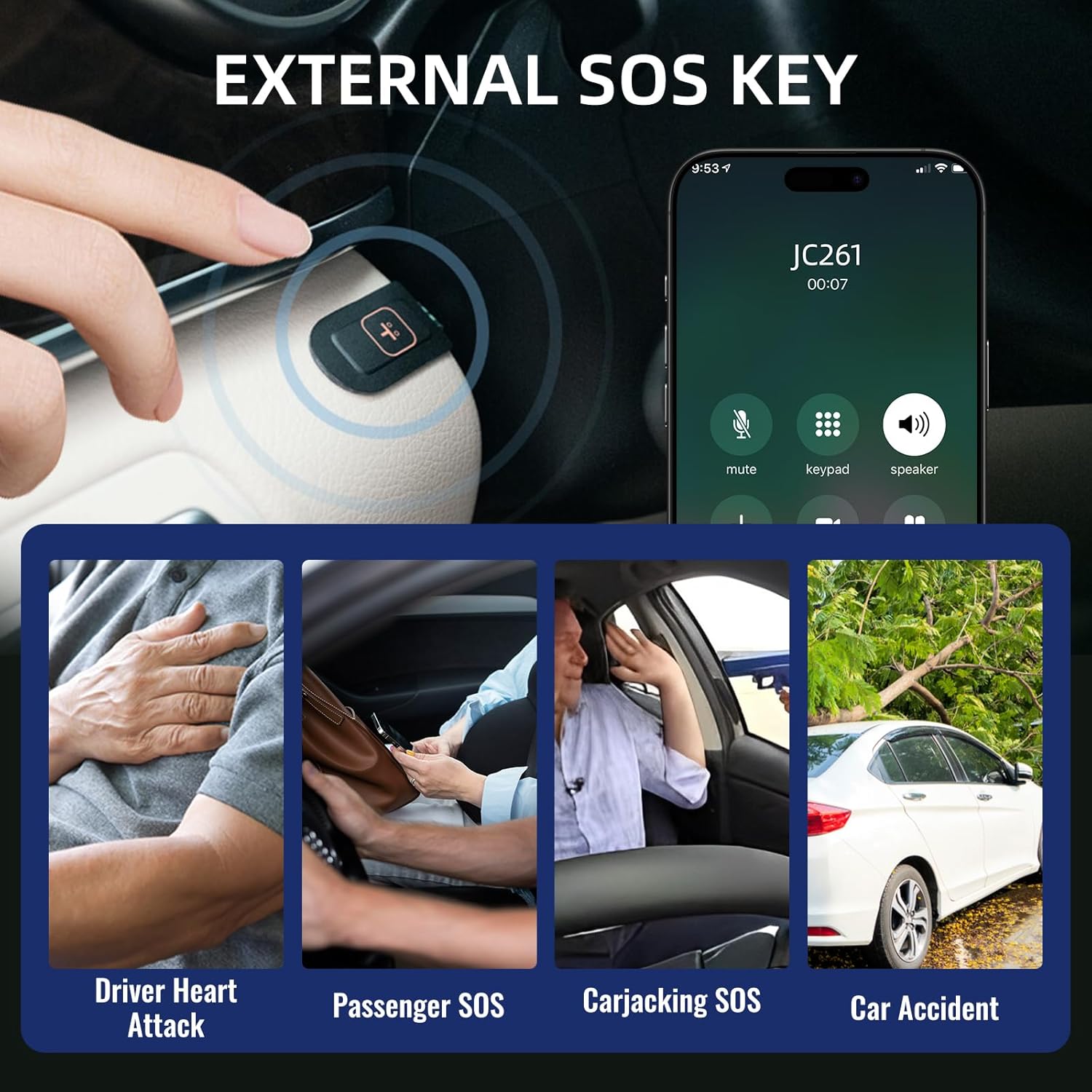
Figure 5.1: Remote monitoring and communication interface.
5.2 Loop Recording
When the vehicle is moving, the dash cam continuously records video. Once the TF card storage is full, the system automatically overwrites the oldest video files to ensure continuous recording.

Figure 5.2: Loop recording and cloud sync functionality.
5.3 Event Video Cloud Sync
In the event of an incident, the dash cam automatically uploads relevant video footage to the cloud platform. This ensures that critical event videos are saved and accessible without storage limits on the cloud platform.
5.4 Historical Playback
The cloud platform (web and APP) stores device data for up to 180 days, including route, mileage, speed, and alert videos. There are no storage limits on the cloud platform for this historical data.

Figure 5.3: 180-day historical playback on JIMI Cloud.
6. Advanced Features
6.1 Advanced Driver Assistance System (ADAS)
The ADAS algorithm monitors driving conditions for potential incidents such as insufficient following distance, near collisions, and lane departure. Voice alerts are provided in real-time to warn the driver.

Figure 6.1: Examples of ADAS driving behavior alerts.
6.2 24-Hour Monitoring and Multiple Alerts
Configure various alerts for events such as car vibration, collision, speeding, GEO Fence breaches, and SOS activations. The device will send alert notifications to your phone and upload a short video to the cloud platform when an alert is triggered.
6.3 SOS Alert Function
The external SOS key allows for immediate emergency alerts. In situations like a driver heart attack, passenger SOS, carjacking, or car accident, pressing the SOS button will trigger an alert to pre-set contacts.

Figure 6.2: External SOS key and its applications.
6.4 Remote Fuel Cut Off
For enhanced security, the device supports remote fuel/power cut-off functionality. This feature allows you to remotely stop the vehicle when its moving speed is reduced to 20 km/h or less. This command is typically password-protected and requires specific conditions to be met (e.g., device not positioning or exceeding 20km/h).

Figure 6.3: Remote fuel cut-off feature.
7. Maintenance
To ensure the longevity and optimal performance of your JIMIMAX JC261 dash cam, follow these maintenance guidelines:
- Regular Cleaning: Gently wipe the camera lenses and the device body with a soft, dry cloth to remove dust and smudges. Avoid abrasive cleaners.
- Check Connections: Periodically inspect all cables and connections to ensure they are secure and free from damage.
- Firmware Updates: Check the official JIMIMAX website or app for any available firmware updates. Keeping your device updated ensures access to the latest features and performance improvements.
- SD Card Management: If using a local SD card, format it regularly (e.g., once a month) to prevent data corruption and ensure smooth loop recording. Back up important footage before formatting.
- Temperature Control: Avoid exposing the dash cam to extreme temperatures for extended periods, as this can affect battery life and electronic components.
8. Troubleshooting
If you encounter issues with your JC261 dash cam, refer to the following common troubleshooting steps:
- Device Not Powering On: Ensure the power cable is securely connected to both the dash cam and the vehicle's power source. Check the vehicle's fuse box if necessary.
- No Live Video/Offline: Verify that the SIM card is correctly inserted and has an active data plan. Check 4G signal strength in your area. Restart the device and the application.
- GPS Not Tracking: Ensure the dash cam has a clear view of the sky. GPS signals can be obstructed by tunnels, tall buildings, or dense foliage.
- Recording Issues: Check if the TF card is inserted correctly and is not full. Format the TF card if necessary (back up data first). Ensure loop recording is enabled in settings.
- ADAS Alerts Not Working: Ensure the camera lens is clean and unobstructed. Calibrate ADAS settings if available in the app.
- Remote Features Unresponsive: Confirm stable 4G connectivity. Ensure the device is properly activated and linked to your account on the platform.
If problems persist, contact customer support for further assistance.
9. Specifications
| Feature | Specification |
|---|---|
| Model Name | JC261 |
| Product Dimensions | 3.93 x 2.04 x 2.71 inches |
| Item Weight | 2.38 pounds |
| Connectivity Technology | Auxiliary, 4G, Wireless |
| Special Features | App Control, Automatic Incident Detection, Built-In GPS, Built-In Speaker, Loop Recording, ADAS, SOS Alert, Remote Fuel Cut Off |
| Video Capture Resolution | 1080p (Front), 720p (Rear/Interior) |
| Mounting Type | Windshield Mount |
| Control Method | App, Remote |
| Color | Black |
| Vehicle Service Type | Bus, Car, RV, Truck |
| Manufacturer | JIMIIOT |
| Date First Available | June 18, 2025 |
10. Warranty and Support
For warranty information, please refer to the documentation provided with your purchase or contact your retailer. For technical support, product inquiries, or assistance with any issues not covered in this manual, please visit the official JIMIMAX website or contact their customer service department. Details for contacting support are typically found on the product packaging or the manufacturer's website.