
1. Introduction
This manual provides detailed instructions for the installation, operation, and maintenance of your Surakey Android 14 Car Stereo. This unit is designed to enhance your driving experience with features such as wireless CarPlay, Android Auto, MirrorLink, Bluetooth connectivity, WiFi, FM/RDS radio, and an 8-inch HD touch screen. Please read this manual thoroughly before use to ensure proper functionality and safety.
2. Compatibility
This car stereo is compatible with specific Chevrolet, GMC, and Buick models. Please verify your vehicle's make, model, and year against the list below to ensure proper fitment and functionality. It is recommended to send a complete image of the plugs on the back of your vehicle's center console and main unit to the seller for confirmation if you are unsure about compatibility or require additional wiring harnesses/adapters.

Figure 2.1: Applicable Car Models. This image illustrates various car stereo configurations, distinguishing between those compatible and not compatible with this unit. Please compare your vehicle's current stereo setup with the examples provided.
Compatible Vehicle Models:
- For Chevrolet: Silverado 1500HD (2007-2012) (Second Generation), Silverado 2500HD (2007-2012) (Second Generation), Silverado 3500HD (2007-2012) (Second Generation), Avalanche (2007-2011) (GMT900), Express Van (2008-2011), Impala (2006-2012) (Ninth Generation), Equinox (2005-2009) (First Generation), HHR (SS/LT/Panel/LS) (2006-2011).
- For GMC: Acadia (Denali) (2007-2012), Savana (2008-2013), Sierra (Denali) (2007-2011), Yukon (Denali) (2007-2013).
- For Buick: Enclave (2008-2012).
Note: The Silverado Classic 2007 model is not compatible. Always double-check your car model, year, and existing stereo configuration before installation.
3. Package Contents
Please ensure all items listed below are present in your package before proceeding with installation.

Figure 3.1: Package Contents. This image displays the main car stereo unit along with all essential accessories and cables included in the box.
- Car Stereo Unit (8-inch touch screen)
- Power Cable
- RCA Input/Output Cables
- 2 USB Cables
- Camera Input Cable
- Radio Adapter
- GPS Antenna
- Instruction Manual (this document)
- Sound Amplifier
- Canbus Box
- Rearview Camera (if included in your specific package)
4. Setup and Installation
Professional installation is recommended. Ensure the vehicle's power is disconnected before beginning installation.
4.1 General Wiring Diagram
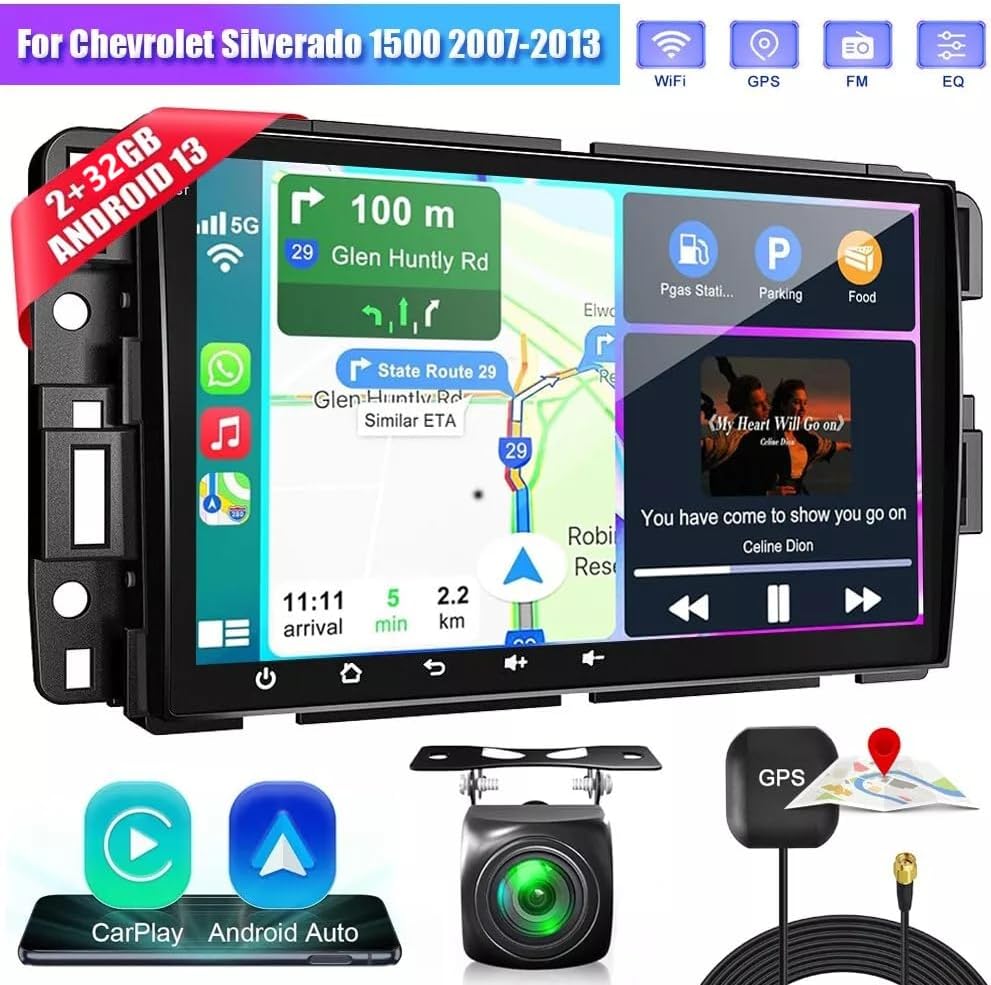
Figure 4.1: Product Wiring Diagram. This diagram illustrates the connections for power (GND, ACC, B+, ILL), speakers (front left, front right, rear left, rear right), steering wheel control (SW1, SW2), reverse input, antenna, and other auxiliary inputs.
Refer to the diagram for connecting the power cable, speaker wires, and other essential inputs. Ensure all connections are secure to prevent malfunctions.
4.2 Reversing Camera Installation

Figure 4.2: Reversing Camera Wiring. This diagram details how to connect the AHD rearview camera. Connect the red wire to the positive pole of the reversing light and the black wire to the negative pole. The reversing trigger is controlled by the stereo and does not require a separate connection. The white plug must be connected to the main device for Bluetooth and WiFi signals.
- Connect the red wire of the camera to the positive pole of the car's reversing light.
- Connect the black wire of the camera to the negative pole of the car's reversing light.
- The reversing trigger is controlled by the stereo; therefore, no additional connection is required for the trigger.
- Ensure the white plug is connected to the main unit to enable Bluetooth and WiFi signals.
Tip: The reversing input must be plugged in even if the reversing camera is not used.
4.3 Pre and Post Installation Comparison

Figure 4.3: Installation Effect. This image provides a visual comparison of the vehicle's dashboard before and after the Surakey car stereo installation, demonstrating the integrated appearance.
5. Operating Instructions
This section details the primary functions and how to operate your car stereo.
5.1 Wireless CarPlay & Android Auto

Figure 5.1: Wireless CarPlay & Android Auto. This image shows the car stereo screen displaying CarPlay and Android Auto interfaces, highlighting voice command capabilities like "Hey Siri, find a gas station" or "Hey Google, call Mia."
Connect your iPhone or Android smartphone wirelessly via Bluetooth and WiFi to access CarPlay or Android Auto. This allows for voice control of navigation, music, calls, and messages, providing a safer driving experience.
Video 5.1: Car Stereo Radio Functionality. This video demonstrates the Bluetooth and ZLINK (CarPlay/Android Auto) connection process, including manual WiFi connection if ZLINK fails. It shows how to pair a phone via Bluetooth, enter the PIN, and connect to the ZLINK application for seamless smartphone integration.
5.2 Mirror Link Function

Figure 5.2: Mirror Link. This image depicts the Mirror Link feature, allowing you to display your smartphone's screen directly onto the car stereo. This function supports both iOS and Android devices, typically via a wired USB connection for Android or wireless for iOS.
The Mirror Link function allows you to mirror your smartphone's screen onto the car stereo display. This is supported for both iOS and Android devices, providing a safer way to view content from your phone while driving.
5.3 GPS Navigation

Figure 5.3: GPS Navigation. The car stereo supports both offline and online navigation. You can use the included GPS module for offline maps or download navigation apps via WiFi for online routing. This image shows a typical navigation screen with route information.
The unit offers both offline and online navigation options. Use the included GPS module for offline navigation or connect to WiFi/WLAN to download and use online navigation applications from the Play Store.
5.4 Bluetooth Connectivity

Figure 5.4: Bluetooth Interface. This image displays the Bluetooth connection screen, indicating features like music playback, address book access, caller ID, and voice call functionality.
Connect your mobile phone via Bluetooth for hands-free calls, access to your phone book, and Bluetooth music streaming (A2DP). The device name for pairing is typically "CarBT".
5.5 WiFi Connectivity

Figure 5.5: WiFi Connectivity. This image highlights the WiFi feature, which is crucial for online maps, downloading applications, and other internet-dependent functions.
Connect to a WiFi network to enable online features such as map updates, app downloads, and internet browsing. You can also use your phone's hotspot for internet access.
5.6 FM Radio Function

Figure 5.6: FM Radio Function. This image displays the FM radio interface, showing frequency tuning, station presets, and RDS information. It allows access to news, music, and real-time traffic updates.
The car stereo includes an FM/RDS radio tuner. Enjoy various radio stations, news, music, and real-time traffic updates. The RDS (Radio Data System) provides additional information like station name and program type.
5.7 Steering Wheel Control (SWC)

Figure 5.7: Steering Wheel Control. This image shows a hand interacting with steering wheel buttons, indicating the ability to control the car stereo's functions such as changing songs, adjusting volume, and answering calls directly from the steering wheel.
Utilize your vehicle's existing steering wheel controls to manage the car stereo. This function allows you to answer calls, change music tracks, and adjust volume without taking your hands off the wheel, enhancing safety.
5.8 Split-screen Display

Figure 5.8: Split-screen Display. This image illustrates the split-screen feature, where two applications, such as navigation and music playback, are displayed simultaneously on the car stereo screen, improving multitasking efficiency.
The split-screen feature allows you to display two applications simultaneously, such as navigation and music, for a more efficient and convenient user experience.
5.9 DSP Function
Figure 5.9: DSP Function. This image displays the Digital Sound Processor (DSP) interface, which allows for advanced audio customization, including equalizer settings for various sound profiles like metal, subwoofer, vocal, rock, and custom options.
The integrated Digital Sound Processor (DSP) provides high-quality audio and personalized sound settings. Adjust equalizer settings to optimize the soundstage and enhance your in-car audio experience.
6. Maintenance
To ensure the longevity and optimal performance of your Surakey Car Stereo, follow these maintenance guidelines:
- Cleaning: Use a soft, dry cloth to clean the touch screen and exterior surfaces. Avoid abrasive cleaners or solvents that could damage the finish.
- Software Updates: Periodically check for available software updates through the system settings or the manufacturer's website to ensure you have the latest features and bug fixes.
- Temperature: Avoid exposing the unit to extreme temperatures, both hot and cold, for extended periods.
- Power Supply: Ensure the vehicle's electrical system is in good condition to prevent power fluctuations that could harm the unit.
7. Troubleshooting
If you encounter issues with your car stereo, refer to the following common troubleshooting steps:
| Problem | Possible Cause | Solution |
|---|---|---|
| Unit does not power on | Loose power connection, blown fuse, vehicle battery issue. | Check power cables and fuse. Ensure battery is charged. Consult a professional if necessary. |
| No sound | Volume too low, speaker wires disconnected, incorrect audio source. | Increase volume. Check speaker connections. Select correct audio source. |
| Bluetooth/CarPlay/Android Auto not connecting | Bluetooth/WiFi off on phone or stereo, incorrect pairing, software glitch. | Ensure Bluetooth/WiFi is enabled on both devices. Re-pair the device. Restart both phone and stereo. Refer to Video 5.1 for connection steps. |
| GPS signal lost or inaccurate | GPS antenna obstructed or disconnected, outdated maps. | Ensure GPS antenna has a clear view of the sky and is securely connected. Update maps if using offline navigation. |
| Rearview camera not displaying | Camera wiring incorrect, camera faulty, reverse gear not detected. | Check camera power and video connections (refer to Figure 4.2). Ensure the vehicle is in reverse. |
If these steps do not resolve the issue, please contact customer support for further assistance.
8. Specifications
Key technical specifications of the Surakey Android 14 Car Stereo:
- Brand: Surakey
- Model: 2GB+32GB (Android 14)
- Display: 8-inch HD Touch Screen
- RAM: 2GB
- ROM: 32GB
- Operating System: Android 14
- Connectivity: Wireless CarPlay, Wireless Android Auto, MirrorLink, Bluetooth, WiFi, FM/RDS
- Processor: Quad / 4 cores high efficiency processor
- Video Output: HD 1024P or IPS 1280P Video support
- Additional Features: DSP, Steering Wheel Control, Rearview Camera support, MP3/AUX/USB, support for TPMS, OBD2, DVR, DAB+ (extended equipment functions)
9. Warranty Information
Specific warranty details for this product are not provided in the available information. Please refer to the product packaging or contact the seller directly for comprehensive warranty terms and conditions. Typically, electronic products come with a manufacturer's limited warranty covering defects in materials and workmanship for a specified period from the date of purchase.
10. Support
For technical assistance, troubleshooting, or any questions regarding your Surakey Car Stereo, please contact the seller or manufacturer's customer support. Have your product model number and purchase details ready when contacting support.
Manufacturer: Surakey
Seller: Fuyatong-US
You may also visit the Surakey Store on Amazon for additional product information and resources.