
1. Introduction
Thank you for choosing the JAIOTlink 2K Light Bulb Security Camera. This wireless surveillance solution is designed for both indoor and outdoor use, offering advanced features for comprehensive home security. Its discreet light bulb design allows for seamless integration into various environments. This manual provides detailed instructions for setup, operation, and maintenance to ensure optimal performance of your device.

Image 1.1: JAIOTlink 2K Light Bulb Security Camera and its mobile application interface, highlighting 2K resolution and dual-band 2.4G+5G WiFi connectivity.
2. Package Contents
Please verify that all items are present in your package:
- JAIOTlink 2K Light Bulb Security Camera (Pet Camera body)
- E27 Light Bulb Socket
3. Setup
3.1 Installation
- Choose a Location: Select an indoor or outdoor location with a standard E27 light bulb socket and within range of your Wi-Fi network.
- Power Off: Ensure the power to the light socket is turned off before installation to prevent electrical hazards.
- Screw In: Carefully screw the JAIOTlink 2K Light Bulb Security Camera into the E27 light bulb socket until it is securely fastened.
- Power On: Restore power to the light socket. The camera will power on and initiate its startup sequence.

Image 3.1: The JAIOTlink camera's easy and quick installation process, demonstrating how it screws into a standard E27 universal bulb socket, suitable for various home environments.
3.2 App Download and Connection
- Download the App: Search for the dedicated mobile application (e.g., "EseeCloud" as seen in product images) in your smartphone's app store (App Store for iOS or Google Play Store for Android). Download and install the application.
- Create Account: Open the app and follow the on-screen instructions to create a new user account or log in if you already have one.
- Add Device: In the app, select the option to add a new device. Follow the prompts to scan a QR code on the camera or manually select your camera model.
- Connect to Wi-Fi: The camera supports dual-band 5GHz and 2.4GHz Wi-Fi. Select your home Wi-Fi network and enter the password when prompted. Ensure your smartphone is connected to the same Wi-Fi network during the pairing process.
- Complete Setup: Once connected, you can name your camera and configure initial settings.
4. Operating Instructions
4.1 Live View and Resolution
Access the live video feed from your camera through the mobile application. The camera provides crystal-clear 2K resolution, allowing for detailed monitoring of your property.

Image 4.1: Visual comparison demonstrating the enhanced clarity and detail provided by 3MP (2K) resolution compared to standard resolution footage from a security camera.
4.2 Two-Way Audio
The camera features built-in two-way audio, enabling you to communicate with individuals near the camera. Use the microphone icon in the app to speak and the speaker icon to listen.
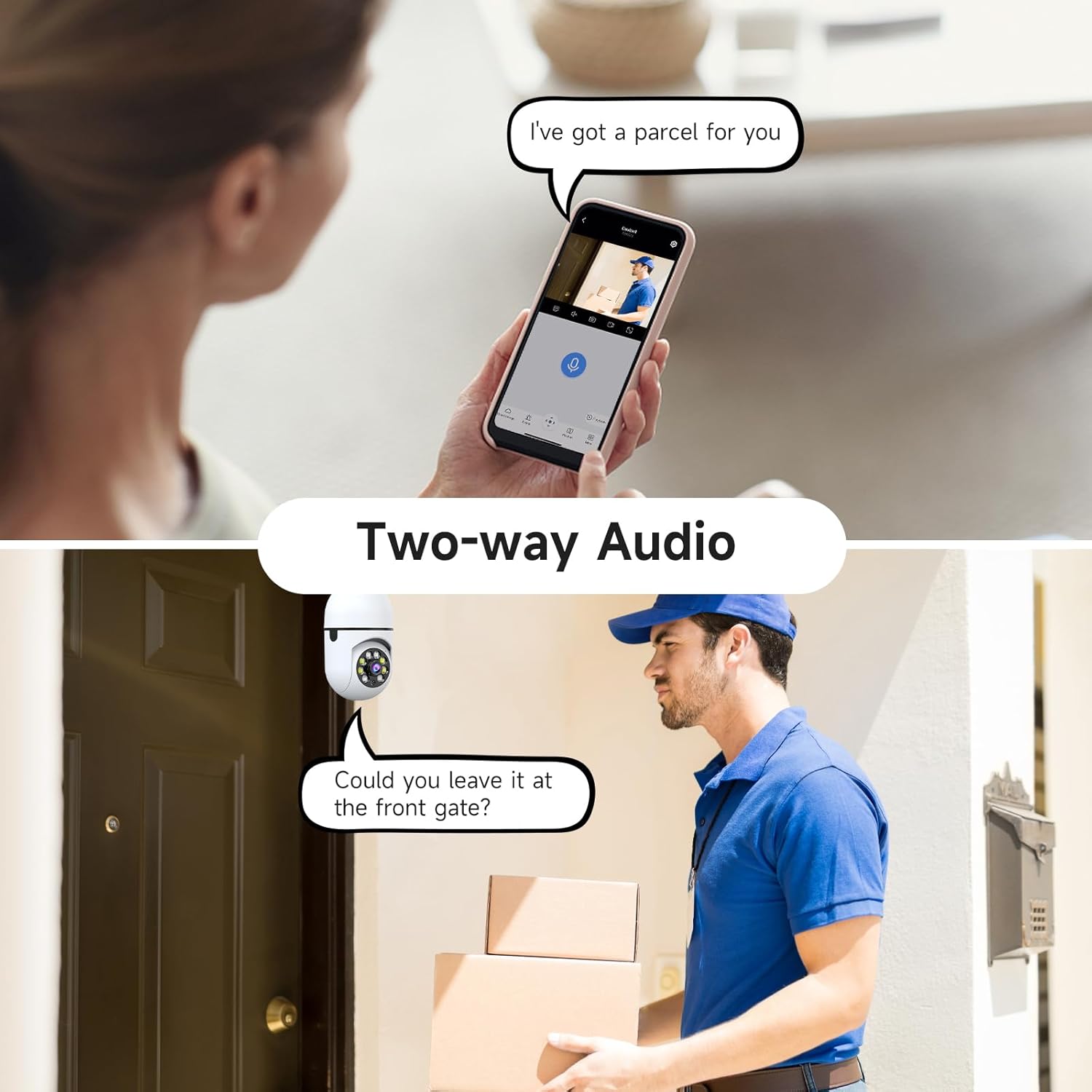
Image 4.2: Illustration of the two-way audio function, showing a user speaking through the app to a person at the door.
4.3 Motion Detection and AI Human Detection
The camera is equipped with advanced motion detection and AI-powered human detection. This technology helps reduce false alerts by distinguishing human movement from other environmental factors like pets or swaying branches. When motion is detected, you will receive real-time notifications on your smartphone.

Image 4.3: A smartphone screen showing an alert notification for AI human detection, indicating the camera's ability to filter false alarms.
4.4 Auto Tracking
When motion is detected, the camera can automatically track the moving object within its 360-degree viewing angle. After tracking, it will return to its preset monitoring position.

Image 4.4: The camera's motion detection and auto-tracking feature, illustrating how it follows movement and returns to its original position.
4.5 Color Night Vision
The camera provides color night vision, offering clear and vivid images even in low-light conditions, surpassing traditional black and white night vision.
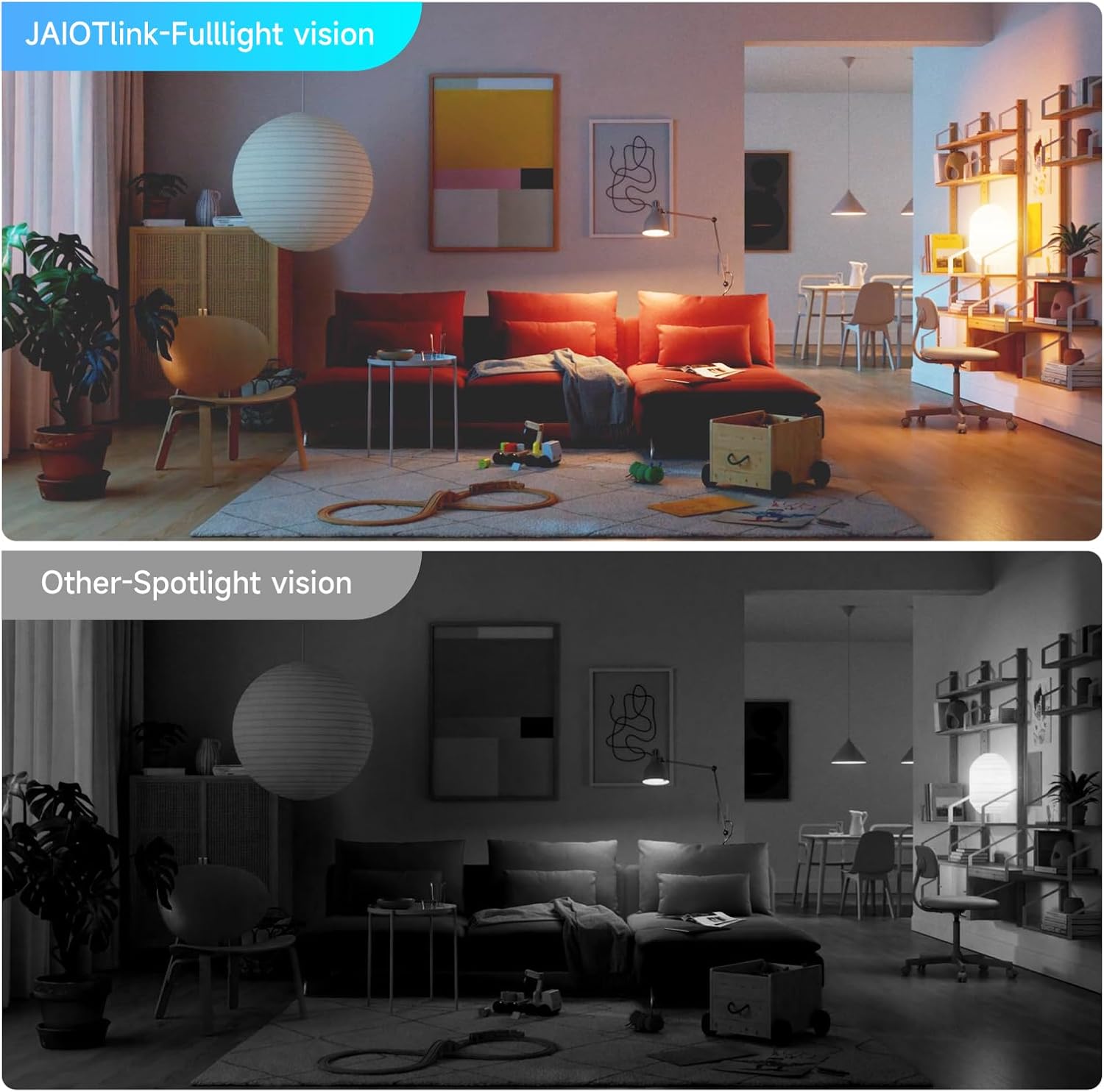
Image 4.5: A comparison showing the superior clarity and color rendition of JAIOTlink's Full-light vision compared to standard spotlight vision in a low-light indoor setting.
4.6 Recording and Storage
The camera supports local storage via a Micro SD card (up to 256GB). Insert a compatible Micro SD card into the designated slot on the camera to enable continuous recording or event-triggered recording. Manage recording settings and review footage through the mobile application.
4.7 Alexa Compatibility
The JAIOTlink camera is compatible with Amazon Alexa. Link your camera to your Alexa account through the Alexa app to enable voice-activated viewing of your camera's live feed on compatible Alexa-enabled devices.
5. Maintenance
5.1 Cleaning
To maintain optimal image quality, periodically clean the camera lens with a soft, dry cloth. Avoid using harsh chemicals or abrasive materials that could scratch the lens.
5.2 Firmware Updates
Ensure your camera's firmware is up to date. The mobile application will typically notify you of available updates. Follow the in-app instructions to perform firmware updates, which can improve performance and add new features.
5.3 Storage Management
If using a Micro SD card for storage, regularly check its capacity through the app. You may need to format the card periodically or replace it if it becomes full or corrupted. Back up important footage before formatting.
6. Troubleshooting
- Camera not connecting to Wi-Fi:
- Ensure your Wi-Fi network is 2.4GHz or 5GHz and that your router is within range.
- Verify the Wi-Fi password entered in the app is correct.
- Restart your router and the camera.
- Frequent false alerts:
- Adjust the motion detection sensitivity settings in the app.
- Utilize the AI Human Detection feature to filter out non-human movements.
- Ensure the camera's field of view is clear of objects that might cause unwanted triggers (e.g., swaying branches, reflective surfaces).
- No video feed:
- Check if the camera is powered on and connected to Wi-Fi.
- Ensure your smartphone has a stable internet connection.
- Restart the camera and the mobile application.
- Two-way audio not working:
- Check the microphone and speaker settings in the app.
- Ensure your phone's volume is up and the app has microphone permissions.
- Verify there are no obstructions blocking the camera's microphone or speaker.
7. Specifications
| Feature | Specification |
|---|---|
| Model Number | JA-CA42 |
| Video Capture Resolution | 2K (3MP Effective Still Resolution) |
| Connectivity Technology | Wireless (Wi-Fi) |
| Wireless Communication Technology | Wi-Fi (2.4GHz & 5GHz) |
| Indoor/Outdoor Usage | Indoor, Outdoor |
| Mounting Type | Light Socket (E27) |
| Viewing Angle | 360 Degrees |
| Night Vision Range | 33 Feet |
| Low Light Technology | Night Color |
| Special Features | 2-Way Audio, AI Human Detection, Auto Tracking, Alexa Compatible |
| Storage | Micro SD (up to 256 GB) |
| Power Source | Corded Electric |
| Voltage | 240 Volts |
| Wattage | 5 watts |
| Dimensions (L x W x H) | 2.68 x 2 x 6.1 inches |
| Material | Acrylonitrile Butadiene Styrene (ABS) |
8. Warranty and Support
8.1 Warranty Information
The JAIOTlink 2K Light Bulb Security Camera comes with a 12-month reliable warranty from the date of purchase. This warranty covers manufacturing defects and ensures the product functions as intended under normal use. Please retain your proof of purchase for warranty claims.
8.2 Customer Support
For technical assistance, troubleshooting, or warranty inquiries, please contact our customer support team:
- Email: E-Mingxun@outlook.com