
1. Introduction
This manual provides detailed instructions for the setup, operation, and maintenance of your Tccbac 4K HD WiFi Hidden Camera Clock. This device is designed for indoor surveillance, offering 4K Ultra HD video resolution, a 150° wide-angle lens, real-time viewing via a mobile application, motion detection, and advanced night vision capabilities. Please read this manual thoroughly before using the product to ensure proper functionality and safety.
2. Product Overview
The Tccbac Hidden Camera Clock integrates a high-definition camera into a functional digital clock, making it a discreet surveillance solution. Familiarize yourself with the device components:
- Camera Lens: Integrated discreetly into the clock face.
- Digital Clock Display: Shows time.
- Charging Port: For power input.
- Power Button: To turn the device on or off.
- Reset Button: To restore factory settings.
- SD Card Slot: For local video storage (supports up to 256GB microSD card, not included).
- WiFi Config Indicator Light: Provides status of WiFi connection.

Figure 2.1: Rear view of the Tccbac Hidden Camera Clock showing the WiFi configuration indicator light, SD card slot, reset button, power button, and charging port.
3. Setup
3.1. Charging the Device
Before initial use, fully charge the camera clock. Connect the provided charging cable to the charging port on the device and to a standard USB power adapter (not included). The device contains a Lithium Ion battery.
3.2. Inserting a MicroSD Card
For local video storage, insert a microSD card (up to 256GB, not included) into the SD card slot. Ensure the card is inserted correctly with the contacts facing down. The device will automatically format the card upon first use or when a new card is detected.
3.3. Powering On/Off
Press and hold the Power Button located on the rear of the device to turn it on or off. The digital display will illuminate when the device is powered on.
3.4. App Installation and Wi-Fi Connection
- Download the designated mobile application from your smartphone's app store (iOS or Android). Refer to the packaging or a quick start guide for the specific app name.
- Open the app and create an account or log in.
- Follow the in-app instructions to add a new device. This typically involves scanning a QR code on the camera or manually selecting the device model.
- Connect the camera to your home Wi-Fi network. The device supports both 2.4G and 5G Wi-Fi frequencies. Ensure your smartphone is connected to the same Wi-Fi network during the setup process.
- The WiFi Config Indicator Light will show the connection status. A solid light usually indicates a successful connection.

Figure 3.4.1: Remote access and live video viewing through the mobile application, highlighting 5GHz WiFi support and 150° wide-angle view.
4. Operating Instructions
4.1. Live Video Streaming
Once connected to Wi-Fi, open the mobile application on your smartphone to view the live video feed from the camera. You can monitor your space in real-time from anywhere with an internet connection.

Figure 4.1.1: Remotely checking activity status of family members at home via smartphone.

Figure 4.1.2: Observing pet behavior remotely when away from home.
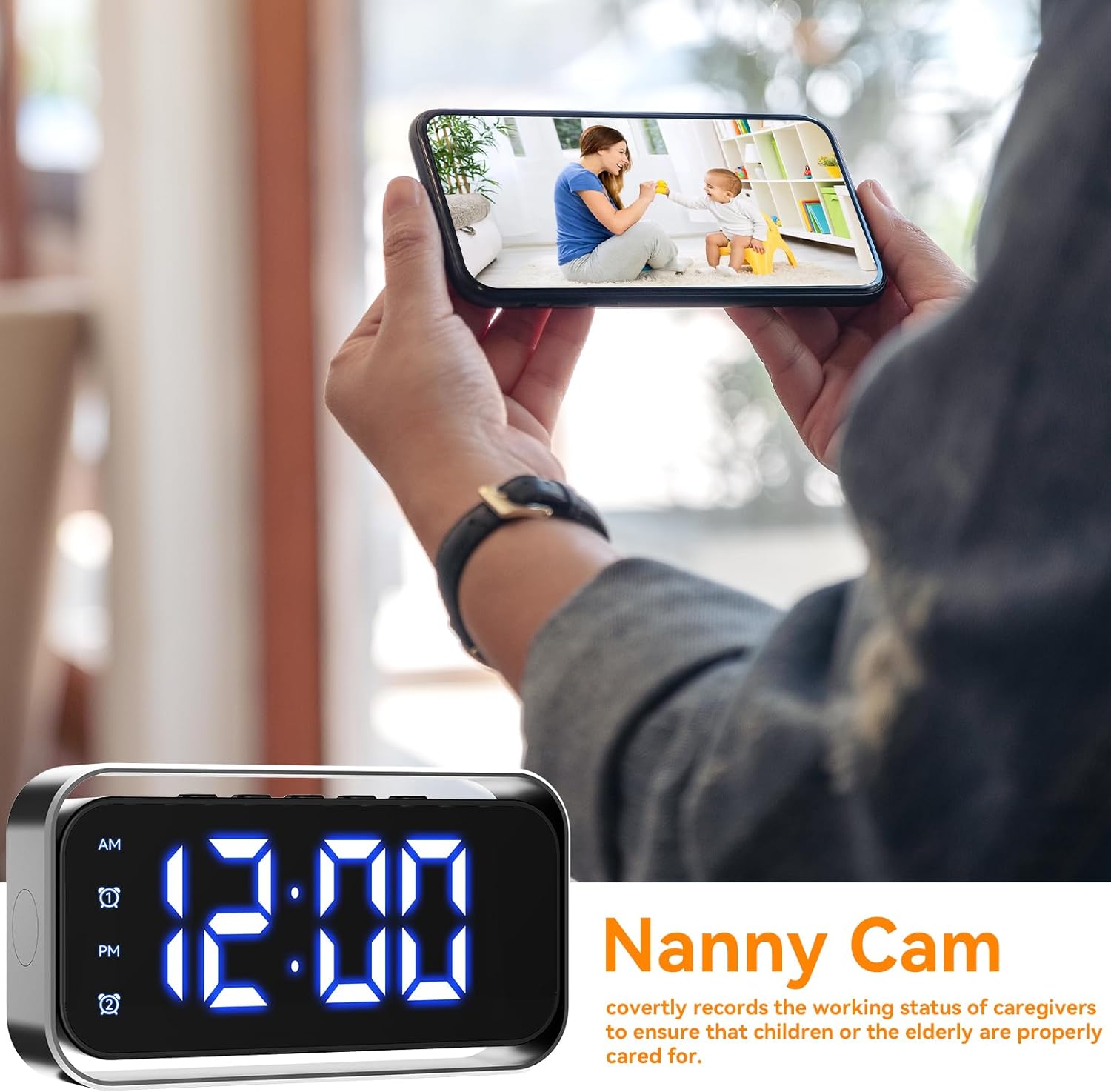
Figure 4.1.3: Using the device as a nanny cam to monitor caregivers and children.
4.2. Motion Detection
The camera features customizable motion detection. Through the mobile application, you can adjust the sensitivity levels to suit your environment. When motion is detected, the camera can send instant notifications to your smartphone, alerting you to activity in the monitored area.
4.3. Night Vision
Equipped with advanced night vision technology, the camera can capture clear black-and-white footage in complete darkness, up to 26 feet. This feature activates automatically in low-light conditions, ensuring continuous surveillance.

Figure 4.3.1: Advanced night vision capturing Ultra HD 4K resolution footage in complete darkness.
4.4. Video Storage
The camera offers flexible storage options:
- Local Storage: Videos are recorded and saved to a microSD card (up to 256GB, not included) inserted into the device.
- Cloud Storage: The device supports cloud storage for remote access to recordings. Availability and subscription details for cloud storage are managed through the mobile application.
5. Maintenance
5.1. Cleaning
To clean the device, gently wipe the surfaces with a soft, dry cloth. Do not use liquid cleaners or abrasive materials, as these can damage the camera lens or the device's finish.
5.2. Battery Care
To prolong battery life, avoid exposing the device to extreme temperatures. If the device will not be used for an extended period, charge it periodically to maintain battery health.
6. Troubleshooting
- Device not powering on: Ensure the device is fully charged. Connect it to a power source and try again.
- Cannot connect to Wi-Fi:
- Verify your Wi-Fi network is 2.4G or 5G and has a stable internet connection.
- Ensure your smartphone is connected to the same Wi-Fi network during setup.
- Move the camera closer to your Wi-Fi router.
- Try resetting the device using the Reset Button and re-attempt the Wi-Fi setup process.
- No video recording:
- Check if a microSD card is properly inserted and has sufficient free space.
- Ensure recording settings are enabled in the mobile application.
- If using cloud storage, verify your subscription status.
- Poor video quality: Ensure the camera lens is clean. Check your internet connection speed for live streaming.
- Motion detection not working: Adjust the motion detection sensitivity in the app. Ensure notifications are enabled on your smartphone.
7. Specifications
| Feature | Specification |
|---|---|
| Model Number | TCUK-XZ-CLOCK02 |
| Video Resolution | 4K Ultra HD |
| Lens Angle | 150° Wide Angle |
| Wireless Technology | Wi-Fi (2.4G & 5G compatible) |
| Storage | MicroSD card up to 256GB (not included), Cloud storage support |
| Special Features | Portable, 4K Video Clarity, Night Vision, Motion Sensor |
| Night Vision Range | Up to 26 feet (in complete darkness) |
| Power Source | Rechargeable Lithium Ion Battery (included) |
| Material | Acrylonitrile Butadiene Styrene (ABS) |
| Dimensions (L x W x H) | 20.32 x 12.7 x 14 cm (approx. 8 x 5 x 5.5 inches) |
| Weight | 280 g (approx. 0.62 lbs) |
| Mounting Type | Table Mount |
| Indoor/Outdoor Use | Indoor |
| Compatible Devices | Smartphone |
8. Warranty and Support
For warranty information and technical support, please refer to the documentation included with your purchase or visit the official Tccbac website. Keep your purchase receipt as proof of purchase for warranty claims.