
Introduction
The OTTOCAST Mirror Touch Wireless CarPlay Adapter is designed to enhance your in-car experience by seamlessly integrating your smartphone with your vehicle's display. This innovative device offers bi-directional phone mirroring, allowing you to control your iPhone or Android device directly from your car's touchscreen. It also converts your factory wired CarPlay into a wireless system, providing unparalleled convenience and access to your favorite apps.

The OTTOCAST Mirror Touch adapter seamlessly connects your phone to your car's display, enhancing your driving experience.
Key Features:
- Bi-Directional Phone Mirroring: Command your iPhone 15/16 Series or compatible Android phone directly from your car screen.
- Wireless CarPlay: Ditch the cables with seamless wireless CarPlay for 2016+ cars.
- Mobile Cinema: Mirror streaming apps like Netflix or YouTube to your dash.
- Dual Mode Switching: Easily switch between CarPlay and mirroring with a tap.
- 27W Fast Charging: Keep your device powered without interruption during long trips.
- Data Privacy: Disconnect to instantly wipe all data for shared vehicles.
What's in the Box
- Ottocast Mini (MirrorTouch) x 1
- 90° USB Plug Adapter (Type A to A) x 1
- USB Plug Adapter (Type A to C) x 1
- User Manual x 1

The package includes the Ottocast Mirror Touch device, various USB adapters, and the user manual.
Compatibility
Phone Compatibility:
For iOS users: All iPhone 15 & 16 models (iPhone 15, iPhone 15 Plus, iPhone 15 Pro, iPhone 15 Pro Max, iPhone 16, iPhone 16 Plus, iPhone 16 Pro, iPhone 16 Pro Max).
For Android users: Must support DisplayPort (DP) Screen Mirroring. Known compatible models include: Samsung Galaxy S25/S25+/S25 Ultra, S24/S24 FE, S23/S23+/S23 Ultra, S22/S22 Ultra, S21/S21+/S20/S20+, S10/S10+, Note 20 Ultra, Z Fold6, Z Flip6, Z Fold (HK Version), Z Flip (EU Version), Pixel 9 Pro/9 Pro fold, Pixel 8A/8, Xperia 1 III/1 VI/5 III/5 V, Moto Edge 50+.
Vehicle Compatibility:
Compatible with 98% of vehicles (2016 or later) that have factory-installed wired CarPlay.

Scan the QR code in the user manual or visit adaptermanual.com to easily check if your device is supported.
Setup
Initial Connection (Wired CarPlay to Wireless):
- Plug the Ottocast Mirror Touch adapter into your car's USB port (the one used for wired CarPlay).
- On your iPhone, go to Settings > Bluetooth and ensure Bluetooth is enabled.
- On your car's display, select the CarPlay icon.
- On your iPhone, find and select the Bluetooth device named "CAR-xxxx" (where xxxx is a unique identifier) and confirm the pairing request.
- Allow contacts and favorites sync if prompted.
- Once paired, CarPlay will launch wirelessly on your car's screen.
This video demonstrates the quick setup process to convert your wired CarPlay to wireless functionality using the Ottocast adapter.
Wireless CarPlay Setup:
- Ensure the Ottocast adapter is plugged into your car's USB port.
- On your car's display, select the CarPlay icon.
- On your iPhone, go to Settings > Bluetooth and connect to the device named "CAR-xxxx".
- Confirm the pairing request and allow sync if prompted.
- CarPlay will now connect wirelessly.

Follow these simple steps to enable wireless CarPlay in your vehicle.
iOS Mirroring & Touch Control Setup:
- Connect the Ottocast adapter to your car and your iPhone (iPhone 15 and newer models are supported).
- On your car's display, tap the iOS Mirror icon.
- Follow the on-screen prompts to finish the setup. Touch control activates automatically after setup.

Control your iPhone screen directly from your car's display with just three easy steps.
Android Mirroring Setup:
- Connect your Android phone (must support DisplayPort output) to the Ottocast adapter.
- On your car's display, tap the Android Mirror icon.
- The setup is complete. This feature works only with Android phones that support DP (DisplayPort) output.

Mirror your Android phone screen directly onto your car's display for enhanced functionality.
Operating Instructions
Bi-Directional Phone Mirroring:
The Mirror Touch adapter allows you to fully control your mirrored phone screen directly from your car's touchscreen. This eliminates the need to interact with your phone while driving, enhancing safety and convenience. You can navigate apps, browse content, and interact as if you were holding your phone.
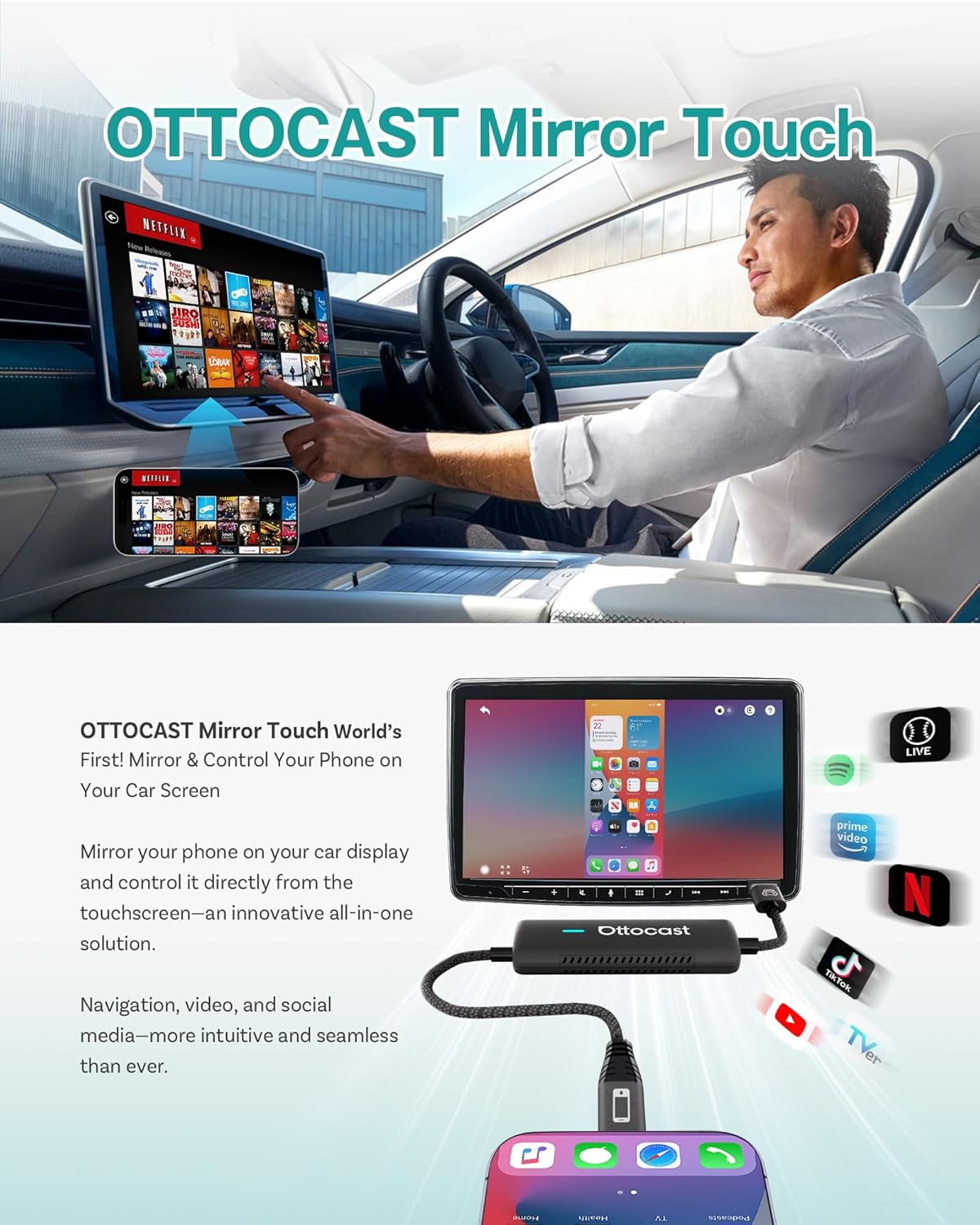
Experience revolutionary control by commanding your iPhone or Android device directly from your car screen.
Seamless Charging & Mirroring:
The device supports 27W fast charging, ensuring your phone remains powered even during extended mirroring sessions. This is ideal for long road trips or when using power-intensive applications like navigation or video streaming.
Keep your phone powered during navigation and video streaming with seamless charging while mirroring.
Video Playback & Streaming:
Unlock a world of entertainment by mirroring video streaming services like Netflix and YouTube directly to your car's display. This feature is perfect for passengers or for enjoying content while parked.
This video demonstrates the capabilities of the Ottocast Mirror Touch for next-level car technology, including video streaming.
Audio & Video Quality:
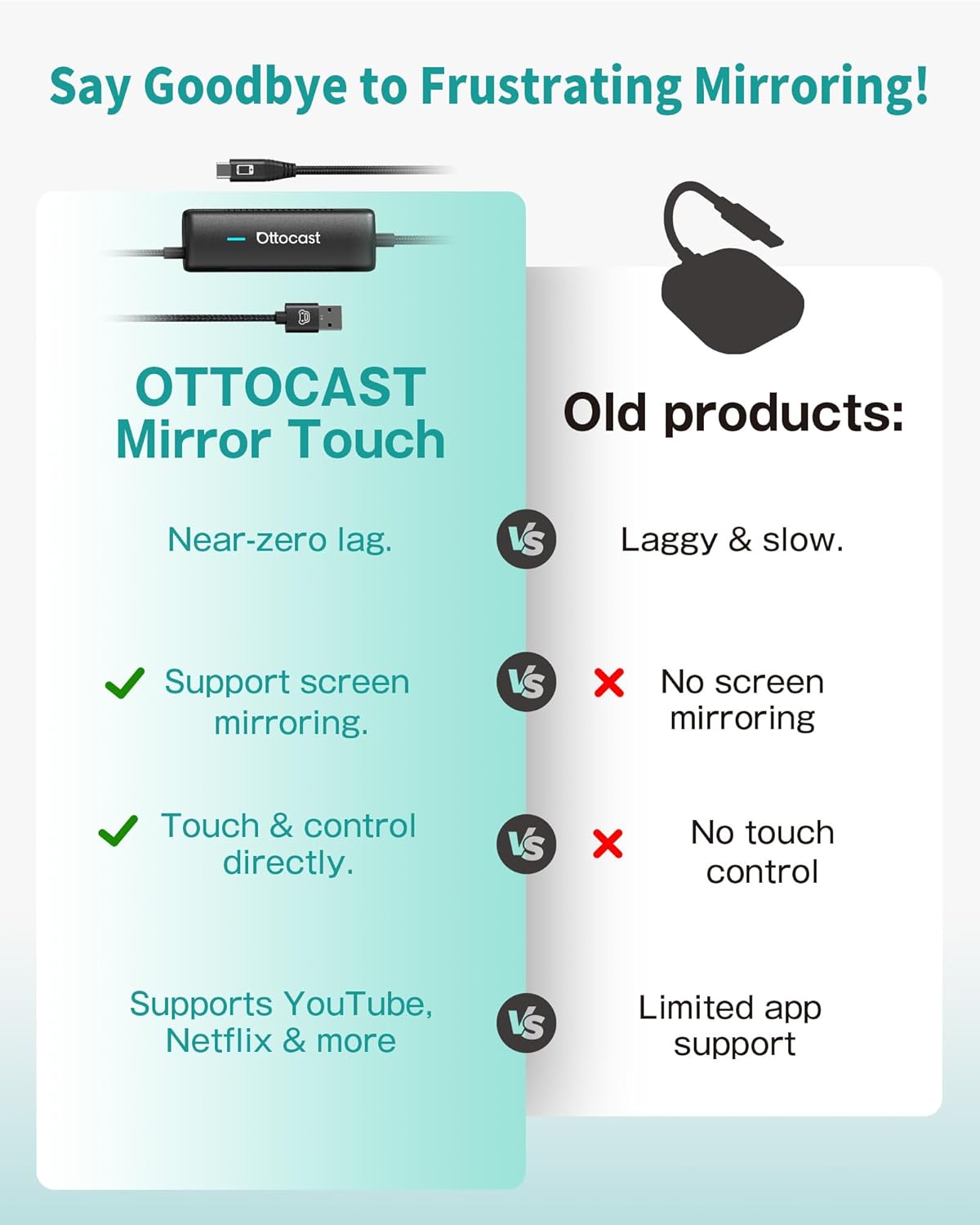
The Mirror Touch adapter provides lossless HD transmission for both audio and video, ensuring crisp visuals and clear sound through your car's audio system. It also boasts ultra-low latency (approx. 80ms), minimizing lag and stutter for a smooth experience.
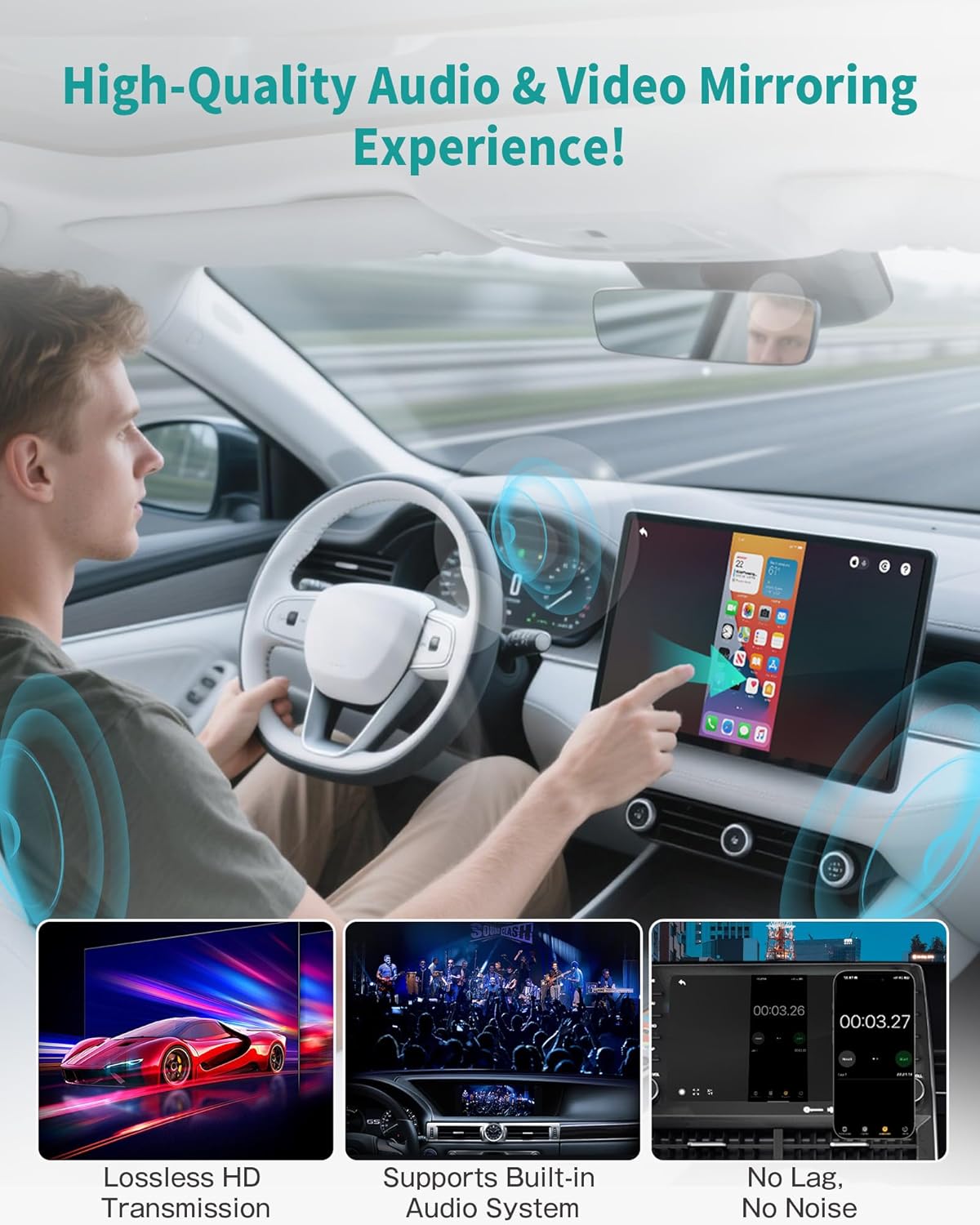
Enjoy a high-quality audio and video mirroring experience with lossless transmission and minimal latency.
Maintenance
- Cleaning: Use a soft, dry cloth to clean the device. Avoid liquid cleaners or abrasive materials.
- Storage: When not in use, store the adapter in a cool, dry place away from direct sunlight and extreme temperatures.
- Software Updates: The device supports OTA (Over-The-Air) updates to automatically receive the latest features and improvements. Check for updates periodically through the device's interface on your car screen or phone.

Keep your device updated with the latest features and improvements through convenient OTA updates.
Troubleshooting
- Device Not Connecting: Ensure the adapter is securely plugged into the car's USB port. Check your phone's Bluetooth settings to confirm it's paired with the "CAR-xxxx" device. Restart your phone and car's infotainment system if issues persist.
- No Audio/Video During Mirroring: Verify that your phone's volume is up and that the car's audio input is set correctly. For some apps, ensure background playback is enabled on your phone.
- Lag or Delay: While the device has ultra-low latency, ensure your phone's background apps are closed to free up resources. Check for any available software updates for the Ottocast adapter.
- Screen Distortion: If the mirrored picture appears distorted, try adjusting the display settings on your phone or the car's infotainment system. Ensure your phone's display output supports the resolution of your car screen.
- Privacy Concerns: If you lend your car or rent one, you can easily disconnect the device to wipe all personal data instantly, ensuring your privacy.
Specifications
| Feature | Detail |
|---|---|
| Product Dimensions | 6.34 x 3.86 x 1.89 inches |
| Item Weight | 7.3 ounces |
| ASIN | B0FDJVVH7C |
| Item Model Number | CA505-T1 |
| Manufacturer | OTTOCAST |
| Country of Origin | China |
| Color | Black |
Warranty & Support
OTTOCAST products are built with quality and reliability in mind, holding multiple certifications to ensure performance and safety.

OTTOCAST products are backed by industry-leading certifications.
For any technical support, warranty claims, or inquiries, please contact OTTOCAST customer service directly. You can reach them via email at support@ottocast.com or visit their official website at www.ottocast.com.