
HP CP0056
HP CP0056 17.3-inch Touch Business Laptop User Manual
Model: CP0056
1. Introduction
This manual provides essential information for the setup, operation, and maintenance of your HP CP0056 17.3-inch Touch Business Laptop. This device is equipped with an AMD Ryzen 3 3250U processor, 32GB DDR4 RAM, a 1TB NVMe SSD, and runs on Windows 11 Home. It features a 17.3-inch HD+ BrightView LED Touchscreen, integrated Bluetooth, Wi-Fi, HDMI, webcam, and microphones, designed for various computing tasks.

Figure 1: HP CP0056 Laptop Overview
2. What's in the Box
Verify that all items are present upon unpacking:
- HP CP0056 17.3-inch Touch Business Laptop
- Power Adapter (Charger)
- Quick Start Guide (if included)
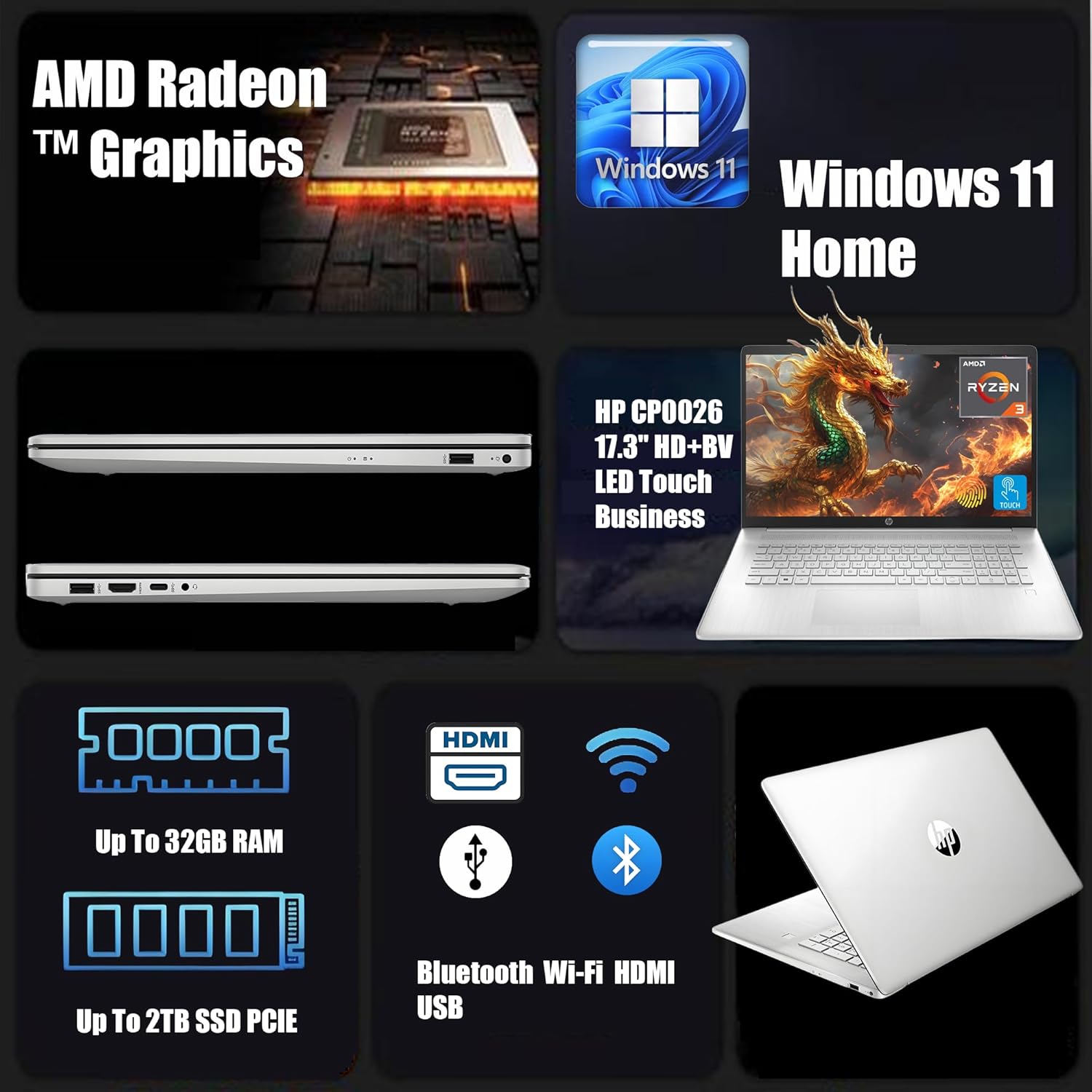
Figure 2: Key Features and Components
3. Initial Setup
3.1 Unpacking and Connecting Power
- Carefully remove the laptop and all accessories from the packaging.
- Connect the power adapter to the laptop's power port.
- Plug the power adapter into a grounded electrical outlet.
3.2 First Boot and Windows 11 Setup
- Open the laptop lid and press the power button.
- Follow the on-screen instructions to complete the Windows 11 Home setup, including language, region, network connection, and user account creation.
3.3 Network Connectivity
- Wi-Fi: During Windows setup or via the Windows Settings, select your Wi-Fi network and enter the password.
- Bluetooth: Enable Bluetooth in Windows Settings to pair with compatible devices such as mice, keyboards, or headphones.
4. Operating Your Laptop
4.1 Using the Touchscreen
The 17.3-inch HD+ BrightView LED Touchscreen supports multi-touch gestures for intuitive navigation. Use taps, swipes, and pinch-to-zoom as you would on a tablet or smartphone.
4.2 Keyboard and Touchpad
- Keyboard: Standard QWERTY layout with function keys for brightness, volume, and other system controls.
- Touchpad: Supports multi-finger gestures for scrolling, zooming, and switching applications. Refer to Windows touchpad settings for customization.
4.3 Connecting External Devices
Your laptop includes various ports for connecting peripherals:
- USB Ports: Connect USB drives, external keyboards, mice, and other compatible devices.
- HDMI Port: Connect to external monitors or projectors for extended display.
- Audio Jack: Connect headphones or external speakers.

Figure 3: Laptop Ports and Connectivity
4.4 Webcam and Microphones
The integrated HD webcam and dual microphones are suitable for video conferencing, online classes, and voice recording. Ensure proper privacy settings are configured in Windows.
5. Care and Maintenance
5.1 Cleaning Your Laptop
- Screen: Use a soft, lint-free cloth lightly dampened with water or a screen cleaner. Avoid harsh chemicals.
- Keyboard and Chassis: Use a soft cloth to wipe surfaces. Compressed air can remove debris from between keys.
- Always power off and unplug the laptop before cleaning.
5.2 Battery Care
- Avoid extreme temperatures.
- For optimal battery longevity, avoid constantly discharging the battery to 0% or keeping it at 100% for extended periods.
5.3 Software Updates
Regularly check for and install Windows updates and driver updates from HP's official support website to ensure optimal performance and security.
6. Troubleshooting
This section addresses common issues you might encounter.
| Problem | Possible Solution |
|---|---|
| Laptop does not power on | Ensure the power adapter is securely connected to both the laptop and a working electrical outlet. Check the power indicator light. |
| No display on screen | Check screen brightness settings. If an external monitor is connected, ensure it is properly configured. Try restarting the laptop. |
| Wi-Fi connection issues | Verify Wi-Fi is enabled in Windows settings. Restart your router and the laptop. Ensure correct Wi-Fi password is entered. |
| Touchscreen unresponsive | Restart the laptop. Ensure the screen is clean and free of debris. Check for driver updates. |
7. Specifications
Detailed technical specifications for the HP CP0056 laptop:
| Feature | Detail |
|---|---|
| Model Name | HP CP0056 |
| Processor | AMD Ryzen 3 3250U (2.6 GHz, up to 3.5 GHz) |
| RAM | 32GB DDR4 SDRAM |
| Storage | 1TB NVMe SSD |
| Display | 17.3 Inches HD+ BrightView LED Touchscreen (1600x900 Pixels) |
| Graphics | Integrated AMD Radeon Graphics |
| Operating System | Windows 11 Home |
| Connectivity | Wi-Fi, Bluetooth, HDMI, USB 3.0 (x2), USB 2.0 (x1) |
| Special Features | HD Graphics, Support Stylus, Webcam |
| Color | Silver |
| Item Weight | 6.5 pounds |
| Product Dimensions | 17.3 x 9 x 0.7 inches |
8. Warranty and Support
8.1 Product Warranty
Your HP CP0056 laptop typically comes with a standard manufacturer's warranty. Please refer to the warranty card included with your product or visit the official HP website for detailed warranty terms and conditions specific to your region.
8.2 Technical Support
For technical assistance, driver downloads, or further support, please visit the official HP Support website: support.hp.com. You will need your product model number (CP0056) and serial number (located on the bottom of your laptop) when contacting support.
Ask a question about this manual
Ask about setup, troubleshooting, compatibility, parts, safety, or missing instructions. Manuals+ will review the question and use this page’s manual context to help answer it.