
MOLGRIA GK68 HE
MOLGRIA x SKYLOONG GK68 HE USB Wired Magnetic-Switch RGB Mechanical Gaming Keyboard User Manual
Model: GK68 HE | Brand: MOLGRIA x SKYLOONG
1. Introduction
This manual provides detailed instructions for the setup, operation, and maintenance of your MOLGRIA x SKYLOONG GK68 HE USB Wired Magnetic-Switch RGB Mechanical Gaming Keyboard. Please read this manual thoroughly before using the product to ensure optimal performance and longevity.
2. Package Contents
Verify that all items are present in your product package:
- MOLGRIA x SKYLOONG GK68 HE Keyboard (68 Keys with Knob)
- Type-C to USB Cable (x1)
- Keycap Puller (x1)
- User Manual (x1)
3. Product Overview
The MOLGRIA x SKYLOONG GK68 HE is a 60% layout mechanical gaming keyboard featuring magnetic switches, RGB backlighting, and a multi-layer gasket design for a premium typing experience.

Figure 3.1: The MOLGRIA x SKYLOONG GK68 HE keyboard in white, showcasing its compact 60% layout and integrated knob.
3.1 Key Features
- Compact 60% Layout: Maximizes desk space while providing essential keys.
- Magnetic Switches: Hot-swappable Skyloong magnetic switches for customizable actuation.
- Multi-Layer Gasket Mount: Isolates the plate and PCB from the aluminum frame for enhanced typing feel and sound dampening.
- RGB Backlighting: Adjustable RGB lighting with south-facing LEDs for vibrant shine-through keycaps.
- Programmable Knob: Multi-functional knob for volume control and user-defined actions.
- USB Wired Connectivity: Type-C to USB connection ensures low latency and stable performance.
- Office/Gaming Mode Switch: Dedicated trigger to quickly switch between different actuation points.
- Aluminum Frame & PBT Keycaps: Durable aluminum alloy frame with double-shot matte PBT keycaps.

Figure 3.2: An exploded diagram illustrating the multi-layer gasket structure of the keyboard, including the aluminum case, silicone base pad, EPDM cotton, PCB, leaf spring pad, IXPE poron pad, switch holder, switch, knob encoder, keycap, and metal knob.

Figure 3.3: Close-up view of the "Switch Holder" mechanism, designed for single-button independent fixing to improve magnetic switch accuracy.

Figure 3.4: Diagram illustrating the Magnetic Switch Algorithm 3.0, which automatically filters environmental interference and provides temperature compensation for precise key actuation.
4. Setup
4.1 Connecting the Keyboard
- Locate the Type-C to USB cable included in the package.
- Connect the Type-C end of the cable to the Type-C port on the keyboard.
- Connect the USB-A end of the cable to an available USB port on your computer (PC or Mac).
- The keyboard will be automatically recognized by your operating system. No additional drivers are typically required for basic functionality.
4.2 Adjusting Keyboard Angle
The keyboard features an aluminum 3-stage footrest, allowing you to adjust the typing angle for ergonomic comfort.
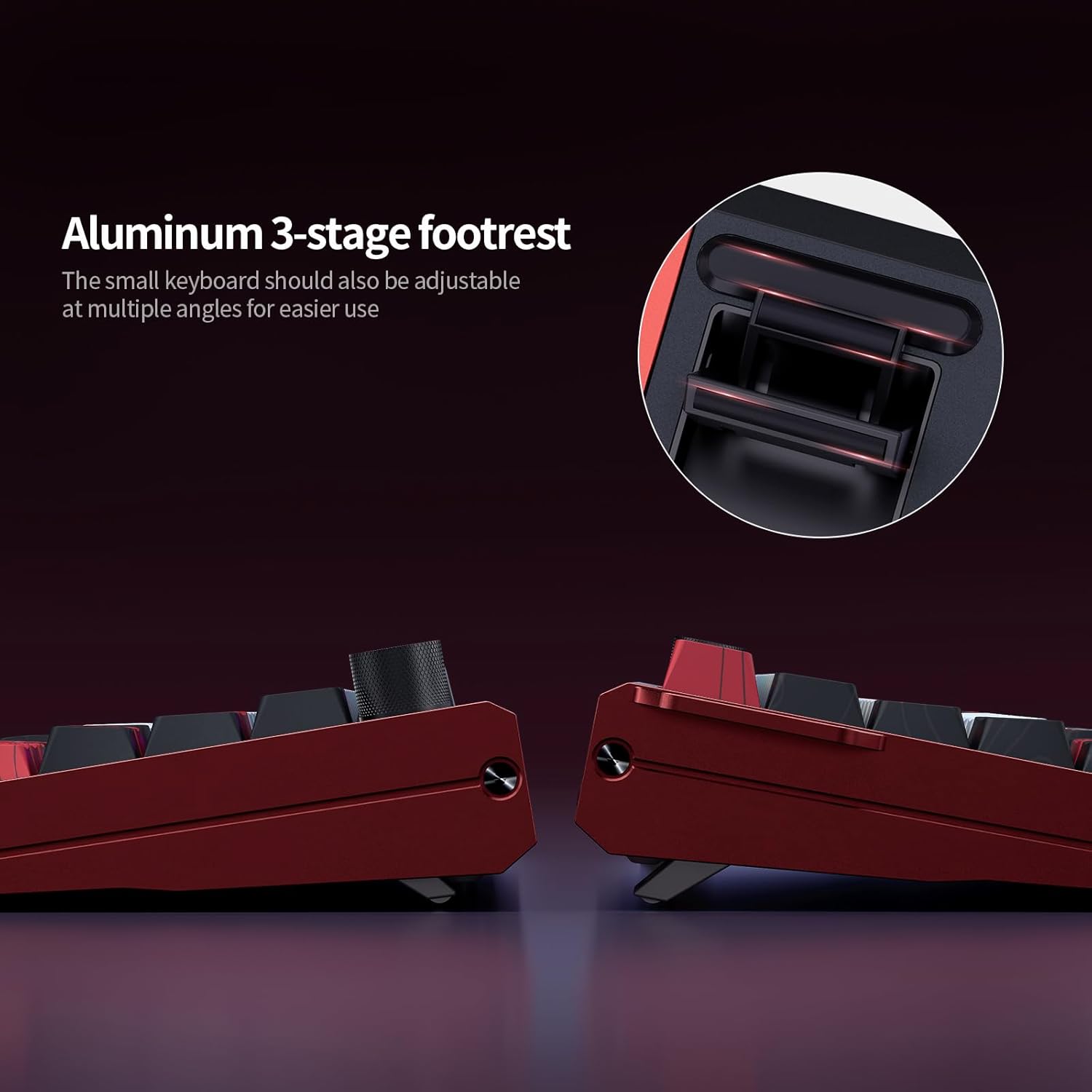
Figure 4.1: Side view of the keyboard demonstrating the adjustable aluminum 3-stage footrest for multiple typing angles.
5. Operating Instructions
5.1 RGB Backlighting Control
The keyboard features adjustable RGB backlighting. Specific key combinations or software may be used to cycle through lighting modes, adjust brightness, and change colors. Refer to the official software for full customization options.

Figure 5.1: The GK68 HE keyboard illuminated with RGB backlighting, highlighting the south-facing LEDs and shine-through keycaps.
5.2 Knob Functionality
The integrated knob on the keyboard typically controls system volume by default. It can be rotated to adjust volume up or down, and pressed to mute/unmute. Advanced customization for the knob's functions is available through the dedicated software.
5.3 Office/Gaming Mode Quick Switch
The keyboard is equipped with a trigger to quickly switch between Office Mode and Gaming Mode. This feature allows for changing actuation points to suit different usage scenarios.

Figure 5.2: Detail of the keyboard's side, showing the Type-C port and the dedicated trigger for switching between Game Mode and Office Mode.
5.4 Software Customization
For full customization of key functions, RGB lighting effects, and knob assignments, download the official MOLGRIA x SKYLOONG software. The software is compatible with both Mac and Windows operating systems.
6. Maintenance
6.1 Cleaning the Keyboard
- Disconnect the keyboard from your computer before cleaning.
- Use the included keycap puller to carefully remove keycaps for thorough cleaning.
- Use a soft brush or compressed air to remove dust and debris from between the keys.
- Wipe the keycaps and keyboard frame with a slightly damp, lint-free cloth. Avoid excessive moisture.
- Do not use harsh chemicals or abrasive materials, as these can damage the keyboard's finish or keycap legends.
6.2 Switch Replacement (Hot-Swappable)
The GK68 HE features hot-swappable magnetic switches. If a switch needs replacement, use a switch puller (not included, but often comes with replacement switches) to gently remove the old switch and insert a new one. Ensure the new switch is aligned correctly before pressing it into place.
7. Troubleshooting
| Problem | Possible Cause | Solution |
|---|---|---|
| Keyboard not responding | Loose cable connection, faulty USB port, driver issue. |
|
| RGB lighting not working | Lighting disabled, software conflict. |
|
| Keys not registering or double-typing | Dust/debris under keycap, faulty switch, software setting. |
|
8. Specifications
| Brand | MOLGRIA x SKYLOONG |
| Model | GK68 HE |
| Keyboard Layout | 60% (68 Keys) |
| Switch Type | Hot-swappable Magnetic Switches |
| Keycap Material | Double-shot Matte PBT |
| Frame Material | Aluminum Alloy |
| Connectivity | USB-C Wired |
| Backlighting | RGB, South-facing LEDs |
| Special Features | Programmable Knob, Office/Gaming Mode Switch, Multi-layer Gasket Mount, 3-stage Adjustable Footrest |
| Compatible Devices | MAC, PC |
| Dimensions (L x W x H) | 13.77 x 7.6 x 1.92 inches |
| Item Weight | 1.93 pounds |
9. Warranty and Support
For warranty information and technical support, please refer to the official MOLGRIA or SKYLOONG website, or contact your retailer. Keep your proof of purchase for warranty claims.
For software downloads and further assistance, visit the official product support page.