
1. Product Overview
The Flylin MP3 Player (Model JY2025123) is a compact and portable digital music player designed for various audio and media functions. It features a durable aluminum alloy construction and a 1.8-inch LCD screen. This device supports multiple audio formats, FM radio, voice recording, e-book reading, and video playback.
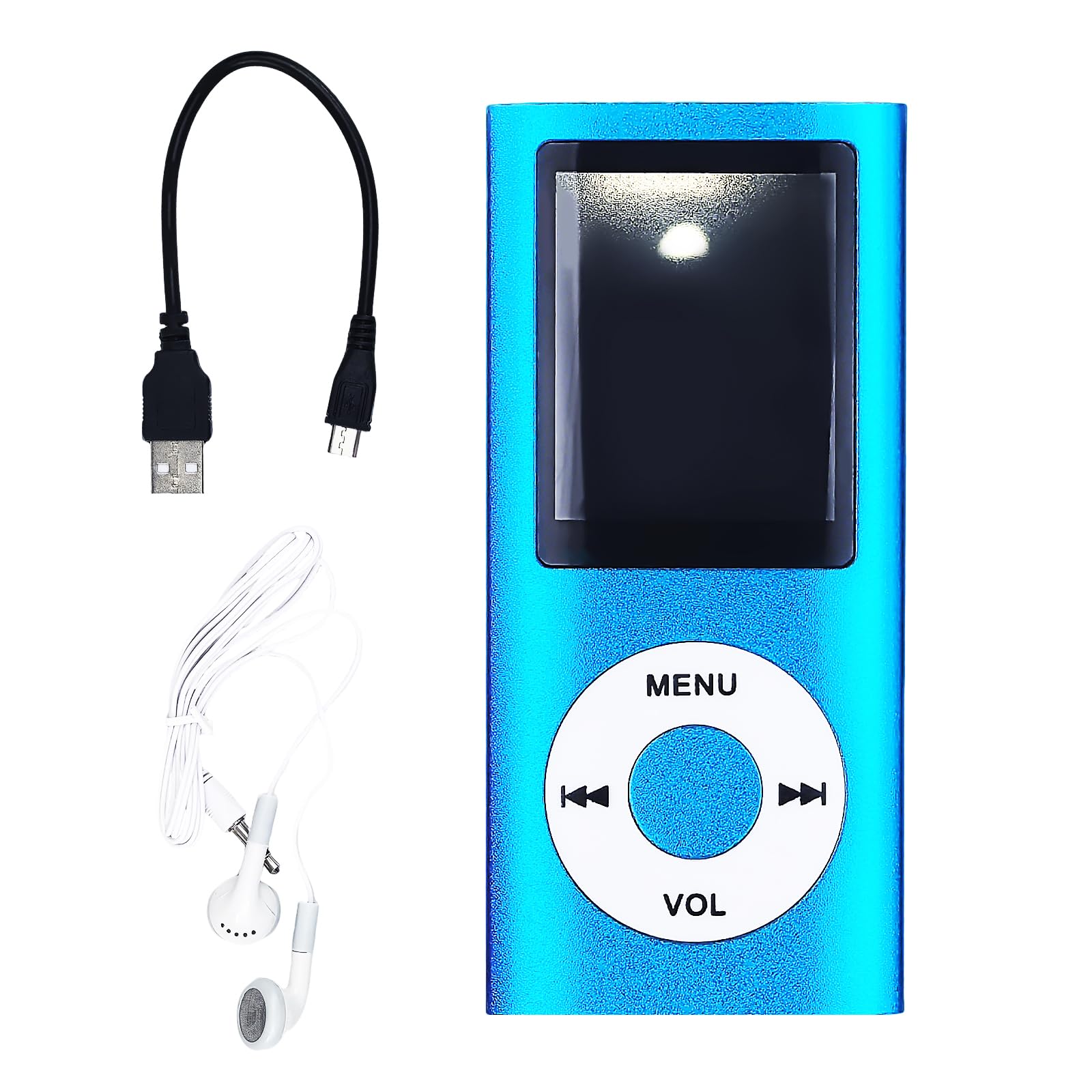
Image 1: Front view of the Flylin MP3 Player in blue.
2. Package Contents
Please verify that all items are present in your package:
- 1 x Flylin MP3 Player (Model JY2025123)
- 1 x USB Charging Cable
- 1 x Wired Headphones

Image 2: The MP3 player, charging cable, and headphones included in the package.
3. Device Layout and Controls
Familiarize yourself with the buttons and ports on your MP3 player:

Image 3: Diagram illustrating the function of each button on the MP3 player.
- MENU Button: Accesses the main menu or returns to the previous screen.
- Play/Pause Button (Center): Starts or pauses playback.
- Previous Track Button (<<): Skips to the previous track or navigates left in menus.
- Next Track Button (>>): Skips to the next track or navigates right in menus.
- VOL Button: Activates volume control. Use Previous/Next buttons to adjust.
- Power Switch (Top): Slides to turn the device ON or OFF.
- TF Card Slot (Top): For inserting a Micro SD card.
- Headphone Port (Bottom): Connects wired headphones.
- USB Port (Bottom): For charging and data transfer.

Image 4: Detailed view of the MP3 player's ports and controls, including the power switch, TF card slot, headphone port, and USB port.
4. Setup
4.1. Charging the Device
Before first use, fully charge the MP3 player. Connect the provided USB charging cable to the player's USB port and the other end to a computer's USB port or a compatible USB wall adapter (not included). The screen will indicate charging status. A full charge provides up to 8 hours of playback.
4.2. Inserting a Micro SD Card
The MP3 player requires a Micro SD card (up to 64GB, not included) to store music and other media. Locate the TF Card Slot on the top of the device. Gently insert the Micro SD card with the gold contacts facing down until it clicks into place.
4.3. Transferring Music and Files
Connect the MP3 player to your computer using the USB charging cable. The device will appear as a removable disk drive. You can then drag and drop your music files (MP3, WMA, APE, FLAC, WAV, OGG, AAC) and other supported media into the appropriate folders on the Micro SD card.
4.4. Powering On/Off
Slide the power switch located on the top of the device to the 'ON' position to power on. Slide it to the 'OFF' position to power off.

Image 5: Visual guide for basic operations including menu selection, music playback, volume adjustment, and charging/data transfer.
5. Operating Instructions
5.1. Music Playback
- Ensure a Micro SD card with music files is inserted.
- Power on the device.
- From the main menu, navigate to 'Music' and press the Play/Pause button to select.
- Browse your music library by artist, album, or folder.
- Select a song and press the Play/Pause button to begin playback.
- Use the Previous Track and Next Track buttons to skip songs.
- Press the VOL button, then use Previous/Next buttons to adjust volume. Press VOL again to exit volume mode.
5.2. FM Radio
To use the FM radio, connect the wired headphones to the headphone port. The headphones act as an antenna. Navigate to 'FM Radio' in the main menu. Use the menu options to scan for stations or manually tune.
5.3. Bluetooth Connectivity
To connect to Bluetooth headphones or speakers:
- Navigate to 'Bluetooth' in the main menu.
- Ensure your Bluetooth device is in pairing mode.
- The MP3 player will scan for available devices. Select your device from the list to pair.
5.4. Other Functions (Video, E-Book, Record)
Access these functions from the main menu. Follow on-screen prompts for specific operations. For recording, ensure sufficient storage space on the Micro SD card.
6. Maintenance
- Cleaning: Use a soft, dry cloth to clean the device. Avoid liquid cleaners or abrasive materials.
- Battery Care: To prolong battery life, avoid fully discharging the device frequently. Charge regularly.
- Storage: Store the MP3 player in a cool, dry place away from direct sunlight and extreme temperatures.
- Micro SD Card: Handle the Micro SD card carefully. Avoid bending or exposing it to static electricity.
7. Troubleshooting
- Device will not power on: Ensure the battery is charged. Connect to a power source and try again. Check the power switch position.
- No music playback: Verify that a Micro SD card is inserted correctly and contains supported audio files. Check volume levels.
- Weak FM radio signal: Ensure wired headphones are securely plugged in, as they function as the antenna. Try moving to an open area.
- Bluetooth pairing issues: Ensure the MP3 player and the target Bluetooth device are both in pairing mode and within close proximity.
- "Memory Full" error: Delete unnecessary files from the Micro SD card or replace it with a higher capacity card.
8. Specifications
| Brand | Flylin |
| Model Name | MP3 Player |
| Model Number | JY2025123 |
| Special Features | FM Radio, Voice Recorder |
| Connectivity Technology | Bluetooth |
| Memory Storage Capacity | Up to 64 GB (Micro SD card, not included) |
| Screen Size | 1.8 inches |
| Supported Audio Formats | MP3, WMA, APE, FLAC, WAV, OGG, AAC |
| Display Technology | LCD |
| Item Weight | 0.04 kg |
| Battery Life | Up to 8 hours (approx.) |
9. Warranty and Support
For warranty information and customer support, please refer to the documentation provided at the time of purchase or contact your retailer. Specific warranty terms may vary by region and retailer.