
Introduction
This user manual provides comprehensive instructions for the installation, operation, and maintenance of your Vorally Double Din Android 13 Car Stereo. Please read this manual thoroughly before using the device to ensure proper functionality and safety. This car stereo features a 7-inch IPS capacitive touch screen, Android 13 operating system, wireless Apple CarPlay, Android Auto, GPS navigation, WiFi connectivity, Bluetooth, FM radio, HiFi audio, Steering Wheel Control (SWC), and supports a backup camera.
Package Contents
Before installation, verify that all components are present in the package.

Image: Overview of the car stereo unit and its included accessories, such as power cables, USB cables, GPS antenna, instruction manual, RCA input/output cables, fixed bracket, and backup camera.
- Vorally Android Car Stereo Unit
- Power Cables (various types)
- 2 USB Cables
- Camera Input Cable
- GPS Antenna
- Instruction Manual
- RCA Input/Output Cables
- Fixed Bracket
- Backup Camera
- External Microphone
Setup and Installation
Professional installation is recommended. Ensure the vehicle's battery is disconnected before beginning installation.
Wiring Diagram
Refer to the following diagram for correct wiring connections. Incorrect wiring can damage the unit or vehicle.

Image: Detailed wiring diagram illustrating connections for power (ACC, GND, B+), speaker outputs (FL+, FL-, FR+, FR-, RL+, RL-, RR+, RR-), microphone, AUX inputs, video inputs/outputs, USB, GPS, and camera input.
- Power Cable: Connect the yellow wire to the constant 12V power supply (B+), the red wire to the accessory power (ACC), and the black wire to ground (GND).
- Speaker Wires: Connect the corresponding speaker wires (e.g., FL+ to Front Left Speaker Positive).
- GPS Antenna: Connect the GPS antenna to the dedicated port on the back of the unit and mount it in a location with a clear view of the sky.
- USB Cables: Connect the USB cables for external devices or data transfer.
- RCA Cables: Use for auxiliary audio/video input/output as needed.
Backup Camera Installation
The included AHD backup camera provides a clear view when reversing.

Image: Diagram illustrating how to connect the backup camera. The red wire connects to the reversing lamp power, the black wire to ground, and the video cable connects to the CAM-IN port on the stereo.
- Mount the backup camera securely at the rear of your vehicle.
- Connect the camera's power wire (red) to the vehicle's reversing lamp power supply.
- Connect the camera's ground wire (black) to a suitable ground point.
- Run the video signal cable from the camera to the "CAM-IN" port on the car stereo unit.
- Ensure the reverse detection wire (usually labeled "BACK" or "REVERSE") from the stereo's wiring harness is connected to the vehicle's reverse light signal. This enables automatic display switching when reversing.
Initial Power On
After completing all wiring, reconnect the vehicle's battery. The unit should power on automatically or by pressing the power button.
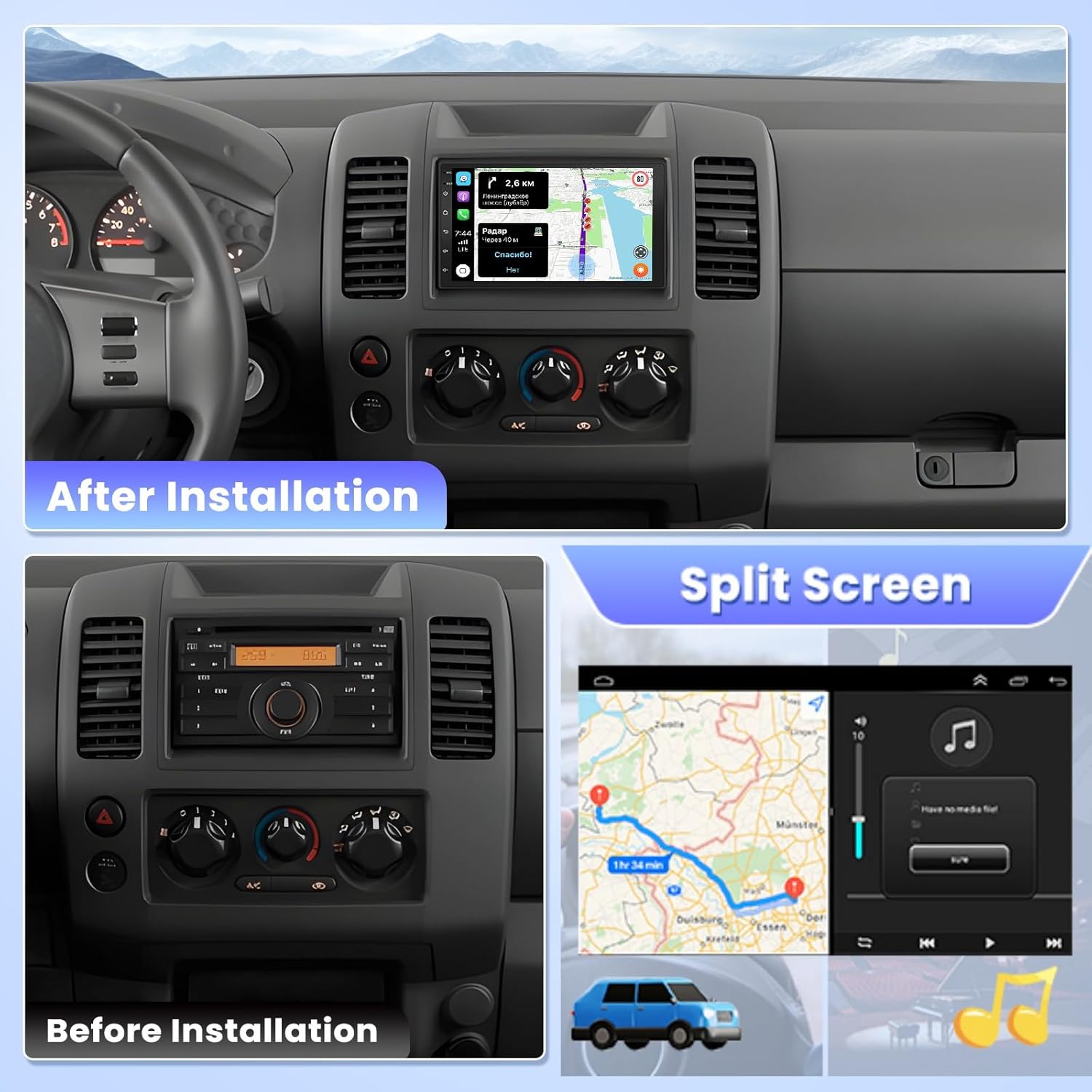
Image: A visual comparison showing a car dashboard before and after the installation of the Vorally Double Din Android 13 Car Stereo, highlighting the integrated look.
Operating Instructions
Android 13 System Overview
Your car stereo runs on the Android 13 operating system with 2GB RAM and 32GB ROM, providing a smooth user experience. You can download and install various applications from the Google Play Store.
Display Features
The 7-inch IPS capacitive touch screen offers a high resolution of 1024x600, ensuring vivid and clear visuals.

Image: Visual demonstration comparing the clarity of an 800x600 resolution screen versus a 1024x600 resolution screen, highlighting the improved texture and detail. It also shows a diagram of IPS screen technology for better viewing angles and color accuracy.
Wireless/Wired Apple CarPlay & Android Auto
Connect your smartphone via USB or Bluetooth to access Apple CarPlay or Android Auto. This allows for hands-free calling, music playback, navigation, and voice control.

Image: Display showing the user interface for Wireless Apple CarPlay and Android Auto, including hands-free calling, online music, GPS navigation, and various compatible apps. It also illustrates connection methods via Bluetooth and USB.

Image: A comprehensive visual demonstrating the capabilities of Wireless/Wired Apple CarPlay, Android Auto, and Mirror Link, showing various app interfaces and connectivity options.
- Connection: Connect your smartphone via a USB data cable or Bluetooth.
- Features: Access Google Maps, phone address book, notifications, music, and voice control.
- Voice Control: Use voice commands to manage functions, keeping your hands on the wheel and eyes on the road.
GPS Navigation & WiFi Connection
The unit has built-in GPS navigation. Connect to WiFi for online maps and real-time traffic updates, or download offline maps for use without an internet connection.

Image: Display showing the GPS navigation interface with route information and various navigation app icons. Below, it illustrates the WiFi connection feature, allowing access to web browsing and streaming apps like Netflix and YouTube.
- Online Maps: Connect to a WiFi hotspot (e.g., from your phone) to use online navigation apps with real-time traffic.
- Offline Maps: Download maps for your region to navigate without an internet connection.
- WiFi Browsing: Use the WiFi connection to browse the internet or download apps.
Bluetooth Functionality
Pair your phone via Bluetooth for hands-free calling, music streaming, and phonebook synchronization.

Image: A multi-panel image showcasing the Bluetooth interface for hands-free calling and music, the FM radio interface with station presets, and the Steering Wheel Control (SWC) settings menu.
- Pairing: Go to Bluetooth settings on the stereo and your phone to pair devices.
- Hands-Free Calls: Make and receive calls directly from the stereo screen.
- Audio Streaming: Play music from your phone through the car speakers.
FM Radio
Tune into your favorite FM stations with 18 preset options.
- Scanning: Automatically or manually scan for available radio stations.
- Presets: Save your preferred stations for quick access.
Steering Wheel Control (SWC)
If your vehicle supports it, you can configure the stereo to respond to your steering wheel controls for functions like volume, track skipping, and mode switching.
- Configuration: Access the SWC settings menu to map your steering wheel buttons to stereo functions.
Backup Camera Display
When the vehicle is shifted into reverse, the stereo automatically displays the feed from the connected backup camera.
- Features: AHD, IP68 waterproof, night vision, and 170-degree wide-angle view.
Split Screen Functionality
The split-screen feature allows you to run two applications simultaneously on the display, such as navigation and music playback.
Image: The top right panel of this image demonstrates the split-screen functionality, displaying a navigation map on one side and a music player interface on the other, allowing simultaneous use of two applications.
HiFi Audio
Experience high-fidelity audio reproduction, delivering sound quality similar to the original source.

Image: A graphic illustrating the HiFi audio feature, showing sound waves distributed throughout a car interior, suggesting immersive and high-quality sound.
Mirror Link
Mirror Link allows you to display your smartphone's screen directly onto the car stereo. This feature supports both iOS and Android devices.
Image: The bottom section of this image demonstrates the Wireless Mirror Link feature, showing an iPhone and an Android phone screen being mirrored onto the car stereo display, with connection options for WiFi and USB.
- iOS Connection: Connect via WiFi.
- Android Connection: Connect via USB or WiFi.
Maintenance
Proper maintenance ensures the longevity and optimal performance of your car stereo.
- Screen Cleaning: Use a soft, lint-free cloth to gently wipe the touch screen. Avoid abrasive cleaners or solvents.
- Software Updates: Periodically check for system updates through the stereo's settings menu to ensure you have the latest features and security patches. A stable internet connection is required for updates.
- Environmental Conditions: Avoid exposing the unit to extreme temperatures, direct sunlight for prolonged periods, or excessive moisture.
- Cable Connections: Ensure all cables are securely connected. Loose connections can lead to intermittent issues.
Troubleshooting
If you encounter issues, refer to the following common problems and solutions.
| Problem | Possible Cause | Solution |
|---|---|---|
| Unit does not power on. | Incorrect wiring, blown fuse, vehicle battery issue. | Check power cable connections (B+, ACC, GND). Inspect vehicle fuses. Ensure vehicle battery is charged. |
| No sound. | Volume too low, incorrect audio source, speaker wiring issues. | Increase volume. Select correct audio source. Check speaker wire connections. |
| Touch screen unresponsive. | System freeze, temporary software glitch. | Restart the unit (if possible, use a reset button or power cycle the vehicle). |
| GPS not acquiring signal. | GPS antenna improperly installed or obstructed. | Ensure GPS antenna is mounted in a clear, unobstructed location (e.g., dashboard). Check antenna connection. |
| Apple CarPlay/Android Auto not connecting. | Incorrect USB cable, Bluetooth not paired, phone settings. | Use a high-quality USB data cable. Ensure Bluetooth is enabled and paired. Check phone settings for CarPlay/Android Auto permissions. |
| Backup camera not displaying. | Camera wiring issue, reverse trigger not connected. | Verify camera power and video connections. Ensure the reverse trigger wire is correctly connected to the vehicle's reverse light signal. |
Specifications
| Feature | Detail |
|---|---|
| Model Name | QJ0719X |
| Operating System | Android 13 |
| RAM | 2GB |
| ROM | 32GB |
| Display Size | 7 Inches |
| Screen Resolution | 1024x600 IPS Capacitive Touch Screen |
| Connectivity Technology | Bluetooth, USB, Wi-Fi |
| Special Features | Backup Camera, Mic, Bluetooth, FM Radio, SWC, WiFi Connection, GPS Navigation, Wireless Apple Carplay, Android Auto, Mirror Link, HiFi Audio, Split Screen |
| Map Type | Worldwide (supports offline maps) |
| Audio Output Mode | Stereo |
| Mounting Type | Dashboard Mount (Double Din) |
| Item Weight | 2.64 pounds |
| Product Dimensions | 5.51 x 3.54 x 7.87 inches |
Warranty Information
This Vorally car stereo unit comes with a 1-Year Warranty from the date of purchase. This warranty covers manufacturing defects and malfunctions under normal use. It does not cover damage caused by improper installation, accidents, misuse, unauthorized modifications, or natural disasters. Please retain your proof of purchase for warranty claims.
Customer Support
For technical assistance, troubleshooting, or warranty inquiries, please contact Vorally customer support.
- Online Support: Visit the official Vorally website for FAQs and support resources.
- Email Support: Refer to your product packaging or the official website for the customer service email address.
- Purchase Platform: For issues related to your order, please contact the seller directly through the platform where you purchased the product.