
1. Introduction
This manual provides detailed instructions for the installation, setup, operation, and maintenance of your Lockzo AL501 Smart Lock with Camera. This device integrates a keyless entry door lock, a 2K HD camera with night vision, and a smart video doorbell into a single unit, offering enhanced security and convenience for your home. Please read this manual thoroughly before installation and use to ensure proper function and safety.
2. Safety Information
- Do not attempt to disassemble or repair the lock yourself. Contact customer support for assistance.
- Ensure the battery is fully charged before initial use and recharge as needed.
- Use only the specified battery type and charging methods.
- Keep physical keys in a secure location outside the property.
- Protect the keypad and camera lens from harsh impacts or abrasive materials.
- Ensure your fingers and the fingerprint sensor are dry for optimal performance.
3. Package Contents
Verify that all components are present in the package:
- Lockzo AL501 Video Smart Lock (Exterior Unit with Camera and Keypad)
- Interior Unit (with thumb turn and battery compartment)
- 10000 mAh Rechargeable Battery
- Deadbolt Latch
- Mounting Hardware (screws, plates)
- Physical Keys (2)
- Installation Template
- User Manual

4. Product Overview
The Lockzo AL501 is designed for comprehensive door security and access control. Key features include:
- 6-in-1 Security System: Combines keyless entry, 2K HD camera, and smart video doorbell.
- Multiple Unlock Methods: Fingerprint recognition, keypad codes, mobile app, voice control (Alexa/Google Assistant), and physical keys.
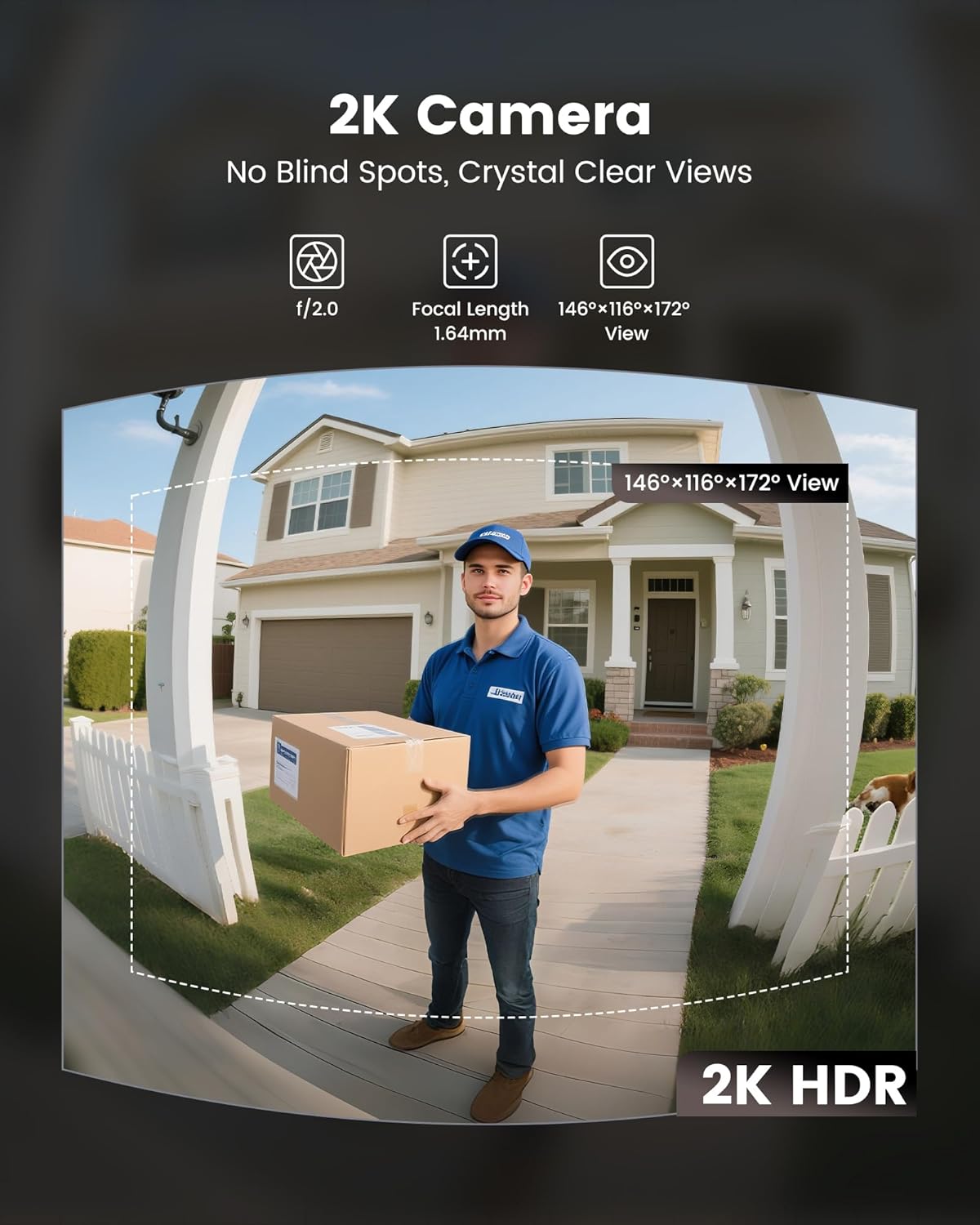
- 2K Video & Two-Way Audio: 180° wide-angle lens for clear footage and remote communication via the app.
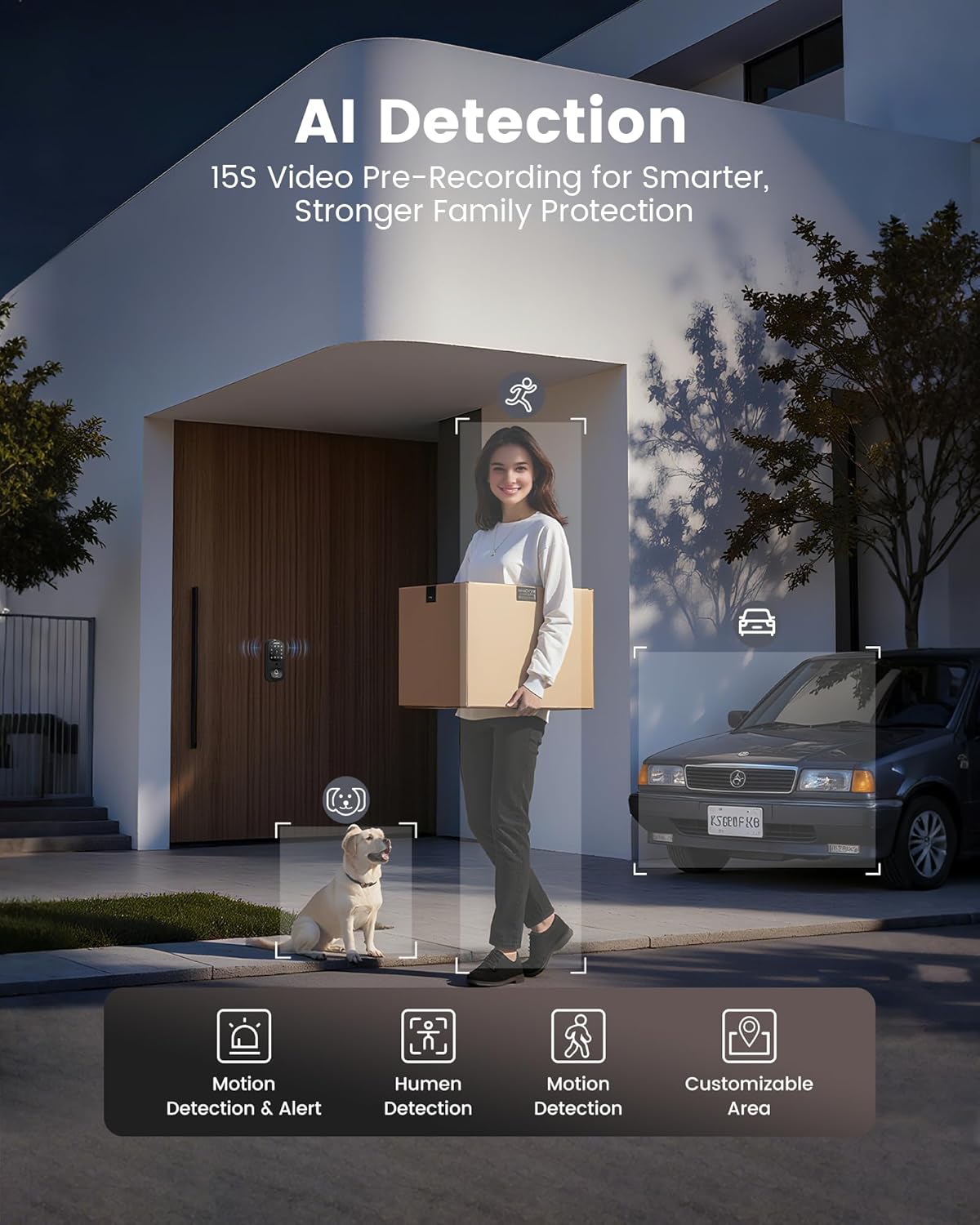
- Smart Human Detection: Radar + PIR sensors differentiate people from objects, triggering 15-second encrypted video recordings.
- App Remote Control: Manage access, monitor entries, and receive alerts via the dedicated mobile application (requires 2.4GHz WiFi).
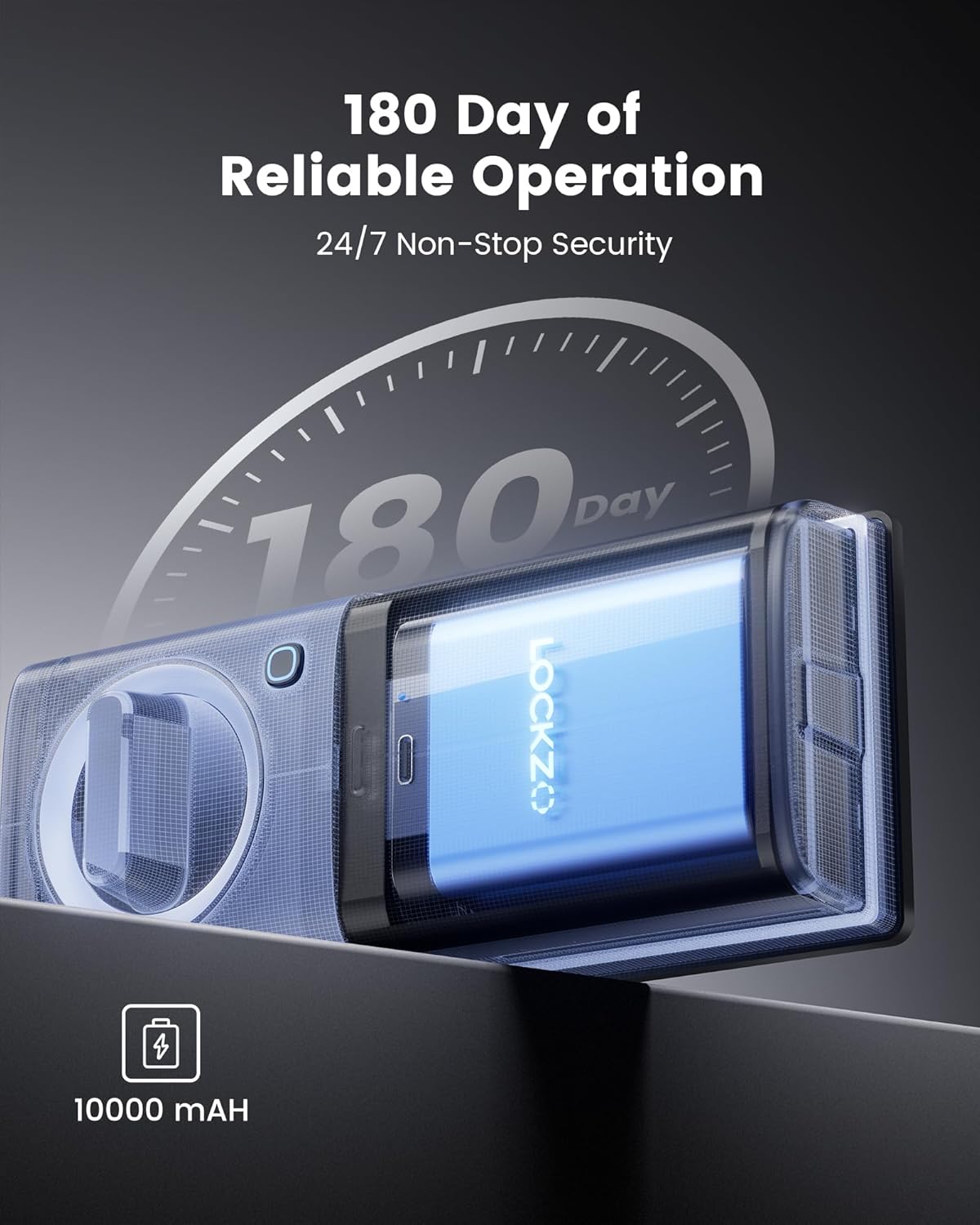
- Long Battery Life: 10,000mAh rechargeable battery provides up to 180 days of operation per charge.
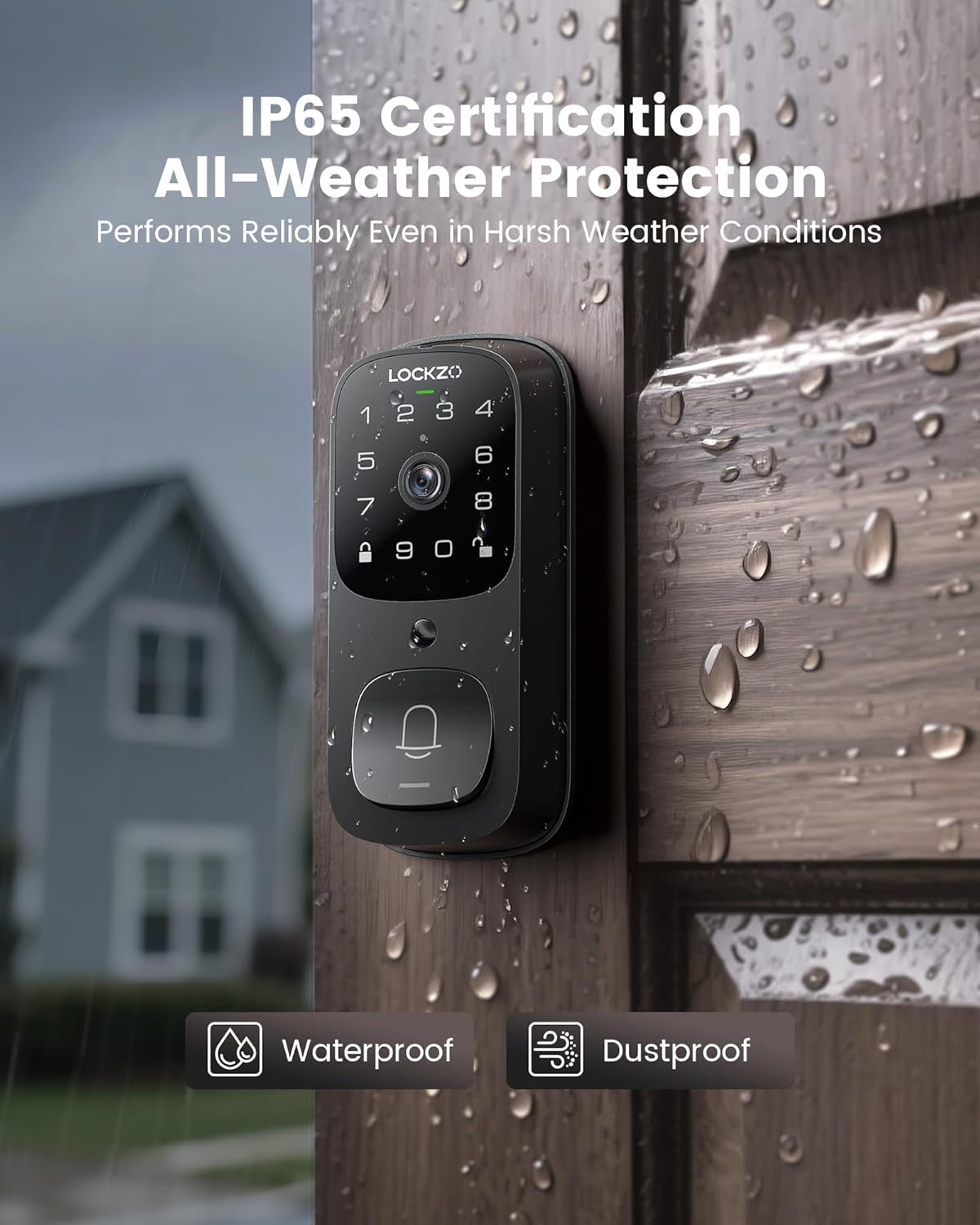
- Weatherproof Design: IP65-rated for dust and water resistance, ensuring reliable performance in various weather conditions.
- BHMA Certified: Meets industry standards for durability and security.
5. Installation
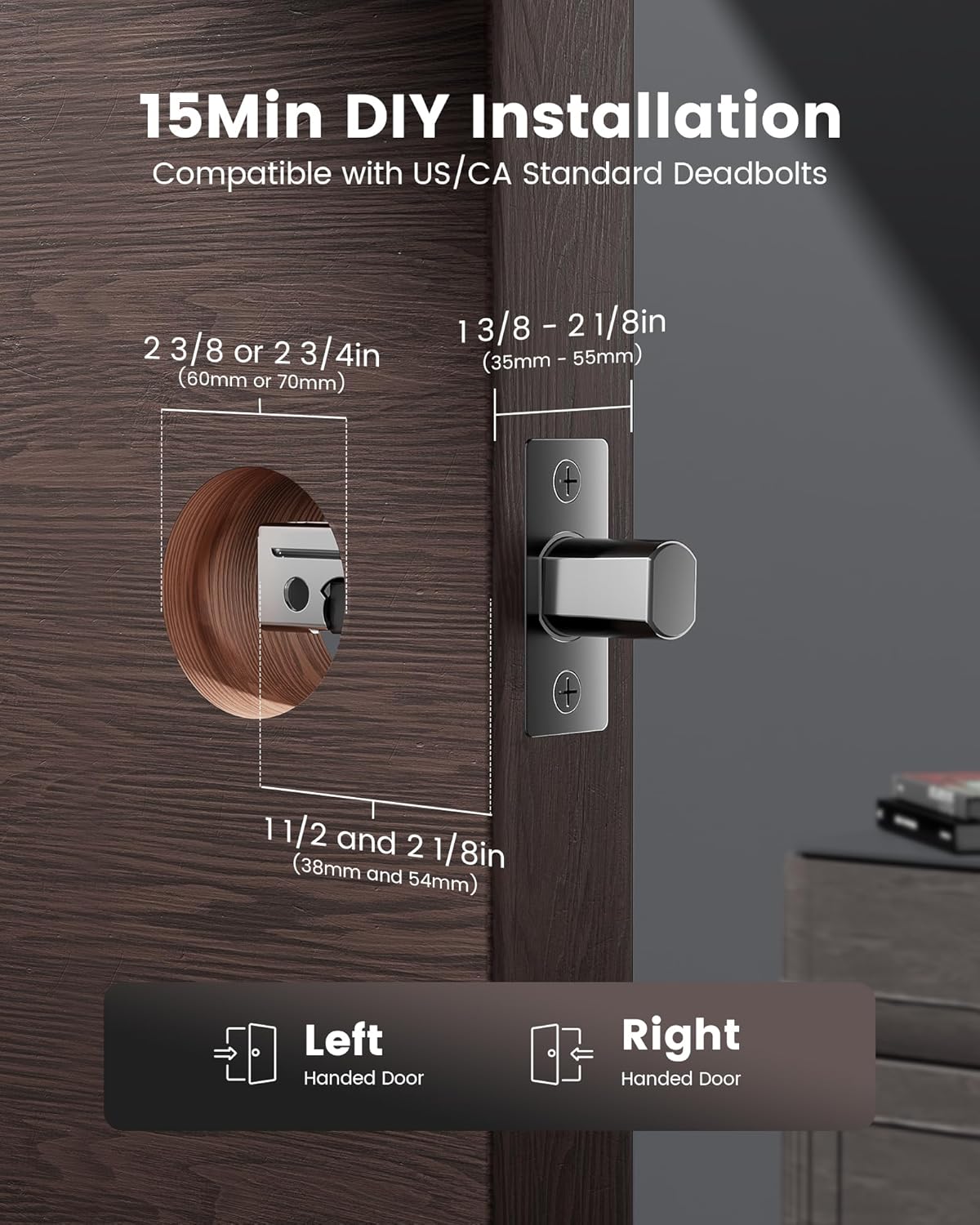
The Lockzo AL501 is designed for DIY installation and is compatible with standard US/CA deadbolts. Installation typically takes approximately 15 minutes.
5.1 Door Preparation
Ensure your door meets the following specifications:
- Backset: 2 3/8 inches (60mm) or 2 3/4 inches (70mm)
- Door Thickness: 1 3/8 inches to 2 1/8 inches (35mm to 55mm)
- Cross Bore Diameter: 1 1/2 inches or 2 1/8 inches (38mm or 54mm)
5.2 Installation Steps
- Remove Existing Hardware: Carefully remove your current deadbolt and any associated hardware.
- Install Deadbolt Latch: Insert the new deadbolt latch into the door edge. Ensure the latch bolt faces the correct direction for your door swing.
- Install Exterior Unit: Place the exterior unit (with keypad and camera) onto the door, aligning the deadbolt spindle through the cross bore.
- Install Mounting Plate: Secure the interior mounting plate to the exterior unit using the provided screws, ensuring the cable from the exterior unit passes through the plate.
- Connect Cables: Connect the cable from the exterior unit to the interior unit.
- Install Interior Unit: Attach the interior unit to the mounting plate, ensuring the thumb turn operates smoothly.
- Insert Battery: Open the battery cover on the interior unit and insert the fully charged 10000 mAh battery.
- Test Operation: Manually test the deadbolt with the thumb turn and physical key to ensure smooth operation before proceeding to app setup.
6. Initial Setup and App Configuration
6.1 Download the App
Search for the 'Lockzo Security' app (or specified app name) on your smartphone's app store (iOS or Android) and download it.
6.2 Create an Account and Add Device
- Open the app and register a new user account.
- Follow the in-app instructions to add your Lockzo AL501 Smart Lock. This typically involves scanning a QR code on the lock or manually selecting the device type.
- Connect the lock to your home's 2.4GHz Wi-Fi network. Ensure your phone is connected to the same 2.4GHz network during the pairing process.
6.3 User Management
Within the app, you can manage access for various users:
- Add Fingerprints: Register up to 50 unique fingerprints for quick access. Follow the app's prompts for multiple scans of each finger.
- Set Passcodes: Create permanent or temporary passcodes for family members or guests.
- Schedule Access: Grant access for specific times or dates.
- View Access Logs: Monitor who enters and exits your property.
6.4 Voice Assistant Integration
The Lockzo AL501 supports Amazon Alexa and Google Assistant. Follow the instructions in your respective voice assistant app to link your Lockzo account and enable voice commands for locking/unlocking (a verbal PIN may be required for unlocking for security).
7. Operating Instructions
7.1 Fingerprint Unlock
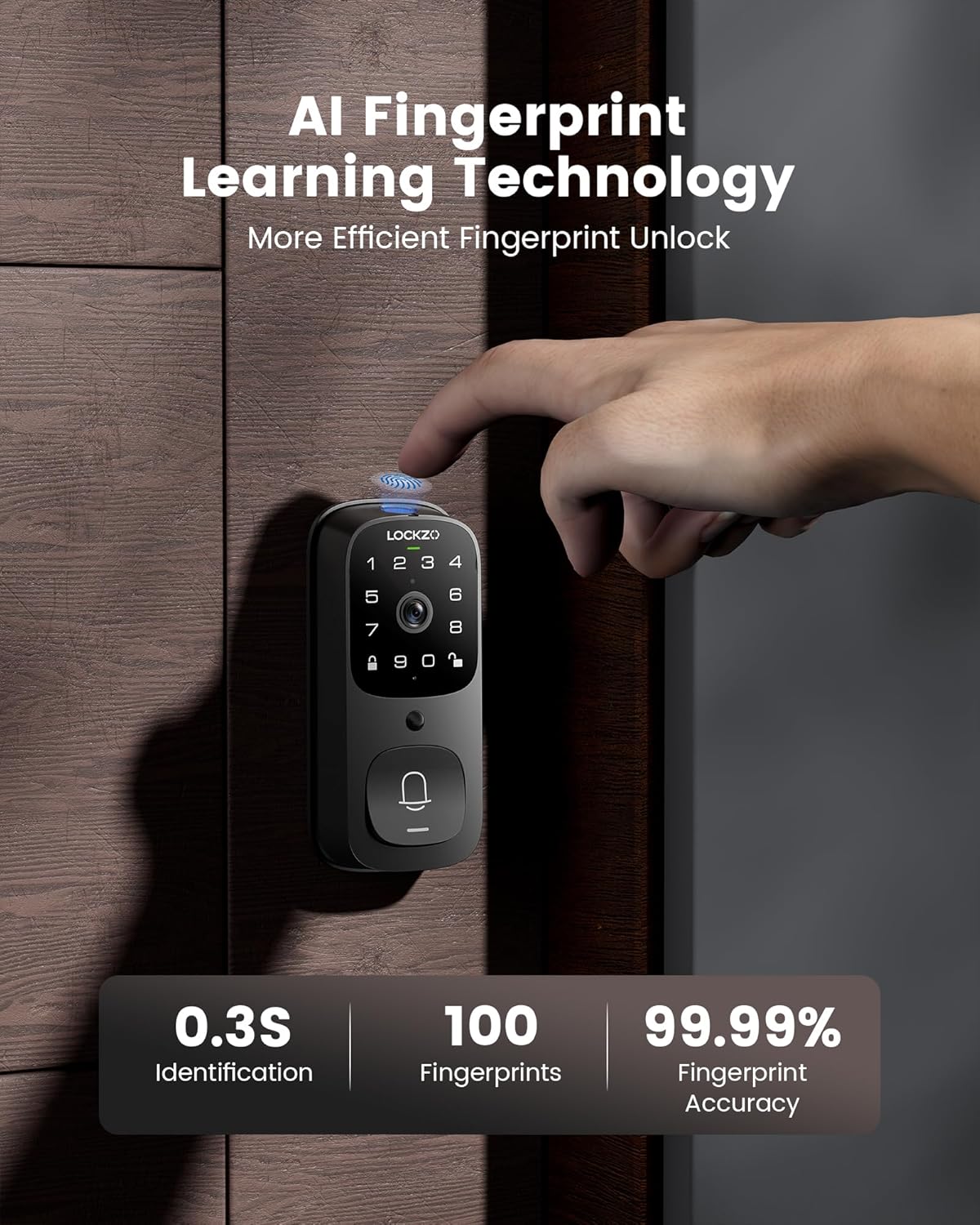
Place your registered finger firmly on the fingerprint sensor located on the exterior unit. The lock will unlock within approximately 0.3 seconds if the fingerprint is recognized.
7.2 Keypad Code Unlock
- Standard Passcode: Enter your registered passcode on the keypad, then press the '#' key to confirm.
- Anti-Peeping Passcode: To prevent others from guessing your code, you can enter random numbers before or after your actual passcode. For example, if your code is 123456, you can enter 789123456012 and the lock will still recognize the correct sequence.
- Temporary Passcodes: Generate one-time or time-limited passcodes through the app for guests or service providers.
7.3 App Unlock
Open the Lockzo Security app on your smartphone. From the main screen, you can remotely lock or unlock the door with a tap, provided the lock is connected to Wi-Fi.
7.4 Voice Control Unlock
After integrating with Alexa or Google Assistant, use voice commands such as "Alexa, unlock the front door" or "Hey Google, unlock the main entrance." You may be prompted for a verbal PIN for security.
7.5 Physical Key Unlock
In case of battery depletion or electronic malfunction, use the provided physical keys to manually unlock the deadbolt.
8. Camera and Doorbell Features
8.1 Live Video and Two-Way Audio
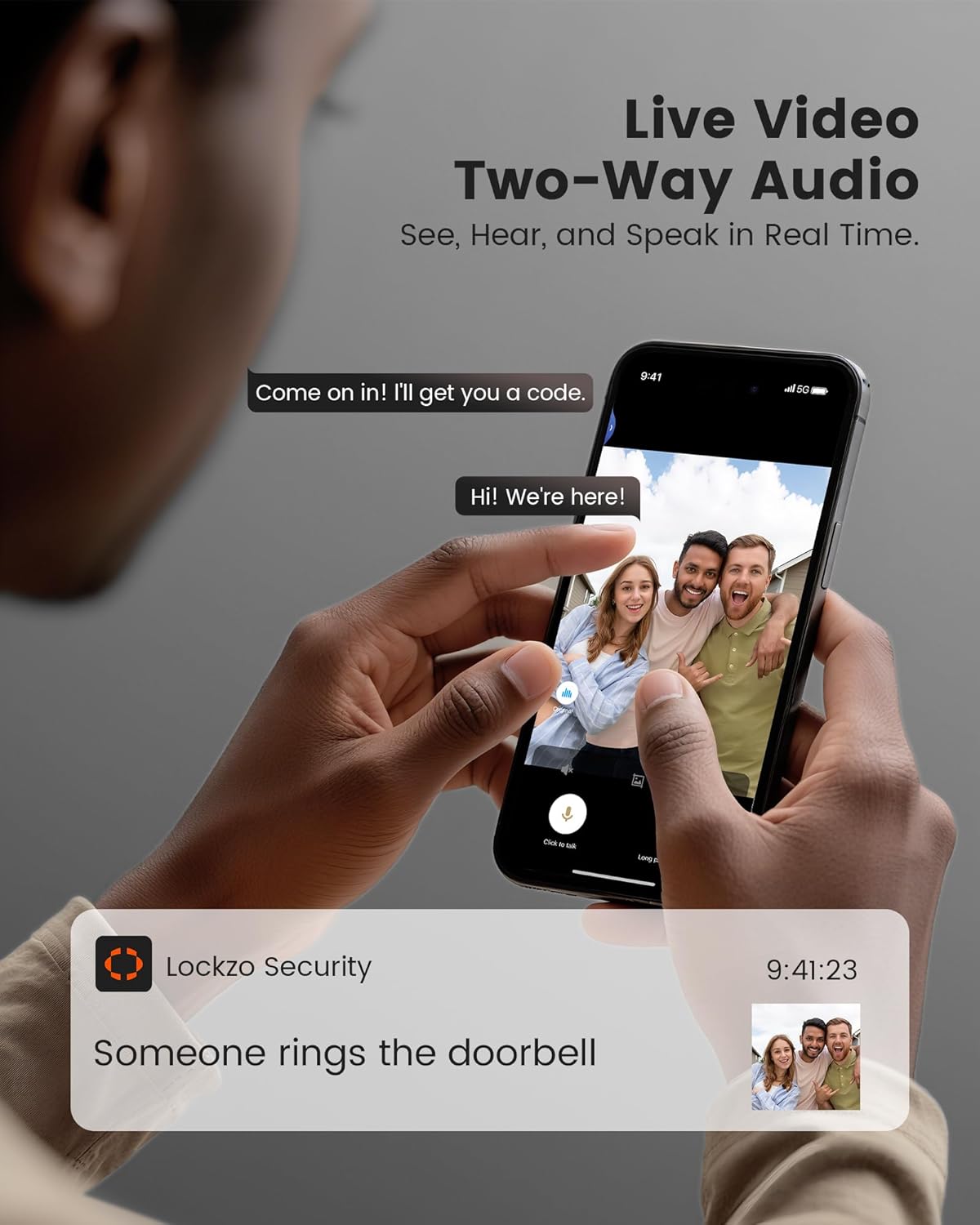
When someone rings the doorbell or motion is detected, you will receive a notification on your smartphone. Open the app to view live 2K HD video and engage in two-way audio communication with visitors.
8.2 Motion Detection
The lock features advanced Radar + PIR sensors that can distinguish between people and other objects. Upon detection, it automatically records 15-second encrypted video clips and sends instant alerts to your phone. You can customize detection zones and sensitivity settings within the app.
8.3 Night Vision
The integrated camera provides clear black and white video footage even in low-light conditions, ensuring continuous surveillance day and night.
9. Maintenance
9.1 Battery Charging
The Lockzo AL501 is powered by a 10,000mAh rechargeable battery. A full charge provides approximately 180 days of operation. The lock will issue a low battery reminder via an indicator light and app notification when the battery level drops. To recharge, remove the battery pack from the interior unit and connect it to a Type-C charging cable.
In an emergency, if the battery runs out completely, you can temporarily power the lock using a Type-C cable connected to a power bank or adapter to gain access.
9.2 Cleaning
Wipe the exterior unit, keypad, and camera lens with a soft, damp cloth. Avoid using abrasive cleaners or solvents that could damage the finish or electronic components.
10. Troubleshooting
| Problem | Possible Cause | Solution |
|---|---|---|
| Lock does not respond to input. | Low battery; incorrect input; system error. | Recharge battery; re-enter code/fingerprint; use physical key; reset the lock (refer to app for reset procedure). |
| Fingerprint sensor not working. | Finger/sensor is wet or dirty; unregistered fingerprint. | Ensure finger and sensor are clean and dry; re-register fingerprint; try another unlock method. |
| Cannot connect to Wi-Fi or app. | Incorrect Wi-Fi password; 5GHz network used; router too far. | Verify Wi-Fi password; ensure 2.4GHz network is used; move router closer or use a Wi-Fi extender; restart lock and router. |
| Camera video is unclear or black. | Dirty lens; poor lighting; network issues. | Clean camera lens; ensure adequate lighting (night vision activates automatically in low light); check Wi-Fi connection strength. |
| Doorbell notifications not received. | App notifications disabled; poor Wi-Fi connection. | Check app notification settings; ensure phone has internet access; verify lock's Wi-Fi connection. |
11. Specifications
| Feature | Detail |
|---|---|
| Model Name | AL501 |
| Unlock Methods | Fingerprint, Keypad, App, Voice (Alexa/Google Assistant), Physical Key |
| Fingerprint Capacity | Up to 50 |
| Camera Resolution | 2K (1536p) |
| Viewing Angle | 180 Degrees |
| Connectivity | 2.4GHz Wi-Fi |
| Power Source | 10000 mAh Rechargeable Lithium Ion Battery |
| Battery Life | Up to 180 days per charge |
| Weather Resistance | IP65 (Waterproof, Dustproof) |
| Door Thickness Compatibility | 1.38 - 2.18 inches (35 - 55mm) |
| Backset Compatibility | 2.36 or 2.76 inches (60 or 70mm) |
| Dimensions (L x W x H) | 9.25 x 9.05 x 3.74 inches |
| Item Weight | 4.51 pounds (2.05 Kilograms) |
| Operating Temperature | Refer to product packaging for specific range (IP65 suggests wide range) |
| Certifications | BHMA Grade 3, IP65 |
12. Warranty and Support
The Lockzo AL501 Smart Lock with Camera comes with a 12-month warranty from the date of purchase. This warranty covers manufacturing defects and malfunctions under normal use. It does not cover damage caused by misuse, unauthorized modifications, or improper installation.
For technical support, warranty claims, or any questions regarding your Lockzo product, please contact Lockzo customer service through the contact information provided on the official Lockzo website or your purchase platform. Please have your model number (AL501) and proof of purchase ready when contacting support.