
1. Introduction
The XGIMI Elfin Flip Plus is a portable projector designed for versatile entertainment. It features 500 ISO Lumens brightness, 1080P resolution, and an integrated adjustable stand. Powered by Google TV with licensed Netflix, it offers a wide range of streaming options. Its compact design and intelligent screen adaptation technology ensure a seamless viewing experience.
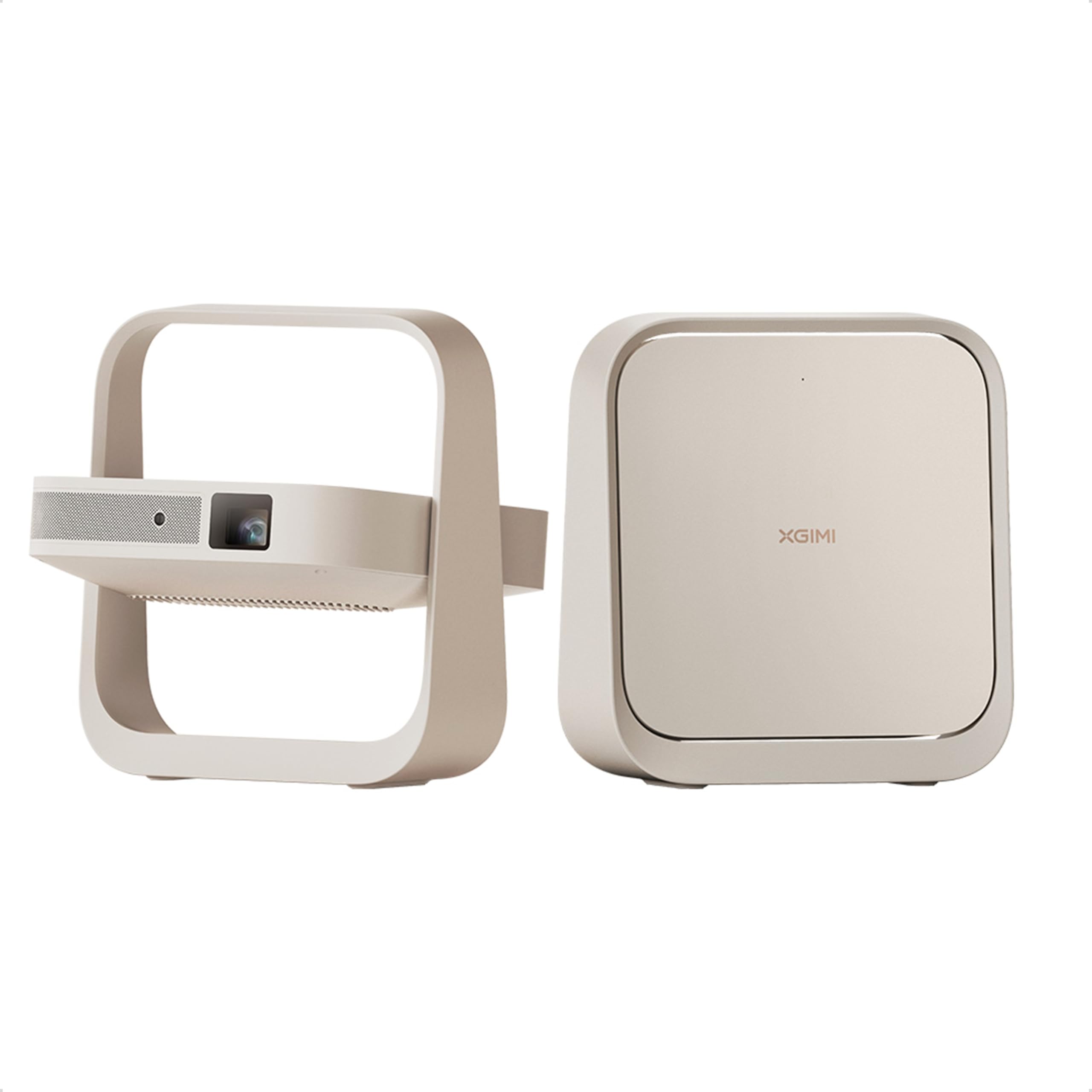
Image 1.1: The XGIMI Elfin Flip Plus Portable Projector, showcasing its compact design and integrated stand.
2. What's in the Box
Verify that all items are present in the package:
- XGIMI Elfin Flip Plus Portable Projector
- Power Plug
- Manual (this document)
- Backlight Bluetooth Remote Control
- AAA Batteries (x2)
- Warranty Card
3. Setup
3.1 Power Connection
Connect the provided power plug to the projector's DC IN port and then to a power outlet. The projector will automatically power on or enter standby mode.
3.2 Initial Power On and Intelligent Screen Adaption (ISA)
Upon first power-on or movement, the Elfin Flip Plus utilizes its Intelligent Screen Adaption (ISA) technology for automatic adjustments:
- Uninterrupted Auto Keystone Correction: Automatically squares the projected image, regardless of the projection angle.
- Uninterrupted Auto Focus: Adjusts the image clarity for a sharp picture without manual intervention.
- Intelligent Eye Protection: Detects objects in front of the lens and dims the projection to protect eyes.

Image 3.1: Visual representation of the projector's Intelligent Screen Adaption (ISA) features, including auto keystone, auto focus, and eye protection.
3.3 Google TV Setup
Follow the on-screen prompts to set up Google TV. This typically involves connecting to a Wi-Fi network, logging in with a Google account, and installing desired applications. The projector comes with licensed Netflix pre-installed.
4. Operating Instructions
4.1 Remote Control Navigation
Use the provided Backlight Bluetooth Remote Control to navigate the Google TV interface. The backlit buttons allow for easy operation in low-light conditions.

Image 4.1: The XGIMI Elfin Flip Plus Backlight Remote Control, designed for easy navigation in the dark.
4.2 Streaming Applications
Access pre-installed applications like Netflix, YouTube, and Prime Video directly from the Google TV home screen. Additional apps can be downloaded from the Google Play Store.

Image 4.2: The Google TV interface displaying various streaming applications available on the projector.
4.3 Connecting External Devices
The projector supports multiple connectivity options:
- HDMI: Connect gaming consoles, laptops, or other HDMI-enabled devices using an HDMI cable.
- USB: Plug in USB drives for media playback.
- Bluetooth 5.1: Pair with Bluetooth speakers or headphones for enhanced audio.
- Wi-Fi 5: Connect to your home network for streaming and online features.

Image 4.3: Diagram illustrating the various connectivity options available on the Elfin Flip Plus, including Bluetooth, Wi-Fi, HDMI, and USB.
4.4 Adjusting Projection Angle
The integrated stand allows for 150° angle rotation, enabling projection onto walls, ceilings, or other surfaces. The ISA technology will automatically adjust the image for optimal viewing.
4.5 Casting Content
Use Google Cast to wirelessly project content from your Apple or Android devices to the Elfin Flip Plus.
5. Maintenance
5.1 Lens Cleaning
To maintain optimal image quality, regularly clean the projector lens. Use a soft, lint-free cloth specifically designed for optical lenses. Avoid abrasive materials or harsh chemicals.
5.2 General Care
- Keep the projector in a clean, dry environment.
- Avoid exposing the projector to extreme temperatures or direct sunlight.
- Ensure proper ventilation around the projector to prevent overheating.
- When not in use, fold the integrated stand to protect the lens.
6. Troubleshooting
6.1 Image Appears Dim
The projector's brightness is 500 ISO Lumens. For optimal viewing, especially in well-lit rooms, it is recommended to dim ambient lighting. Ensure the projector is not in an eco or low-power mode if available in settings.
6.2 Frequent Auto-Keystone Recalibration
The projector's auto-keystone feature is highly sensitive to movement. If the projector or the surface it rests on is frequently disturbed, it may trigger repeated recalibrations. Ensure the projector is placed on a stable surface to minimize interruptions.
6.3 Connectivity Issues
- Wi-Fi: Check your router and internet connection. Ensure the projector is within range of your Wi-Fi network.
- Bluetooth: Ensure the external device is in pairing mode and within range. Try unpairing and re-pairing the device.
- HDMI/USB: Verify cables are securely connected to both the projector and the external device. Try a different cable or port if available.
7. Specifications

Image 7.1: Detailed product information including display, setup, system, connectivity, audio, electrical, and measurements.
| Feature | Detail |
|---|---|
| Brand | XGIMI |
| Model Name | Elfin Flip Plus |
| Display Type | DLP |
| Native Resolution | 1920 x 1080 (1080P) |
| Brightness | 500 ISO Lumens |
| Contrast Ratio | 4000:1 (EBL ON) |
| Color Gamut | 121% Rec.709 |
| Special Features | Auto Focus, Auto Keystone Correction, Intelligent Eye Protection |
| Connectivity Technology | Bluetooth 5.1, Wi-Fi 5, HDMI, USB |
| Operating System | Google TV with Licensed Netflix |
| Built-in Speakers | 2 x 3W (Dolby Audio) |
| Maximum Image Size | 200 inches |
| Minimum Image Size | 40 inches |
| Item Dimensions (L x W x H) | 8.9"L x 2.8"W x 9.3"H |
| Product Weight | 1.1 kg |
8. Warranty and Support
8.1 Warranty Information
The XGIMI Elfin Flip Plus Portable Projector comes with a 1-Year Manufacturer Warranty. Please refer to the warranty card included in your package for detailed terms and conditions.
8.2 Customer Support
For any questions, technical assistance, or support regarding your XGIMI Elfin Flip Plus, please contact XGIMI customer service:
- Email: service@xgimi.com
You may also visit the official XGIMI website for the latest electronic manual and additional support resources. In case of any discrepancy between the printed and electronic manual, the electronic version on the official website shall prevail.


