
MicroBT M61S
WhatsMiner M61S User Manual
Comprehensive guide for the MicroBT WhatsMiner M61S SHA-256 BTC Miner
1. Product Overview
The MicroBT WhatsMiner M61S is a high-performance cryptocurrency mining device designed for the SHA-256 algorithm, primarily used for Bitcoin (BTC) mining. This unit features a powerful 224 TH/s hashrate and operates with a power consumption of 4200W. It is engineered for efficient and stable mining operations.
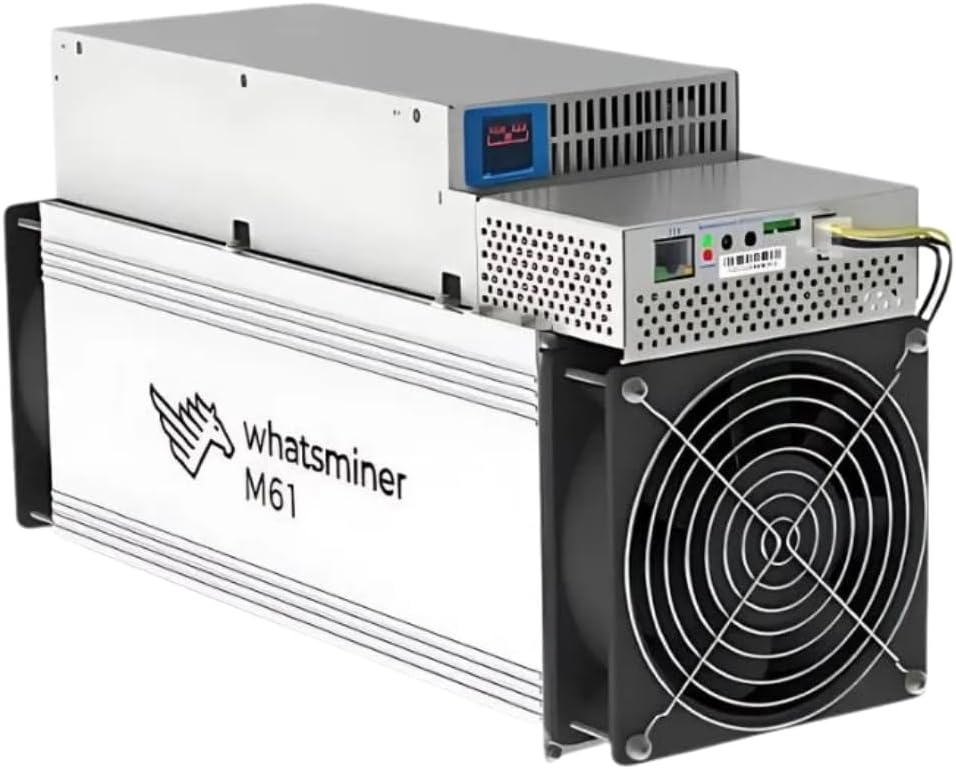
Figure 1: Front and side view of the WhatsMiner M61S, showcasing its compact design and cooling fan.
Key features include:
- High Hashrate: 224 TH/s for efficient SHA-256 mining.
- Power Efficiency: 4200W power consumption, designed for 220-240V AC input.
- Robust Cooling: Equipped with multiple fans to maintain optimal operating temperatures.
- Compact Design: Dimensions of 430 x 155 x 226mm, suitable for various setups.
2. Setup and Installation
Before powering on your WhatsMiner M61S, ensure you have a stable power supply and a reliable internet connection. Proper ventilation is crucial for optimal performance and longevity of the device.
2.1 Unpacking and Inspection
- Carefully remove the miner from its packaging.
- Inspect the unit for any signs of physical damage during transit. If damage is found, contact your vendor immediately.
- Verify all components are present: WhatsMiner M61S unit, and integrated Power Supply Unit (PSU).
2.2 Connecting Power
The WhatsMiner M61S requires a 220-240V AC power source. Use the provided power cable to connect the miner to a suitable power outlet. Ensure the power circuit can handle the 4200W load.
2.3 Network Connection
Connect an Ethernet cable from your router or network switch to the Ethernet port on the miner's control board. A stable wired connection is essential for consistent mining operations.

Figure 2: Rear view of the WhatsMiner M61S, highlighting the Ethernet port, reset button, IP Found button, and TF card slot.

Figure 3: Side view of the WhatsMiner M61S, showing the power input socket and overall chassis design.
3. Operating Instructions
3.1 Initial Power On
Once power and network cables are connected, switch on the power supply. The miner will begin its boot sequence. Allow a few minutes for the system to initialize.
3.2 Accessing the Web Interface
To configure your miner, you will need to access its web interface. You can find the miner's IP address using an IP scanner tool on your network or by pressing the "IP Found" button on the control board (refer to Figure 2) and checking your router's DHCP client list.
- Open a web browser and enter the miner's IP address in the address bar.
- Log in using the default credentials (refer to the manufacturer's documentation for default username and password, typically "admin" for both).
3.3 Configuration for Mining
Within the web interface, navigate to the "Miner Configuration" or "Pool Settings" section. Enter your mining pool URL, worker name, and password. Save the settings and restart the miner if prompted. The miner should then begin hashing.
4. Maintenance
Regular maintenance ensures the longevity and stable performance of your WhatsMiner M61S.
4.1 Environmental Conditions
- Temperature: Maintain an ambient temperature between -5°C and 35°C (23°F to 95°F). Avoid direct sunlight or placement near heat sources.
- Humidity: Keep humidity levels between 5% and 95% (non-condensing). High humidity can lead to corrosion.
- Dust: Operate the miner in a clean, dust-free environment as much as possible.
4.2 Cleaning
Periodically clean the miner to prevent dust buildup, which can impede airflow and lead to overheating.
- Disconnect power before cleaning.
- Use compressed air to clear dust from fans, heatsinks, and vents.
- Wipe the exterior with a dry, soft cloth. Do not use liquid cleaners.
5. Troubleshooting
This section addresses common issues you might encounter with your WhatsMiner M61S.
| Problem | Possible Cause | Solution |
|---|---|---|
| Miner not powering on | No power, faulty power cable, PSU issue. | Check power connections, test power outlet, ensure PSU is properly connected. |
| No network connection | Loose Ethernet cable, router issue, incorrect IP settings. | Verify Ethernet cable connection, restart router, check miner's IP configuration. |
| Low hashrate or no hashing | Incorrect pool settings, network issues, hardware fault. | Double-check pool URL, worker name, and password. Ensure stable internet. Check miner logs for hardware errors. |
| Overheating | Poor ventilation, dust buildup, high ambient temperature. | Improve airflow, clean fans and heatsinks, lower ambient room temperature. |
6. Technical Specifications
Detailed specifications for the WhatsMiner M61S:
| Feature | Specification |
|---|---|
| Manufacturer | MicroBT |
| Model | WhatsMiner M61S |
| Algorithm | SHA-256 |
| Hashrate | 224 TH/s |
| Power Consumption | 4200W |
| Voltage Input | 220-240V AC |
| Dimensions (L x W x H) | 430 x 155 x 226mm (16.93 x 6.1 x 8.9 inches) |
| Weight | 13.5 kg (29.7 pounds) |
| Noise Level | 75db |
| Cooling Method | Air Cooling (2 Fans) |
| Interface | Ethernet |
| Operating Temperature | -5°C to 35°C (23°F to 95°F) |
| Operating Humidity | 5% to 95% (non-condensing) |
| Chip Size | 5nm |
7. Warranty and Support
MicroBT provides a one-year warranty period for the WhatsMiner M61S, covering repair services within the scope of the warranty terms. It is important to note that due to the special nature of mining products, returns are generally not accepted unless due to product failure. If a return is accepted for reasons not related to product failure, a 30% return fee may be charged.
For technical support or warranty claims, please contact MicroBT's official support channels or your authorized reseller. Ensure you have your purchase details and the miner's serial number readily available.
Please be aware that local taxes or customs duties may apply upon import. Users are responsible for adhering to their local customs regulations to avoid additional fees.
Ask a question about this manual
Ask about setup, troubleshooting, compatibility, parts, safety, or missing instructions. Manuals+ will review the question and use this page’s manual context to help answer it.