1. Introduction
Welcome to the user manual for your new SWZEC Zeus Rugged Smartwatch. This manual provides essential information on how to set up, operate, and maintain your device. Please read it carefully to ensure optimal performance and longevity of your smartwatch.
2. Product Overview
The SWZEC Zeus Smartwatch is engineered for durability and functionality, designed to withstand harsh conditions while keeping you connected and monitoring your health.
Key Features:
- Rugged Design: Shock, scratch, and spark resistant stainless steel casing.
- Water and Dustproof: IP68 rating for protection against water and dust.
- Long Battery Life: Up to 10 days of average use on a single charge.
- Bluetooth Calling: Make and receive calls directly from your wrist.
- Comprehensive Health Monitoring: Real-time heart rate, blood pressure, blood oxygen, and sleep tracking.
- Fitness Tracking: Pedometer, calorie counter, and over 100 sports modes.
- Smart Notifications: Receive alerts from WhatsApp, Facebook, email, and other apps.
- Music Control: Control music playback from your wrist.
- Wide Compatibility: Compatible with both Apple iOS and Android devices.
- Customizable Watch Faces: Choose from hundreds of watch faces or upload your own photos.
Package Contents:
- SWZEC Zeus Rugged Smartwatch
- Charging Cable
- User Manual (this document)
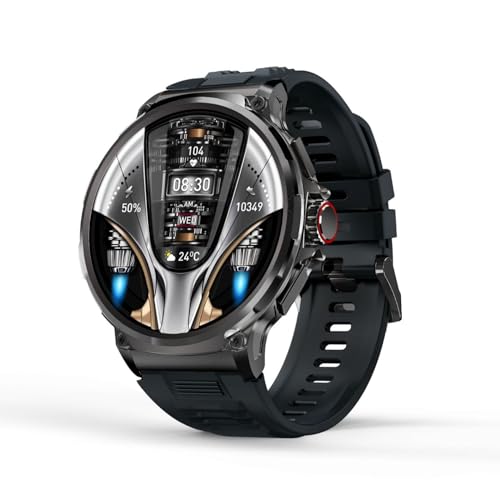
Figure 1: The SWZEC Zeus Rugged Smartwatch, showcasing its robust design and display.
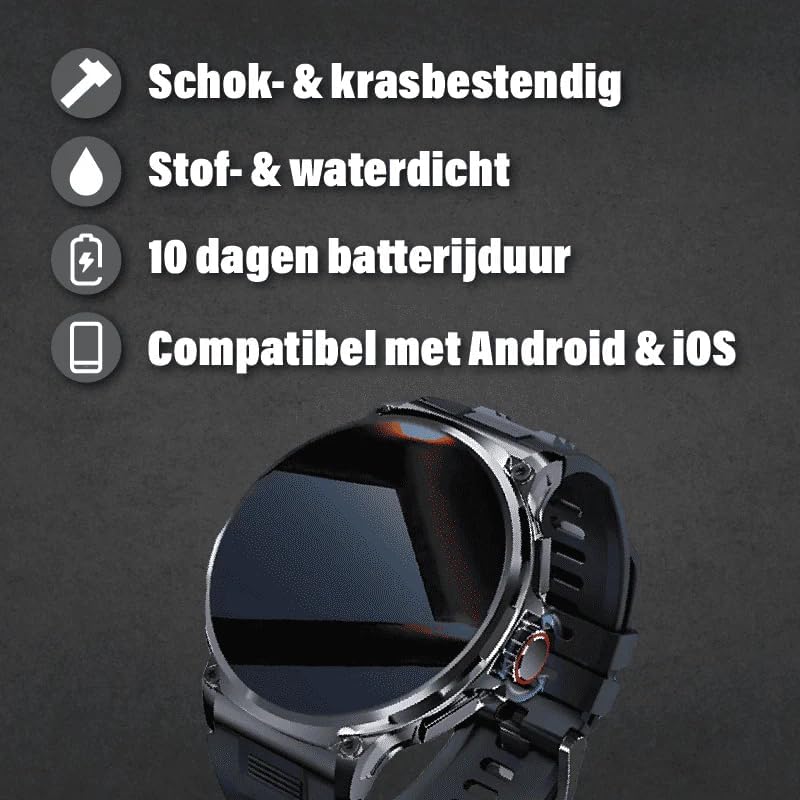
Figure 2: Key features of the SWZEC Zeus Smartwatch, highlighting its durability, battery life, and broad compatibility.
3. Setup Guide
3.1 Charging the Smartwatch
Before first use, fully charge your smartwatch. Connect the magnetic charging cable to the charging points on the back of the watch and plug the USB end into a power adapter (not included) or a computer's USB port. The watch display will indicate charging status.
- Ensure the charging contacts are clean and dry.
- A full charge typically takes approximately 2 hours.
3.2 Installing the Companion App
To unlock all features and synchronize data, download the dedicated companion app on your smartphone. Search for "SWZEC Fit" (or similar app name if specified by manufacturer) in the Apple App Store (for iOS) or Google Play Store (for Android).
- Scan the QR code provided in the watch's packaging or on the watch itself (if available) to quickly find the app.
- Follow the on-screen instructions to create an account and set up your profile.
3.3 Pairing with Your Smartphone
- Ensure Bluetooth is enabled on your smartphone.
- Open the companion app and navigate to the "Device" or "Pairing" section.
- The app will search for available devices. Select "Zeus Smartwatch" from the list.
- Confirm the pairing request on both your smartphone and the smartwatch.
- For Bluetooth calling functionality, you may need to pair the watch a second time through your phone's Bluetooth settings (e.g., "Zeus_Call" or similar).
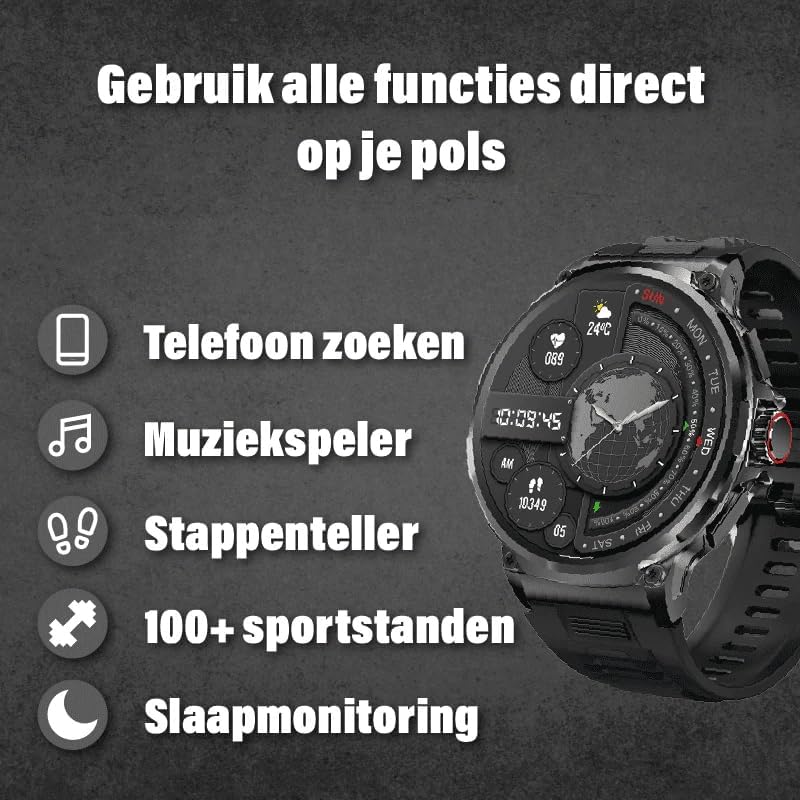
Figure 3: The smartwatch interface showing various functions, including phone search, music player, pedometer, sports modes, and sleep monitoring.
4. Operating Instructions
4.1 Basic Navigation
- Touchscreen: Swipe left/right, up/down to navigate through menus and features. Tap to select.
- Side Button(s): Typically, a short press returns to the previous screen or watch face. A long press may power on/off or access a quick menu. Refer to the watch's on-screen prompts for specific button functions.
4.2 Bluetooth Calling and Notifications
Once paired, your Zeus Smartwatch allows you to manage calls and receive notifications directly on your wrist.
- Making Calls: Access the dialer or contact list on your watch to initiate calls.
- Receiving Calls: When a call comes in, you can answer or reject it from the watch screen.
- Notifications: Incoming messages (WhatsApp, SMS), emails, and app alerts will be displayed on your watch. Swipe down from the watch face to view your notification history.

Figure 4: The smartwatch screen showing an incoming call, with options to answer or decline.
4.3 Health Monitoring
The smartwatch continuously monitors various health metrics. Access these features through the watch menu or the companion app.
- Heart Rate: Tap the heart rate icon to measure your current heart rate. The watch can also track it continuously.
- Blood Pressure & Oxygen: Access these functions to take on-demand measurements. For accurate readings, ensure the watch is snug on your wrist.
- Sleep Tracking: Wear the watch to bed for automatic sleep monitoring. View sleep patterns and quality in the app.
- Data Synchronization: All health data is synchronized with the companion app for detailed analysis and historical trends.

Figure 5: Real-time health data, including continuous heart rate, blood pressure, and blood oxygen, displayed on the smartwatch and synchronized with the mobile application.
4.4 Fitness and Sports Modes
Track your daily activity and specific workouts.
- Pedometer & Calorie Counter: Automatically tracks steps taken and calories burned throughout the day.
- Sports Modes: Select from over 100 sports modes (e.g., running, cycling, swimming) to track specific workout metrics like duration, distance, and heart rate during activity.
4.5 Customizing Watch Faces
Personalize your smartwatch by changing the watch face.
- On-Watch: Long-press the watch face, then swipe left/right to browse pre-installed faces. Tap to select.
- Via App: The companion app offers a wider selection of watch faces and allows you to upload custom photos as your watch background.
5. Maintenance
5.1 Cleaning Your Smartwatch
- Wipe the screen and casing with a soft, lint-free cloth.
- For stubborn dirt, slightly dampen the cloth with water. Avoid using harsh chemicals or abrasive materials.
- Regularly clean the charging contacts on the back of the watch to ensure proper charging.
5.2 Water and Dust Resistance (IP68)
The SWZEC Zeus Smartwatch is rated IP68, meaning it is dust-tight and protected against continuous immersion in water up to 1.5 meters for 30 minutes. This makes it suitable for daily use, including hand washing, rain, and shallow swimming.
- Do not use the watch in hot water, saunas, or steam rooms, as high temperatures and steam can compromise the seals.
- Avoid exposing the watch to high-velocity water, such as showering with strong jets or diving.
- After exposure to saltwater, rinse the watch with fresh water and dry it thoroughly.

Figure 6: The smartwatch shown in water, illustrating its IP68 waterproof capabilities for daily use.
6. Troubleshooting
| Problem | Possible Solution |
|---|---|
| Watch does not turn on. | Ensure the watch is fully charged. Connect it to the charger for at least 30 minutes. |
| Cannot pair with smartphone. |
|
| Health data seems inaccurate. |
|
| Notifications are not received. |
|
7. Specifications
| Brand | SWZEC |
| Model Name | Zeus Smartwatch |
| Model Number | ceb78fb7-145e-4cf3-9072-2dd08a1f6ef3 |
| Display Type | AMOLED |
| Screen Size | 1.85 Inches |
| Resolution | 185 x 185 pixels |
| Operating System | Proprietary OS |
| Connectivity | Bluetooth |
| Battery Life (Average) | Up to 10 Days |
| Water Resistance | IP68 (Dust-tight, protected against continuous immersion) |
| Compatible Devices | Smartphone, Tablet (iOS & Android) |
| Input Device | Microphone, Touchscreen |
| Dimensions (Approx.) | Watch Face Diameter: 53.0mm, Case Height: 61.0mm, Thickness: 13.2mm, Band Width: 28.0mm |
| Weight | 200 g (package weight) |

Figure 7: Approximate dimensions of the SWZEC Zeus Smartwatch.
8. Warranty and Support
For warranty information, please refer to the documentation provided at the time of purchase or contact your retailer. If you encounter any issues not covered in this manual, or require further assistance, please contact SWZEC customer support through their official website or the contact information provided with your product.
Online Support: Visit the official SWZEC website for FAQs, software updates, and additional support resources.