
KINMRIS M27
KINMRIS M27 Portable Handheld Game Console User Manual
Model: M27 | Brand: KINMRIS
1. Introduction
This manual provides detailed instructions for the KINMRIS M27 Portable Handheld Game Console. It covers setup, operation, maintenance, and troubleshooting to ensure optimal use of your device. The M27 console is designed for retro gaming enthusiasts, featuring a 7-inch IPS screen and support for multiple emulators.

Image 1.1: KINMRIS M27 Portable Handheld Game Console, showcasing its design and screen.
2. What's in the Box
Upon unboxing, please verify that all the following items are included:
- M27 Retro Gaming Console
- Data Cable (USB-C)
- Instruction Manual (this document)
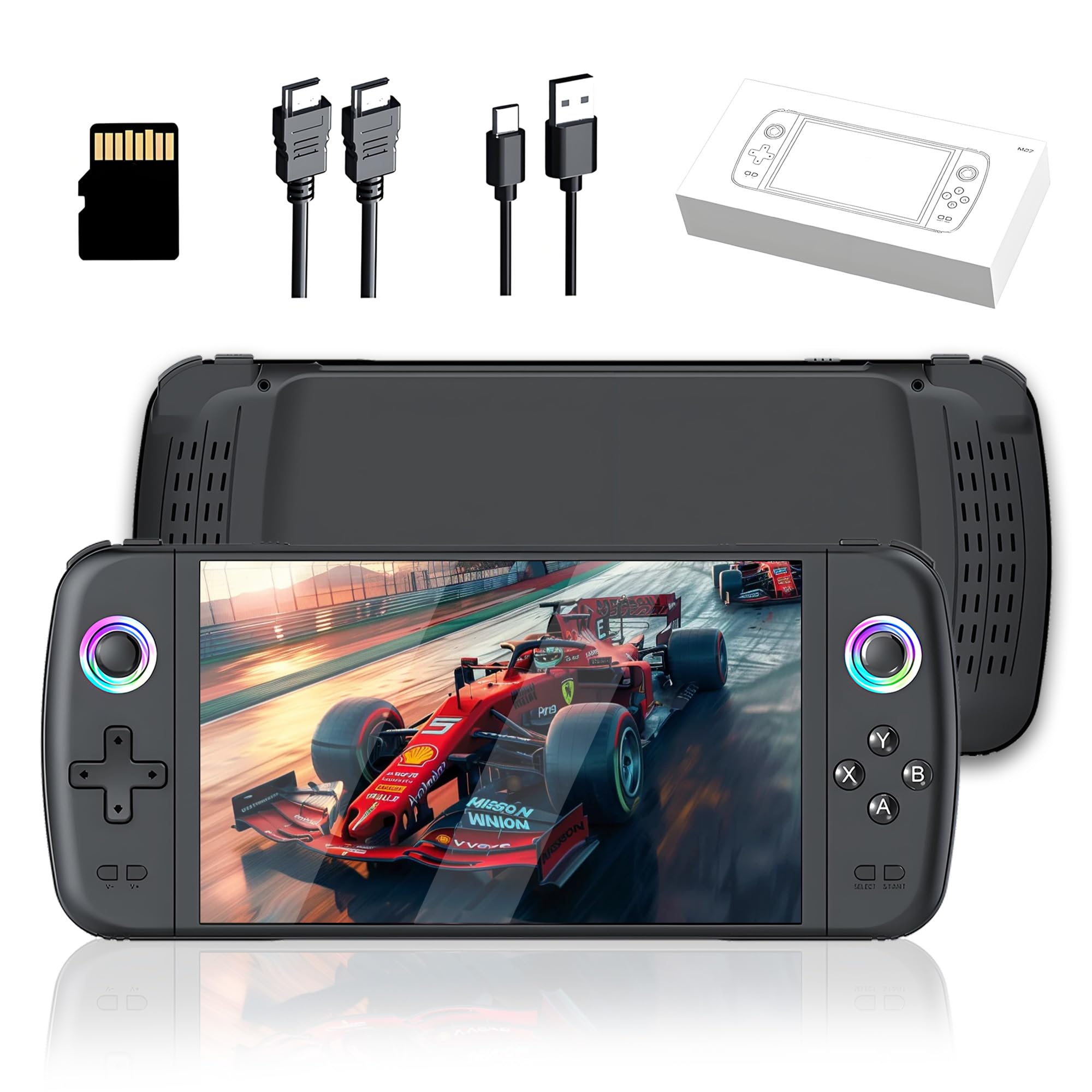
Image 2.1: The M27 console, data cables, and a memory card, representing the typical package contents.
3. Product Overview
3.1 Console Features
The KINMRIS M27 features a robust design with a 7-inch IPS display, dual 3D joysticks, and a responsive button layout for an optimal gaming experience. It includes RGB racing rainbow light rings around the joysticks.

Image 3.1: Detailed diagram of the M27 console's buttons, joysticks, and ports.
3.2 Controls and Ports
Refer to Image 3.1 for the exact location of controls and ports. Key components include:
- Directional Keys: For movement and menu navigation.
- 3D Joysticks: High-precision dual analog sticks for enhanced control.
- Function Keys (A, B, X, Y): Standard gaming action buttons.
- Start/Select Buttons: For game and system functions.
- OFF/ON Switch: Power control for the device.
- Charging Interface (Type-C): For power input.
- TF Card Slot: For storage expansion.
- AUX Sound Line Interface: For connecting external audio devices.
- HD Output: For connecting to an external display.

Image 3.2: Close-up of the M27's 3D joysticks, highlighting their design.
3.3 Display and Audio
The console features a 7-inch IPS display with a resolution of 600*1024 pixels, providing clear visuals. Integrated 8 ohm 1 watt speakers deliver immersive sound.

Image 3.3: The M27's 7-inch HD color screen, emphasizing its visual quality.
4. Setup
4.1 Initial Charging
Before first use, fully charge the console. Connect the provided USB-C data cable to the charging interface on the console and plug the other end into a compatible 5V/2A USB power adapter (not included). The battery indicator will show charging status.

Image 4.1: Illustration of the M27's 3000mAh battery capacity and charging specifications.
4.2 Powering On/Off
- To Power On: Slide the OFF/ON switch to the 'ON' position. The console will boot up.
- To Power Off: Slide the OFF/ON switch to the 'OFF' position. Ensure to save any game progress before powering off.
4.3 Storage Expansion
The console supports TF card expansion from 8GB to 128GB. Insert a compatible TF card into the designated slot. Warning: To maintain system stability and security, do not attempt to modify the system or device firmware.
5. Operating Instructions
5.1 Navigating the System
The M27 utilizes the EmuELEC operating system. Use the directional keys and joysticks to navigate menus and select options. The A/B/X/Y buttons typically serve as confirmation and cancellation buttons, depending on the context.
5.2 Game Selection and Launch
The console comes pre-loaded with over 30,000 retro games across 30+ emulators. From the main menu, select an emulator or game category, then browse the list of available games. Press the 'A' button (or equivalent) to launch a game.

Image 5.1: The M27 console showcasing its interface with options for RGB lighting, emulators, and 3D games.
5.3 System Settings and Language
Access the system settings menu to adjust various parameters, including display brightness, audio volume, and language. The console supports over 30 languages. Navigate to the 'Language' option within settings to change the system language.
5.4 Connecting to a TV
The M27 console can be connected to an external display, such as a TV, via its HD output port for a larger gaming experience. Use a compatible HD cable (not included) to connect the console to your TV. Select the appropriate input source on your TV.

Image 5.2: The M27 console connected to a 4K Ultra HD television, demonstrating external display functionality.
6. Maintenance
6.1 Cleaning
Use a soft, dry cloth to clean the console's exterior. For the screen, use a microfiber cloth specifically designed for electronics. Avoid using harsh chemicals or abrasive materials, as these can damage the device.
6.2 Battery Care
To prolong battery life, avoid fully discharging the battery frequently. Charge the device regularly, even if not in use for extended periods. Store the console in a cool, dry place away from direct sunlight and extreme temperatures.
6.3 Storage
When not in use, store the console in a protective case or a safe location to prevent scratches, dust accumulation, and accidental damage.
7. Troubleshooting
If you encounter issues with your KINMRIS M27 console, refer to the following common problems and solutions:
| Problem | Possible Cause | Solution |
|---|---|---|
| Console does not power on. | Low battery; Power switch off. | Charge the console for at least 30 minutes. Ensure the power switch is in the 'ON' position. |
| Games are not loading or freezing. | Corrupted game file; System error; Insufficient memory. | Restart the console. Ensure the TF card is properly inserted. Avoid modifying system files. |
| Screen is blank or flickering. | Loose connection; Software glitch; Hardware issue. | Restart the console. If connected to a TV, check the HD cable connection. |
| No sound. | Volume too low; Muted; Headphone jack in use. | Increase volume. Check system sound settings. Disconnect headphones if not intended for use. |
If the problem persists after attempting these solutions, please contact KINMRIS customer support for further assistance.
8. Specifications
Below are the technical specifications for the KINMRIS M27 Portable Handheld Game Console:
- Model: M27
- Screen Size: 7 Inches
- Display Type: IPS
- Resolution: 600*1024
- Operating System: EmuELEC (Linux-based)
- Processor: Quad-core (up to 1.6GHz)
- GPU: Mali-G52
- Emulators Supported: 30+
- Built-in Games: 30,000+ (128G version)
- Memory Storage Capacity: 128GB (internal, expandable via TF card)
- TF Card Expansion: Supports 8GB-128GB
- Battery Capacity: 3000mAh (Lithium-Ion)
- Power Input: 5V/2A (Type-C)
- Controller Type: Dual 3D Joysticks
- Material: Plastic
- Product Dimensions: 9.65 x 4.21 x 0.87 inches
- Item Weight: 1.21 pounds
- Supported Languages: 30+
9. Warranty and Support
For warranty information and customer support, please refer to the documentation provided with your purchase or visit the official KINMRIS website. Keep your proof of purchase for warranty claims.