
1. Introduction
Thank you for choosing the Generic SD-8028 Robot Vacuum and Mop. This device is designed to assist with daily floor cleaning, offering both vacuuming and mopping functionalities. This manual provides essential information for the safe and efficient operation, maintenance, and troubleshooting of your robot cleaner. Please read it thoroughly before first use and retain it for future reference.
2. Safety Instructions
WARNING: To reduce the risk of injury or damage, read and follow all safety precautions.
- This appliance can be used by children aged 8 years and above and persons with reduced physical, sensory or mental capabilities or lack of experience and knowledge if they have been given supervision or instruction concerning use of the appliance in a safe way and understand the hazards involved.
- Children should be supervised to ensure they do not play with the appliance.
- Cleaning and user maintenance shall not be made by children without supervision.
- Do not use the robot in wet environments or near water sources.
- Ensure the charging adapter is compatible with your local power supply.
- Keep hair, loose clothing, fingers, and all parts of the body away from openings and moving parts.
- Do not operate the robot in areas with open flames or explosive materials.
- Remove any loose cables, small objects, or fragile items from the cleaning path before operation.
- Do not use the robot to pick up large debris, sharp objects, or liquids.
3. Product Overview
The Generic SD-8028 is a compact robot vacuum and mop designed for efficient floor cleaning. It features a slim profile to clean under furniture and dual side brushes for effective debris collection.

Figure 3.1: Top view of the SD-8028 Robot Vacuum and Mop, showing the main body and side brushes.

Figure 3.2: Close-up of the robot's top panel, highlighting the power button and dustbin access. The side brushes are visible, designed to sweep debris into the suction path.
Components:
- Main Robot Unit
- Side Brushes (2x)
- USB Charging Cable
- Dustbin with Nylon Filament Filter
- Mop Cloth (if included with specific model variant)
4. Setup
4.1 Initial Charging
- Connect the USB charging cable to the robot's charging port.
- Plug the other end of the USB cable into a compatible USB power adapter (not included) or a USB port.
- Allow the robot to charge fully before its first use. The charging indicator light will change to indicate a full charge. A full charge can provide up to 50-100 minutes of cleaning time.

Figure 4.1: The robot vacuum charging, illustrating its battery capacity for extended cleaning sessions.
4.2 Preparing the Cleaning Area
- Remove any obstacles such as power cords, small toys, or loose items from the floor.
- Ensure there are no large puddles or wet areas on the floor if using the mopping function.
- For optimal cleaning, clear the area of excessive clutter.
5. Operating Instructions
5.1 Starting and Stopping Cleaning
- To start cleaning, press the power button located on the top of the robot. The robot will begin cleaning in its default mode.
- To pause cleaning, press the power button again.
- To stop cleaning and return the robot to standby mode, press and hold the power button for a few seconds.
5.2 Cleaning Modes
The robot supports multiple cleaning modes to suit different needs:
- Auto Clean: The robot navigates automatically to clean the entire floor area.
- Spot Clean: The robot focuses on a specific dirty area, cleaning in a spiral pattern.
- Edge Clean: The robot cleans along walls and furniture edges.
- Sawtooth Clean: The robot cleans in a back-and-forth pattern, suitable for open areas.
Switching between modes may be done via the robot's control button (if available) or a dedicated mobile application (if supported by your model). Refer to the app's instructions for detailed control.
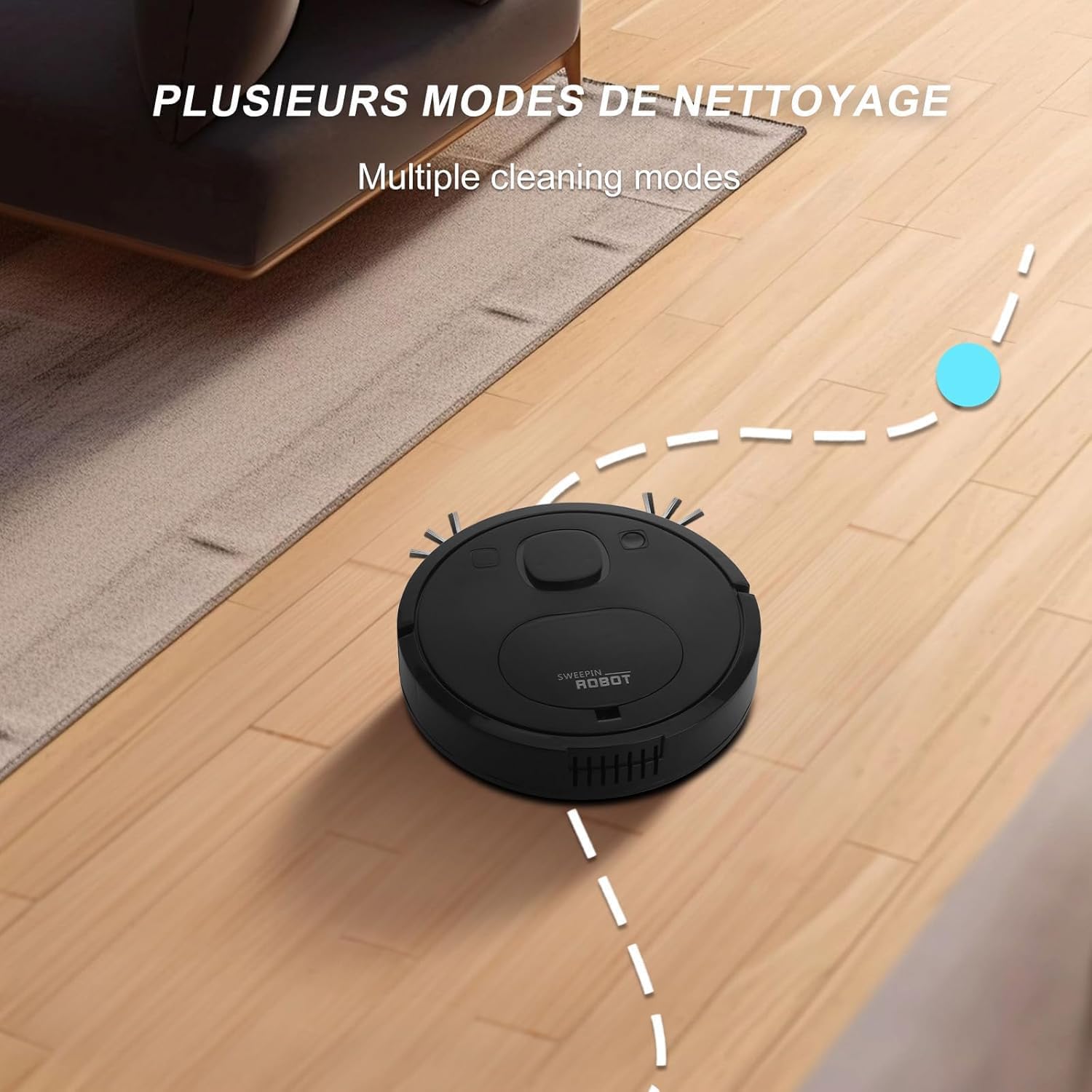
Figure 5.1: The robot vacuum operating on a hard floor, demonstrating its ability to perform various cleaning patterns.
5.3 Mopping Function
To use the mopping function:
- Attach the mop cloth to the designated area on the robot (if applicable).
- Lightly dampen the mop cloth with water. Do not over-saturate.
- Start the robot as usual. The mop cloth will wipe the floor as the robot moves.
- After cleaning, remove and clean the mop cloth.

Figure 5.2: The robot's slim design allows it to clean effectively under furniture like sofas and cabinets, reaching hard-to-access areas.
6. Maintenance
Regular maintenance ensures optimal performance and extends the lifespan of your robot vacuum.
6.1 Emptying the Dustbin
Empty the dustbin after each cleaning cycle or when it appears full.
- Open the dustbin cover on the robot.
- Remove the dustbin.
- Empty the contents into a trash receptacle.
6.2 Cleaning the Filter
The robot uses a nylon filament filter. Clean the filter weekly or as needed.
- Remove the filter from the dustbin.
- Gently tap the filter to remove loose dust and debris.
- Do not wash the filter with water unless specified by the manufacturer.
- Ensure the filter is completely dry before reinserting it into the dustbin.

Figure 6.1: The dustbin and its nylon filament filter, designed to capture dust and prevent secondary pollution. Regular cleaning of this filter is crucial for performance.
6.3 Cleaning Side Brushes
Inspect and clean the side brushes regularly to remove tangled hair or debris.
- Carefully pull the side brushes off their posts.
- Remove any hair or debris wrapped around the brushes or posts.
- Reattach the brushes, ensuring they click into place.
6.4 Cleaning Sensors and Charging Contacts
Wipe the sensors and charging contacts on the robot and charging base (if applicable) with a clean, dry cloth to ensure proper function.
7. Troubleshooting
If you encounter issues with your robot vacuum, refer to the following common problems and solutions:
| Problem | Possible Cause | Solution |
|---|---|---|
| Robot does not turn on | Low battery; Power button not pressed correctly | Charge the robot fully; Press and hold the power button for a few seconds to turn on. |
| Robot does not charge | Charging cable not connected; Dirty charging contacts | Ensure charging cable is securely connected; Clean charging contacts on robot and adapter. |
| Poor cleaning performance | Full dustbin; Clogged filter; Tangled brushes | Empty dustbin; Clean or replace filter; Clean side brushes. |
| Robot gets stuck frequently | Obstacles in path; Robot stuck on high carpets/thresholds | Clear the cleaning area of obstacles; Ensure robot can navigate over floor transitions. |
| Unusual noise during operation | Debris in brushes or wheels; Damaged component | Clean brushes and wheels; If noise persists, contact customer support. |
8. Specifications
The following are the technical specifications for the Generic SD-8028 Robot Vacuum and Mop:
| Feature | Detail |
|---|---|
| Model Name | SD-8028 |
| Brand | Generic |
| Special Feature | 360-Degree Swivel |
| Color | Black |
| Height | Approximately 6 cm (2.36 inches) - Based on product imagery for 'slim design' |
| Included Components | Robot Vacuum, USB Charging Cable |
| Filter Type | Nylon Filament Filter |
| Battery Life | Up to 50-100 minutes (depending on mode and floor type) |
| Voltage | 3.69 Volts |
| Item Weight | 1 pound |
9. Warranty and Support
For warranty information or technical support, please refer to the documentation provided at the time of purchase or contact your retailer. Keep your proof of purchase for warranty claims.