
1. Introduction and Overview
The ZDAVSFR ZK-10022 is a CNC step-down adjustable stabilized voltage power supply module designed for applications requiring precise control over output voltage and current. This module features a wide input voltage range of 12-140V and provides an adjustable output from 0-125V, with a maximum output current of 22A and power up to 1500W. It is equipped with a display board, independent silicone keys for easy adjustment, and various protection mechanisms to ensure safe and reliable operation.
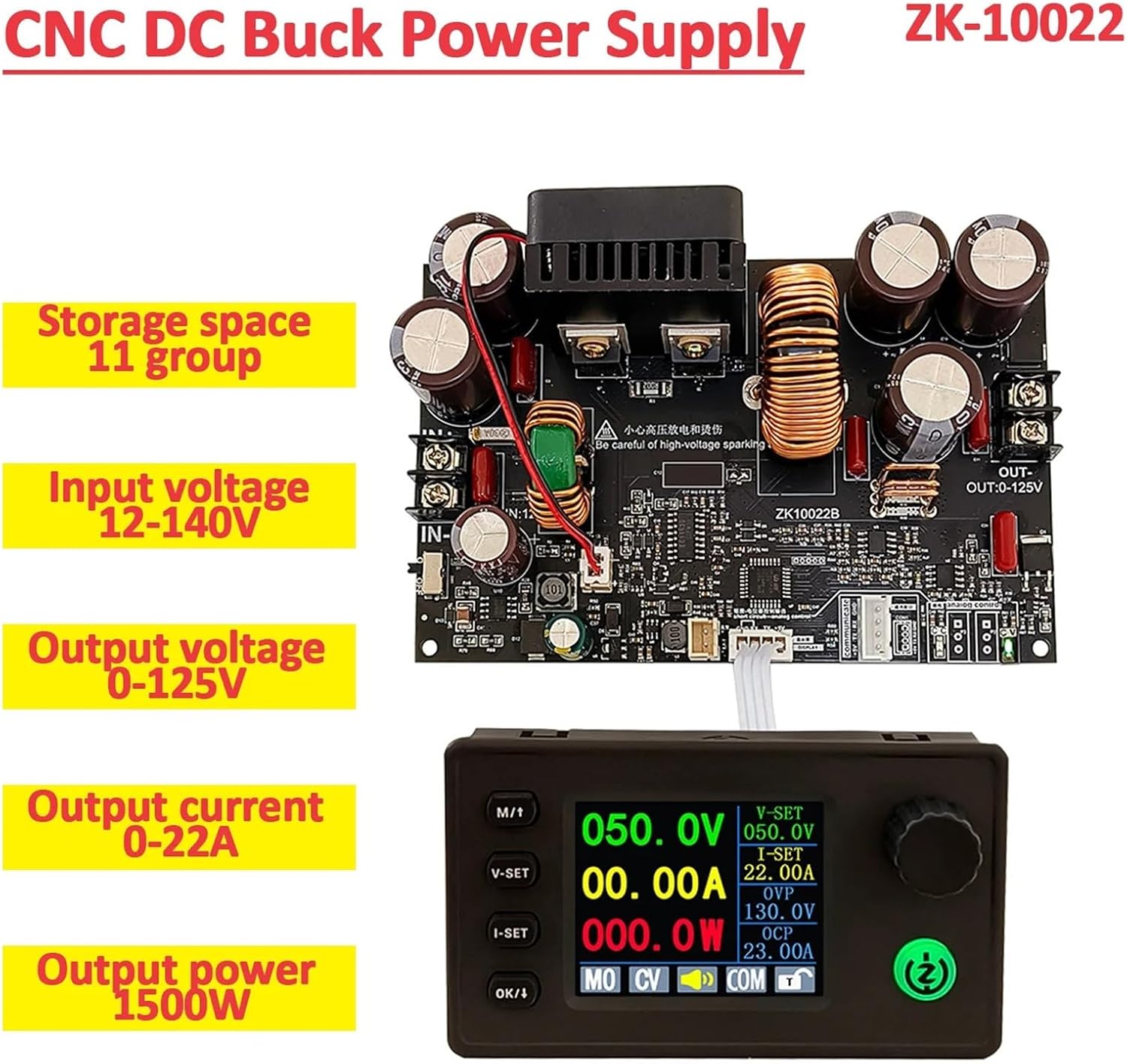
Image 1.1: ZK-10022 CNC DC Buck Power Supply module with its display unit, highlighting key specifications such as 11 groups of storage space, 12-140V input voltage, 0-125V output voltage, 0-22A output current, and 1500W output power.
2. Product Features
- Enhanced Display Board: Features a gold sinking process to prevent oxidation and ensure reliable contact, maintaining a clear display over extended use.
- Intuitive Controls: Independent silicone keys allow for easy and precise adjustment of voltage or current with a simple one-key entry and exit system.
- Versatile Display Options: Supports various display configurations including a standard header, color screen header, or the ability to integrate a custom serial screen.
- Flexible Motherboard Design: Utilizes a separate motherboard for flexible integration, supporting stepless current and voltage adjustments.
- Durable Buttons: Soft silicone button material provides a comfortable touch and ensures long-lasting performance without wear or failure.
- Data Storage: Capable of storing up to 11 groups of data for quick recall of settings.
- Cooling System: Integrated cooling fan activates under specific conditions (Temperature > 45 °C, Current > 2A, or Power > 30W) to maintain optimal operating temperature.

Image 2.1: Overview of the ZK-10022 module, highlighting its third-generation upgrade features including silicon rubber keypads, a 1.8-inch large screen display, and support for serial communication with MODBUS protocol. Key specifications like 12-140V input, 0-125V output, 0-22A output current, and 1500W output power are also shown.
3. Setup and Installation
3.1 Motherboard Connection
The ZK-10022 module consists of a main motherboard and a separate display/control unit. Connect the display unit to the motherboard using the provided cable. Ensure all connections are secure before applying power.

Image 3.1: Detailed view of the ZK-10022 motherboard, illustrating the voltage regulation potentiometer and current regulation potentiometer. It also shows the RX GND jumper for analog potentiometer control and notes for serial screen/APP control.
3.2 Analog Potentiometer Control
For analog potentiometer control, short circuit the RX GND pins. This enables external potentiometers for voltage and current adjustment. If using a serial screen or APP for upper computer control, the jumper cap should be unplugged and the device powered on again after connection.
3.3 Power Input and Output
Connect your DC input power source (12-140V) to the 'IN' terminals on the motherboard. Connect your load to the 'OUT' terminals. Observe correct polarity for all connections.
4. Operating Instructions
4.1 Adjusting Voltage and Current
Use the independent silicone keys and rotary encoder on the display unit to adjust the output voltage and current. The display provides real-time feedback on the set values and actual output.

Image 4.1: This image highlights the constant voltage and constant current capabilities of the ZK-10022. It emphasizes upgrade points such as a maximum output current of 22A and a maximum output voltage of 125V, both continuously adjustable via analog potentiometers.
4.2 Display Options and Serial Communication
The module supports various display types, including ZK-LCDK (LCD meter head) and ZK-CSDK (color screen meter head). These can be plugged into any port. For serial communication, ensure the baud rate of the serial port screen is consistent with the power board (default 115200, adjustable). The RX TX cable sequence must be connected correctly.

Image 4.2: This image displays the extended serial port screen options, showing both ZK-LCDK type and ZK-CSDK type display meter heads connected to the main board via dual communication ports. It provides notes on compatibility and baud rate settings.
4.3 Data Group Storage
The module allows for storing up to 11 groups of frequently used voltage and current settings. Refer to the on-screen menu for instructions on saving and recalling these settings.
5. Protection Mechanisms
The ZK-10022 is equipped with several protection features to safeguard the module and connected devices:
- Input Undervoltage Protection (LUP): Adjustable from 11-125V, with a default setting of 11V. This prevents operation with insufficient input voltage.
- Output Overvoltage Protection (OUP): Adjustable from 1-130V, with a default setting of 130V. This protects the load from excessive output voltage.
- Output Overcurrent Protection (OCP): Adjustable from 0.01-23A, with a default setting of 23A. This prevents damage due to excessive output current.
- Output Overpower Protection (OPP): Adjustable from 1-1500W, with a default setting of 1500W. This limits the total output power to prevent overload.
6. Maintenance
To ensure the longevity and optimal performance of your ZK-10022 power supply, follow these maintenance guidelines:
- Cooling Fan Operation: The integrated cooling fan will activate automatically when the temperature exceeds 45 °C, or when the output current exceeds 2A, or when the output power exceeds 30W. Ensure adequate airflow around the module to facilitate efficient cooling.
- Cleaning: Keep the module free from dust and debris. Use a soft, dry cloth for cleaning. Do not use liquid cleaners or solvents.
- Storage: Store the module in a dry, cool environment when not in use.
- Inspection: Periodically inspect all connections for tightness and signs of wear or damage.
7. Troubleshooting
If you encounter issues with your ZK-10022 power supply, consider the following:
- No Output: Check input power supply, ensure connections are secure, and verify that protection mechanisms (LUP, OCP, OUP, OPP) are not triggered.
- Incorrect Output: Verify settings on the display unit. If using analog control, ensure potentiometers are correctly connected and adjusted.
- Overheating: Ensure the cooling fan is operating when conditions are met. Check for obstructions to airflow. Reduce load if operating continuously at high power.
- Display Issues: Check the connection cable between the motherboard and the display unit. Ensure the display type is correctly configured if using a custom serial screen.
For persistent issues, consult the manufacturer's support resources.
8. Specifications
| Parameter | Value |
|---|---|
| Product Name | CNC Power Supply |
| Input Voltage | 12-140V |
| Output Voltage | 0-125V |
| Output Voltage Accuracy | ± 0.3% + 3 words (Calibratable) |
| Output Current Accuracy | ± 0.5% + 3 words (Calibratable) |
| Current Resolution | 0.01A |
| Output Current | 0-22A |
| Output Power | 0-1500W |
| Voltage Resolution | 0.1V |
| Data Group Storage | 11 groups |
| Screen Size | Upgraded 1.8-inch large screen (36 x 29mm visible range) |
| Buzzer | Yes |
| Cooling Fan Activation | Temperature > 45 °C OR Current > 2A OR Power > 30W |
| Product Shell Size | 83 x 48 x 29.4mm (Height does not include rotary encoder) |
| Product Motherboard Size | 130 x 84 x 42mm |
| Net Weight (Motherboard) | 227g |
| Net Weight (Entire Set) | 280g |
9. Warranty and Support
For warranty information and technical support, please refer to the product packaging or contact ZDAVSFR customer service directly. Keep your purchase receipt for warranty claims.