
1. Introduction
The GHome Smart Deadbolt Lock KD30B-K offers advanced security and convenience with multiple unlocking methods. This smart lock integrates fingerprint recognition, PIN codes, temporary passwords, app control, and traditional key access. Designed for ease of use and robust protection, it includes features such as auto-lock, one-touch lock, anti-peeping functionality, lock alerts, low battery warnings, a USB-C emergency port, and a silent mode to enhance your home security.
2. Product Overview
The GHome Smart Deadbolt Lock KD30B-K provides a versatile and secure entry solution. It supports up to 50 fingerprints and 50 PIN codes, along with options for temporary and one-time passwords. The lock is designed for compatibility with most standard deadbolts and can be installed with minimal tools.

Figure 2.1: Multiple ways to unlock the GHome Smart Deadbolt Lock, including fingerprint, keypad, GHome app, and spare keys.
3. Installation Guide
Installation of the GHome Smart Deadbolt Lock is designed to be a 15-minute DIY process, requiring only a Phillips screwdriver. No additional drilling or wiring is typically needed. The lock is compatible with both left and right-handed doors.
3.1 Door Compatibility Check
Before installation, ensure your door meets the following specifications:
- Door Thickness: 1-3/8" to 2-1/8" (35mm to 54mm)
- Cross Bore Diameter: 1-1/2" or 2-1/8" (38mm or 54mm)
- Door Hole Diameter: 1" (25mm)
- Backset: 2-3/8" or 2-3/4" (60mm or 70mm)
- Minimum Distance: 2-3/16" (55mm)

Figure 3.1: Door measurement guide for proper fit of the GHome Smart Deadbolt Lock.

Figure 3.2: The GHome Smart Deadbolt Lock can be installed in approximately 15 minutes using basic tools.
3.2 Installation Video
Video 3.1: This video demonstrates the installation process of the GHome Smart Fingerprint Door Lock, including how to set up the lock and its various features.
4. Operating Instructions
The GHome Smart Deadbolt Lock offers multiple convenient ways to unlock and manage access.
4.1 Unlocking Methods
- Fingerprint Unlock: The biometric fingerprint sensor provides 0.2-second recognition with 98.9% accuracy. The lock's AI self-learns to improve recognition over time. All fingerprint data is stored locally.
- PIN Code Unlock: Use the digital keypad to enter your personalized PIN code. The anti-peeping function allows you to enter random digits before or after your actual code to prevent others from guessing it.
- App Control: Unlock the door remotely via the GHome app using Bluetooth. For Wi-Fi remote control, a separate gateway is required.
- Mechanical Key: Two spare keys are provided for traditional manual unlocking as a backup.
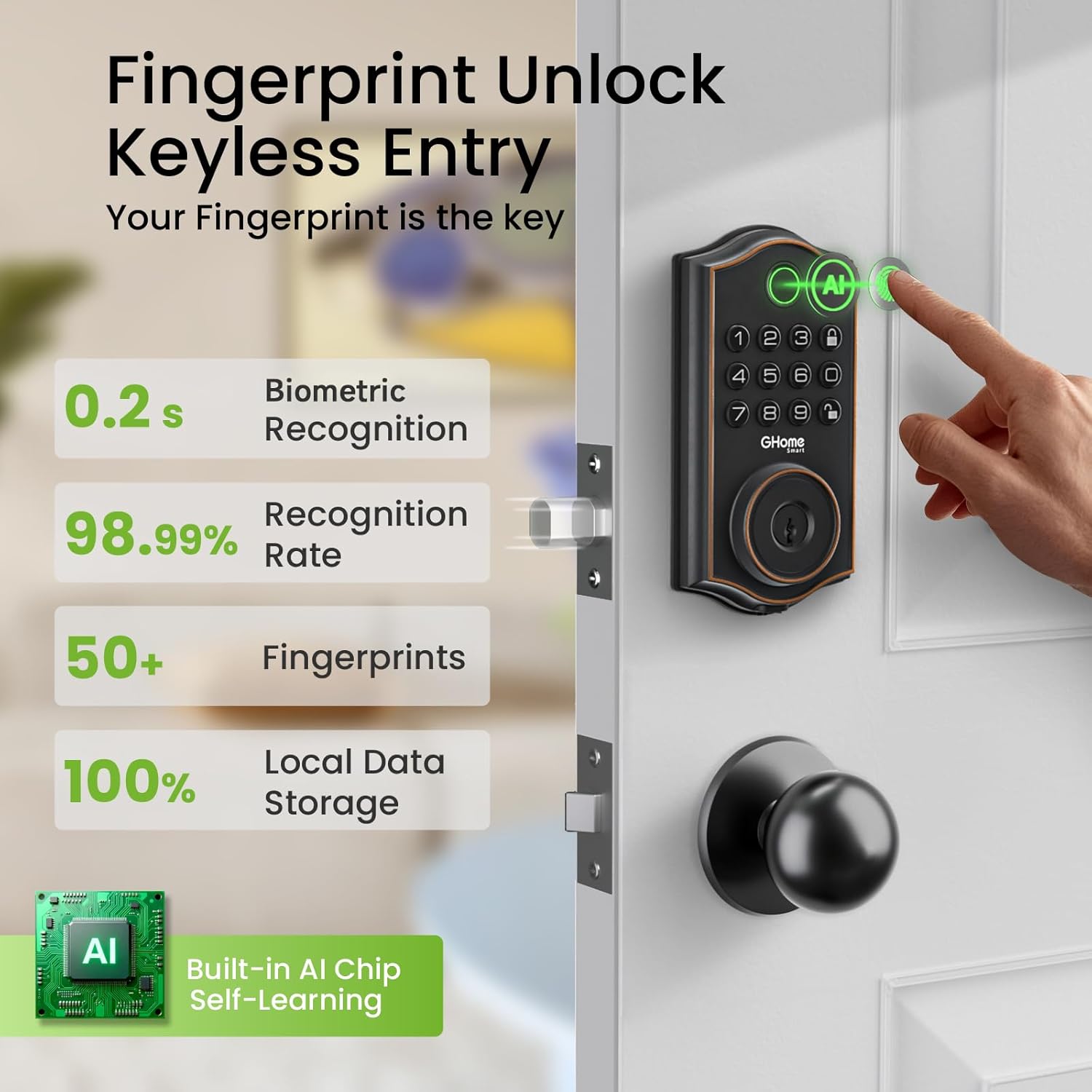
Figure 4.1: Fingerprint unlocking offers quick and secure access with high accuracy.

Figure 4.2: Keypad entry with anti-peeping feature for enhanced security.

Figure 4.3: App control options for unlocking via Bluetooth or Wi-Fi (with gateway).
4.2 Temporary and One-Time Passwords
Generate and share one-time, permanent, scheduled, and recurring codes for various guests or service personnel. This simplifies access management for visitors, house cleaners, or delivery persons.

Figure 4.4: Managing access with temporary and one-time passwords through the app.
4.3 Auto-Lock and One-Touch Lock
Customize the auto-lock time between 1 and 1800 seconds via the app. Alternatively, use the one-touch lock function by pressing the exterior lock button. Turning the knob from the inside instantly locks or unlocks the door.

Figure 4.5: Auto-lock feature can be configured for automatic locking after a set duration.
4.4 Silent Mode
Activate silent mode to disable lock sounds, ensuring a quiet environment, especially during nighttime or when not wanting to disturb others.

Figure 4.6: Silent mode ensures quiet operation of the lock.
4.5 Voice Control (via Gateway)
For voice control functionality with Amazon Alexa or Google Assistant, a GHome G2 Gateway connection is required. This allows you to unlock your door using voice commands.

Figure 4.7: Voice control integration with smart home assistants requires a G2 Gateway.
4.6 Vacation Mode
Activate Vacation Mode for enhanced security when you are away. In this mode, only Admin Fingerprint, Admin Password, and Backup Keys can unlock the door, restricting access for other users.

Figure 4.8: Vacation Mode provides maximum security by limiting access to primary users and backup keys.
4.7 Operating Video
Video 4.1: This video demonstrates the various unlocking methods of the GHome Smart Deadbolt Lock, including fingerprint, password, Bluetooth app control, and mechanical key.
5. Maintenance
Proper maintenance ensures the longevity and optimal performance of your GHome Smart Deadbolt Lock.
5.1 Battery Installation and Life
The lock is powered by 4 AA alkaline batteries, providing a battery life of up to 180 days (based on 10 uses per day). The GHome app will provide low battery alerts, prompting you to replace the batteries in time. In case of complete battery drain, a USB-C emergency port is available for temporary power.

Figure 5.1: The lock uses 4 AA batteries and provides low battery warnings.
5.2 Battery Replacement Video
Video 5.1: This video demonstrates how to replace the batteries in the GHome Smart Deadbolt Lock and highlights the low battery alert feature.
6. Troubleshooting
If you encounter issues with your GHome Smart Deadbolt Lock, refer to the following common solutions:
- Lockout Alert: The electronic door lock features an error code lockout and sends alerts to your connected device if multiple incorrect attempts are made.
- Low Battery: If the lock is unresponsive, check the battery level in the app or use the USB-C emergency port for temporary power. Replace batteries promptly when low battery alerts are received.
- Fingerprint Recognition Issues: Ensure your finger is clean and dry, and placed correctly on the sensor. The self-learning AI improves recognition over time.
- App Connectivity: For Bluetooth connection, ensure your phone is within 15 meters of the lock. For Wi-Fi control, verify the G2 Gateway is properly connected and functioning.
- Mechanical Key Not Working: Ensure the key is fully inserted and turned correctly. If the lock mechanism feels stiff, it may require lubrication or inspection for obstructions.
7. Specifications
| Feature | Detail |
|---|---|
| Brand | GHome Smart |
| Model Number | KD30B |
| Lock Type | Biometric, Deadbolt, Keypad |
| Special Features | Anti-Peeping Password, Auto-Lock, Fingerprint, Heat Resistant, One-Touch Lock |
| Material | Metal |
| Color | Matte Black |
| Item Dimensions (L x W x H) | 7 x 3 x 7 inches |
| Item Weight | 1.06 Kilograms |
| Power Source | 4 AA Batteries (180-day life) |
| Connectivity Protocol | Bluetooth (Wi-Fi with optional gateway) |
| Operating Temperature | -20°C to 50°C (-4°F to 122°F) |
| Waterproof Rating | IP54 |
| Recommended Uses | Apartment, Front door, Home, Office |
8. Warranty and Support
GHome Smart offers a 1-year warranty for the KD30B-K Smart Deadbolt Lock. For any inquiries or assistance, 24/7 after-sales support is available. Please refer to the contact information provided in your product packaging or on the official GHome Smart website for support details.