
MAHVEC Android 13 Car Stereo 6.86 inch
MAHVEC Android 13 Car Stereo User Manual
Model: Android 13 Car Stereo 6.86 inch
Introduction
This manual provides detailed instructions for the installation, operation, and maintenance of your MAHVEC Android 13 Car Stereo. Please read this manual thoroughly before using the product to ensure proper function and safety. This car stereo is designed for specific vehicle models including Dodge RAM (2002-2006), Jeep Wrangler (2003-2006), and Jeep Grand Cherokee (1999-2004).
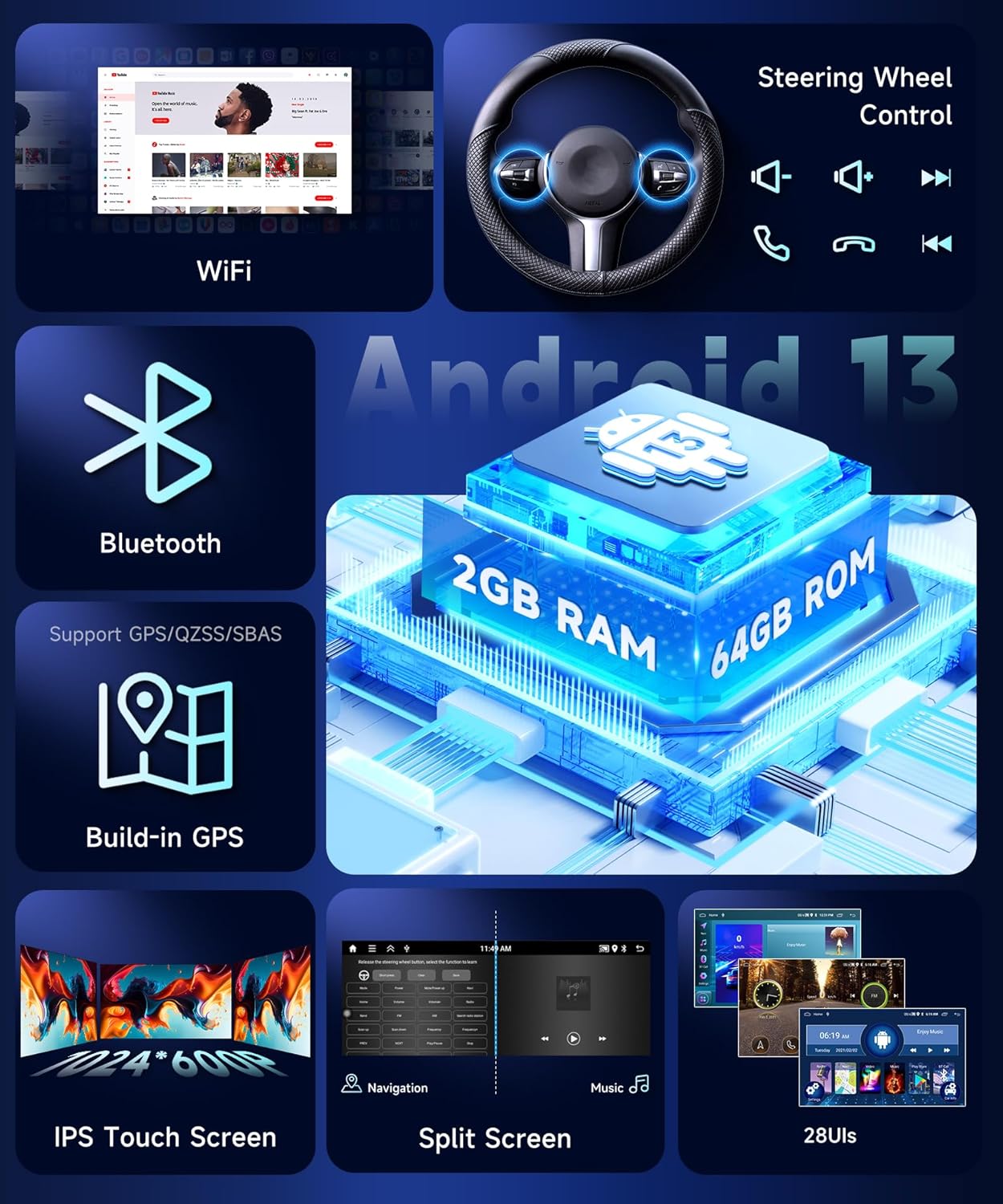
Key features include a 6.86-inch IPS touchscreen, Android 13 operating system, 2GB RAM + 64GB ROM, Wireless CarPlay, Android Auto, Bluetooth, built-in GPS, Wi-Fi connectivity, DSP EQ, and support for steering wheel controls and AHD backup cameras.
Compatible Vehicle Models
This MAHVEC car stereo is compatible with the following vehicle models:
- For Jeep: Grand Cherokee (1999-2004), Wrangler (2003-2006), Liberty (2002-2007)
- For Chrysler: 300M (2002-2004), Town&Country (2004-2007), PT Cruiser (2003-2005), Sebring Sedan (2002-2006), Concorde (2002-2004), Grand Voyager (2001-2003)
- For Dodge: RAM (2002-2006), 1500/2500/3500 Pickup (2004-2005)

What's in the Box
The MAHVEC Android 13 Car Stereo package includes the following components:
- Android Car Stereo & Frame
- AHD Backup Camera
- External Microphone
- USB Cable (x2)
- Rear Camera Input Cable
- RCA Cable
- Power Cable (x2, specific to vehicle model)
- GPS Antenna
- Antenna Adapter
- User Manual

Setup and Installation
1. Wiring Schematic
Carefully connect all cables according to the wiring diagram. Ensure secure connections to prevent malfunctions.

2. Backup Camera Wiring
Connect the AHD backup camera as follows:
- Connect the Red Cable ① and ③ to the positive of the car's reverse light power supply.
- Connect the Black Cable ② to the negative of the car's reverse light power supply.
- Connect the Black Cable ④ to the reverse trigger wire on the power harness.
After connection, enter settings: Factory Setup (000000) > Backcar Source Settings > AHD.

3. Bluetooth Connection
To connect your smartphone via Bluetooth for hands-free calling and music streaming:
- On the car stereo, navigate to the Bluetooth interface.
- On your smartphone, enable Bluetooth and search for available devices.
- Select the car stereo's Bluetooth name (e.g., "CarBT") from your phone's list.
- Enter the PIN code (default: 0000) if prompted.
- Confirm the pairing request on both devices.

4. Wi-Fi Connection
To enable Wi-Fi connectivity for online services and app downloads:
- Go to Settings > Network on the car stereo.
- Turn on Wi-Fi. The stereo will scan for available networks.
- Select your desired Wi-Fi network and enter the password if required.
- Once connected, you can access online features like Google Maps, YouTube, and the Play Store.
5. Wireless CarPlay & Android Auto
The stereo supports both Wireless CarPlay and Android Auto for seamless smartphone integration.
- Ensure your smartphone is connected to the car stereo via Bluetooth (see Bluetooth Connection section).
- Open the CarPlay or Android Auto application on the car stereo.
- Follow the on-screen prompts to complete the connection.
- Your phone's compatible apps, navigation, music, and calls will be accessible directly on the car stereo's display.


Operating Instructions
1. Basic Navigation
The car stereo features an intuitive Android 13 interface. Swipe left or right on the home screen to access different app pages. Tap on app icons to launch applications.
2. Radio (FM/RDS)
Access the Radio application to listen to FM stations. The RDS (Radio Data System) feature provides additional information like station name and song title where available.
- Tap the "Radio" icon to open the application.
- Use the frequency tuner to manually select stations or use the scan function to find available stations.
- Save your favorite stations for quick access.

3. Audio Settings (DSP EQ)
Customize your audio experience with the built-in DSP EQ. You can select from preset equalizer curves (Pop, Rock, Jazz, Classical, User) or manually adjust the 8-band equalizer to fine-tune the sound.
- Tap the "EQ" icon or navigate to Audio Settings.
- Choose a preset or adjust individual frequency bands.
- Utilize the sound field settings to optimize audio output for different seating positions.
4. GPS Navigation
The car stereo features a built-in GPS chip supporting GPS, GLONASS, and SBAS. Connect to Wi-Fi to download online maps or update offline map data. You can install various navigation apps from the Play Store.
- Tap the "Maps" or "Navigation" icon to launch your preferred navigation application.
- Enter your destination and follow the voice-guided directions.

5. Steering Wheel Controls (SWC)
The car stereo supports existing steering wheel controls, allowing you to operate key functions without taking your hands off the wheel. This enhances driving safety.
- Navigate to Settings > Car Settings > SWC to configure your steering wheel buttons.
- Follow the on-screen instructions to map each button to its corresponding function (e.g., volume up/down, track skip, mode).
6. User Interface (UI) Themes
The car stereo offers 26 user interface themes to personalize your experience. You can easily switch between different themes to match your preference.
- Navigate to Settings > Theme to browse and select different UI themes.
- Tap on a theme to preview and apply it.
Maintenance
- Screen Cleaning: Use a soft, lint-free cloth to clean the IPS touchscreen. Avoid abrasive cleaners or harsh chemicals.
- Software Updates: Periodically check for software updates via the Wi-Fi connection to ensure optimal performance and access to new features.
- System Reset: If the system becomes unresponsive, you may perform a soft reset by pressing the reset button (if available) or a factory reset through the settings menu (note: this will erase all user data).
Troubleshooting
| Problem | Possible Cause | Solution |
|---|---|---|
| No Power | Incorrect wiring, blown fuse. | Check power connections and vehicle fuses. Ensure proper grounding. |
| No Sound | Volume too low, incorrect audio settings, speaker wiring issues. | Increase volume, check EQ/sound field settings, verify speaker connections. |
| Bluetooth/CarPlay/Android Auto not connecting | Bluetooth not enabled, incorrect pairing, app not launched. | Ensure Bluetooth is on on both devices, re-pair, launch the respective app on the stereo. |
| GPS signal weak/lost | GPS antenna not properly installed or obstructed. | Ensure GPS antenna is securely connected and has a clear view of the sky. |
| Backup camera not displaying | Incorrect camera wiring, wrong video input selected in settings. | Check camera power and video connections. Verify "Backcar Source Settings" are correct. |
Specifications
- Operating System: Android 13
- RAM: 2GB
- ROM: 64GB
- Display Size: 6.86 Inches IPS Touchscreen
- Connectivity: Bluetooth, USB, Wi-Fi
- Special Features: Wireless CarPlay/Android Auto, DSP Hi-Res Audio, Touchscreen, Built-in GPS, Steering Wheel Control (SWC), RDS FM Radio, AHD Backup Camera support
- Item Weight: 2.31 pounds
- Package Dimensions: 12.91 x 9.8 x 4.02 inches
Warranty
This MAHVEC car stereo comes with a 3-year warranty. For warranty claims or service, please contact MAHVEC customer support with your purchase details.
Support
For any questions regarding installation, operation, or troubleshooting, please refer to the contact information provided in your product packaging or visit the MAHVEC store on Amazon. Our customer service team is available to assist you.
You can also find additional support resources and FAQs on the MAHVEC brand store page: MAHVEC Store
Ask a question about this manual
Ask about setup, troubleshooting, compatibility, parts, safety, or missing instructions. Manuals+ will review the question and use this page’s manual context to help answer it.