Introduction
The RK ROYAL KLUDGE RK M30 is a versatile wireless gaming mouse designed for precision and comfort. It offers tri-mode connectivity (2.4G wireless, Bluetooth 5.1, and USB-C wired) and features a high-precision PAW3311 sensor with up to 24,000 DPI. This manual provides instructions for setting up, operating, and maintaining your RK M30 mouse.

Image: RK ROYAL KLUDGE RK M30 Wireless Gaming Mouse highlighting its features like 24000 DPI, 1000Hz polling rate, 43g lightweight design, tri-mode connection, custom software, ergonomic design, 50 million clicks, and indicator lights.
Package Contents
- RK M30 Gaming Mouse (x1)
- Wireless Dongle (x1)
- User Manual (x1)
- USB-C Cable (x1)
- PTFE Mouse Feet (x1 set)
Product Overview
Familiarize yourself with the components of your RK M30 mouse:

Image: Diagram illustrating the components of the RK M30 mouse, including Durable Micro Switch, Scroll Wheel, Indicator Light, Customizable Side Buttons, Mode Switch, DPI Button, PAW3311 Sensor, PTFE FEET, and Braided USB-C (Included).
- Durable Micro Switch: For left and right clicks.
- Scroll Wheel: For vertical scrolling and middle-click function.
- Indicator Light: Displays connection status, DPI level, and battery status.
- Customizable Side Buttons: Two buttons on the left side, programmable via software.
- Mode Switch: Located on the bottom, allows switching between 2.4G wireless (G), Bluetooth (B), and Wired (middle position) modes.
- DPI Button: Located on the bottom, cycles through DPI settings.
- PAW3311 Sensor: High-precision optical sensor.
- PTFE Mouse Feet: For smooth gliding.
- USB-C Port: For wired connection and charging.
Setup
1. Charging the Mouse
Connect the included USB-C cable to the mouse's USB-C port and the other end to a USB power source (e.g., computer, wall adapter). The indicator light will show charging status. A full charge provides approximately 24 hours of use at 1000Hz report rate or up to 36 hours at 125Hz report rate.

Image: Close-up of the RK M30 mouse indicating a 35-hour battery life for gaming.
2. Connecting via 2.4G Wireless
- Locate the wireless dongle in the package.
- Plug the wireless dongle into an available USB port on your computer.
- Set the mode switch on the bottom of the mouse to the 'G' position (2.4G wireless mode).
- The mouse should connect automatically. The indicator light will confirm connection.
3. Connecting via Bluetooth 5.1
- Set the mode switch on the bottom of the mouse to the 'B' position (Bluetooth mode).
- Long press the DPI button on the bottom of the mouse until the indicator light starts blinking, indicating pairing mode.
- On your device (PC/Mac), go to Bluetooth settings and search for new devices.
- Select "RK M30" from the list of available devices to pair.
- The indicator light will become solid once paired.
4. Connecting via USB-C Wired
- Connect the included USB-C cable to the mouse's USB-C port.
- Connect the other end of the USB-C cable to an available USB port on your computer.
- Set the mode switch on the bottom of the mouse to the middle position (wired mode).
- The mouse will function as a wired mouse and charge simultaneously.

Image: The RK M30 mouse connected via Type-C Wired, 2.4GHz Wireless, and Bluetooth 5.1, illustrating its triple-mode connectivity options.
Operating Instructions
1. DPI Adjustment
The RK M30 mouse supports up to 24,000 DPI. You can cycle through preset DPI levels by pressing the DPI button located on the bottom of the mouse. The indicator light will change color to indicate the current DPI level:
- 800 DPI: Green
- 1600 DPI: Red
- 3200 DPI: Cyan
- 6400 DPI: Magenta
- 12800 DPI: Blue
- 24000 DPI: White
Further customization of DPI levels is available through the RK software.

Image: The RK M30 mouse with an overlay showing 6 adjustable DPI levels (800, 1600, 3200, 6400, 12800, 24000) and their corresponding indicator light colors.
2. Polling Rate Adjustment
The mouse supports a polling rate of up to 1000Hz, providing a 1ms response time. Polling rate can be adjusted via the RK software to 125Hz, 500Hz, 750Hz, or 1000Hz.
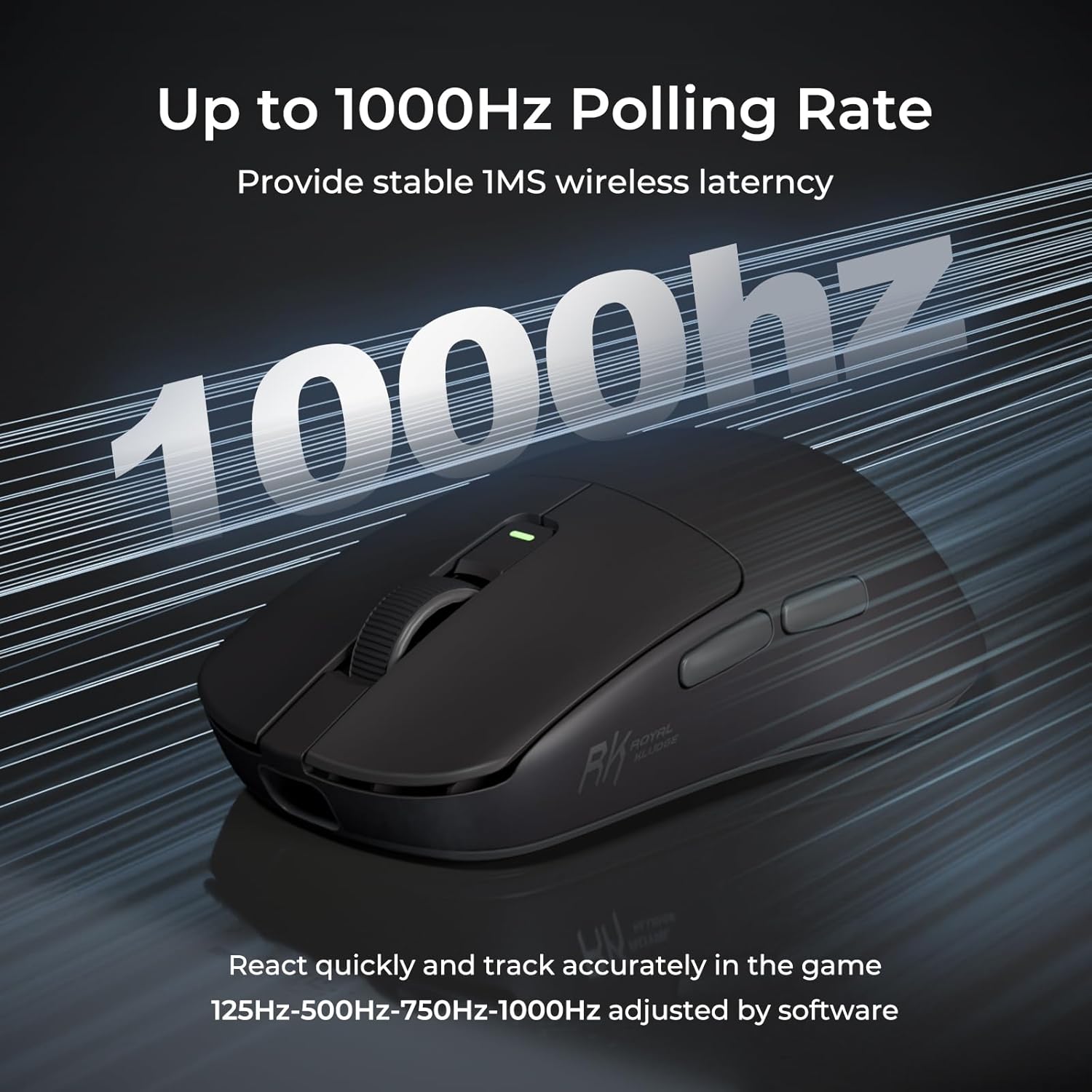
Image: The RK M30 mouse with a visual representation of a 1000Hz polling rate, indicating stable 1ms wireless latency.
3. Programmable Buttons (Software)
The RK M30 features 5 programmable buttons. To customize these buttons, download and install the official RK software from the manufacturer's website. The software allows you to assign macros, shortcuts, or DPI shifts to enhance your workflow or gaming experience.

Image: Screenshots of the RK M30 custom software interface, showing options for DPI, polling rate, macros, and button customization.
4. Mode Switching
Use the physical switch on the bottom of the mouse to select your desired connection mode: 'G' for 2.4G wireless, 'B' for Bluetooth, or the middle position for USB-C wired connection.
Maintenance
- Cleaning: Use a soft, dry cloth to clean the mouse. For stubborn dirt, a slightly damp cloth can be used, ensuring no liquid enters the mouse.
- Storage: Store the mouse in a cool, dry place away from direct sunlight and extreme temperatures.
- Battery Care: Avoid fully discharging the battery frequently. Charge the mouse when the battery indicator is low.
- PTFE Feet: If the mouse feet wear out, they can be replaced with the included spare set or official replacements to maintain optimal glide.

Image: Underside view of the RK M30 mouse highlighting its PTFE feet for smooth movement.
Troubleshooting
| Problem | Solution |
|---|---|
| Mouse not responding in 2.4G mode |
|
| Mouse not connecting via Bluetooth |
|
| Mouse cursor erratic or unresponsive |
|
| Side buttons feel sticky or unresponsive |
|
| Battery life is shorter than expected |
|
Specifications
| Feature | Detail |
|---|---|
| Model | RKM30 |
| Connectivity | 2.4G Wireless, Bluetooth 5.1, USB-C Wired |
| Sensor | PAW3311 Optical Sensor |
| DPI Range | Up to 24,000 DPI (Adjustable) |
| Polling Rate | 125Hz, 500Hz, 750Hz, 1000Hz (Adjustable via software) |
| Tracking Speed | 300 IPS |
| Acceleration | 35G |
| Buttons | 5 Programmable Buttons |
| Weight | 43g (approx. 1.45 ounces) |
| Battery | 250mAh Rechargeable (1 D battery included) |
| Battery Life | 24 hours (1000Hz) to 36 hours (125Hz) |
| Dimensions | 4.71 x 2.47 x 0.04 inches (119.6 x 62.8 x 38.3 mm) |
| Compatibility | PC/Mac |

Image: Diagram showing the dimensions of the RK M30 mouse (119.6mm/4.71in length, 62.8mm/2.47in width, 38.3mm/15.1in height) and illustrating different grip styles: Palm Grip, Claw Grip, and Fingertip Grip.
Warranty and Support
For warranty information, technical support, or to download the latest software and drivers, please visit the official RK ROYAL KLUDGE website. Keep your purchase receipt for warranty claims.