
1. Product Overview
The Pyniro 10.1 Inch Android Head Unit is designed as a modern car radio upgrade for Jeep Compass and Patriot models manufactured between 2010 and 2016. This unit integrates advanced features such as wireless CarPlay, Android Auto, a responsive touch screen, and rear camera support to enhance your driving experience.
Key Features:
- Vehicle Compatibility: Specifically designed for Jeep Compass/Patriot 2010-2016.
- Wireless CarPlay & Android Auto: Supports both wireless and wired connections for seamless smartphone integration, including navigation, calls, messages, and music.
- Android 13 System: Features a quad-core processor, 2GB RAM, and 64GB ROM for smooth operation and app downloads via built-in Wi-Fi.
- Multimedia & Sound: Built-in DSP tuning for customizable sound profiles, supporting Bluetooth, USB, and FM audio.
- Control Options: Operable via responsive touchscreen, physical buttons, and original steering wheel controls.
- Rear Camera Support: Includes a rearview camera with automatic switching and parking guidelines for enhanced safety.
2. Installation Guide
This section provides general guidelines for installing your Pyniro Android Head Unit. Professional installation is recommended. Ensure your vehicle's ignition is off and the battery is disconnected before beginning installation.
2.1. Pre-Installation Check
Before proceeding, verify that your vehicle's model and manufacturing year (Jeep Compass/Patriot 2010-2016) are compatible and that your center console matches the unit's design.
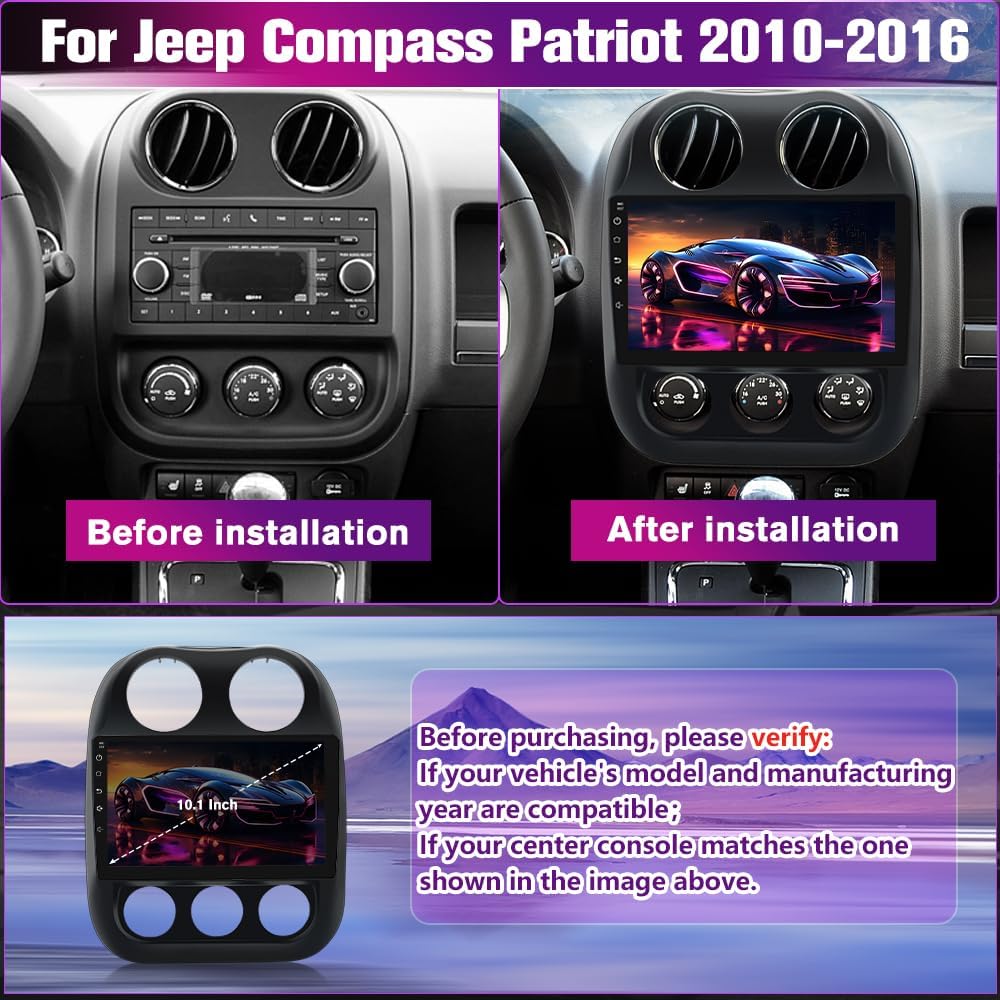
Image: Comparison of the vehicle's dashboard before and after installing the Pyniro 10.1-inch head unit. The image also shows the head unit's dimensions and a note to verify vehicle compatibility and console match before purchase.
2.2. Package Contents (Accessories)
Ensure all components are present before starting the installation:

Image: A layout of all included accessories: 10.1-inch head unit, vehicle-specific frame, rearview camera and video input cable, power cable, RCA cable, GPS antenna, external microphone, 2 USB cables, Canbus, FM antenna adapter, manual, and installation tools.
- Pyniro 10.1 Inch Head Unit
- Vehicle-specific frame
- Rearview camera and video input cable
- Power cable
- RCA cable
- GPS antenna
- External microphone
- USB cables (x2)
- Canbus (for steering wheel controls)
- Adapter for FM antenna
- Installation tools
- User Manual
2.3. Wiring Connections
Follow the diagram below for connecting the main cables to the head unit. Ensure all connections are secure.

Image: A diagram showing the connection points on the back of the head unit: 1. Power connector, 2. RCA connector, 3. 8-pin USB cable, 4. 4-pin USB cable, 5. 6-pin USB cable, 6. Rear camera cable, 7. FM antenna adapter, 8. GPS antenna.
- Connect the power connector.
- Connect the RCA connector.
- Connect the 8-pin USB cable.
- Connect the 4-pin USB cable.
- Connect the 6-pin USB cable.
- Connect the rear camera cable.
- Connect the adapter of FM antenna.
- Connect the GPS antenna.
Important: For steering wheel controls to function, connect the Canbus (small box in the package) and the protocol cable (8 pins).
3. Operating Instructions
3.1. Wireless CarPlay & Android Auto
The head unit supports both wireless and wired connections for Apple CarPlay and Android Auto. This provides hands-free access to navigation, calls, messages, and music. Connect your phone via Bluetooth for wireless or USB for wired connection. Voice control is available through Siri or Google Assistant.
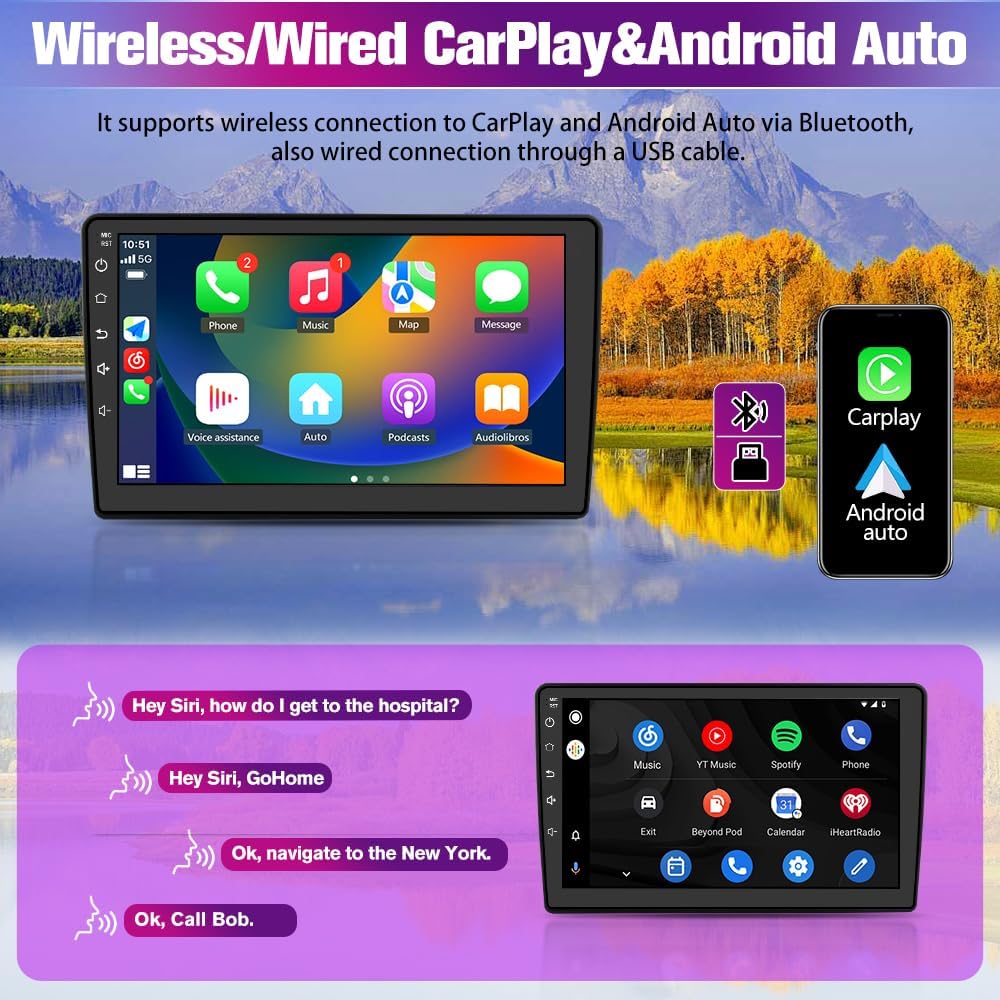
Image: Displays the user interface for Wireless CarPlay and Android Auto, showing phone, music, map, and message icons. It also illustrates voice commands like "Hey Siri, how do I get to the hospital?" and "Ok, navigate to New York."
Screen Mirroring: The unit also supports screen mirroring, allowing you to display your phone's apps directly on the touch screen.
3.2. GPS Navigation
Utilize the built-in GPS navigation with real-time traffic updates. Download your preferred navigation apps via Wi-Fi.
Video: Demonstrates the GPS navigation feature with real-time traffic information on the Pyniro Android Head Unit. The video shows the unit displaying map routes and directions while driving.
3.3. Multimedia and Sound
Enjoy immersive audio with the built-in DSP tuning. Customize sound profiles to your preference. The unit supports audio playback via Bluetooth, USB, and FM radio.

Image: Shows three distinct features: DSP function for sound effects customization, FM/RDS radio interface for tuning stations, and Bluetooth function for phone calls and music streaming.
- DSP Tuning: Access the Digital Sound Processor settings to adjust equalization and sound effects.
- FM/RDS Radio: Connect to your car's original radio antenna to access multiple FM stations with RDS information.
- Bluetooth Audio: Stream music and make hands-free calls with a stable Bluetooth connection.
3.4. Steering Wheel Control (SWC)
The head unit integrates with your vehicle's original steering wheel controls, allowing for intuitive operation while driving. Ensure the Canbus and protocol cable are correctly connected during installation.

Image: Illustrates the steering wheel controls and the head unit's interface for configuring these controls. A note emphasizes connecting the Canbus and 8-pin protocol cable for functionality.
3.5. Rear Camera Support
The included rearview camera provides parking assistance. When reversing, the display automatically switches to the camera feed with parking guidelines.

Image: Shows the rearview camera display on the head unit with parking guidelines. A diagram details how to connect the rear camera: video input to the head unit, positive power to the reverse light, and negative to ground.
4. Troubleshooting
4.1. No Sound After Installation
If there is no sound after installation, follow these steps:
- First, check the audio cable connections as shown in the diagram below.
- If sound is still absent, connect the amplifier control cable from the RCA cable to the AMP control cable on the power harness. Refer to the diagram for correct connection.

Image: Diagram illustrating audio cable connections for troubleshooting no sound. It shows power cable, audio cable, and Canbus cable connections, differentiating between cars with and without amplifiers, and how to connect the AMP control cable.
4.2. Rear Camera Not Working
If the rear camera does not work after being connected:
- Disconnect the red wire of the camera from its original link.
- Reconnect it to the BACK wire of the power cable (usually brown).
If your car has an original rearview camera, you may need an adapter (not included). It is recommended to use the rearview camera provided with this stereo.

Image: Diagram showing how to connect an aftermarket rearview camera. It highlights connecting the black cable to ground ("GND") and the red cable to the backup light's positive terminal.
5. Product Specifications
| Feature | Detail |
|---|---|
| Brand | Pyniro |
| Model Number | 10.1 |
| Connectivity Technology | Bluetooth, Wi-Fi |
| Controller Type | Touch Screen, Steering Wheel Control (SWC), Physical Buttons |
| Special Features | CarPlay, Android Auto, 2GB RAM, 64GB ROM, Android 13 |
| Compatible Devices | Smartphone |
| Connector Type | ISO |
| Audio Output Mode | Stereo |
| Surround Sound Channel Configuration | 5.1 |
| Number of Channels | 6 |
| Audio Output Type | Speakers |
| Built-In Media | Car Radio |
| UPC | 708500299947 |
6. Warranty and Support
6.1. Warranty Information
This product comes with a 2-year warranty from the date of purchase. Please retain your proof of purchase for warranty claims.
6.2. Customer Support
For any questions, technical assistance, or support, please contact Pyniro customer service:
- Email: radio-servicio@hotmail.com
- Online Support: Lifetime after-sales support is provided.
Our dedicated team is ready to help with any inquiries.