
1. Introduction
Thank you for choosing the KEYCOOL K21 Wireless Numeric Keyboard. This mechanical numpad offers versatile connectivity, customizable RGB lighting, and hot-swappable switches, designed for enhanced productivity across various operating systems. This manual provides detailed instructions for setup, operation, maintenance, and troubleshooting to ensure optimal performance.
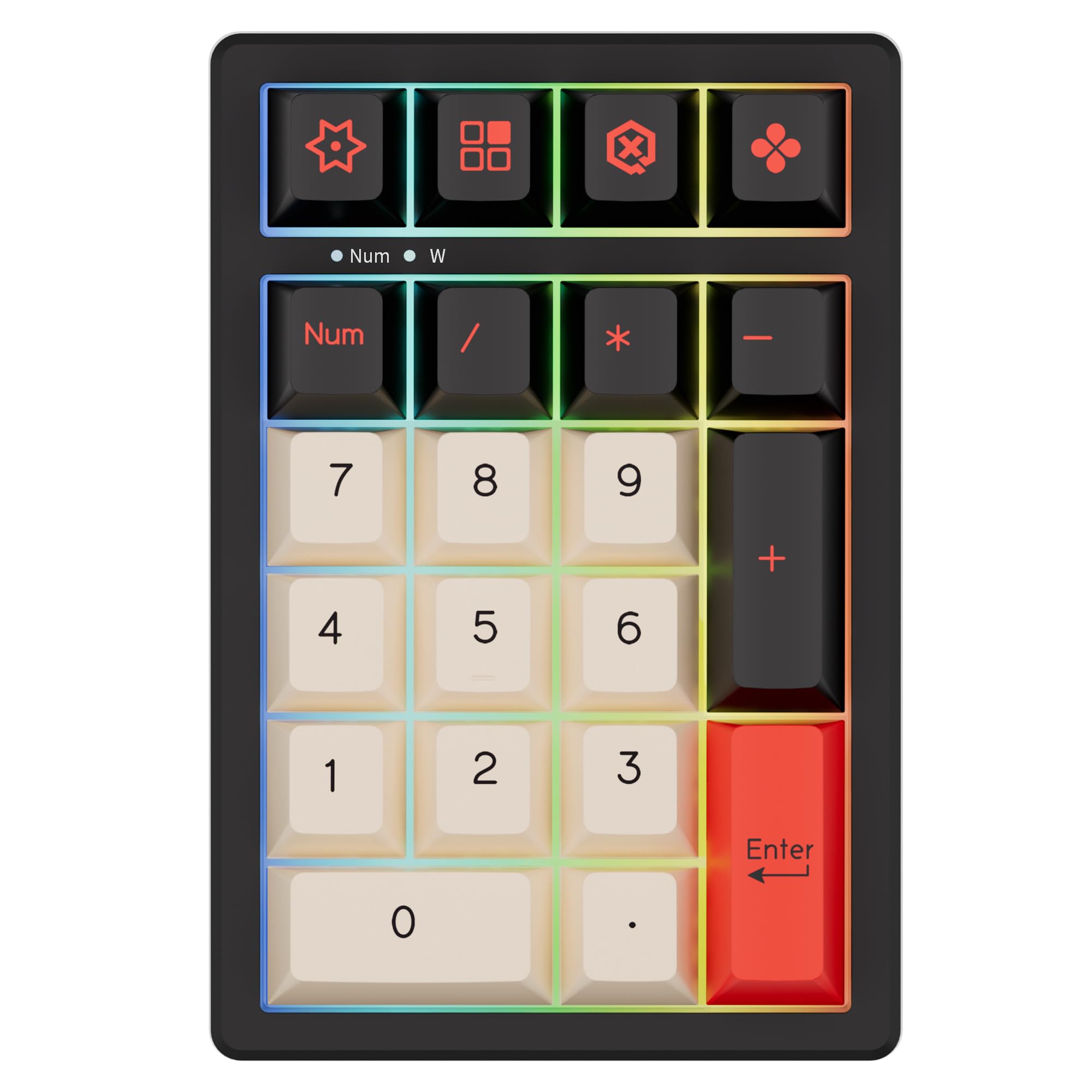
Image 1.1: The KEYCOOL K21 Wireless Numeric Keyboard, showcasing its compact design and key layout.
2. Setup
2.1 Package Contents
Before proceeding, please verify that all items are present in your package:
- KEYCOOL K21 Wireless Numeric Keyboard
- USB-C Cable
- 2.4GHz Wireless Receiver
- Keycap Puller
- Switch Puller
- Spare Mechanical Switches (2 pcs)

Image 2.1: Included accessories: USB-C cable, switch puller, and two spare mechanical switches.
2.2 Connectivity Modes
The K21 supports three connectivity modes:
- Wired Mode: Connects via the included USB-C cable.
- 2.4GHz Wireless Mode: Connects via the 2.4GHz USB receiver.
- Bluetooth 5.0 Mode: Connects wirelessly to up to three Bluetooth-enabled devices.
2.3 Initial Connection
To power on the keyboard, locate the ON/OFF switch on the back of the unit and slide it to the 'ON' position. The 2.4G wireless receiver is typically stored in a dedicated slot on the keyboard for convenience.

Image 2.2: Rear view of the K21, highlighting the 2.4G receiver slot, ON/OFF switch, and USB Type-C port.
2.3.1 Wired Connection
- Connect the USB-C cable to the keyboard's Type-C port.
- Connect the other end of the USB-C cable to an available USB port on your computer.
- The keyboard will be recognized automatically.
2.3.2 2.4GHz Wireless Connection
- Remove the 2.4GHz wireless receiver from its storage slot.
- Plug the receiver into an available USB port on your computer.
- The keyboard should connect automatically.
2.3.3 Bluetooth Connection
- Ensure the keyboard is powered on.
- Press and hold the Bluetooth pairing key (refer to keycap legends for specific key, often indicated by a Bluetooth symbol or 'BT') for 3-5 seconds until the indicator light flashes rapidly, indicating pairing mode.
- On your device (laptop, tablet, smartphone), navigate to Bluetooth settings and search for new devices.
- Select "KEYCOOL K21" from the list of available devices to pair.
- Repeat for up to three different Bluetooth devices, switching between them as needed.

Image 2.3: The K21 supports connection to various devices such as laptops, desktops, and mobile devices.
3. Operating Instructions
3.1 Basic Key Functions
The K21 features a standard numeric keypad layout with additional function keys and a rotary knob.
- Numeric Keys (0-9): For numerical input.
- Arithmetic Operators (+, -, *, /): For calculations.
- Enter Key: Confirms input or action.
- Num Lock Key: Toggles numeric keypad functionality.
- Rotary Knob: Functions as a volume control by default. Pressing the knob may mute/unmute audio.
3.2 RGB Backlighting
The K21 features customizable RGB backlighting. Use the following key combinations to adjust lighting effects:
- Fn + Back: Toggles backlight ON/OFF.
- Fn + 6: Switches between different lighting effects.
- Fn + 7: Switches between different lighting colors.

Image 3.1: Key features of the K21, including RGB backlighting and 21-key layout.
3.3 Programmable Keys and Software
The K21 supports personalized key functions and lighting customization through dedicated software. This allows users to remap keys, create macros, and fine-tune RGB effects.
- Fn + Esc (hold for 5 seconds): Resets the keyboard to factory default settings.

Image 3.2: The software interface for customizing key functions and lighting effects.
4. Maintenance
4.1 Cleaning
To clean your numeric keyboard:
- Disconnect the keyboard from all power sources and devices.
- Use a soft, dry cloth to wipe the surface.
- For stubborn dirt, slightly dampen the cloth with water or a mild cleaning solution (avoid harsh chemicals).
- Use a can of compressed air to remove dust and debris from between the keycaps.
4.2 Hot-Swappable Switches
The K21 features hot-swappable sockets, allowing you to change mechanical switches without soldering. It supports most 3-pin and 5-pin mechanical switches.
4.2.1 Removing a Switch
- Use the included keycap puller to carefully remove the desired keycap.
- Use the included switch puller to grasp the top and bottom clips of the switch.
- Gently pull the switch upwards until it detaches from the PCB.
4.2.2 Installing a Switch
- Align the pins of the new switch with the holes on the PCB. Ensure the pins are straight.
- Gently press the switch down until it clicks into place. Do not force it.
- Re-attach the keycap.

Image 4.1: Detailed view of a mechanical switch, illustrating its internal structure.
5. Troubleshooting
If you encounter issues with your KEYCOOL K21, please refer to the following common problems and solutions:
| Problem | Possible Cause | Solution |
|---|---|---|
| Keyboard not responding (wired/2.4GHz) | Loose connection, power off, driver issue. | Ensure cable/receiver is securely connected. Check if the keyboard is powered on. Try a different USB port. Install or update drivers from the official website. |
| Keyboard not responding (Bluetooth) | Not paired, out of range, low battery. | Ensure keyboard is in pairing mode and within range. Re-pair the device. Charge the keyboard. |
| Keys not registering input | Faulty switch, software conflict. | Try replacing the switch (refer to Section 4.2). Check for conflicting software or re-install keyboard drivers. |
| RGB lighting not working or flickering | Backlight off, software setting, overcharging. | Press Fn+Back to toggle backlight. Check software settings. Avoid prolonged charging after full battery to prevent flickering. |
| Keyboard goes to sleep and requires double press to wake | Power saving feature in wireless mode. | This is normal behavior for power saving. The first key press wakes the device, the second registers input. |
| Difficulty with Alt-key codes for special characters | Timing sensitivity. | Ensure precise and quick execution of Alt-key combinations. Customization software may offer alternative solutions for specific characters. |
5.1 Driver and Software Download
For the latest drivers and customization software, please visit the official KEYCOOL website:

Image 5.1: The KEYCOOL software interface, with a note indicating the driver download website.
6. Specifications
| Feature | Detail |
|---|---|
| Model Name | K21 |
| Layout | 20% Layout, 21 Keys |
| Connectivity | Bluetooth 5.0, 2.4GHz Wireless, USB-C Wired |
| Compatible Devices | Laptop, PC, Smartphone, Tablet, Gaming Console |
| Operating Systems | Windows, Mac, Linux, Android, iOS |
| Keyboard Type | Mechanical |
| Switch Type | Hot-Swappable (3-pin/5-pin compatible) |
| Backlighting | RGB |
| Battery Capacity | 1500mAh |
| Polling Rate | 1000Hz |
| Product Weight | 0.48 ± 0.02 lb |
| Product Dimensions | 3.62 x 5.35 x 1.61 inches (approx.) |
| Special Features | Backlit, Hot-Swappable, Portable, Volume Roller |

Image 6.1: Visual representation of KEYCOOL K21 specifications.
7. Warranty Information
The KEYCOOL K21 Wireless Numeric Keyboard comes with a 2-Year Manufacturer Warranty. This warranty covers defects in materials and workmanship under normal use. Please retain your proof of purchase for warranty claims.
The warranty does not cover damage caused by:
- Accident, abuse, misuse, or improper installation.
- Unauthorized repairs or modifications.
- Operating outside the specified environmental conditions.
8. Support
For further assistance, technical support, or warranty inquiries, please contact KEYCOOL customer service through the official website or your point of purchase.
Official Website: www.kc-keycool.com