
1. Introduction
The bonkyo F999X Live Sound Card is an all-in-one audio mixer designed for live streaming, gaming, podcasting, and karaoke. It features a digital DSP chip for clear sound, electronic music adjustment, voice changing functions, and various sound effects. This manual provides detailed instructions for setup, operation, and troubleshooting to ensure optimal performance.
2. Package Contents
Please verify that all items are present in the package:
- 1 x bonkyo F999X Audio Mixer USB Sound Card
- 1 x Power Cord/Charging Cable (Type-C to USB-A)
- 2 x 3.5mm TRRS Audio Cables
- 1 x Instruction Manual

Figure 2.1: F999X Audio Mixer and Included Accessories
This image displays the bonkyo F999X Audio Mixer along with its standard accessories: one Type-C to USB-A charging/power cable and two 3.5mm TRRS audio cables for connecting to various devices.
3. Product Overview
3.1 Front Panel Controls

Figure 3.1: F999X Front Panel Layout
This image provides a comprehensive view of the F999X Live Sound Card's front panel, highlighting the various knobs for audio adjustment, effect buttons, and volume sliders.
- Treble, Mid, Bass Knobs: Adjust the high, mid, and low frequencies of your microphone input.
- Record Knob: Controls the recording volume level.
- Special Effect Knob: Adjusts the intensity of selected special effects.
- Voice Change Knob: Modifies the voice changing effect.
- Microphone Volume Knob: Controls the overall volume of the microphone input.
- Reverberation Knob: Adjusts the reverb effect intensity.
- Accompaniment Slider: Controls the volume of background music/accompaniment.
- Monitor Slider: Controls the volume of the monitoring headphones.
- Function & Special Effect Buttons: A grid of buttons for various sound modes (e.g., Recording Studio, MC, Pro, Karaoke, Music Only, Internal Play, Denoise), voice change modes, and special sound effects (e.g., Giggle, Applause, Cheer, Air Horn, Mute, Dodge).
- Electric Sound Button: Activates and cycles through 12 electronic music tones.
- Power Button: Turns the device on/off.
3.2 Rear Panel Ports

Figure 3.2: F999X Rear Panel Ports
This image illustrates the rear panel of the F999X, detailing all available input and output ports for power, PC connection, microphones, and audio devices.
- DC 5V (Type-C): Power input and charging port.
- OTG/PC Live (Type-C): Connects to a computer or mobile device for digital audio input/output and live streaming.
- Dynamic Mic (6.5mm): Input for a 6.5mm dynamic microphone.
- Live (3.5mm) x 2: Output ports for connecting to two live streaming devices (e.g., smartphones, tablets).
- Music (3.5mm): Input for external audio sources like a phone or tablet for background music.
- Earphone (3.5mm): Output for headphones to monitor audio.
- Headset (3.5mm): Input for a headset with an integrated microphone.
- Mic (3.5mm): Input for a 3.5mm condenser microphone.
4. Setup Guide
4.1 Initial Charging
Before first use, fully charge the F999X sound card. Connect the provided Type-C to USB-A cable to the 'DC 5V' port on the sound card and the other end to a USB power adapter (not included) or a computer's USB port. The battery display will indicate charging status.
4.2 Connecting Microphones
- Condenser Microphone: Plug your 3.5mm condenser microphone into the 'Mic' port.
- Dynamic Microphone: Plug your 6.5mm dynamic microphone into the 'Dynamic Mic' port.
- Headset: Connect your headset (with integrated microphone) to the 'Headset' port.

Figure 4.1: Connecting a Dynamic Microphone
This image demonstrates how to connect a 6.5mm dynamic microphone to the dedicated port on the F999X sound card for enhanced audio input.
4.3 Connecting to Devices
- To PC/Computer: Use the Type-C to USB-A cable to connect the 'OTG/PC Live' port on the sound card to your computer's USB port. The computer should recognize the sound card as an audio input/output device.
- To Smartphone/Tablet (Live Streaming): Use one of the provided 3.5mm TRRS audio cables to connect a 'Live' port on the sound card to your smartphone's or tablet's 3.5mm audio jack. If your device lacks a 3.5mm jack, an appropriate adapter (not included) may be required.
- For Background Music Input: Connect your smartphone or tablet to the 'Music' port using a 3.5mm audio cable to play background music.
- Monitoring Headphones: Plug your headphones into the 'Earphone' port for real-time audio monitoring.
4.4 Bluetooth Pairing
To connect a device via Bluetooth for accompaniment:
- Turn on the F999X sound card.
- Activate Bluetooth on your smartphone or tablet.
- Search for available devices and select 'F999X' to pair.
- Once connected, the 'BT' indicator on the sound card will illuminate, and you can play audio from your device through the sound card.

Figure 4.2: Bluetooth Pairing
This image illustrates the process of pairing a smartphone with the F999X sound card via Bluetooth, showing the device name 'F999X' in the phone's Bluetooth settings.
5. Operating Instructions
5.1 Audio Adjustment
- Microphone Volume: Use the large 'Microphone volume' knob to set your desired microphone input level.
- Treble, Mid, Bass: Rotate these knobs to fine-tune the tonal characteristics of your voice or instrument.
- Reverberation: Adjust the 'Reverberation' knob to add an echo or spatial effect to your audio.

Figure 5.1: Adjustable Reverb Control
This image shows a hand adjusting the 'Reverberation' knob, indicating the ability to fine-tune the reverb effect for a more professional audio experience.
5.2 Electronic Music Adjustment
Press the 'Electric Sound' button to activate and cycle through 12 different electronic music tones. This feature allows you to adjust your singing to a specific musical key, enhancing your performance.

Figure 5.2: Electronic Sound Adjustment
This image highlights the 'Electric Sound' button on the F999X, demonstrating its function to switch between 12 different electronic music tones for vocal tuning.
5.3 Voice Changer
The 'Voice Change' button cycles through four distinct voice alteration modes: Female to Male, Male to Female, Doll Voice, and Monster Voice. Use the 'Voice Change' knob to adjust the intensity of the selected effect.

Figure 5.3: Vocal Sound Change Effects
This image illustrates the vocal sound change feature, showing a smartphone with a game and an overlay indicating the 'Voice change' and 'Giggle' effects available on the F999X sound card.
5.4 Special Sound Effects
The F999X includes 16 special sound effects to enhance your live broadcasts or recordings. These effects are triggered by dedicated buttons on the front panel, such as:
- Giggle
- Muah
- Applause
- Yell
- DJ Hi
- Air Horn
- Air Laugh
- Welcome
- Thank You
- Cheer
- Awkward
- Strong
- Klaxon
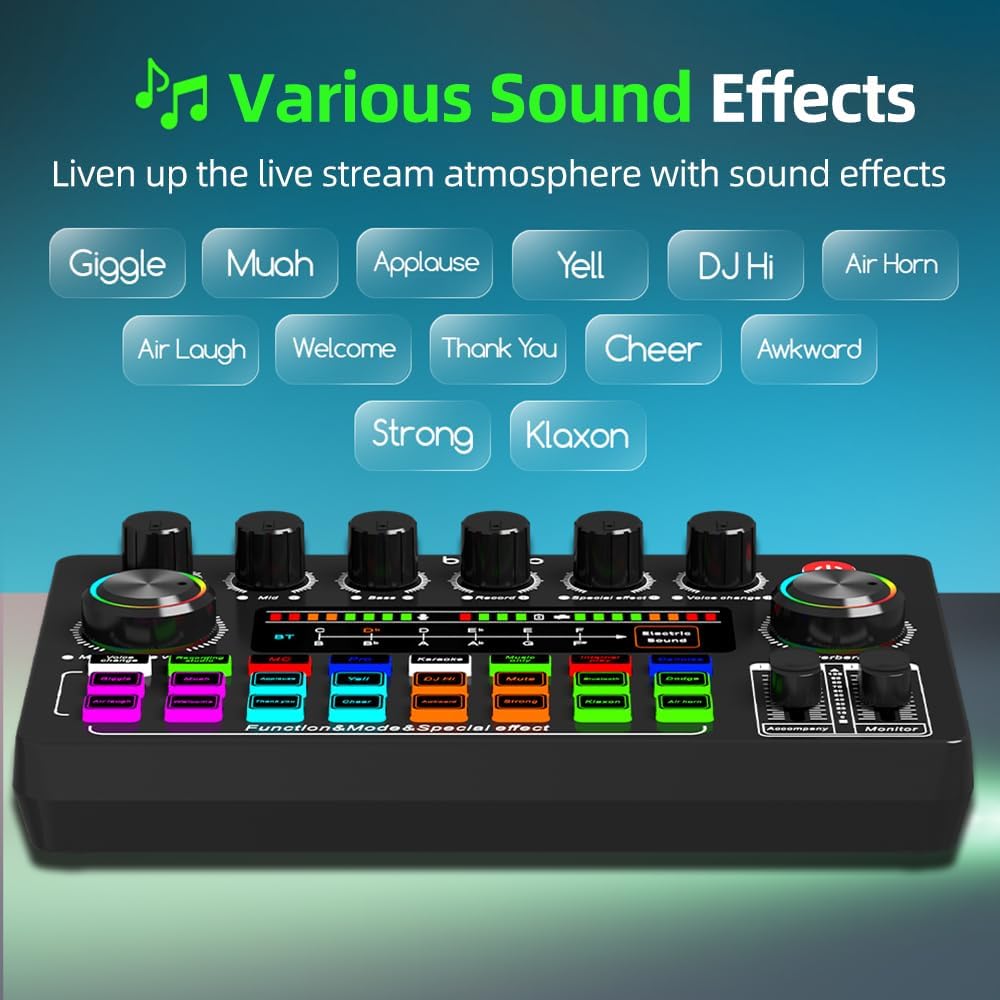
Figure 5.4: Various Sound Effects
This image showcases the array of special sound effect buttons available on the F999X, designed to add dynamic audio elements to live streams and recordings.
5.5 Sound Modes
The F999X offers several preset sound modes for different scenarios:
- Recording Studio: Optimized for clear vocal recording.
- MC: Enhances voice for hosting or commentary.
- Pro: A balanced, professional audio setting.
- Karaoke: Ideal for singing with background music.
- Music Only: Focuses on music playback.
- Internal Play: For internal audio routing.
- Denoise: Activates noise reduction for clearer audio input.
5.6 Dodge Function
Press the 'Dodge' button to activate the ducking feature. When activated, the background music volume will automatically lower when a voice is detected through the microphone, ensuring the speaker's voice is prominent.
6. Connectivity and Compatibility
The F999X Live Sound Card is designed for wide compatibility with various devices and applications:
- Operating Systems: Fully compatible with Android, iOS, and Windows systems.
- Applications: Supports popular platforms such as YouTube, Zoom, Capcut, Twitch, Spotify, and more.
- Devices: Connects to smartphones, tablets, PCs, and gaming consoles (e.g., PS5).

Figure 6.1: Device and Application Compatibility
This diagram illustrates the broad compatibility of the F999X sound card with various operating systems, applications, and devices, making it suitable for diverse content creation needs.
7. Troubleshooting
- No Sound Output:
- Ensure the sound card is powered on and charged.
- Check all cable connections (microphones, headphones, live output).
- Verify that volume knobs and sliders (Microphone Volume, Accompaniment, Monitor) are not set to minimum.
- If connected to a PC, ensure the F999X is selected as the default audio input/output device in your system settings.
- Poor Sound Quality/Noise:
- Press the 'Denoise' button to activate noise reduction.
- Adjust the Treble, Mid, and Bass knobs to optimize sound.
- Ensure microphone cables are securely connected and not damaged.
- Avoid placing the sound card near strong electromagnetic interference sources.
- Voice Changer Announcement is Too Loud:
- Some users report that the voice changer announcement plays at maximum volume. While there is no direct control for this specific announcement volume, ensure overall output levels are managed to prevent discomfort.
- Bluetooth Connection Issues:
- Ensure the sound card is in pairing mode (if applicable, or simply powered on).
- Turn off and on Bluetooth on your device and the sound card.
- Ensure no other devices are actively connected to the sound card via Bluetooth.
8. Specifications
| Brand | bonkyo |
| Model | F999X |
| Connectivity Technology | Bluetooth, USB |
| Number of Channels | 5 |
| Power Source | Battery Powered |
| Battery Type | Lithium (1 A battery included) |
| Voltage | 5 Volts |
| Product Dimensions | 5.55"D x 7.09"W x 2.05"H (14.1 x 18 x 5.2 cm) |
| Item Weight | 1 Pound (0.45 kg) |
9. Warranty and Support
bonkyo is committed to providing excellent customer service. If you encounter any issues or have questions regarding your F999X Live Sound Card, please contact our customer support team. The product includes a detailed manual, and our staff is available to assist you one-on-one to ensure a smooth experience.
For support, please refer to the contact information provided with your purchase or visit the official bonkyo website.