1. Introduction
This manual provides essential instructions for the safe operation, setup, and maintenance of your Generic M66 MAX Drone. Please read this manual thoroughly before operating the drone to ensure proper function and to prevent damage or injury. Keep this manual for future reference.
The M66 MAX Drone features a foldable design, a remote control with an integrated 4.5-inch HD display, a dual camera system with EIS stabilization and 50x intelligent zoom, advanced obstacle avoidance, and powerful brushless motors for stable flight.
2. Product Features
- Foldable Display Remote Control: Features an integrated 4.5-inch HD display for real-time video transmission and direct aerial photography without requiring a smartphone.
- Adjustable Dual Camera System: Equipped with 50x intelligent zoom, Electronic Image Stabilization (EIS), and seamless switching between lenses for clear aerial images and multiple shooting angles.
- Advanced Obstacle Avoidance: Utilizes an intelligent perception system for multi-directional obstacle detection, ensuring safer and more stable flights in various environments.
- Powerful Brushless Motors: High-speed brushless power provides strong wind resistance and smoother flight stability, enhancing performance in diverse conditions.
- Portable Design: Foldable drone design and included carrying case for convenient transport and storage.
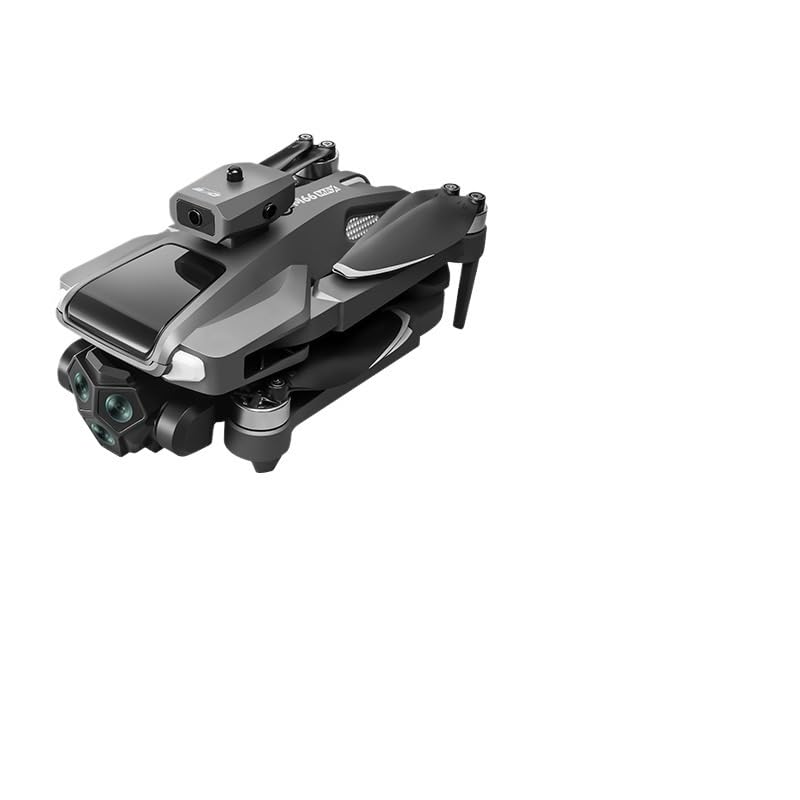
Figure 2.1: The M66 MAX Drone with its foldable remote control, showcasing its compact design and integrated display.
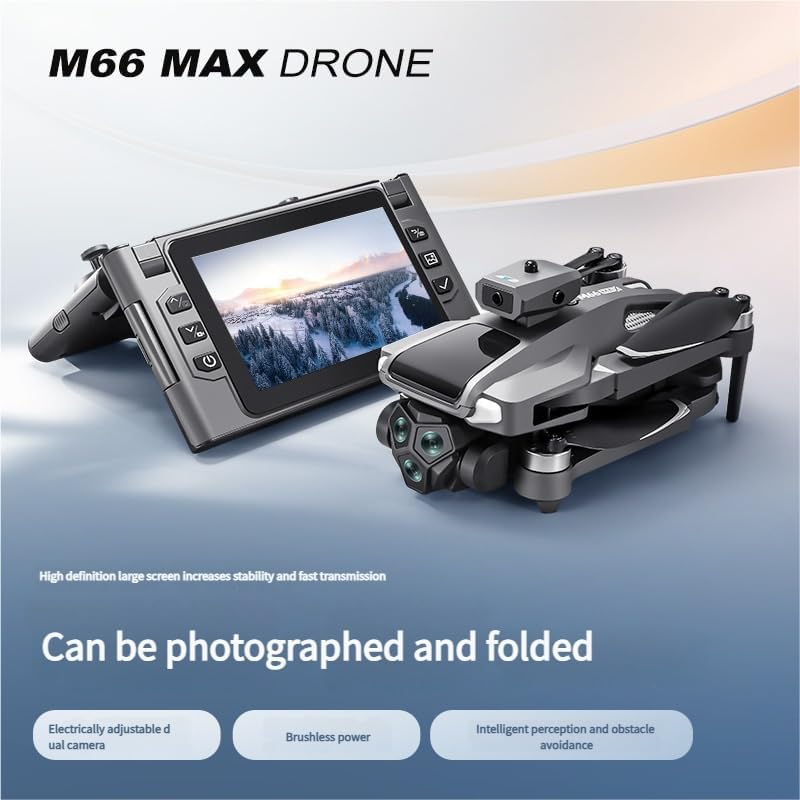
Figure 2.2: The M66 MAX Drone in both folded and unfolded states, highlighting its portability and readiness for flight.

Figure 2.3: Close-up view of the M66 MAX Drone's dual camera system, featuring EIS anti-shake technology and 50x smart zoom capabilities.
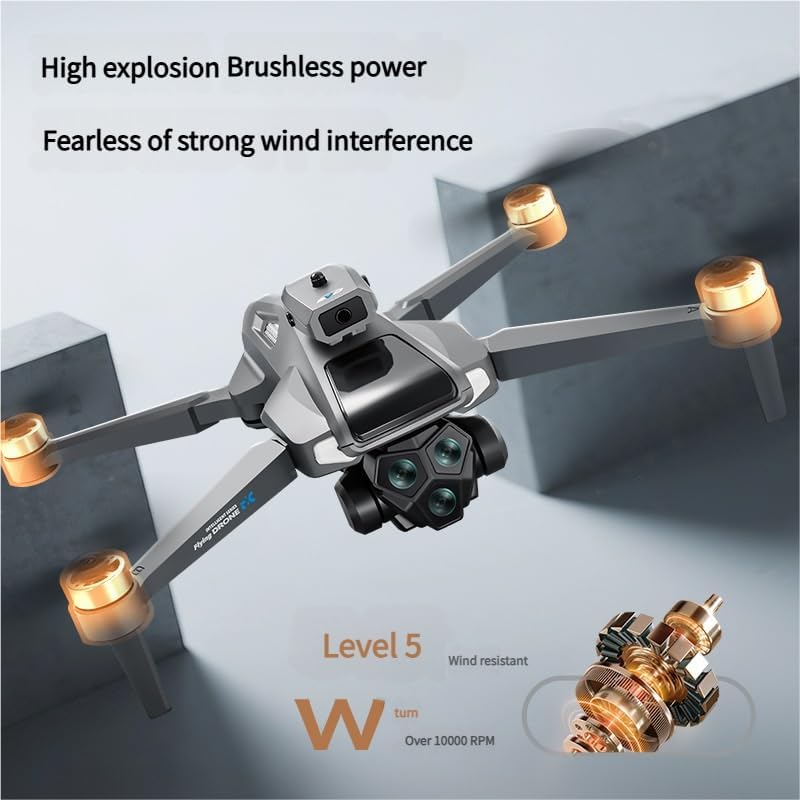
Figure 2.4: The M66 MAX Drone in flight, illustrating the powerful brushless motors and its Level 5 wind resistance for stable operation.
3. Setup Guide
3.1 Unboxing and Component Check
Carefully unpack all components from the carrying case. Verify that all items are present:
- M66 MAX Drone
- Foldable Display Remote Control
- Rechargeable Battery
- Spare Propeller Blades (set)
- USB Charging Cable
- Screwdriver
- Carrying Case
3.2 Battery Installation and Charging
- Insert the rechargeable battery into the drone's battery compartment. Ensure it clicks securely into place.
- Connect the USB charging cable to the drone's charging port and to a compatible USB power adapter (not included).
- Allow the battery to fully charge before first use. The charging indicator light will change (refer to LED indicators section for details) when charging is complete.
- The remote control also has an internal battery. Charge it using its dedicated USB port if necessary.
3.3 Drone Preparation
- Unfold the drone arms carefully until they lock into position.
- Inspect the propeller blades for any damage or obstructions. Replace any damaged blades using the provided screwdriver and spare blades. Ensure propellers are correctly installed according to their markings (A/B).
4. Operating Instructions
4.1 Powering On/Off
- Drone: Press and hold the power button on the drone for 2-3 seconds until the indicator lights illuminate.
- Remote Control: Unfold the remote control and press the power button on the integrated display. The display will power on.
- To power off, repeat the process by pressing and holding the power buttons until the devices shut down.
4.2 Pairing the Drone and Remote Control
- Place the drone on a flat, level surface.
- Power on the drone, then power on the remote control.
- The drone's indicator lights will flash, indicating it is searching for a signal. The remote control display will show a pairing status.
- Push the left joystick on the remote control up and then down. The drone's lights will become solid, and the remote control display will show a connected status, indicating successful pairing.
4.3 Takeoff and Landing
- Automatic Takeoff: After pairing, press the one-key takeoff button on the remote control. The drone will automatically ascend to a safe hovering altitude.
- Manual Takeoff: Push both joysticks down and outwards simultaneously to arm the motors. Then, slowly push the left joystick up to ascend.
- Automatic Landing: Press the one-key landing button. The drone will descend and land automatically.
- Manual Landing: Slowly pull the left joystick down to descend. Once landed, push both joysticks down and inwards to disarm the motors.
4.4 Flight Controls
The remote control uses a standard mode 2 configuration:
- Left Joystick:
- Up/Down: Ascend/Descend (Throttle)
- Left/Right: Rotate Left/Right (Yaw)
- Right Joystick:
- Up/Down: Fly Forward/Backward (Pitch)
- Left/Right: Fly Left/Right (Roll)
Refer to the remote control diagram in the packaging for specific button functions.
4.5 Camera Operation
- Photo/Video: Use the dedicated photo/video buttons on the remote control to capture images or start/stop video recording.
- Dual Camera Switching: The remote control display allows seamless switching between the front and bottom cameras.
- 50x Intelligent Zoom: Use the zoom controls on the remote to adjust the camera's magnification.
- EIS Stabilization: The Electronic Image Stabilization system automatically reduces blur and shakiness in your footage.
4.6 Obstacle Avoidance System
The M66 MAX Drone is equipped with an intelligent obstacle avoidance system. When activated, the drone will detect obstacles in its path and automatically adjust its flight trajectory to prevent collisions. This system enhances flight safety, especially in complex environments. Always maintain visual line of sight and do not rely solely on the obstacle avoidance system.
5. Maintenance
5.1 Cleaning
- Wipe the drone's body with a soft, dry cloth. Do not use harsh chemicals or solvents.
- Gently clean camera lenses with a microfiber cloth to ensure clear image quality.
5.2 Propeller Inspection and Replacement
- Regularly inspect propellers for cracks, bends, or chips. Damaged propellers can affect flight stability and safety.
- To replace a propeller, use the provided screwdriver to remove the screw holding the blade. Install a new blade, ensuring it matches the correct A/B marking, and secure it with the screw.
5.3 Battery Care and Storage
- Store batteries in a cool, dry place away from direct sunlight and extreme temperatures.
- Do not overcharge or over-discharge batteries.
- If storing for extended periods, charge batteries to approximately 50-60% capacity.
6. Troubleshooting
| Problem | Possible Cause | Solution |
|---|---|---|
| Drone does not power on. | Low or uncharged battery; improperly installed battery. | Ensure battery is fully charged and correctly inserted. |
| Remote control does not connect to drone. | Not paired; interference; low remote battery. | Re-pair the drone and remote. Ensure both are fully charged. Avoid areas with strong signal interference. |
| Unstable flight or drifting. | Drone not calibrated; damaged propellers; strong wind. | Perform gyroscope calibration (refer to remote control instructions). Check and replace damaged propellers. Fly in calm conditions. |
| Camera not recording or poor image quality. | SD card full/missing/corrupt; dirty lens; incorrect settings. | Ensure an SD card is inserted and has free space. Clean the camera lens. Check camera settings on the remote display. |
| Obstacle avoidance not working. | Sensors obstructed; system deactivated; specific lighting conditions. | Ensure sensors are clean and unobstructed. Verify obstacle avoidance is active in settings. Note that performance may vary in very bright or very dark conditions. |
7. Specifications
| Feature | Detail |
|---|---|
| Brand | Generic |
| Model Name | TGAACBDBB |
| Product Dimensions | 2.54 x 2.54 x 2.54 cm (approx. 1 x 1 x 1 inch) |
| Control Type | Remote Control with Integrated Display |
| Color | One Color |
| Age Range (Description) | Adult |
| Special Features | Advanced Obstacle Avoidance, EIS Stabilization, Dual Adjustable Camera, Intelligent Zoom, Brushless Motor |
| ASIN | B0FD3Y2WLL |
| First Available Date | June 17, 2025 |
8. Warranty and Support
Warranty information for the Generic M66 MAX Drone is not provided within this manual. For details regarding warranty coverage, technical support, or service inquiries, please contact the retailer or manufacturer directly using the contact information provided at the point of purchase.
Always refer to the official Generic website or customer service channels for the most up-to-date support resources.