
1. Introduction
This manual provides comprehensive instructions for the ACASIS Mac mini M4/M4 Pro Dock & Stand. This device is designed to expand the connectivity and storage capabilities of your Mac mini M4 or M4 Pro, offering a dual-bay NVMe SSD enclosure, multiple USB ports, an HDMI output, and efficient cooling.

Image 1.1: ACASIS Mac mini M4 Dock and Stand with Mac mini M4 placed on top, showcasing its integrated design.
2. Package Contents
Please verify that all items listed below are included in your package:
- ACASIS Mac mini M4/M4 Pro Dock & Stand
- Custom MAC MINI M4 Cable (0.49 ft / 15 cm)
- 30W PD Power Adapter
- Screwdriver
- Screws for SSD installation
- Thermal Pads for SSDs
- Four Silicone Cooling Pads
- User Manual

Image 2.1: All components included in the ACASIS Mac mini M4 Dock package.
3. Product Overview and Features
The ACASIS Mac mini M4/M4 Pro Dock & Stand is an all-in-one solution designed to seamlessly integrate with your Mac mini. It offers enhanced functionality and improved performance.
3.1 Key Features
- Dual-Bay NVMe SSD Enclosure: Supports two M.2 NVMe SSDs (up to 8TB each) with support for RAID 0, RAID 1, and JBOD configurations.
- High-Speed USB Ports: Includes 4 x 10Gbps USB-A ports for fast data transfer.
- 4K@60Hz HDMI Output: For seamless screen mirroring or extension.
- SD/TF Card Reader: Supports SD and microSD cards with speeds up to 104MB/s.
- Integrated Cooling System: Aluminum alloy enclosure with side vents and two silent cooling fans for optimal heat dissipation.
- Stable Wi-Fi Performance: Internal conductive shielding reduces 5GHz Wi-Fi interference.
- Dedicated Power Adapter: 30W PD adapter ensures stable self-powering.
- Mac mini Power Button Integration: A button on the dock can activate the Mac mini's power button.

Image 3.1: Front and rear view of the ACASIS Dock, highlighting USB-A, USB-C, HDMI, SD/TF slots, and SSD bays.

Image 3.2: Compatible M.2 NVMe SSD sizes (2230, 2242, 2260, 2280) and types (M Key, M&B Key) for the dual enclosure.
4. Setup Instructions
4.1 SSD Installation
- Ensure the dock is powered off and disconnected from your Mac mini.
- Carefully open the SSD enclosure bay.
- Insert your M.2 NVMe SSD(s) into the slots. Ensure they are seated correctly.
- Secure the SSD(s) with the provided screws.
- Apply the thermal pads to the SSDs for optimal heat dissipation.
- Close the enclosure bay.
Warning: Do not plug or unplug your SSD when the power is on. This can lead to data loss or damage to the SSD.
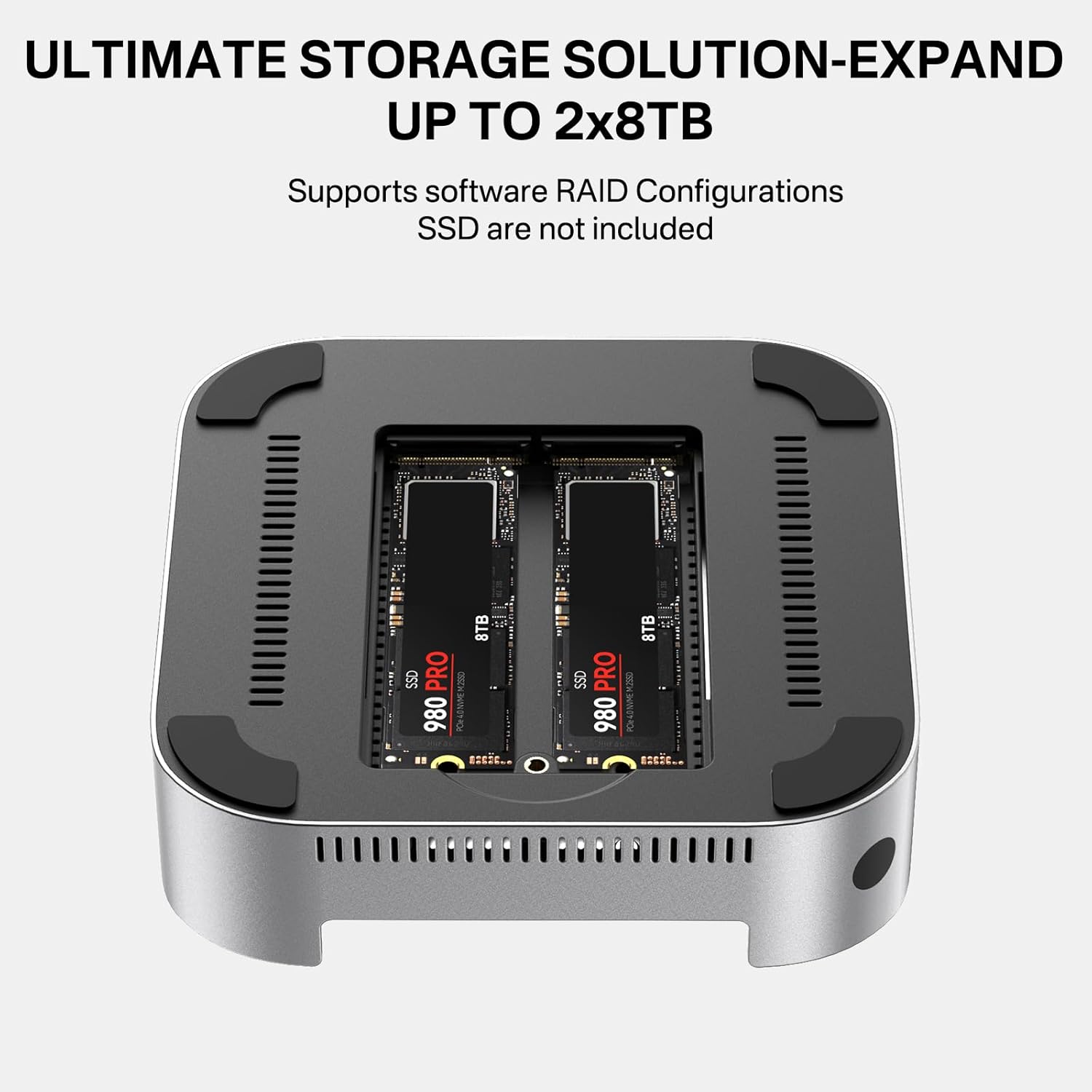
Image 4.1: The dual-bay NVMe SSD enclosure with two SSDs installed.
4.2 Connecting to Mac mini
- Place your Mac mini M4 or M4 Pro securely on top of the ACASIS Dock.
- Connect the custom MAC MINI M4 cable from the dock to the appropriate port on your Mac mini.
- Connect the 30W PD power adapter to the dock and then to a power outlet.

Image 4.2: The integrated power button on the dock, designed to activate the Mac mini's power.
5. Operating Instructions
5.1 Powering On
After connecting the dock and Mac mini, press the power button located on the front of the ACASIS Dock. This will power on both the dock and your Mac mini.
5.2 Using USB Ports and Card Readers
Connect your USB devices to the 10Gbps USB-A ports. Insert SD or TF cards into the respective slots for data transfer. The SSD LED will indicate activity for the installed SSDs.

Image 5.1: The dock supporting SD/TF cards, demonstrating its use for media transfer.
5.3 Dual Monitor Display
The dock's HDMI port supports 4K@60Hz. Connect your primary monitor to the dock's HDMI port. For a dual monitor setup, connect a second monitor to your Mac mini's Thunderbolt or HDMI port.

Image 5.2: A dual monitor setup utilizing the dock's HDMI port and the Mac mini's native display output.
5.4 SSD RAID Configuration
The dual-bay NVMe SSD enclosure supports software RAID configurations including RAID 0, RAID 1, and JBOD. The default factory mode is PM (Partition Management).
- PM Mode: Supports multiple independent drives. Data on each drive is isolated.
- RAID 0 Mode: Data distributed across two drives for increased speed. Total disk capacity is double the capacity of the smaller drive.
- RAID 1 Mode: Two drives mirrored for backup. Data is safe if one drive fails. Total disk capacity is the capacity of the smaller SSD.
- JBOD Mode: Multiple drives combined into one volume. Total capacity is the sum of all drives.
Note: Setting or changing the RAID array will erase data. Back up your data first. macOS supports four RAID modes. The device uses software RAID. Please configure the RAID on your PC. For setup instructions, refer to the product detail page video or contact support.

Image 5.3: Explanation of PM, RAID 0, RAID 1, and JBOD modes for SSD configuration.
5.5 Preventing Hard Drive Disconnection After Sleep Mode
To prevent external hard drives from disconnecting after your Mac mini enters sleep mode, adjust the following system settings:
- Click the Apple menu > System Settings.
- Go to Lock Screen or Battery/Power Adapter.
- Set "Turn display off when inactive" to "Never".
- Enable "Prevent automatic sleeping on power adapter when display is off" under Battery > Options or Displays > Advanced. Click "Done".

Image 5.4: macOS settings to ensure stable connection of external drives.
6. Specifications
| Feature | Specification |
|---|---|
| Product Dimensions | 8.27 x 5.31 x 1.97 inches |
| Item Weight | 1.06 pounds |
| Model Number | M001 |
| Brand | ACASIS |
| Color | Silver |
| Hardware Interface | Thunderbolt 4 (for Mac mini connection) |
| Compatible Devices | Mac mini M4, Mac mini M4 Pro |
| Total USB Ports | 5 (4 x 10Gbps USB-A, 1 x USB-C for Mac mini connection) |
| Total HDMI Ports | 1 (4K@60Hz) |
| Wattage (PD) | 30W |
| SSD Enclosure | Dual-Bay NVMe M.2 (up to 2x 8TB) |
| SSD Compatibility | M-Key, M&B Key NVMe/PCIe (2230, 2242, 2260, 2280) |
| Card Reader | SD/TF 3.0 (up to 104MB/s) |
| Cooling | Aluminum alloy body, side vents, dual cooling fans |
6.1 SSD Read/Write Performance (Example with Samsung 990 PRO 4TB)
| Test Mode | Dual-slot Usage | Tested Drive Model | Write Speed | Read Speed |
|---|---|---|---|---|
| PM mode (Default) | Single drive | 1*Samsung 990 PRO 4TB | 962 MB/s | 848 MB/s |
| Dual drive | 2*Samsung 990 PRO 4TB | 528 MB/s (Drive 1) 526 MB/s (Drive 2) | 474 MB/s (Drive 1) 471 MB/s (Drive 2) | |
| 2*Samsung 990 PRO 4TB | 524 MB/s (Drive 1) 529 MB/s (Drive 2) | 479 MB/s (Drive 1) 474 MB/s (Drive 2) | ||
| RAID 0 | 2*Samsung 990 PRO 4TB | 917 MB/s | 853 MB/s | |
| RAID 1 | 2*Samsung 990 PRO 4TB | 473 MB/s | 862 MB/s |
Image 6.1: Example read/write performance for Mac mini M4 with various SSD configurations.
7. Troubleshooting
7.1 SSD Disconnection Issues
If you experience frequent SSD disconnections, ensure the 30W PD power adapter is securely connected and providing stable power. Also, review the macOS settings in Section 5.5 to prevent disconnections after sleep mode.
7.2 HDMI Display Issues
If the HDMI output is not working, try the following:
- Ensure the HDMI cable is securely connected to both the dock and your monitor.
- Test with a different HDMI cable.
- Verify your monitor input is set to the correct HDMI source.
- Restart your Mac mini and the dock.
7.3 Fan Noise
The dock includes two cooling fans that activate when powered on. While designed to be silent, a slight fan noise (around 52dB) may be audible. This is normal operation for active cooling.
7.4 Wi-Fi Interference
The dock is equipped with internal conductive shielding to reduce 5GHz Wi-Fi interference. If you notice weak signals or slow speeds, consider the following:
- Switch your Wi-Fi to the 5GHz band if you are currently on 2.4GHz.
- Avoid connecting multiple high-speed 10Gbps hard drives to all 4 USB-A ports simultaneously if interference persists.
- Consider using an RJ45 Ethernet port for wired networking if available on your Mac mini.

Image 7.1: Solutions for mitigating USB 3.1 interference with 2.4GHz Wi-Fi/Bluetooth.
8. Maintenance
To ensure the longevity and optimal performance of your ACASIS Dock:
- Keep the device clean and free from dust. Use a soft, dry cloth for cleaning.
- Ensure proper ventilation by not blocking the side vents.
- Avoid exposing the device to extreme temperatures or humidity.
- Do not attempt to disassemble the device beyond SSD installation, as this may void your warranty.
9. Warranty and Support
ACASIS products are backed by a 1-year limited warranty covering repair or replacement if the product has quality defects not caused by misuse. For technical support or warranty claims, please contact ACASIS customer service through the official channels provided at the point of purchase.


