
Introduction
This manual provides detailed instructions for the setup, operation, and maintenance of your ADDCOLOR X88 PRO 14 Android 14.0 TV Box. Please read this manual thoroughly before using the device to ensure proper functionality and to maximize your viewing experience. Keep this manual for future reference.
Package Contents
Verify that all items listed below are included in your package:
- 1x ADDCOLOR X88 PRO 14 Android TV Box
- 1x HDMI Cable
- 1x Power Adapter (US Plug)
- 1x Bluetooth Voice Remote Control
- 1x User Manual (this document)
Product Overview
The ADDCOLOR X88 PRO 14 is a compact and powerful Android TV Box designed to deliver high-quality streaming and multimedia experiences. It features an RK3518 Quad-Core processor, Android 14.0 operating system, and supports 4K and 8K video playback.

Image: The ADDCOLOR X88 PRO 14 Android TV Box shown alongside its Bluetooth voice remote control. The box is black with an illuminated design on top, and the remote is black with various control buttons.
The device is equipped with various ports for connectivity, including USB 2.0, USB 3.0, HDMI, Ethernet, and a DC power input. Its compact design allows for easy integration into any home entertainment setup.

Image: A diagram illustrating the compact dimensions of the ADDCOLOR X88 PRO 14 TV Box, measuring 10.7 cm x 10.7 cm x 2 cm (4.213 x 4.213 x 0.787 inches).
Setup Guide
- Connect to TV: Connect one end of the provided HDMI cable to the HDMI port on the TV Box and the other end to an available HDMI input on your television.
- Connect Power: Plug the power adapter into the DC IN port on the TV Box, then plug the adapter into a wall outlet.
- Power On: The device should power on automatically. If not, press the power button on the remote control or the device itself.
- Select Input: On your television, select the correct HDMI input source using your TV's remote control.
- Initial Setup: Follow the on-screen prompts to complete the initial setup, which typically includes selecting your language, connecting to a Wi-Fi network or Ethernet, and logging into your Google account.
Operating Instructions
Once the initial setup is complete, you will see the Android TV home screen. Use the provided remote control to navigate the interface.

Image: The ADDCOLOR X88 PRO 14 TV Box and its remote control, with a television screen in the background showing the Android TV interface populated with popular streaming applications like Netflix, YouTube, and Prime Video.
Remote Control Functions:
- Power Button: Turns the device on or off.
- Navigation Pad (Directional Buttons & OK): Used to move the cursor and select items.
- Back Button: Returns to the previous screen.
- Home Button: Returns to the main home screen.
- Volume Buttons: Adjusts the audio volume.
- Voice Assistant Button: Activates the voice control feature (if configured).
- App Shortcut Buttons: Dedicated buttons for quick access to certain applications (e.g., Netflix, YouTube).
Installing and Managing Applications:
Access the Google Play Store from the home screen to download and install new applications. To manage installed apps, go to Settings > Apps.
Bluetooth Connectivity:
The device supports Bluetooth 5.0. To pair Bluetooth devices (e.g., headphones, game controllers, mini keyboards), go to Settings > Connected Devices > Pair new device and follow the on-screen instructions.
Network Configuration
Wi-Fi Connection:
- Go to Settings > Network & Internet.
- Select Wi-Fi and turn it on.
- Choose your desired Wi-Fi network from the list.
- Enter the network password if prompted and select Connect.
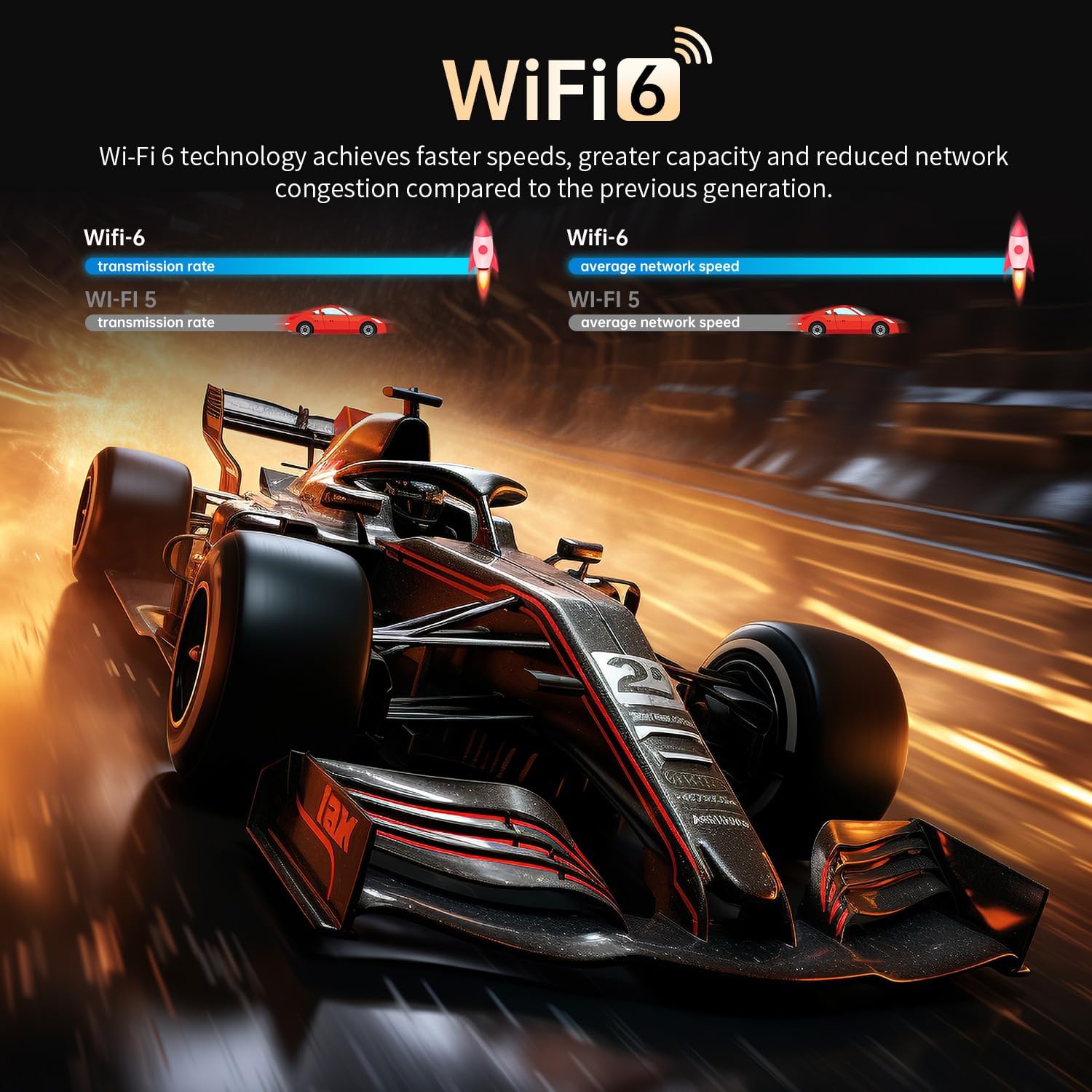
Image: An illustration comparing WiFi 6 technology with previous generations, highlighting faster speeds, greater capacity, and reduced network congestion for improved performance.
Ethernet Connection:
For a stable wired connection, connect an Ethernet cable from your router or modem to the LAN port on the TV Box. The device will automatically detect and use the wired connection.
Storage Management
The ADDCOLOR X88 PRO 14 comes with 16GB of internal storage. You can expand storage using external USB devices or TF cards.
- USB Storage: Connect USB flash drives or external hard drives to the USB 2.0 or USB 3.0 ports.
- TF Card: Insert a TF card (up to 64GB) into the designated slot.
To manage storage, go to Settings > Storage. Here you can view available space and format external storage devices if necessary.
Troubleshooting
If you encounter issues with your TV Box, refer to the following common problems and solutions:
- No Power:
- Ensure the power adapter is securely connected to the device and a working power outlet.
- Try a different power outlet.
- No Signal on TV:
- Verify the HDMI cable is properly connected to both the TV Box and the TV.
- Ensure your TV is set to the correct HDMI input source.
- Try a different HDMI cable or HDMI port on your TV.
- Network Connection Issues:
- For Wi-Fi, check if the password is correct and the router is working. Try restarting your router.
- For Ethernet, ensure the cable is connected properly and your router's LAN port is active.
- Go to Settings > Network & Internet to reconfigure your connection.
- Remote Control Not Responding:
- Replace the batteries in the remote control.
- Ensure there are no obstructions between the remote and the TV Box.
- Re-pair the Bluetooth remote if it's a Bluetooth remote (refer to Operating Instructions).
- Applications Crashing or Freezing:
- Close and restart the application.
- Clear the app's cache and data (Settings > Apps > [App Name] > Storage > Clear Cache/Clear Data).
- Ensure the device has sufficient free storage space.
- Update the application to the latest version via the Google Play Store.
Specifications
Detailed technical specifications for the ADDCOLOR X88 PRO 14 Android TV Box:

Image: A visual representation of the RK3518 Quad-Core Cortex-A53 processor, highlighting its 64-bit architecture and performance capabilities.
| Feature | Detail |
|---|---|
| Model | X88 PRO 14 |
| Operating System | Android 14.0 |
| Processor (CPU) | RK3518 Quad-Core 64bit Cortex-A53 |
| Graphics Processor (GPU) | Mali 450 MP2 |
| RAM | 2GB |
| ROM (Internal Storage) | 16GB |
| Wi-Fi | 2.4G / 5G Dual-band Wi-Fi 802.11 a/b/g/n/ac/ax (Wi-Fi 6) |
| Bluetooth | Bluetooth 5.0 |
| Ethernet | 10/100M Standard RJ45 |
| USB Ports | 1x USB 2.0, 1x USB 3.0 |
| Video Output | HDMI (Supports 4K, 8K decoding) |
| Video Decoder | H.264/H.265/VP9 up to 8K@30fps, 4Kx2K@60fps |
| Resolution Support | 4K (3840x2160 pixel), HDR10+ |
| Audio Formats | MP3/WMA/AAC/WAV/OGG/DDP/HD/FLAC/APE |
| Image Formats | HD JPEG/BMP/GIF/PNG/TIFF |
| Dimensions | 4.06 x 4.06 x 0.71 inches (10.7 x 10.7 x 2 cm) |
| Weight | 11.3 ounces |

Image: A visual comparison demonstrating the enhanced clarity, contrast, and color details provided by Authentic 4K HDR10 resolution (3840x2160 pixels) compared to 1080P Full HD.
Maintenance
To ensure the longevity and optimal performance of your ADDCOLOR X88 PRO 14 TV Box, follow these maintenance guidelines:
- Cleaning: Use a soft, dry cloth to clean the exterior of the device. Do not use liquid cleaners or abrasive materials.
- Ventilation: Ensure the device is placed in a well-ventilated area to prevent overheating. Do not block the ventilation holes.
- Software Updates: Periodically check for system updates in Settings > About Device > System Update to ensure you have the latest features and security patches.
- Power Off Properly: Always power off the device using the remote control or by going through the system menu before unplugging it from the power source.
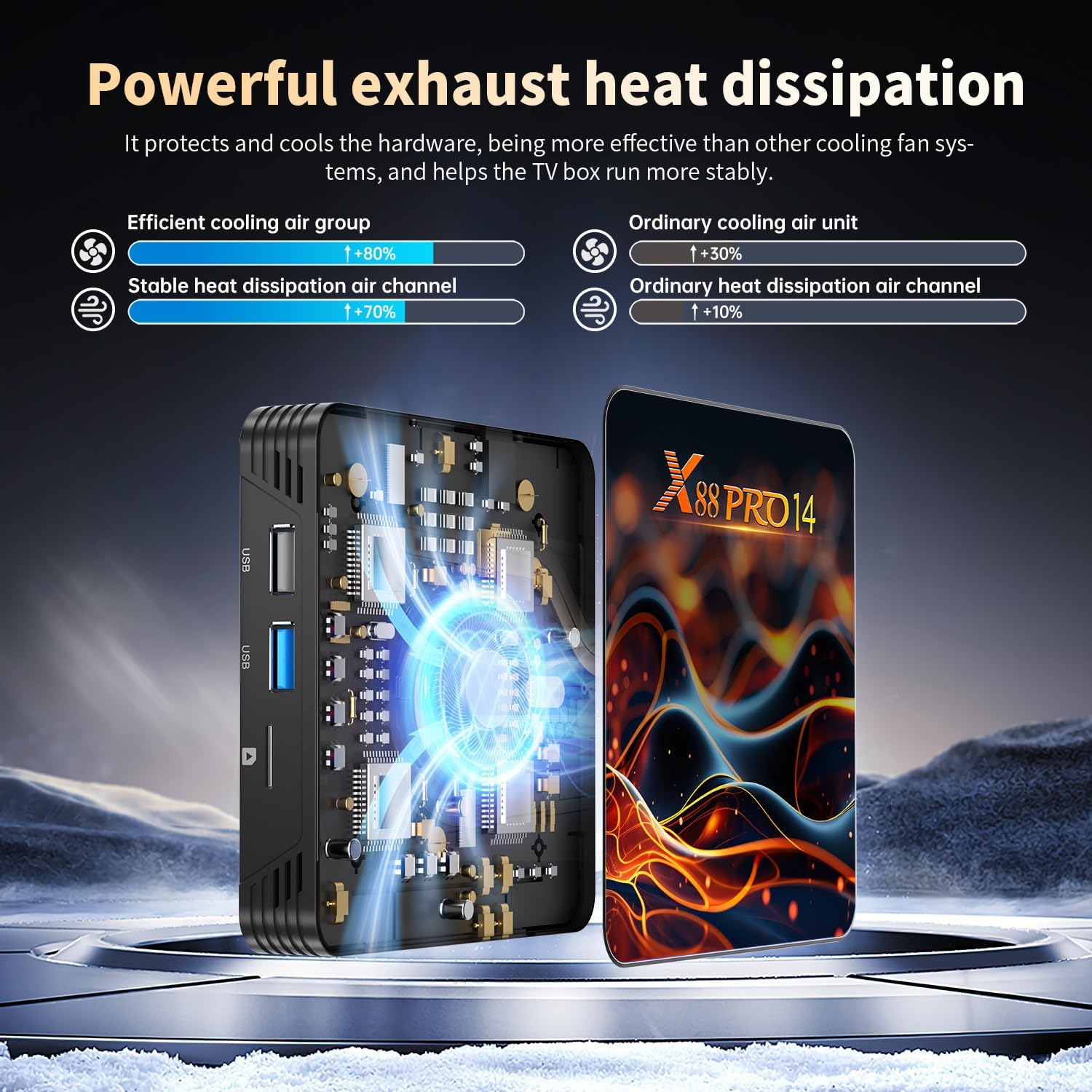
Image: A diagram illustrating the internal heat dissipation system of the X88 PRO 14 TV Box, designed to protect components and ensure stable operation by efficiently managing heat.
Safety Information
Please observe the following safety precautions:
- Do not expose the device to water, moisture, or extreme temperatures.
- Avoid dropping or subjecting the device to strong impacts.
- Do not attempt to open or repair the device yourself. Refer to qualified service personnel.
- Use only the provided power adapter. Using unauthorized adapters may damage the device and void the warranty.
- Keep the device away from direct sunlight and heat sources.
Warranty and Support
For warranty information and technical support, please refer to the retailer or the ADDCOLOR official website. Keep your purchase receipt as proof of purchase for warranty claims.