
Earbay BT681CD
Earbay BT681CD Trucker Bluetooth Headset User Manual
Model: BT681CD
Introduction
Thank you for choosing the Earbay BT681CD Trucker Bluetooth Headset. This manual provides detailed instructions for setting up, operating, and maintaining your headset to ensure optimal performance. This headset is designed for clear communication and comfort in various environments, including office, remote work, and travel.
Package Contents
Please verify that all items are present in your package:
- Earbay BT681CD Bluetooth Headset
- Charging Dock
- USB Dongle
- USB-C Cable
Product Overview
Familiarize yourself with the components of your Earbay BT681CD headset.

Image Description: The Earbay BT681CD headset is shown in black, resting on its charging dock. A USB dongle is visible in the upper right corner. The headset features an adjustable headband, a single earcup, and a rotatable boom microphone. The charging dock has a USB-C port.
Headset Components:
- Adjustable Headband: For comfortable fit.
- Soft Leatherette Ear Cushion: Designed for extended wear.
- Rotatable Boom Microphone: Can be positioned for optimal voice pickup and rotated out of the way when not in use.
- Main Button: Multi-function button for power, pairing, and call control.
- Volume Buttons: Adjust audio volume.
- Mic Mute Button: Dedicated button to mute/unmute the microphone.
- Charging Port (USB-C): For direct charging.

Image Description: This image highlights the ergonomic design features of the Earbay headset. It shows a 360-degree flexible rotation of the earcup, soft leatherette cushions, a 270-degree rotatable boom microphone, and an adjustable headband, emphasizing comfort and adaptability.
Charging Dock:
- Provides a convenient charging and storage solution for the headset.
- Features a USB-C input for power.
USB Dongle:
- Enables wireless connectivity for devices without built-in Bluetooth.
- Plug-and-play functionality.
Setup
1. Charging the Headset
Before first use, fully charge the headset. The headset can be charged using the charging dock or directly via the USB-C cable.

Image Description: This image illustrates two charging methods for the Earbay headset. On the left, the headset is shown charging on its dedicated dock. On the right, a close-up shows the headset being charged directly via a USB-C cable plugged into the earcup. Text indicates "USB-C Charging" and "Pogo Pin Charger" for the dock.
- Using the Charging Dock: Connect the USB-C cable to the charging dock and a power source (e.g., computer USB port, wall adapter). Place the headset onto the dock, ensuring the charging pins align. The indicator light on the headset will show charging status.
- Direct USB-C Charging: Connect the USB-C cable directly to the headset's charging port and a power source.
A full charge takes approximately 1.5 hours. The headset provides up to 28 hours of talk time or 400 hours of standby time.
2. Connecting via USB Dongle (for PC/Laptop without Bluetooth)

Image Description: The image displays the Earbay headset and a USB dongle. The dongle is shown emitting a wireless signal towards a laptop, indicating a connection. Text highlights "USB DONGLE" and "Support the computer without Bluetooth Function" along with "Easy Plug & Play" and "Support USB 2.0 & USB 3.0 port".
- Insert the USB dongle into an available USB port on your computer.
- The dongle's indicator light will blink, then turn solid blue when connected to the headset.
- Power on your headset. It will automatically pair with the dongle.
- In your computer's sound settings, select "Earbay BT681CD" as the input and output device.
3. Connecting via Bluetooth (for Bluetooth-enabled devices)

Image Description: This image illustrates the dual connection capability of the Earbay headset. The headset is shown wirelessly connected via Bluetooth 5.2 to both a laptop and a smartphone simultaneously. Text indicates "Dual Connection" and "Connect with Computer & Smartphone meanwhile via Bluetooth 5.2". A note at the bottom clarifies that music can only be played from one device, but calls can be managed from both.
- Ensure the headset is powered off.
- Press and hold the Main Button on the headset until the indicator light flashes red and blue alternately, indicating pairing mode.
- On your device (phone, tablet, laptop), enable Bluetooth and search for new devices.
- Select "Earbay BT681CD" from the list of available devices.
- Once connected, the headset's indicator light will turn solid blue.
4. Dual Device Pairing
The Earbay BT681CD headset supports simultaneous connection to two Bluetooth devices (e.g., a smartphone and a computer). Follow these steps:
- Pair the headset with the first device (e.g., your phone) as described in step 3.
- Disable Bluetooth on the first device. The headset will re-enter pairing mode.
- Pair the headset with the second device (e.g., your computer) as described in step 3.
- Re-enable Bluetooth on the first device. The headset should automatically reconnect to both devices.
Note: While connected to two devices, music playback will only function from one device at a time. However, you can receive and make calls from either connected device.
Operating Instructions
Power On/Off
- Power On: Press and hold the Main Button for 3 seconds until the indicator light flashes blue.
- Power Off: Press and hold the Main Button for 3 seconds until the indicator light flashes red.
Call Management

Image Description: A close-up view of the Earbay headset's earcup and microphone boom, highlighting the control buttons. Labels point to the "Volume Button" (with +/-), "Mic Mute Button", and "Main Button" (multi-function for pairing/Siri/on/off). Text indicates "Smart Control & High efficiency".
- Answer/End Call: Press the Main Button once.
- Reject Call: Press and hold the Main Button for 2 seconds.
- Adjust Volume: Press the Volume Up (+) or Volume Down (-) buttons.
- Mute/Unmute Microphone: Press the dedicated Mic Mute Button on the microphone boom. An audible prompt will confirm "Mute On" or "Mute Off".
Music Playback
- Play/Pause: Press the Main Button once.
- Next Track: Press and hold the Volume Up (+) button for 2 seconds.
- Previous Track: Press and hold the Volume Down (-) button for 2 seconds.
Microphone Usage

Image Description: A woman is shown wearing the Earbay headset while working on a laptop. A speech bubble from her says "Hi, Can you hear me?". Another speech bubble from a person on a video call says "Sure, your voice is very clear." This illustrates the headset's clear communication. Text below highlights "AI Calls Noise Cancellation" and "Noise Canceling Mic & 40mm Audio driver".
- Positioning: Rotate the boom microphone to position it close to your mouth for optimal voice pickup. The microphone is rotatable by 270 degrees.
- Noise Cancellation: The headset features an Environmental Noise Cancellation (ENC) microphone to reduce background noise during calls.
Usage Scenarios
The Earbay BT681CD headset is versatile and suitable for various professional and personal environments.
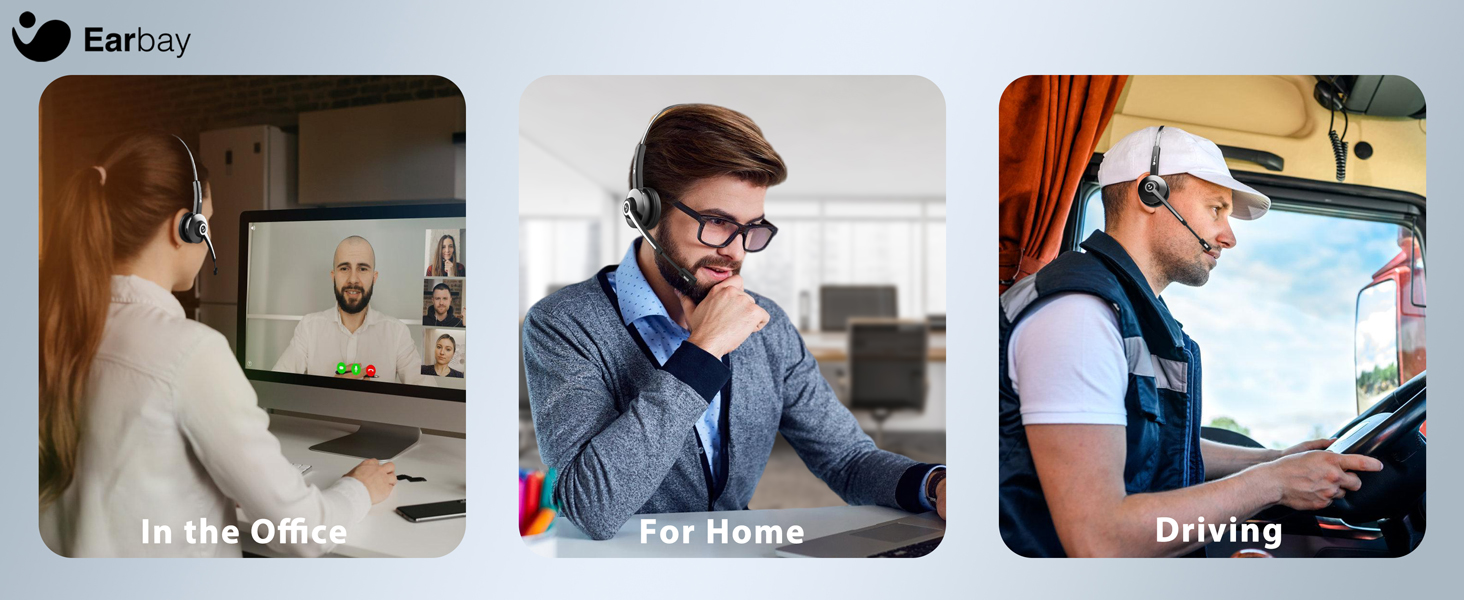
Image Description: A composite image showing the Earbay headset in three different usage scenarios: a person working in an office, a person working from home, and a person driving a truck. This illustrates the headset's adaptability for various professional settings.
- In the Office: Ideal for clear communication during calls and virtual meetings.
- For Home/Remote Work: Provides comfort and noise cancellation for focused work.
- Driving: Designed for truckers and professionals on the go, ensuring clear calls even in noisy environments.
Maintenance
- Cleaning: Use a soft, dry cloth to clean the headset and charging dock. Do not use harsh chemicals or abrasive materials.
- Storage: When not in use, store the headset on its charging dock or in a cool, dry place away from direct sunlight and extreme temperatures.
- Battery Care: To prolong battery life, avoid fully discharging the headset frequently. Charge it regularly, even if not in constant use.
Troubleshooting
Headset does not power on:
- Ensure the headset is fully charged. Connect it to the charging dock or directly via USB-C cable.
- Press and hold the Main Button for 3 seconds to power on.
Cannot connect via Bluetooth:
- Ensure the headset is in pairing mode (indicator light flashing red and blue).
- Make sure Bluetooth is enabled on your device and it is within the 15 meter (approximately 33 feet) range.
- Forget "Earbay BT681CD" from your device's Bluetooth list and try pairing again.
- Restart both the headset and your device.
No audio or poor audio quality:
- Check the volume levels on both the headset and your connected device.
- Ensure "Earbay BT681CD" is selected as the audio output device in your computer's sound settings or your phone's media output settings.
- If using the USB dongle, ensure it is properly inserted and recognized by your computer.
- Move closer to your connected device to avoid interference.
Microphone not working or poor voice clarity:
- Ensure the microphone is not muted. Press the Mic Mute Button to unmute.
- Position the microphone boom closer to your mouth.
- Verify that "Earbay BT681CD" is selected as the input device in your communication application (e.g., Zoom, Skype, Teams) and operating system settings.
Specifications
| Feature | Detail |
|---|---|
| Model Name | BT681CD |
| Connectivity Technology | Wireless (Bluetooth) |
| Wireless Communication Technology | Bluetooth 5.2 |
| Bluetooth Range | 15 Meters (approximately 33 feet) |
| Noise Control | Sound Isolation (Environmental Noise Cancellation Mic) |
| Audio Driver Size | 40 Millimeters |
| Frequency Response | 20 Hz - 20 KHz |
| Sensitivity | 113 dB |
| Impedance | 32 Ohm |
| Battery Life | Up to 28 Hours (Talk Time) |
| Standby Time | Up to 400 Hours |
| Charging Time | Approximately 1.5 Hours |
| Charging Port | USB-C |
| Compatible Devices | Computers, Smartphones, Tablets, Desktop PC |
| Product Dimensions | 2.17 x 7.32 x 6.02 inches |
| Item Weight | 12.3 ounces |
Warranty and Support
The Earbay BT681CD Trucker Bluetooth Headset comes with a 1-year warranty from the date of purchase, covering manufacturing defects.
For technical assistance, troubleshooting, or warranty claims, please contact Earbay customer support. Our support team is available 24/7 to assist you.
Contact Information: Please refer to the product packaging or the official Earbay website for the most current support contact details.
Ask a question about this manual
Ask about setup, troubleshooting, compatibility, parts, safety, or missing instructions. Manuals+ will review the question and use this page’s manual context to help answer it.