
1. Introduction
This manual provides comprehensive instructions for the Hagibis UC-1102AG USB C Hub, a versatile multi-function docking station. It integrates essential connectivity features with a unique volume knob, customizable RGB lighting, and convenient shortcut buttons. Designed to enhance your desktop experience, this hub offers expanded port options for various devices, including laptops, tablets, and more.

Figure 1: Overview of the Hagibis UC-1102AG Knob USB C Hub.
2. Setup Guide
Follow these steps to set up your Hagibis UC-1102AG USB C Hub:
- Connect to Host Device: Use the provided USB-C to USB-C cable to connect the hub's HOST port to a compatible USB-C port on your laptop, tablet, or other host device. Ensure the connection is secure.
- Optional Power Connection: If your host device requires additional power or if you are connecting power-intensive peripherals, connect a 5V power adapter (not included) to the USB-C (Power Port 5V) on the hub.
- Peripheral Connection: Connect your desired peripherals (e.g., keyboard, mouse, external hard drive, headphones, SD cards) to the corresponding ports on the hub.
- Driver Installation: The hub is generally plug-and-play and does not require additional drivers for most operating systems. If prompted, follow on-screen instructions.
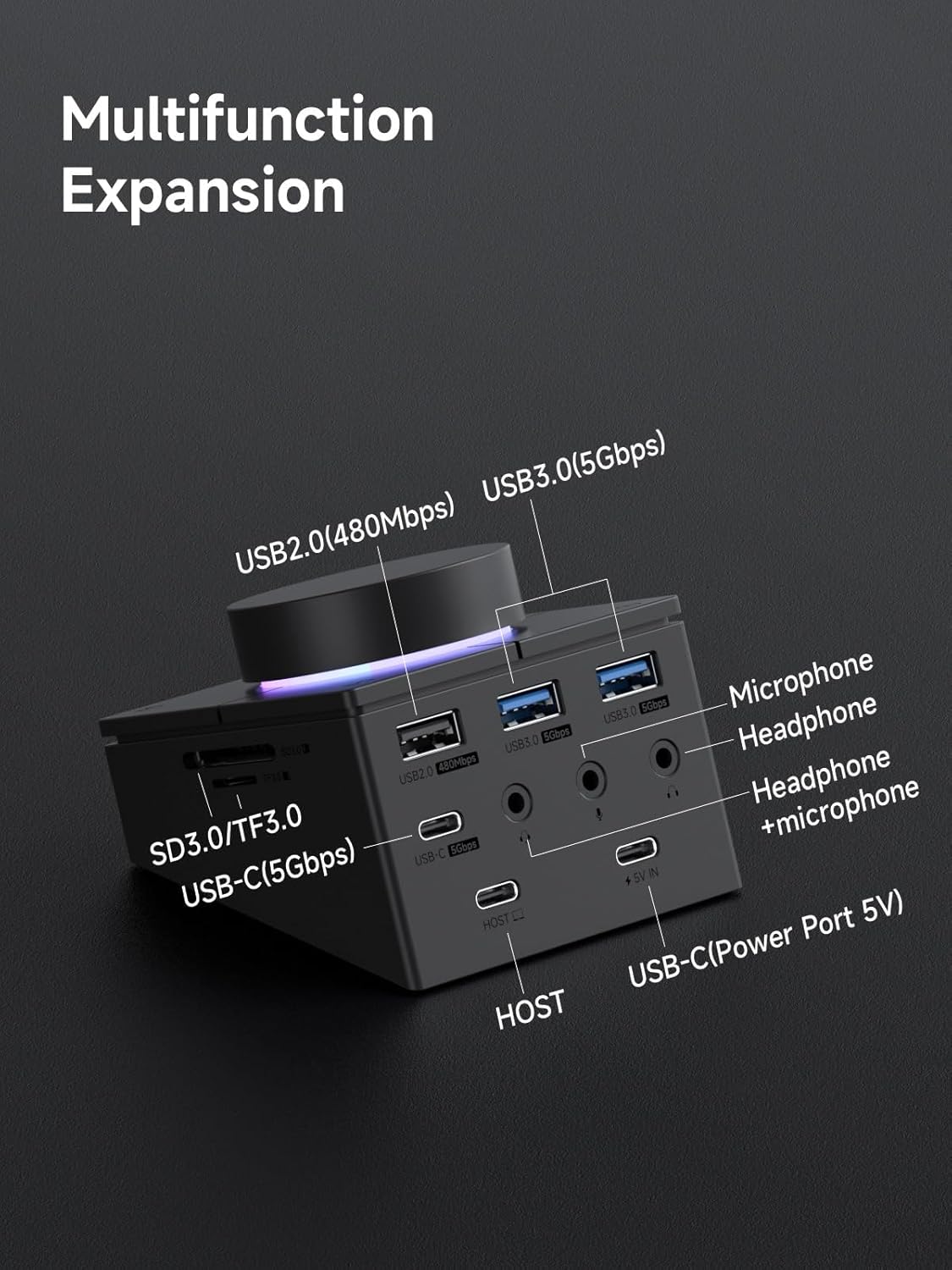
Figure 2: Port layout and connections on the Hagibis UC-1102AG.
3. Operating Instructions
3.1. Volume Knob Functionality
The central knob provides intuitive control over your system's audio:
- Rotate Clockwise: Increases system volume.
- Rotate Counter-clockwise: Decreases system volume.
- Press Down: Toggles mute/unmute for system audio.

Figure 3: Demonstrating the volume knob's rotation and press functions.
3.2. Shortcut Buttons
The four buttons surrounding the volume knob offer quick access to specific system functions:
- Lock Screen Key (Upper Left):
- Windows: Short press to lock the screen.
- Mac: Long press to lock the screen.
- Play/Pause Key (Upper Right): Controls media playback (play, pause) for compatible applications.
- Light Switch Key (Lower Left): Taps to cycle through different RGB lighting modes around the knob.
- Screenshot Key (Lower Right):
- Windows: Short press to take a screenshot.
- Mac: Long press to take a screenshot.
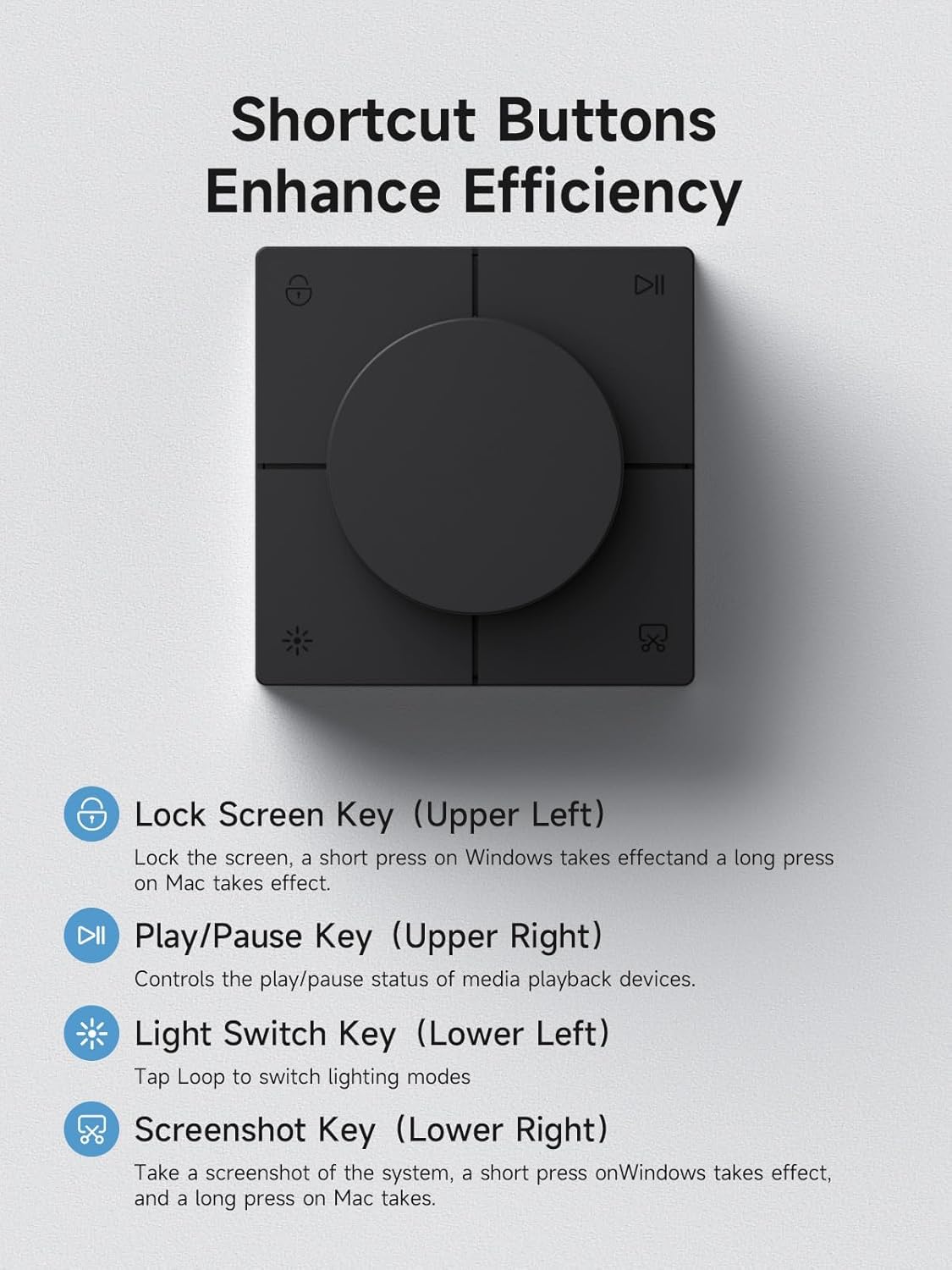
Figure 4: Layout of the shortcut buttons.

Figure 5: Detailed shortcut key mapping for Windows and Mac operating systems.
3.3. Port Usage
The hub provides a variety of ports for expanded connectivity:
- USB-C (5Gbps): For connecting USB-C peripherals requiring high-speed data transfer.
- USB 3.0 (5Gbps) Ports (x2): For connecting USB-A peripherals such as external drives, keyboards, and mice, offering data transfer speeds up to 5Gbps.
- USB 2.0 (480Mbps) Port: Suitable for connecting devices like keyboards, mice, or other peripherals where high-speed data transfer is not critical.
- 3.5mm Audio Jacks (Headphone, Microphone, Headset): Connect your audio devices for input and output. The headset jack supports combined headphone and microphone functionality.
- SD/TF 3.0 Card Slots: Supports UHS-I fast transfer for SD and Micro SD cards, allowing simultaneous reading of both card types.

Figure 6: High-speed data transmission via USB-C and USB 3.0 ports.

Figure 7: Connecting multiple audio devices to the 3.5mm audio ports.

Figure 8: SD/TF 3.0 dual card expansion slots in use.
3.4. RGB Ambient Lighting
The hub features RGB ambient lighting around the volume knob. Use the Light Switch Key (Lower Left) to cycle through various lighting modes, adding a visual element to your desktop setup.

Figure 9: RGB ambient lighting feature.
4. Maintenance
To ensure the longevity and optimal performance of your Hagibis UC-1102AG USB C Hub, please follow these maintenance guidelines:
- Cleaning: Use a soft, dry cloth to gently wipe the surface of the hub. Avoid using liquid cleaners, aerosols, or harsh chemicals, as these can damage the device.
- Storage: Store the hub in a cool, dry place away from direct sunlight and extreme temperatures.
- Handling: Avoid dropping the device or subjecting it to strong impacts. Do not attempt to disassemble the hub, as this will void the warranty.
- Port Care: Keep all ports free from dust and debris. Use compressed air if necessary to clear any obstructions.
5. Troubleshooting
If you encounter issues with your Hagibis UC-1102AG USB C Hub, refer to the following common solutions:
- Device Not Recognized:
- Ensure the USB-C cable is securely connected to both the hub's HOST port and your computer's USB-C port.
- Try connecting the hub to a different USB-C port on your computer.
- Restart your computer and reconnect the hub.
- Verify that your computer's USB-C port supports data transfer and display output (if applicable).
- Erratic Volume Knob or Unresponsive Buttons:
- Disconnect and reconnect the hub.
- Ensure your operating system's audio settings are correctly configured.
- Note that the shortcut buttons have fixed functions and are not programmable.
- No Audio Output/Input:
- Check that your headphones/microphone are fully plugged into the correct 3.5mm jack on the hub.
- Verify your computer's sound settings to ensure the hub's audio output/input is selected as the default device.
- Test with different audio devices to rule out a faulty peripheral.
- Slow Data Transfer Speeds:
- Ensure you are using the USB 3.0 (5Gbps) ports for high-speed devices.
- The performance can be affected by the host device's USB-C port capabilities and the quality of the connected cable.
- Avoid connecting multiple high-bandwidth devices simultaneously if experiencing slowdowns.
6. Specifications
| Brand | Hagibis |
| Model Number | UC-1102AG |
| Product Dimensions | 3.1 x 2.9 x 2.3 inches (79 x 75 x 60 mm) |
| Item Weight | 14.8 ounces |
| Color | Black AG |
| Hardware Interface | USB Type C |
| Special Feature | Indicator Light, Volume Knob, Shortcut Buttons, RGB Lighting |
| Compatible Devices | MacBook Pro/Air, Mac mini, Mac Studio, iPad Pro, iMac, Dell XPS13/15, Lenovo Yoga series, Microsoft Surface series, and other USB-C/USB 4/Thunderbolt 3/4 laptops, tablets, mobile phones, Steam Deck. |
| Manufacturer | Shanghai Xinxie Industrial Co., Ltd. |

Figure 10: Product dimensions of the Hagibis UC-1102AG.
7. Warranty & Support
7.1. Warranty Information
Hagibis products are covered by a manufacturer's warranty. For specific warranty terms and conditions, please refer to the warranty card included with your product or visit the official Hagibis website. Please retain your proof of purchase for warranty claims.
7.2. Customer Support
For further assistance, technical support, or inquiries regarding your Hagibis UC-1102AG USB C Hub, please visit the official Hagibis website or contact their customer service department. Contact information can typically be found on the product packaging or the official website.
Official Hagibis Store: https://www.amazon.com/stores/Hagibis/page/AC3D0178-999A-46CD-BA6C-9B107EC614F4