1. Introduction
This manual provides essential information for setting up, operating, maintaining, and troubleshooting your Thunderobot Storm 17 Gaming Laptop. Please read this manual thoroughly before using your device to ensure optimal performance and longevity.
2. Package Contents
Upon unboxing, verify that the following items are included:
- Thunderobot Storm 17 Laptop
- Power Adapter and Cable
- User Manual (this document)
If any items are missing or damaged, please contact customer support.
3. Product Overview
The Thunderobot Storm 17 is a high-performance gaming laptop designed for immersive gaming and demanding tasks. It features a 17.3-inch FHD 144Hz display, an Intel Core i5-12450H processor, and an NVIDIA GeForce RTX 3050 graphics card.
3.1. External Components
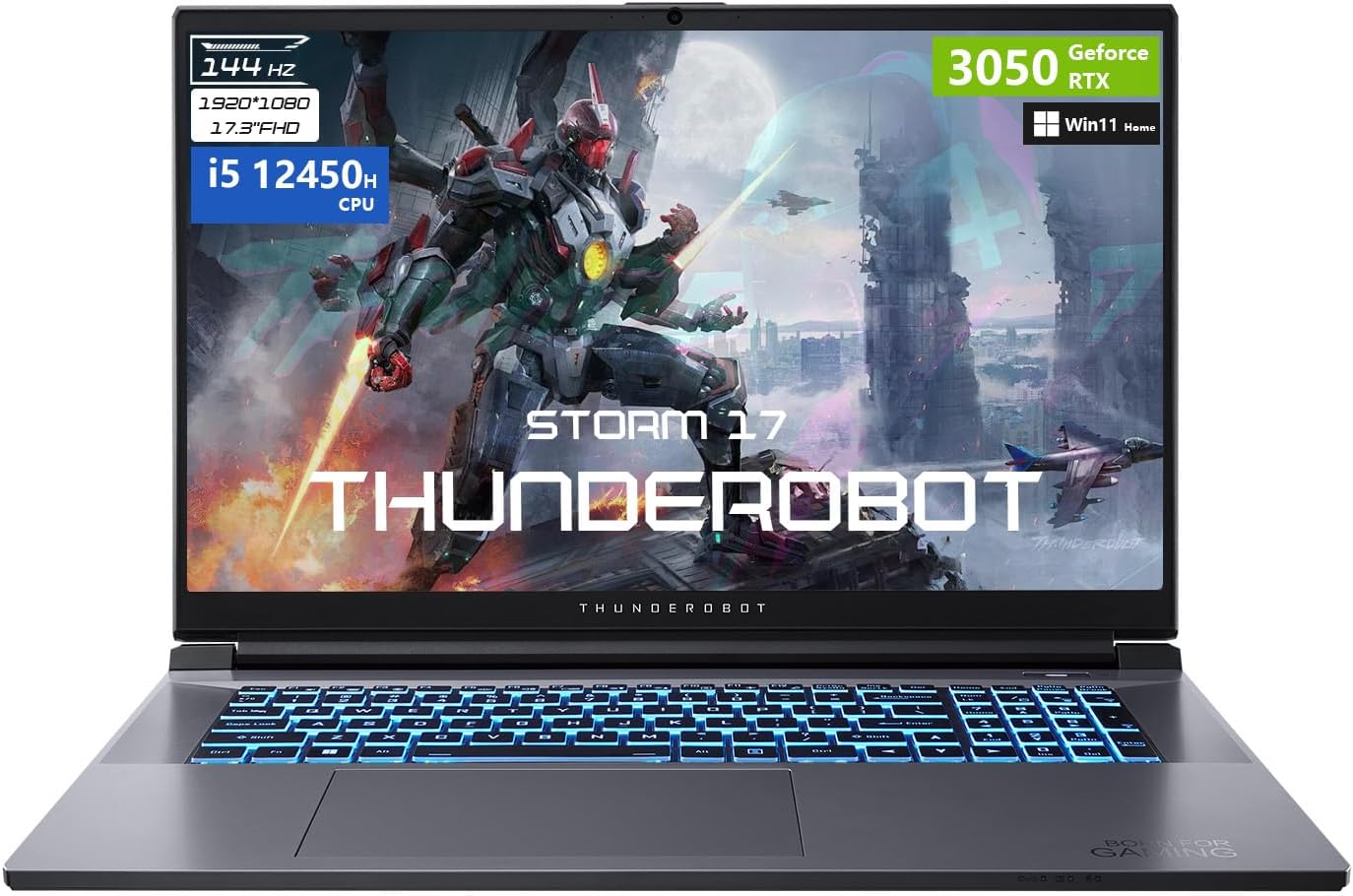
Figure 3.1: Front view of the Thunderobot Storm 17 Gaming Laptop, showcasing the display and RGB backlit keyboard.
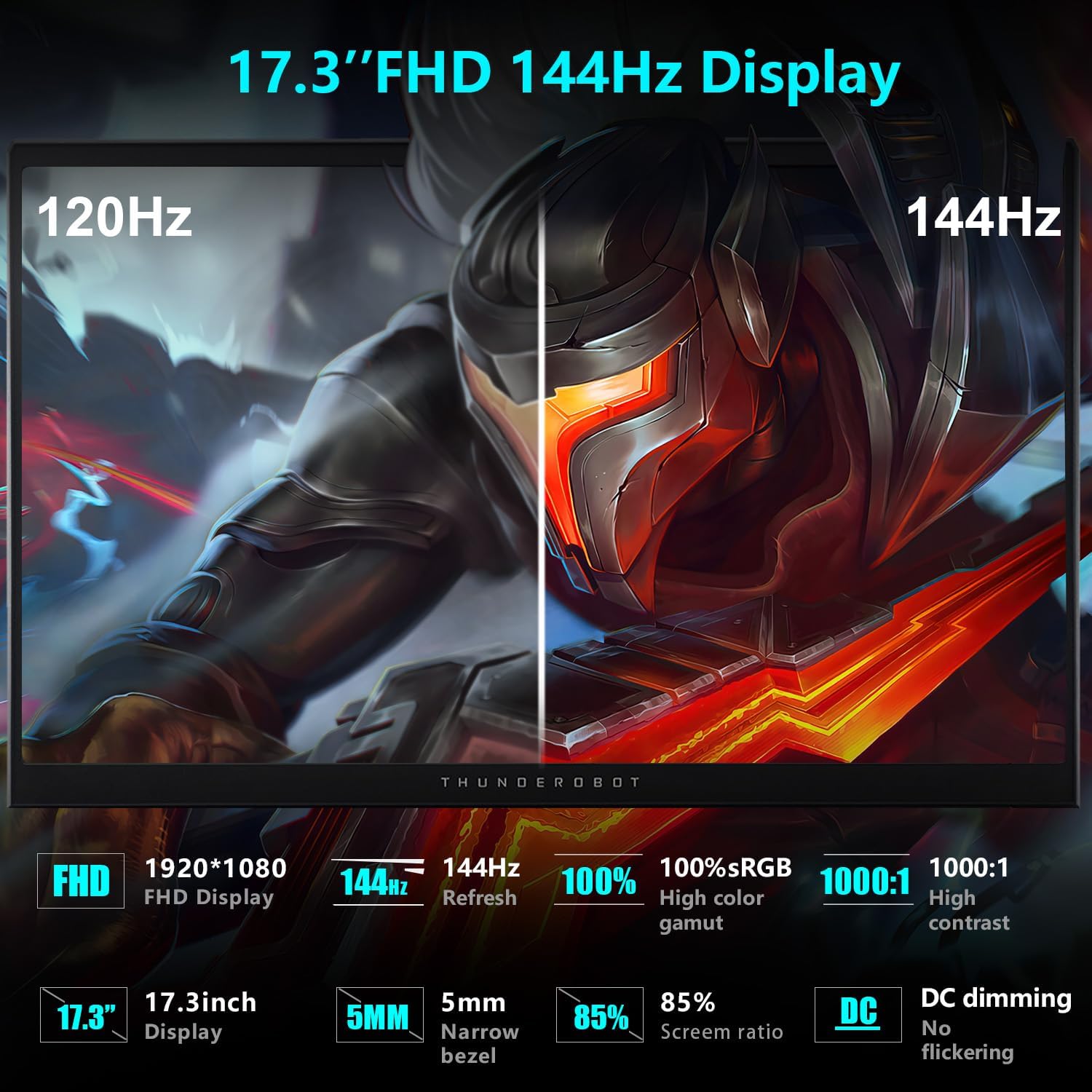
Figure 3.2: Diagram illustrating the various ports and slots on the Thunderobot Storm 17 Gaming Laptop.
- Display: 17.3" FHD (1920x1080) 144Hz
- Keyboard: RGB Backlit Keyboard with Numeric Keypad
- Ports: 3x USB 3.2 Gen 1 Type-A, 1x USB Type-C, 1x HDMI, 1x RJ-45 Ethernet, 1x Audio Port, 1x Mini DisplayPort, 1x Kensington Lock Slot, 1x DC-in Jack.
4. Setup
4.1. Initial Power-On
- Connect the power adapter to the DC-in jack on the laptop and then to a power outlet.
- Open the laptop lid.
- Press the power button to turn on the laptop.
- Follow the on-screen instructions to complete the Windows 11 Home setup.
4.2. Connecting Peripherals
Utilize the available ports to connect external devices such as a mouse, keyboard, external monitor, or headset.
- USB Devices: Use the USB Type-A or Type-C ports.
- External Display: Connect via the HDMI or Mini DisplayPort.
- Audio: Use the 3.5mm combo jack for headphones or a headset.
- Network: Connect an Ethernet cable to the RJ-45 port for a wired internet connection.
5. Operating Instructions
5.1. Keyboard Functions

Figure 5.1: Close-up of the RGB backlit keyboard on the Thunderobot Storm 17.
The keyboard features RGB backlighting and a full numeric keypad. Function keys (F1-F12) often have secondary functions when pressed in combination with the Fn key. Refer to the keycap icons for specific functions (e.g., volume control, brightness adjustment, Wi-Fi toggle).
5.2. Display Settings

Figure 5.2: Visual comparison demonstrating the smoothness of a 144Hz display versus a lower refresh rate.
Your laptop features a 17.3" FHD 144Hz display. To ensure the 144Hz refresh rate is active:
- Right-click on the desktop and select "Display settings".
- Scroll down and click "Advanced display settings".
- Under "Choose a refresh rate", select "144 Hz".
5.3. Performance Modes (Control Center)

Figure 5.3: Screenshot of the Control Center software, showing various performance and fan adjustment options.
The Thunderobot Control Center software allows you to switch between different performance modes to optimize your laptop for various tasks. These modes typically include:
- Berserk Mode: Full performance release for demanding applications and gaming.
- Game Mode: Optimized for smooth gaming experience.
- Audio and Video Office Mode: Prioritizes battery life and quiet operation for productivity.
To access the Control Center, search for "Control Center" in the Windows search bar. Note that system mode switching in Control Center requires the device to be connected to a power source.
6. Maintenance
6.1. Cooling System
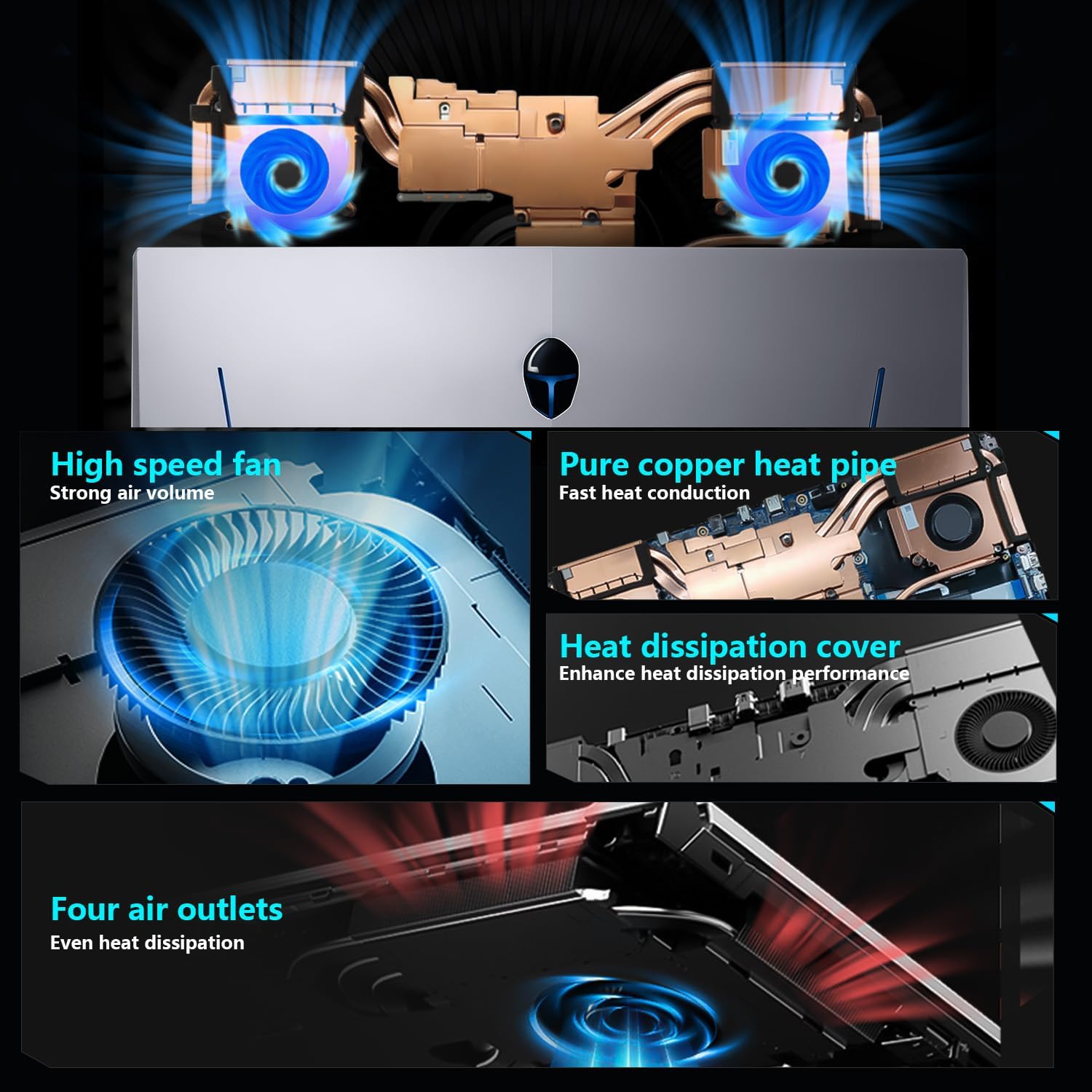
Figure 6.1: Diagram illustrating the internal cooling system with dual fans and heat pipes.
The Storm 17 features an efficient cooling system with dual turbofans and copper heat pipes. To maintain optimal cooling performance:
- Ensure the air vents (located on the sides and rear) are not obstructed.
- Use the laptop on a hard, flat surface to allow for proper airflow.
- Periodically clean dust from the vents using compressed air. Do not open the laptop chassis for cleaning unless you are a qualified technician.
6.2. General Care
- Keep the laptop away from liquids and extreme temperatures.
- Clean the screen with a soft, lint-free cloth specifically designed for electronics.
- Avoid placing heavy objects on the laptop.
- Regularly back up your data to prevent loss.
7. Troubleshooting
| Issue | Possible Cause | Solution |
|---|---|---|
| Laptop does not power on. | No power, battery drained, power adapter issue. | Ensure power adapter is securely connected and outlet is functional. Charge the battery for at least 30 minutes before attempting to power on again. |
| Screen is blank or black. | Display settings, external monitor connected, system crash. | Press Fn + F1 (or corresponding display toggle key). Disconnect any external monitors. Restart the laptop. |
| Poor gaming performance. | Incorrect power mode, outdated drivers, overheating. | Ensure laptop is plugged in and set to "Berserk Mode" in Control Center. Update graphics drivers. Check cooling vents for obstructions. |
| Wi-Fi not connecting. | Wi-Fi disabled, driver issue, router problem. | Check Wi-Fi toggle (Fn + Fx). Restart router. Update Wi-Fi drivers. |
If the issue persists after attempting these solutions, please contact Thunderobot customer support.
8. Specifications
| Feature | Detail |
|---|---|
| Brand | Thunderobot |
| Model Name | Storm 17 |
| Screen Size | 17.3 Inches |
| Screen Resolution | 1920 x 1080 pixels (FHD) |
| Refresh Rate | 144Hz |
| Processor | Intel Core i5-12450H (8 Cores, 12 Threads, up to 4.4 GHz) |
| RAM | 16 GB DDR4 (3200 MHz) |
| Hard Drive | 512 GB PCIe M.2 SSD |
| Graphics Coprocessor | NVIDIA GeForce RTX 3050 (6 GB GDDR6) |
| Operating System | Windows 11 Home |
| Wireless Type | 802.11ac Wi-Fi, Bluetooth |
| Ports | 3x USB 3.2 Gen 1 Type-A, 1x USB Type-C, 1x HDMI, 1x RJ-45, 1x Audio Port, 1x Mini DisplayPort, 1x Kensington Lock Slot, 1x DC-in Jack |
| Keyboard | RGB Backlit Keyboard, Numeric Keypad |
| Dimensions (LxWxH) | 15.62 x 10.35 x 1.01 inches |
| Item Weight | 11 pounds |
9. Warranty and Support
Every Thunderobot laptop includes a 12-month warranty, offering expert support, thorough diagnostics, and genuine parts if a repair is needed. We also provide a 90-day warranty on all warranty replacement parts, ensuring hassle-free repairs. Your complete satisfaction is our commitment.
For technical support, warranty claims, or service inquiries, please visit the official Thunderobot website or contact their customer service department.
10. Additional Resources
10.1. Product Videos
Video 10.1: An overview of the Thunderobot Series Display, highlighting visual features and performance.
Video 10.2: A video demonstrating various Thunderobot gaming products and their design principles, including the Storm series.


