1. Introduction
This manual provides essential information for setting up, operating, and maintaining your Thunderobot Storm 17 5060 Gaming Laptop. Please read this guide thoroughly to ensure proper usage and to maximize your product's performance and longevity. Keep this manual for future reference.
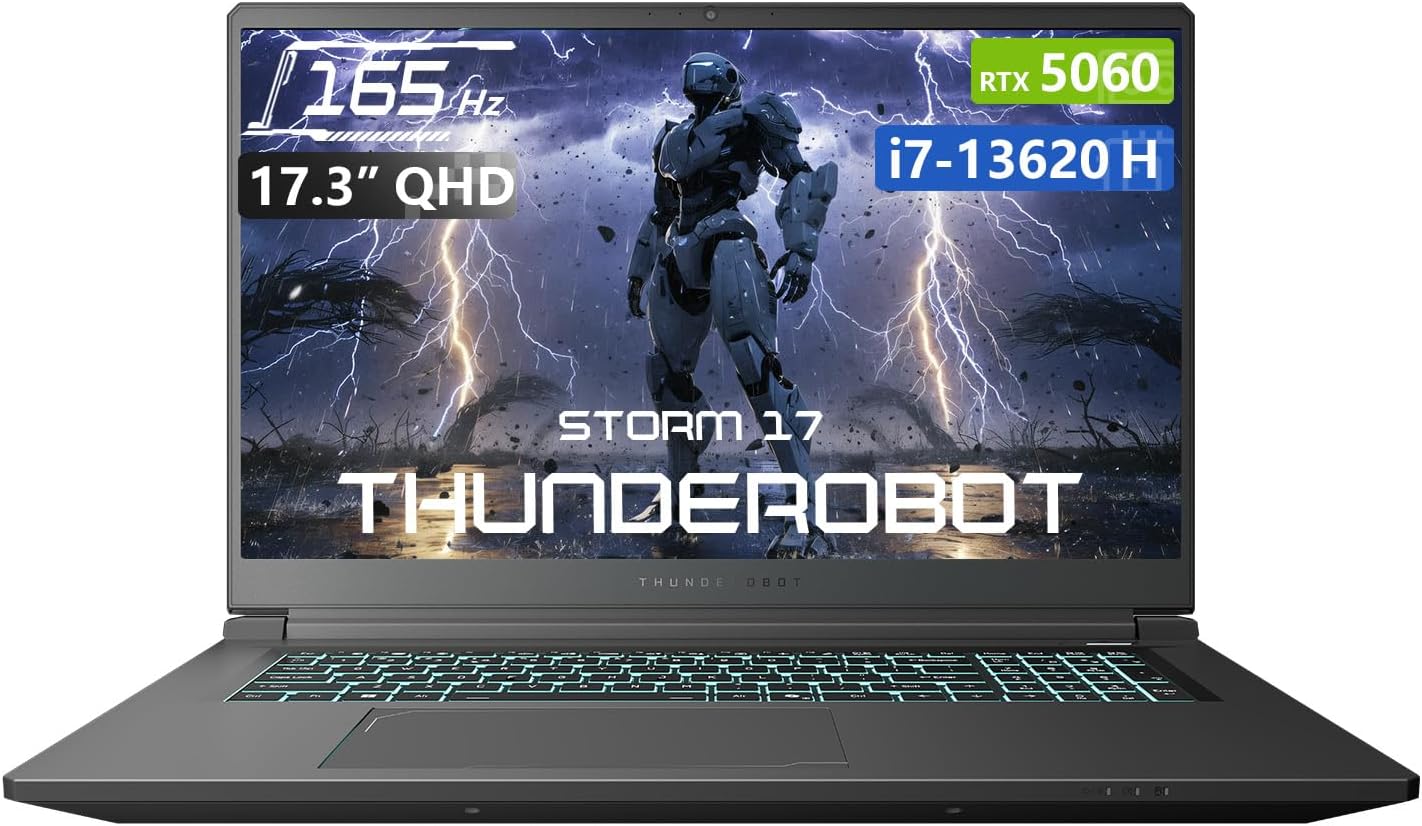
Figure 1.1: Front view of the Thunderobot Storm 17 5060 Gaming Laptop.
2. Product Overview
The Thunderobot Storm 17 5060 is a high-performance gaming laptop designed for immersive experiences. It features advanced components and a robust cooling system.
2.1 Key Features
- Display: 17.3-inch QHD (2560x1440) display with a 165Hz refresh rate, 100% sRGB color accuracy, and 1000:1 contrast ratio for crisp visuals.
- Processor: Intel Core i7-13620H processor, featuring 10 cores and 16 threads, with a base frequency of 1.80GHz and a max turbo frequency of up to 4.9GHz.
- Graphics: NVIDIA GeForce RTX 5060 dedicated graphics card for high-fidelity gaming and creative tasks.
- Memory: 16GB DDR5 RAM, providing fast multitasking capabilities.
- Storage: 1TB PCIe M.2 SSD for rapid boot times and ample storage space.
- Cooling System: Advanced thermal design with ultra-thin 0.2mm copper fins (245pcs) and dual 12V turbofans (60mm, 164 LCP blades, 19.8CFM) for efficient heat dissipation. Features four omnidirectional outlets and a dual-zone air duct.
- Connectivity: Multiple ports including 3x USB 3.0 Type-A, 1x USB Type-C, 1x HDMI, 1x RJ-45 Ethernet, and 1x Audio Port. Supports Wi-Fi 6 and Bluetooth.
- Keyboard: RGB Backlit Keyboard with a full-size numeric keypad.
- Battery: 53Wh battery with support for 100W PD fast charging.
2.2 Visual Components

Figure 2.1: Performance overview highlighting the RTX 5060 graphics and Intel Core i7-13620H processor capabilities.

Figure 2.2: Detailed view of the 17.3-inch QHD 165Hz display specifications.
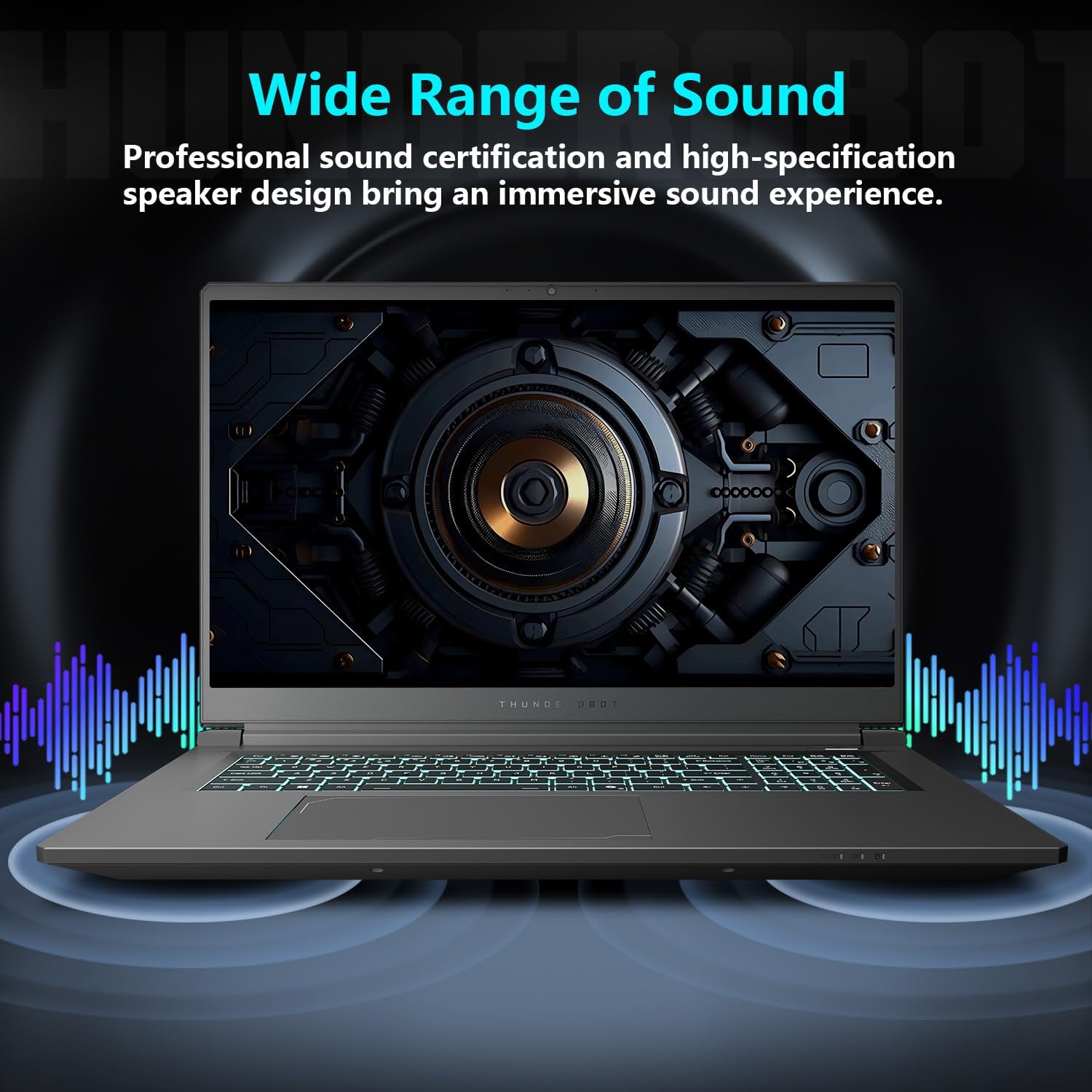
Figure 2.3: Diagram illustrating the various ports and slots on the Thunderobot Storm 17 laptop.

Figure 2.4: Illustration of the Direct-Flow Cooling Technology with pure copper heat pipes, high-speed fans, and four air outlets.
Video 2.1: Overview of the THUNDEROBOT Series Display, showcasing visual features and design.
Video 2.2: THUNDEROBOT Gaming Gear showcase, featuring various peripherals and laptops in a gaming setup.
Video 2.3: THUNDEROBOT Storm 17 product highlights, demonstrating key features and design elements.
3. Setup
3.1 Unboxing and Initial Inspection
Carefully remove the laptop and its accessories from the packaging. Verify that all components listed in the "What's in the Box" section are present and undamaged. The box should contain:
- THUNDEROBOT Storm 17 Laptop
- Power Adapter and Cable
- User Manual (this document)
If any items are missing or damaged, contact customer support immediately.
3.2 Connecting the Power Adapter
- Connect the power cable to the power adapter.
- Plug the power adapter into a grounded electrical outlet.
- Connect the DC-in plug from the adapter to the DC-in port on the laptop. The DC-in port is typically located on the side or rear of the laptop.
It is recommended to fully charge the laptop before its first use.
3.3 Initial Power-On and Windows Setup
- Open the laptop lid.
- Press the power button, usually located on the keyboard deck.
- Follow the on-screen instructions to complete the Windows 11 Home setup. This includes selecting your region, language, connecting to a Wi-Fi network, and creating a user account.
4. Operating Instructions
4.1 Power Management
- Power On: Press the power button.
- Sleep Mode: Close the lid or press the power button briefly. You can also select "Sleep" from the Windows Start menu.
- Shut Down: Select "Shut down" from the Windows Start menu.
- Restart: Select "Restart" from the Windows Start menu.
4.2 Keyboard and Touchpad
The laptop features an RGB backlit keyboard and a precision touchpad.
- Backlight Control: Use the Fn + Spacebar combination to cycle through different backlight modes or turn it off.
- Numeric Keypad: The full-size numeric keypad is integrated for convenient data entry.
- Touchpad: Supports multi-touch gestures for navigation. Refer to Windows settings for customization.

Figure 4.1: The RGB backlit keyboard of the Storm 17 laptop.
4.3 External Connections
Connect external devices using the available ports:
- USB Type-A Ports: For connecting USB devices like mice, keyboards, and external drives.
- USB Type-C Port: For connecting compatible USB-C devices.
- HDMI Port: Connect to an external monitor or TV for extended display.
- RJ-45 Ethernet Port: For wired network connections.
- Audio Port: For connecting headphones or external speakers.
4.4 Wireless Connectivity
- Wi-Fi 6: Connect to wireless networks for internet access. Manage Wi-Fi settings through Windows.
- Bluetooth: Pair with Bluetooth-enabled devices such as headphones, speakers, or game controllers. Manage Bluetooth settings through Windows.
4.5 Control Center Software
The Thunderobot Control Center software allows you to customize various laptop settings for optimal performance and user experience. This includes:
- System Performance Modes: Switch between performance, entertainment, and low-noise modes based on your usage. Note: System mode switching requires the device to be connected to a power source.
- LED Keyboard Customization: Adjust RGB lighting effects and colors.
- FlexiCharger: Manage battery charging settings to extend battery lifespan.
- Flexikey: Customize key and mouse functions.

Figure 4.2: Interface of the Thunderobot Control Center software.
5. Maintenance
5.1 Cleaning Your Laptop
- Use a soft, lint-free cloth dampened with water or a specialized screen cleaner to clean the display.
- For the keyboard and chassis, use a soft cloth. A can of compressed air can help remove dust from between keys and vents.
- Avoid using harsh chemicals, solvents, or abrasive materials.
5.2 Battery Care
- Avoid completely discharging the battery frequently.
- If storing the laptop for an extended period, charge the battery to about 50-60% and store it in a cool, dry place.
- Utilize the FlexiCharger feature in the Control Center to optimize battery health.
5.3 Software and Driver Updates
Regularly update your operating system and drivers to ensure optimal performance and security.
- Windows Updates: Go to Settings > Windows Update to check for and install updates.
- Driver Updates: Visit the official Thunderobot support website for the latest drivers for your Storm 17 model. NVIDIA graphics drivers can also be updated via the GeForce Experience application.
5.4 Thermal Management
To maintain optimal cooling performance:
- Ensure the laptop's vents are unobstructed. Avoid placing the laptop on soft surfaces like beds or carpets during heavy use.
- Periodically clean dust from the vents using compressed air.
- Use the "One-click forced cooling" feature in the Control Center during intensive tasks if needed.
6. Troubleshooting
This section addresses common issues you might encounter with your Thunderobot Storm 17 laptop.
6.1 No Power or Laptop Not Turning On
- Ensure the power adapter is securely connected to both the laptop and a working electrical outlet.
- Verify the power outlet is functional by plugging in another device.
- If the battery is completely drained, allow the laptop to charge for at least 30 minutes before attempting to power it on.
6.2 Display Issues
- No image on screen: Connect an external monitor to the HDMI port to check if the issue is with the laptop's internal display.
- Flickering or distorted image: Update your graphics drivers. Check display cable connections if using an external monitor.
- Incorrect resolution or refresh rate: Adjust display settings in Windows (Settings > System > Display).
6.3 Performance Problems
- Slow performance: Close unnecessary applications. Check for background processes consuming high CPU/RAM in Task Manager. Ensure the laptop is in a high-performance mode via the Control Center (when plugged in).
- Overheating: Ensure vents are clear. Use the forced cooling feature. Consider using a laptop cooling pad.
- Game stuttering: Update graphics drivers. Lower in-game graphics settings. Ensure the laptop is using the dedicated RTX 5060 GPU for games.
6.4 Connectivity Issues (Wi-Fi, Bluetooth, USB)
- Wi-Fi not connecting: Restart your router and modem. Check Wi-Fi settings in Windows. Ensure Wi-Fi is enabled.
- Bluetooth device not pairing: Ensure the Bluetooth device is in pairing mode. Check Bluetooth settings in Windows. Restart the laptop.
- USB device not recognized: Try a different USB port. Ensure the device drivers are installed.
For persistent issues, refer to the Thunderobot support website or contact customer service.
7. Specifications
The following table outlines the key technical specifications for the Thunderobot Storm 17 5060 Gaming Laptop:
| Feature | Detail |
|---|---|
| Model Name | Storm 17 |
| Screen Size | 17.3 Inches |
| Screen Resolution | 2560 x 1600 pixels (QHD) |
| Max Screen Resolution | 2560x1440 |
| Processor | Intel Core i7-13620H (up to 4.9 GHz) |
| RAM | 16 GB DDR5 (4800 MHz) |
| Hard Drive | 1 TB SSD (PCIE x 4) |
| Graphics Coprocessor | GeForce RTX 5060 (Dedicated) |
| Operating System | Windows 11 Home |
| Wireless Type | 802.11ax (Wi-Fi 6) |
| USB 3.0 Ports | 4 (3x Type-A, 1x Type-C) |
| Item Weight | 11 pounds |
| Product Dimensions | 15.59 x 10.86 x 1.05 inches |
| Color | Gray |
| Special Feature | Numeric Keypad |
8. Warranty and Support
8.1 Product Warranty
Every Thunderobot laptop includes a 12-month warranty from the date of purchase. This warranty covers manufacturing defects and provides expert support, thorough diagnostics, and genuine parts for necessary repairs. Additionally, a 90-day warranty is provided on all warranty replacement parts, ensuring hassle-free repairs. Your complete satisfaction is our commitment.
8.2 Customer Support
For technical assistance, warranty claims, or general inquiries, please visit the official Thunderobot support website or contact their customer service department. Keep your purchase receipt and product serial number readily available when seeking support.
You can find more information and support resources at the Thunderobot Store on Amazon.

Figure 8.1: Overview of Thunderobot's warranty and service commitment.


