
Introduction
This manual provides detailed instructions for the installation, operation, maintenance, and troubleshooting of your WEELIAO MAXSUN Intel Arc B580 12G iCraft White Graphics Card. Please read this manual thoroughly before installing and using the product to ensure proper function and to prevent damage.

Image: Overview of the WEELIAO MAXSUN Intel Arc B580 12G iCraft White Graphics Card, highlighting its triple-fan design and white aesthetic.
Safety Information
Always observe the following safety precautions to avoid injury or damage to your system components:
- Ensure your computer is powered off and unplugged from the wall outlet before installation.
- Discharge any static electricity from your body by touching a grounded metal object before handling the graphics card.
- Handle the graphics card by its edges to avoid touching sensitive components.
- Do not expose the graphics card to moisture or extreme temperatures.
- Keep the graphics card away from children.
Package Contents
Verify that all items are present in your product package:
- WEELIAO MAXSUN Intel Arc B580 12G iCraft White Graphics Card
- Quick Installation Guide
Setup and Installation
1. Pre-Installation Checks
- Ensure your power supply unit (PSU) has sufficient wattage and the necessary 8+8 Pin PCIe power connectors. The GPU Power Consumption is 190W.
- Confirm your motherboard has an available PCI Express 4.0 x8 slot.
- Check your PC case for adequate space for the graphics card (Item Size: 312*112*43.6mm).
2. Physical Installation
- Power off your computer and unplug the power cord.
- Open your computer case.
- Locate an empty PCI Express 4.0 x8 slot on your motherboard. Remove any expansion slot covers if necessary.
- Carefully align the graphics card with the PCIe slot and press it down firmly until it is securely seated. A click sound indicates proper seating.
- Secure the graphics card to the PC case with screws.
3. Power Connection
Connect the required 8+8 Pin ATX 12V power connectors from your power supply to the corresponding ports on the graphics card.

Image: Rear view of the graphics card, showing the iCraft alloy backplate, 8+8 Pin power connectors, and display output ports.
4. Display Connection
Connect your monitor(s) to the graphics card using the available output interfaces:
- 1 x HDMI 2.1a port
- 3 x DisplayPort 2.1 ports
5. Driver Installation
- Close your computer case and reconnect the power cord.
- Power on your computer.
- Once the operating system loads, download the latest Intel Arc graphics drivers from the official Intel website.
- Follow the on-screen instructions to complete the driver installation. A system restart may be required.
Operating Instructions
1. Initial Operation
After successful driver installation, your graphics card is ready for use. You can verify its recognition in your operating system's Device Manager.
2. Software Features
The Intel Arc B580 graphics card supports several advanced features:
- Intel Deep Link Technology: This technology allows Intel CPUs and GPUs to work together for improved performance and efficiency, particularly in tasks like encoding, streaming, and AI acceleration.

Image: Illustration of Intel Deep Link technology enhancing encoding, streaming, and AI computing tasks.
- ARGB Lighting: The card features Addressable RGB (ARGB) lighting. You can customize the lighting effects using compatible motherboard software or dedicated ARGB control software to synchronize with your system's aesthetics.
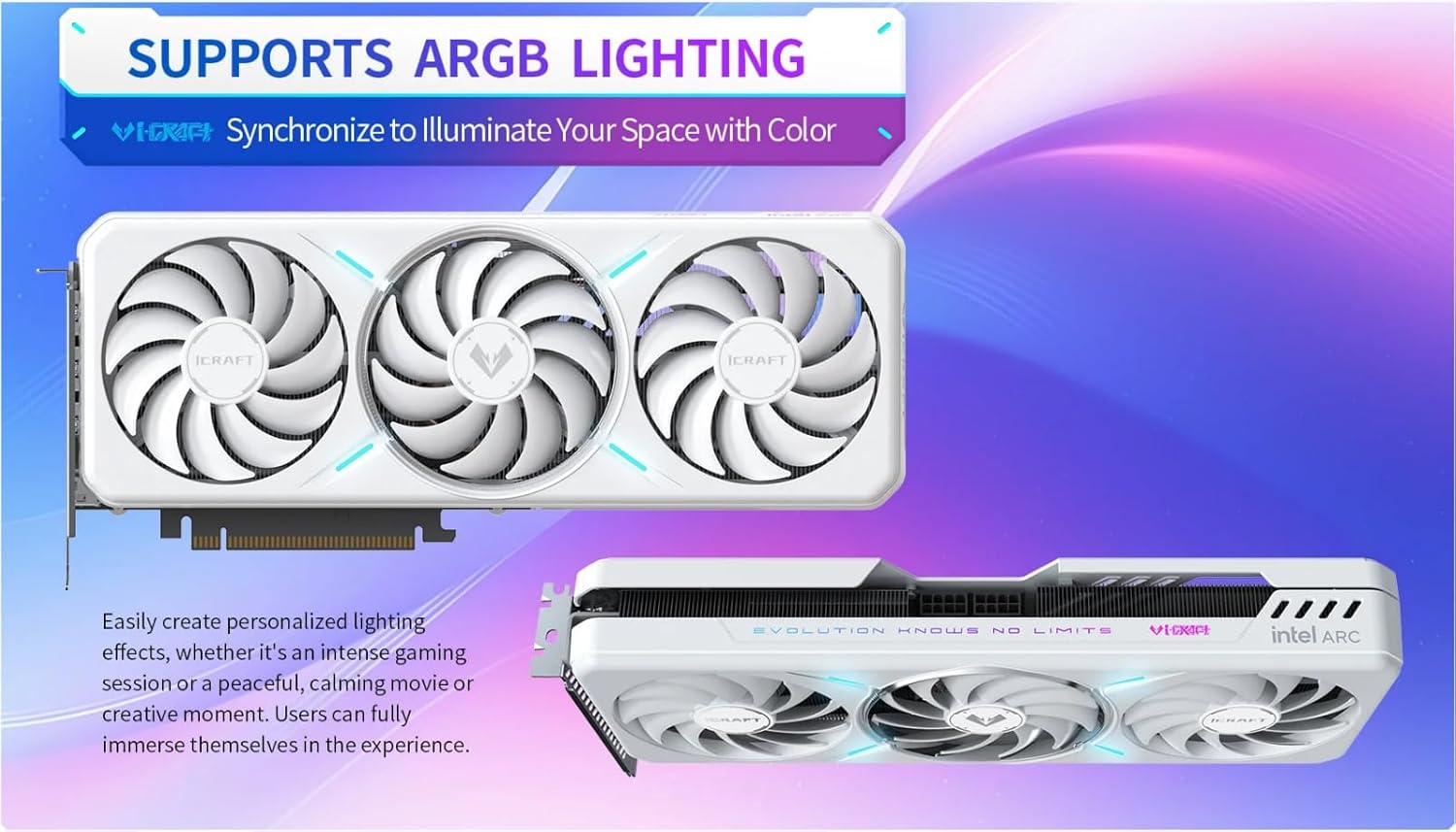
Image: The graphics card illuminated with customizable ARGB lighting effects.
- Daylight Glow Coating: The ceramic-like coating provides a smooth texture and contributes to the card's aesthetic design.

Image: Close-up of the graphics card showcasing its smooth, ceramic-like Daylight Twinkling coating.
Maintenance
1. Cleaning
Regular cleaning helps maintain optimal performance and extends the lifespan of your graphics card.
- Power off and unplug your computer before cleaning.
- Use compressed air to gently remove dust from the fans, heatsink fins, and other components. Hold the fans to prevent them from spinning rapidly during cleaning.
- Wipe the exterior of the card with a soft, dry, anti-static cloth.
2. Fan Care
The triple-fan cooling system is crucial for heat dissipation. Ensure fans are free from obstructions.
- Periodically check the fans for any signs of damage or excessive noise.
- The card features Fan Stop Technology for reduced noise during low-load operation.

Image: Exploded diagram illustrating the ICE EDGE Reversible Flow Cooling System, including heat pipes, cooling module, triple-fan design, and high-strength iCraft backplate.
Troubleshooting
Common Issues and Solutions
- No Display Output:
- Ensure the graphics card is fully seated in the PCIe slot.
- Verify all power connectors (8+8 Pin) are securely attached.
- Check that the display cable is firmly connected to both the graphics card and the monitor.
- Test with a different display cable or monitor if possible.
- Driver Installation Issues:
- Download the latest drivers directly from the official Intel website.
- Uninstall any previous graphics drivers using a clean uninstallation utility before installing new ones.
- Poor Performance in Games/Applications:
- Ensure you have the latest graphics drivers installed.
- Check your system's cooling. Overheating can lead to performance throttling.
- Verify that your power supply is sufficient for the graphics card.
- Close unnecessary background applications.
- Excessive Fan Noise:
- Clean dust from the fans and heatsink.
- Ensure no cables are obstructing the fan blades.
- Monitor GPU temperatures. High temperatures can cause fans to spin faster.
Specifications
Detailed technical specifications for the WEELIAO MAXSUN Intel Arc B580 12G iCraft White Graphics Card:

Image: Visual representation of key specifications for the MAXSUN Intel Arc B580 iCraft 12G graphics card.
| Feature | Specification |
|---|---|
| Graphics Coprocessor | Intel Arc B580 |
| Brand | WEELIAO |
| Graphics RAM Size | 12 GB |
| GPU Clock Speed | 2850 MHz |
| Video Output Interface | DisplayPort, HDMI |
| Graphics RAM Type | GDDR6 |
| Compatible Devices | Computer |
| Display Resolution Maximum | 7680x4320 |
| Graphics Card Interface | PCI-Express x8 |
| Memory Clock Speed | 19000 MHz |
| Number of Fans | 3 |
| Video Processor | Intel |
| Model Name | B580 |
| Manufacturer | MAXSUN |
Warranty Information
This product is covered by a manufacturer's warranty. Please refer to the warranty card included with your purchase or visit the official WEELIAO/MAXSUN website for detailed warranty terms and conditions. Keep your proof of purchase for warranty claims.
Support Information
For technical assistance, driver downloads, or further inquiries, please visit the official WEELIAO or MAXSUN support websites. You may also contact their customer service directly for personalized support.
Official WEELIAO Store: WEELIAO Store on Amazon