1. Introduction
Welcome to the Thunderobot Radiant 16 Gaming Laptop user manual. This guide provides essential information for setting up, operating, maintaining, and troubleshooting your new high-performance gaming laptop. Designed for immersive gaming and demanding creative tasks, the Radiant 16 combines cutting-edge hardware with a sleek, futuristic design.

Figure 1.1: Thunderobot Radiant 16 Gaming Laptop. This image displays the laptop from a front-top angle, showcasing its RGB backlit keyboard and the 16-inch display with minimal bezels.
Key Features:
- Powerful Performance: Equipped with a 14th Gen Intel Core i9-14900HX processor and NVIDIA GeForce RTX 5070 Ti graphics for exceptional gaming and multitasking.
- Immersive Display: Features a 16-inch QHD+ (2560x1600) 2.5K display with a 300Hz refresh rate for ultra-smooth visuals.
- High-Speed Memory & Storage: Comes with 64GB DDR5 RAM and a 2TB PCIe M.2 SSD for rapid loading times and ample storage.
- Advanced Cooling System: Incorporates Wind-Driven Thermal Mastery with ultra-thin copper fins and dual turbofans for efficient heat dissipation.
- Comprehensive Connectivity: Multiple USB Type-A and Type-C ports, HDMI, RJ-45, and Wi-Fi 6 for versatile connections.
- Customizable RGB Keyboard: Full-size RGB backlit keyboard with an independent numeric keypad for enhanced gaming and typing experience.
2. Initial Setup
2.1 Unboxing and First Boot
- Carefully remove the laptop and all accessories from the packaging.
- Connect the AC power adapter to the laptop's power input port and then to a power outlet.
- Open the laptop lid and press the power button, typically located on the keyboard deck.
- Follow the on-screen instructions to complete the initial Windows 11 Home setup, including language, region, network connection, and user account creation.
2.2 Connecting Peripherals (Ports and Slots)
The Thunderobot Radiant 16 offers a variety of ports for connecting external devices such as monitors, keyboards, mice, and storage drives.

Figure 2.1: Laptop Ports and Slots. This image illustrates the various input/output ports available on the Thunderobot Radiant 16, including USB Type-A, USB Type-C, HDMI, RJ45, and audio jacks.
- USB 3.1 Gen1 Type-A: Connect standard USB devices like mice, keyboards, and external drives.
- USB 3.1 Gen2 Type-C: A versatile port for data transfer, display output, and power delivery.
- HDMI 2.1: Connect to external displays or TVs for high-resolution video output.
- RJ-45 (Ethernet): For wired network connections.
- Audio Port: For headphones or external speakers.
3. Operating Your Laptop
3.1 Display Settings
The 16-inch QHD+ display offers a 300Hz refresh rate and 2.5K resolution for crisp, fluid visuals. You can adjust display settings through Windows Display Settings (Right-click on desktop > Display settings) to optimize resolution, refresh rate, and color profiles.

Figure 3.1: Next-Gen 16" IPS Esports Display. This graphic highlights the display's key specifications, including 300Hz refresh rate, 2560x1600 resolution, 100% sRGB color gamut, and 500 nits brightness.
3.2 Keyboard and Input
The laptop features a full-score RGB backlit keyboard with an independent numeric keypad. Use the function (Fn) keys in combination with other keys to control backlight settings, volume, screen brightness, and more.
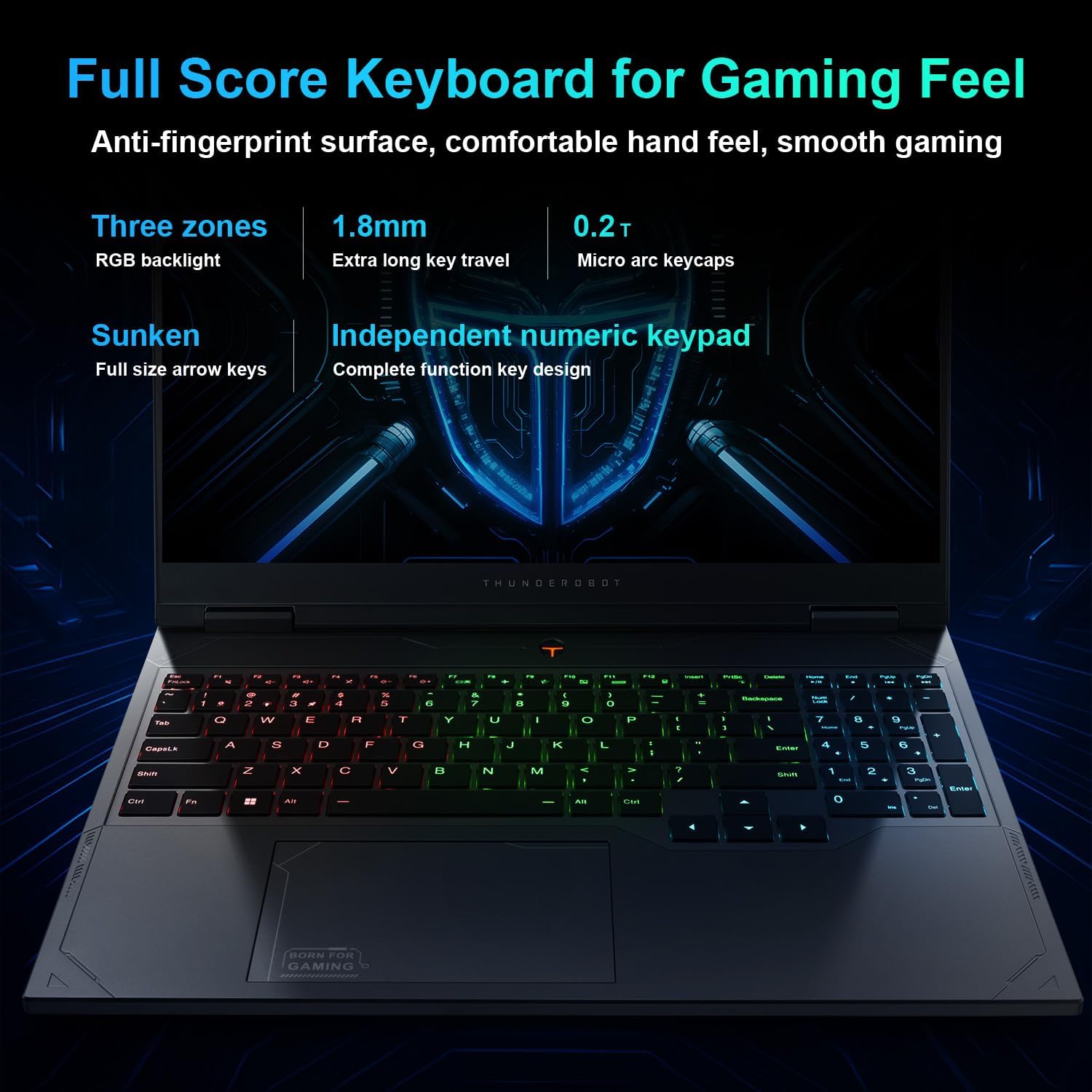
Figure 3.2: Full Score Keyboard for Gaming Feel. This image showcases the laptop's RGB backlit keyboard, emphasizing its three lighting zones, 1.8mm key travel, and independent numeric keypad.
3.3 Performance Modes (Control Center)
The Thunderobot Control Center software allows you to switch between various performance modes to optimize your laptop for different tasks. These modes typically include:

Figure 3.3: Control Center Interface. This screenshot displays the Thunderobot Control Center application, showing options for adjusting performance modes, fan speed, and lighting settings.
- Berserk Mode: Maximizes CPU and GPU performance for demanding games and applications.
- Game Mode: Balances performance and thermal management for a smooth gaming experience.
- Audio and Video Office Mode: Optimizes for productivity tasks, focusing on battery life and quiet operation.
- Fan Adjustment: Manual control over fan speeds for customized cooling.
Note: System mode switching in Control Center requires the device to be connected to a power source.
3.4 Audio System
Experience immersive sound with the integrated audio system, powered by Nahimic. This technology provides rich bass and crystal-clear highs, enhancing your gaming and multimedia experience.

Figure 3.4: Hi-Res Audio. Instant Impact. This image highlights the laptop's audio capabilities, featuring Nahimic sound effects for immersive gaming and movie soundscapes.
4. Maintenance and Care
4.1 Cooling System Maintenance
The Radiant 16 features an advanced cooling system to maintain optimal performance. Regular maintenance helps ensure its longevity and efficiency.

Figure 4.1: Wind-Driven Thermal Mastery. This image illustrates the laptop's cooling components, including Glacier Six Copper Tubes, 3D heat pipes, and Night Owl Quick Cooling Fans, designed for efficient heat dissipation.
- Keep Vents Clear: Ensure that the air intake and exhaust vents are not obstructed. Avoid placing the laptop on soft surfaces like beds or carpets that can block airflow.
- Regular Cleaning: Periodically use compressed air to clear dust from the cooling vents. Do not insert any objects into the vents.
- One-Click Forced Cooling: Utilize the Control Center's one-click forced cooling function during intense usage to rapidly lower temperatures.
4.2 General Care
- Cleaning the Screen: Use a soft, lint-free cloth specifically designed for electronics. Dampen it slightly with water or a screen cleaner, and gently wipe the screen.
- Cleaning the Chassis: Use a soft, damp cloth to wipe down the exterior. Avoid harsh chemicals or abrasive materials.
- Battery Care: For optimal battery life, avoid consistently draining the battery to 0% or keeping it at 100% for extended periods. Store the laptop in a cool, dry place if not used for a long time.
5. Troubleshooting Common Issues
This section provides solutions to common problems you might encounter with your Thunderobot Radiant 16 laptop.
| Problem | Possible Cause | Solution |
|---|---|---|
| Laptop does not power on. | No power, faulty adapter, or battery issue. | Ensure AC adapter is securely connected and power outlet is working. Try a different outlet. If battery is low, allow it to charge for a few minutes before attempting to power on. |
| Screen is blank or flickering. | Display driver issue, incorrect resolution, or hardware problem. | Restart the laptop. Update graphics drivers. Check display cable if using an external monitor. Adjust display settings in Windows. |
| Poor performance or overheating. | Excessive background processes, dust in vents, or incorrect power mode. | Close unnecessary applications. Clean cooling vents. Switch to a higher performance mode in Control Center. Ensure laptop is on a hard, flat surface. |
| Keyboard or touchpad not responding. | Driver issue, disabled via function key, or hardware fault. | Restart the laptop. Check if touchpad is disabled via Fn key. Update keyboard/touchpad drivers in Device Manager. |
| Wi-Fi connection issues. | Router problem, incorrect Wi-Fi settings, or driver issue. | Restart your router and laptop. Forget and reconnect to the Wi-Fi network. Update Wi-Fi drivers. |
6. Technical Specifications
Below are the detailed technical specifications for the Thunderobot Radiant 16 Gaming Laptop (Model: Radiant 16).
| Feature | Specification |
|---|---|
| Standing Screen Display Size | 16 Inches |
| Screen Resolution | 2560 x 1600 pixels (QHD+) |
| Max Screen Resolution | 2560x1600 Pixels |
| Processor | Intel Core i9-14900HX (5.4 GHz base, up to 5.8 GHz max turbo) |
| RAM | 64 GB DDR5 (4800 MHz) |
| Hard Drive | 2 TB SSD (PCIe x 4) |
| Graphics Coprocessor | GeForce RTX 5070 Ti (Dedicated) |
| Wireless Type | 802.11ax (Wi-Fi 6) |
| Number of USB 3.0 Ports | 4 (3 x USB 3.1 Gen1 Type-A, 1 x USB 3.1 Gen2 Type-C) |
| Operating System | Windows 11 Home |
| Item Weight | 12 pounds |
| Product Dimensions | 14.09 x 10 x 0.82 inches |
| Color | Gray |
| Special Feature | Numeric Keypad, RGB Backlit Keyboard |
7. Warranty and Support
Every Thunderobot laptop includes a 12-month warranty, offering expert support, thorough diagnostics, and genuine parts if a repair is needed. We also provide a 90-day warranty on all warranty replacement parts, ensuring hassle-free repairs. Your complete satisfaction is our commitment.

Figure 7.1: Warranty and Service Information. This graphic outlines the warranty terms provided by Thunderobot for their laptops, including the duration and coverage details.
For technical support, warranty claims, or service inquiries, please visit the official Thunderobot support website or contact their customer service. Keep your purchase receipt and product serial number handy for faster assistance.
Additional protection plans may be available for purchase, offering extended coverage beyond the standard warranty. Please refer to your retailer for details on available protection plans.