
1. Introduction
The Tianfucen BKM400 Wireless Headphones are designed to provide a high-quality audio experience for TV watching. Featuring dual 40mm drivers, these headphones deliver clear dialogue and balanced bass, ensuring an immersive listening experience without disturbing others. With a robust 150ft (50m) range and ultra-low latency technology (<40ms), you can enjoy perfect lip-sync audio and freedom of movement throughout your home. The headphones are built for comfort with memory protein leather earmuffs and an adjustable headband, suitable for extended use. They offer broad compatibility with various TV audio outputs and boast up to 40 hours of battery life on a single charge.

Figure 1: Tianfucen BKM400 Wireless Headphones and USB Transmitter.
2. What's in the Box
The package includes the following components:
- Tianfucen BKM400 Wireless Headphones
- USB Transmitter
- Type-C Cable for Charging
- 3.5mm Audio Cable
- Optical Cable
- RCA (Red/White) Cable
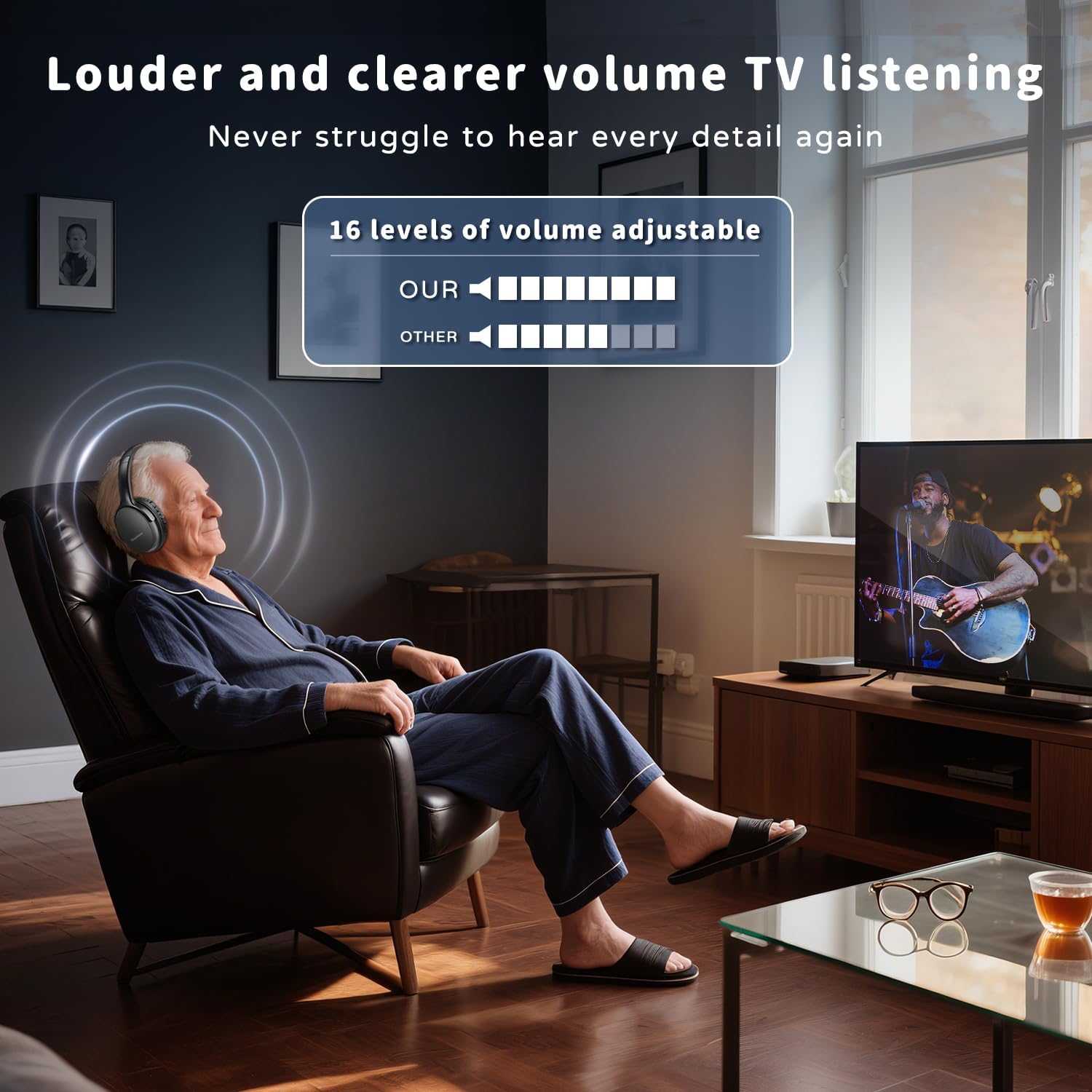
Figure 2: Package contents including headphones, USB transmitter, and various connection cables.
3. Product Overview
3.1. Audio Quality and Low Latency
The BKM400 headphones feature dual 40mm dynamic drivers and a bass digital enhancement unit for rich, clear sound. The ultra-low latency technology (<40ms) ensures audio and video are perfectly synchronized, eliminating lip-sync delay during TV watching.

Figure 3: Internal components for enhanced audio quality.
3.2. Extended Range and Mobility
With a wireless range of up to 150ft (50m), these headphones allow you to move freely around your home without losing audio connection. This ensures uninterrupted listening even when you step away from the TV.

Figure 4: Enjoy TV audio with extended range and low latency.
3.3. Comfort and Durability
The headphones are designed for comfort during long listening sessions, featuring soft memory protein leather earmuffs and an adjustable headband. The robust construction ensures durability.

Figure 5: Design features for comfort and durability.
3.4. Battery Life
The BKM400 headphones provide up to 40 hours of continuous playtime on a single charge, allowing for extended use without frequent recharging.

Figure 6: Up to 40 hours of battery life.
4. Setup Instructions
The Tianfucen BKM400 headphones support multiple audio output options for broad TV compatibility. Please identify the available audio output ports on your TV before proceeding.
4.1. USB Connection Setup
This connection method is applicable if your TV's USB port supports audio output.
- Connect the USB Transmitter to TV: Plug the USB transmitter directly into your TV's USB audio output port.
- Turn On and Pair: Long press the power button on the headphones for 3 seconds to turn them on. When a slow breathing blue light is on the headphone, the pairing is successful.
- Set Audio Output: If there is no sound, adjust your TV's audio output setting to "USB" or try another connection method.
Video 1: USB Connection Setup Guide. This video demonstrates how to connect the USB transmitter to a TV's USB audio output port and pair the headphones.

Figure 7: USB Connection Diagram.
4.2. RCA (Red/White) Connection Setup
Use this method if your TV has RCA audio output ports (typically red and white).
- Connect RCA Cable: Plug the RCA cable into the corresponding red and white RCA AUDIO OUT ports on your TV.
- Connect to Transmitter: Connect the other end of the RCA cable to the 3.5mm AUX port on the USB transmitter using the provided 3.5mm to RCA adapter.
- Power the Transmitter: Insert the USB transmitter directly into your TV's USB port for power, or use an external USB power supply (not included).
- Turn On and Pair: Long press the power button on the headphones for 3 seconds to turn them on. When a slow breathing blue light is on the headphone and a slow breathing green light is on the transmitter, the pairing is successful.
- Set Audio Output: If there is no sound, adjust your TV's audio output setting to "Headset" or "External speaker".
Video 2: RCA (Red/White) Connection Setup Guide. This video illustrates connecting the headphones via RCA cables to a TV.

Figure 8: RCA Connection Diagram.
4.3. 3.5mm AUX Connection Setup
Use this method if your TV has a 3.5mm headphone jack.
- Connect 3.5mm AUX Cable: Plug the 3.5mm AUX cable into your TV's 3.5mm audio output port (headphone jack).
- Connect to Transmitter: Connect the other end of the 3.5mm AUX cable into the transmitter's 3.5mm AUX port.
- Power the Transmitter: Insert the USB transmitter directly into your TV's USB port for power, or use an external USB power supply (not included).
- Turn On and Pair: Long press the power button on the headphones for 3 seconds to turn them on. When a slow breathing blue light is on the headphone and a slow breathing green light is on the transmitter, the pairing is successful.
- Set Audio Output: If there is no sound, adjust your TV's audio output setting to "Headset" or "External speaker".
Video 3: 3.5mm Connection Setup Guide. This video shows how to connect the headphones using a 3.5mm AUX cable.

Figure 9: 3.5mm AUX Connection Diagram.
4.4. Optical Connection Setup
Use this method if your TV has a Digital Optical/SPDIF Audio Out port.
- Connect Optical Cable: Plug the optical cable into the Digital Optical/SPDIF Audio Out port on your TV.
- Connect to Transmitter: Connect the other end of the optical cable into the transmitter's optical port.
- Power the Transmitter: Insert the USB transmitter directly into your TV's USB port for power, or use an external USB power supply (not included).
- Turn On and Pair: Long press the power button on the headphones for 3 seconds to turn them on. When a slow breathing blue light is on the headphone and a slow breathing white light is on the transmitter, the pairing is successful.
- Set Audio Output: If there is no sound, ensure your TV's audio format is set to "PCM" and "DOLBY/DTS" is set to "OFF".
Video 4: Optical Connection Setup Guide. This video demonstrates connecting the headphones via an optical cable to a TV.

Figure 10: Optical Connection Diagram.
5. Operating Instructions
5.1. Power On/Off
To power on the headphones, long press the power button for 3 seconds. To power off, long press the power button again.
5.2. Automatic Reconnection
Once initially paired, the headphones and transmitter will automatically seek each other out and reconnect when powered on, eliminating the need for re-pairing.

Figure 11: Automatic reconnection for seamless viewing.
5.3. Volume Control
The headphones feature integrated volume controls, allowing you to adjust the audio level directly from the headset without needing to access TV controls.
Figure 12: Volume control on headphones.
6. Maintenance
6.1. Charging
Recharge the headphones using the provided Type-C USB cable. A full charge takes approximately 4 hours and provides up to 40 hours of playtime at medium volume.
6.2. Cleaning and Storage
Wipe the headphones with a soft, dry cloth. Avoid using harsh chemicals. Store in a cool, dry place away from direct sunlight and extreme temperatures.
7. Troubleshooting
7.1. No Sound from Headphones
- Check Connection: Ensure the transmitter is correctly plugged into the TV's audio output port and receiving power.
- Verify Pairing: Confirm that both the headphones and transmitter are powered on and successfully paired (indicated by breathing blue/green or blue/white lights). If not paired, turn off the headphone and turn it back on to re-initiate pairing.
- TV Audio Settings: Access your TV's audio settings.
- For 3.5mm/USB connections: Set TV audio output to "Headset" or "External speaker".
- For Optical/RCA connections: Set TV audio output to "PCM" and ensure "DOLBY/DTS" is set to "OFF".
Video 5: How to set PCM audio format on an Insignia TV. This video provides a guide for adjusting TV audio settings to PCM.
7.2. TV and Headphones Have Sound Simultaneously
If both your TV speakers and headphones are producing sound, this typically occurs with Optical/RCA connections. To resolve this, adjust your TV's audio settings to output sound only through the selected external device (headphones).
7.3. Static Noise
If you experience static noise, try removing the transmitter from the TV's USB port and connecting it to an external power adapter (not included). Also, ensure "DOLBY/DTS" is set to "OFF" in your TV's audio settings.
8. Specifications
| Feature | Specification |
|---|---|
| Model Name | BKM400 |
| Connectivity Technology | Wireless |
| Wireless Communication Technology | Bluetooth 5.0 |
| Included Components | Headphones, USB Transmitter, Type-C Charging Cable, 3.5mm Audio Cable, Optical Cable, RCA Cable |
| Material | Fabric, Leather, Synthetic Materials |
| Specific Uses For Product | Home Theater |
| Compatible Devices | Television |
| Item Weight | 0.47 Kilograms (1.04 pounds) |
| Earpiece Shape | Over Ear |
| Color | Black |
9. Support
If you encounter any problems during use or have suggestions for improvement, please contact our support team. We aim to reply within 10 hours.
Contact Information:
- Email: tianfucen@outlook.com