Introduction
This manual provides essential information for the proper setup, operation, maintenance, and troubleshooting of your Samsung 32" EMDX Series Color E-Paper QHD Smart Signage. The EMDX series features ultra-light and ultra-thin displays designed for various business environments. It offers low power consumption and advanced color imaging for paper-like visibility.
For optimal performance and longevity of your device, please read these instructions thoroughly before use and retain this manual for future reference.
What's in the Box
Carefully unpack the box and ensure all the following items are present:
- Power Cable
- Battery
- Holder Rear (2)
- Hanging Bracket (2)
- Warranty/Quick Start Guide (QSG)
Note: Other accessories required for installation, beyond the included rear holders and hanging brackets, must be purchased separately.
Setup
1. Physical Placement and Mounting
The EMDX series features an ultra-light and ultra-thin design, allowing for flexible placement in various indoor spaces. The display has a depth of 0.7 inches (17.9mm).

Image: Display dimensions, illustrating the ultra-thin profile.
For mounting, utilize the included rear holders and hanging brackets. Ensure the mounting surface is suitable to support the display's weight (approximately 5.5 pounds).

Image: Rear view of the display, highlighting mounting points.
2. Power and Connectivity
The display is equipped with an embedded battery for mobile use and USB Type-C compatibility for charging and data transfer.
- Charging: Connect the provided power cable to the USB Type-C port on the display and a power source.
- Data Transfer: Use a USB Type-C cable to connect the display to a compatible device for content transfer.
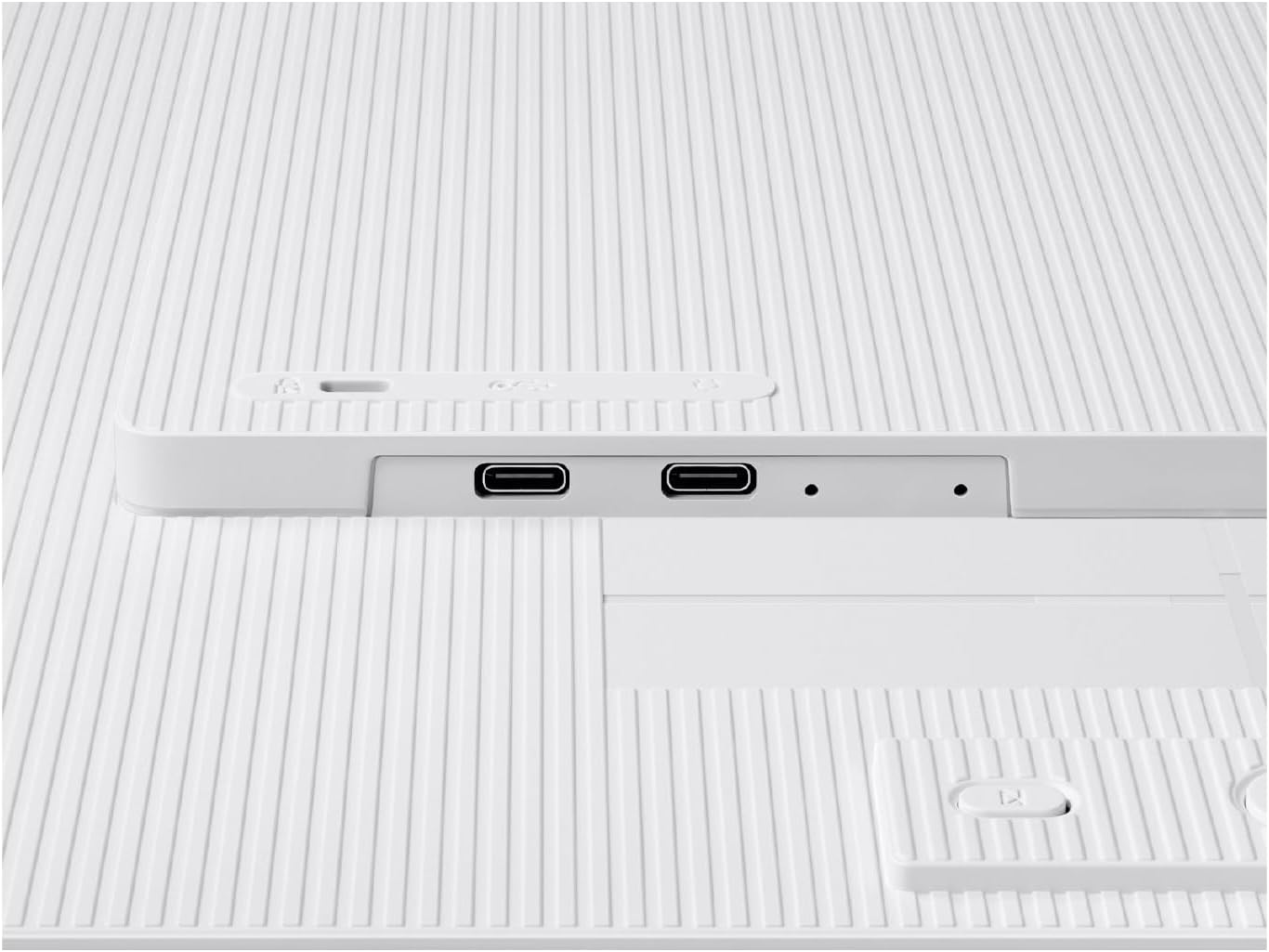
Image: USB Type-C ports on the display for power and data.
3. Initial Device Pairing (Samsung E-Paper App)
To control the EMDX series locally, download the dedicated Samsung E-Paper App on your Android (10 or later) or iOS (15 or later) mobile device. The app facilitates device pairing, settings configuration, content creation, and quick updates.
- Download the Samsung E-Paper App from your device's respective app store.
- Follow the in-app instructions to pair your mobile device with the EMDX display via Bluetooth or Wi-Fi.

Image: Samsung E-Paper App interface for content control.
Operating Instructions
1. Content Management via Samsung E-Paper App
Once paired, use the Samsung E-Paper App to:
- Create and upload new content to the display.
- Update existing content.
- Adjust display settings.
2. Remote Management with Samsung VXT
For integrated content and remote device management capabilities, Samsung VXT (purchased separately) is available. This cloud-based platform allows you to manage hardware settings, troubleshoot issues, and deploy content remotely.
- Access Samsung VXT via vxt.samsung.com or download the app from your app store.
- Follow the VXT platform's instructions for device integration and content deployment.

Image: Samsung VXT platform for remote content and device management.
3. Display Technology
The EMDX series utilizes an advanced color imaging algorithm to optimize content for paper-like visibility. This technology reduces contouring, provides smooth gradation, and enhances colors, making it suitable for replacing traditional printouts.

Image: Comparison of display quality with and without color imaging algorithm.
4. Energy Efficiency
The display is designed for low energy consumption, allowing it to maintain an image for up to 199 days on a full charge when in Network Standby Off Mode.
Video: Overview of the Samsung EMDX Series display, showcasing its features and applications. (Duration: 0:29)
Maintenance
1. Cleaning the Display
To clean the display surface, gently wipe it with a soft, lint-free cloth. For stubborn marks, slightly dampen the cloth with water or a non-abrasive screen cleaner. Avoid using harsh chemicals, alcohol, or abrasive materials, as these can damage the screen.
2. Battery Care
The embedded Lithium Ion battery provides extended operation. To maximize battery life:
- Avoid extreme temperatures.
- Charge the device regularly, but avoid leaving it fully discharged for extended periods.
- When storing the device for a long time, ensure the battery is partially charged (around 50%).
Troubleshooting
If you encounter issues with your Samsung EMDX Series display, refer to the following common problems and solutions:
| Problem | Possible Cause | Solution |
|---|---|---|
| Display does not power on. | Low or depleted battery; power cable not connected. | Connect the power cable to a working outlet and allow the battery to charge. Ensure the power button is pressed. |
| Cannot connect to Wi-Fi or Hotspot via app. | Incorrect network settings; app malfunction; device not in pairing mode. | Verify Wi-Fi credentials. Restart the Samsung E-Paper App and the display. Ensure the display is discoverable for pairing. Check your mobile device's network connection. |
| App freezes or crashes. | App software issue; outdated app version; mobile device compatibility. | Close and restart the app. Update the app to the latest version. Ensure your mobile device meets the minimum OS requirements (Android 10+, iOS 15+). |
| Display is in sleep mode and cannot be woken up. | Communication issue with app; power button not responding. | Ensure the app is properly connected. Press and hold the power button on the display for a few seconds to force a restart if necessary. |
| Image quality appears pixelated or dark. | Content resolution is low; display settings; inherent e-ink characteristics. | Ensure the content being displayed is of high resolution. Adjust brightness/contrast settings via the app. Understand that e-paper technology has different visual characteristics compared to LCD/OLED. |
If the problem persists after attempting these solutions, please contact Samsung customer support for further assistance.
Specifications
| Feature | Detail |
|---|---|
| Brand | Samsung |
| Model Number | LH32EMDIBGBXZA |
| Screen Size | 32 Inches |
| Resolution | 2560 x 1440 (QHD) |
| Aspect Ratio | 16:9 |
| Screen Surface Description | Flat |
| Product Dimensions (L x W x H) | 0.7 x 28.5 x 16.6 inches |
| Item Weight | 5.5 pounds |
| Batteries | 1 Lithium Ion battery required (embedded) |
| Connectivity | USB Type-C |
| App Compatibility | Samsung E-Paper App (Android 10+, iOS 15+) |
| Management Platform | Samsung VXT (cloud-based, purchased separately) |
Warranty and Support
For detailed warranty information, please refer to the Warranty/Quick Start Guide included in your product packaging. You can also visit the official Samsung website or contact Samsung customer support for assistance with product registration, technical support, and service inquiries.
Samsung Official Website: www.samsung.com
Samsung Store: Visit the Samsung Store on Amazon


