
Biegedy B22
Biegedy B22 Android 15 Tablet User Manual
Model: B22 | Brand: Biegedy
Introduction
Welcome to the user manual for your new Biegedy B22 Android 15 Tablet. This guide provides essential information to help you set up, operate, and maintain your device. Please read this manual thoroughly to ensure optimal performance and longevity of your tablet.
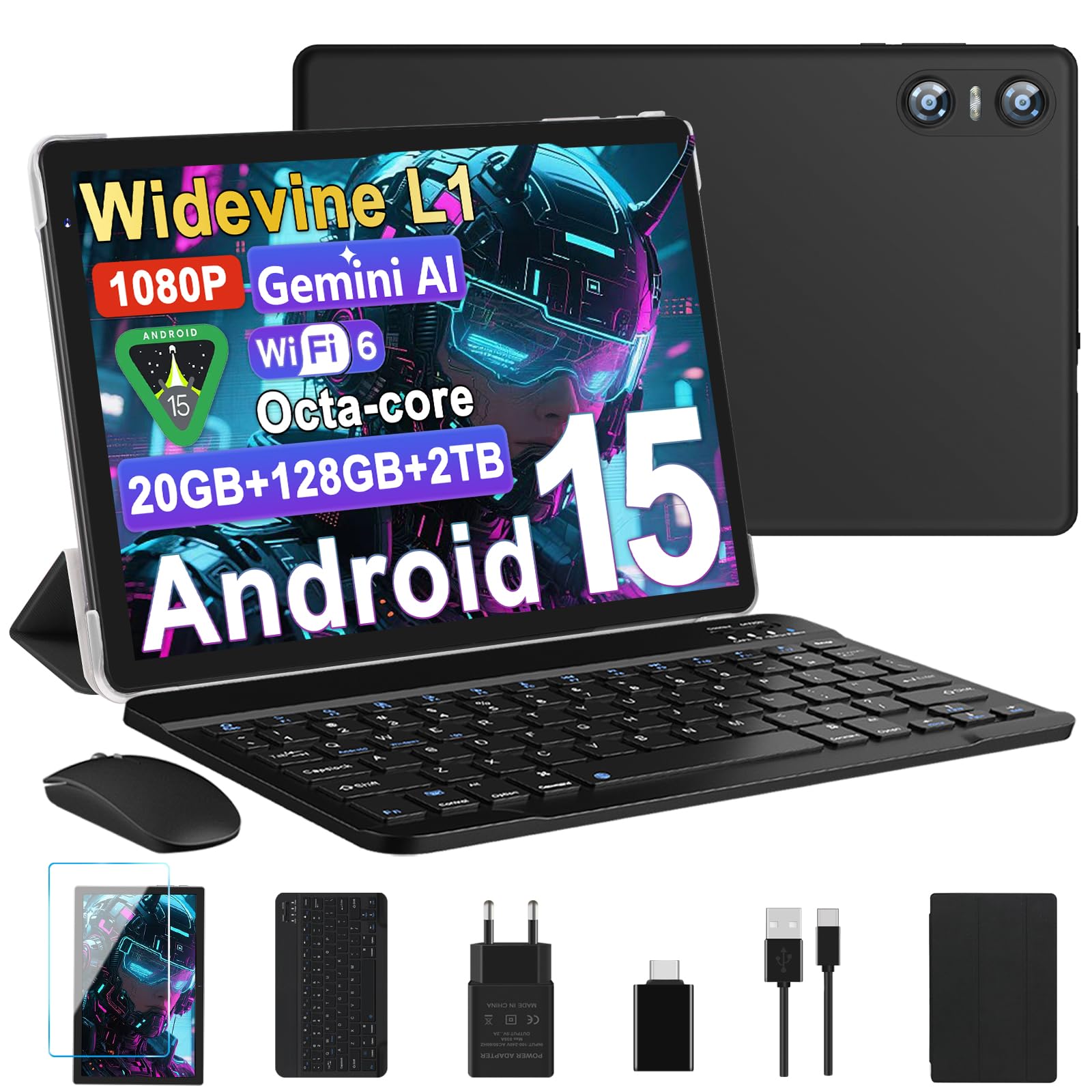
Image: The Biegedy B22 Android 15 Tablet, showcasing its sleek design and display.
Package Contents
Ensure all items are present in the package before proceeding with setup:
- Biegedy B22 Android 15 Tablet
- Keyboard
- Mouse
- Protective Case
- Screen Protector (one pre-applied, one spare)
- USB Type-C Charging Cable
- Power Adapter
- USB to Type-C Adapter
- User Manual (this document)
Device Overview
Familiarize yourself with the physical components and ports of your tablet.

Image: Diagram illustrating the various ports and buttons on the Biegedy B22 Tablet.
- Reset Button: Used to restart the device if it becomes unresponsive.
- Power On/Off Button: Press and hold to power on/off or restart. Short press to wake/sleep the screen.
- Volume + Button: Increases the volume.
- Volume - Button: Decreases the volume.
- USB Type-C Interface: For charging and data transfer.
- AUX 3.5 mm Jack: For connecting headphones.
- 5.0MP Camera: Front-facing camera for video calls and selfies.
- Dual Speakers: Provides stereo audio output.
- 8.0MP Camera: Rear-facing camera for photos and videos.
- Indicator Lights: Status indicators for charging or notifications.
Setup
1. Initial Charging
Before first use, fully charge your tablet. Connect the USB Type-C cable to the tablet's Type-C port and the power adapter, then plug the adapter into a wall outlet. The indicator light will show charging status.

Image: The tablet connected to a charger, displaying the 6000mAh battery and charging status.
2. Power On/Off
- To Power On: Press and hold the Power On/Off button (2) until the screen lights up.
- To Power Off: Press and hold the Power On/Off button (2), then select "Power Off" from the on-screen options.
- To Restart: Press and hold the Power On/Off button (2), then select "Restart" from the on-screen options.
- To Force Restart: If the tablet is unresponsive, use a thin pin to press the Reset button (1).
3. Wi-Fi Connection
To connect to a Wi-Fi network:
- Go to Settings > Network & internet > Wi-Fi.
- Toggle Wi-Fi On.
- Select your desired network from the list.
- Enter the password if prompted and tap Connect.
The tablet supports advanced Wi-Fi 6 technology, compatible with both 2.4GHz and 5GHz bands for faster and more stable network speeds.
4. Bluetooth Pairing
To pair Bluetooth devices like the included keyboard and mouse:
- Go to Settings > Connected devices > Bluetooth.
- Toggle Bluetooth On.
- Ensure your Bluetooth device is in pairing mode.
- Select the device from the "Available devices" list and follow any on-screen prompts to complete pairing.
The tablet features Bluetooth 5.0 for faster and more stable data transmission.
Operating Instructions
1. Android 15 Operating System
Your tablet runs on the latest Android 15 operating system, offering an intelligent and secure user experience. It includes enhanced privacy protection, device safety controls, and full compatibility with mainstream applications.

Image: Overview of Android 15 features, including privacy protection, device safety, and GMS certification.
- Privacy Protection: Integrated mechanisms to protect your personal data.
- Device Safety and Control: Enhanced security features for a safer experience.
- GMS Certification: Ensures compatibility with Google services and millions of applications.
2. Display and Visuals
The 10.1-inch IPS HD display features a resolution of 1280x800 pixels. It supports eye protection mode to reduce blue light exposure. With Widevine L1 support, you can enjoy high-definition video content from popular streaming platforms.

Image: Visual representation of the tablet's 10.1-inch display with 1280x800 resolution and Widevine L1 support.
3. Cameras
The tablet is equipped with a 5MP front camera and an 8MP rear camera. These cameras are suitable for video calls, capturing photos, and recording videos.

Image: Depiction of the tablet's front and rear cameras, highlighting facial recognition capabilities.
4. Storage and Performance
The B22 tablet features 20GB of RAM (6GB physical + 14GB virtual) and 128GB of internal storage. Storage can be expanded up to 2TB using a Micro SD card (not included). The high-performance octa-core 2.0 GHz processor ensures smooth multitasking and application performance.

Image: Visuals illustrating the tablet's 20GB RAM, 128GB ROM, and 2TB Micro SD card expansion capability.
5. Facial Unlock and GPS
The tablet supports facial recognition for convenient and secure unlocking. Integrated GPS provides precise and reliable positioning for navigation and travel.
6. OTG Data Transfer and Split Screen
The tablet supports OTG (On-The-Go) data transfer, allowing connection to external peripherals like USB drives and keyboards. The split-screen function enables efficient multitasking, allowing you to run two applications simultaneously.
Maintenance
- Battery Care: To prolong battery life, avoid extreme temperatures. Do not let the battery fully discharge frequently. Use the provided charger for optimal charging.
- Cleaning: Use a soft, lint-free cloth to clean the screen and body of the tablet. Avoid using harsh chemicals or abrasive materials.
- Software Updates: Regularly check for and install system updates to ensure optimal performance and security. Go to Settings > System > System update.
- Storage Management: Periodically clear unnecessary files and applications to maintain performance.
Troubleshooting
| Problem | Possible Solution |
|---|---|
| Tablet does not power on. | Ensure the tablet is charged. Connect it to the charger for at least 30 minutes. If still unresponsive, press the Reset button (1) with a thin pin. |
| Wi-Fi connection issues. | Check if Wi-Fi is enabled in Settings. Restart your router. Forget the network and reconnect. Ensure you are within range of the Wi-Fi signal. |
| Bluetooth device not pairing. | Ensure Bluetooth is enabled on both the tablet and the device. Put the Bluetooth device in pairing mode. Restart both devices and try again. |
| Slow performance or apps crashing. | Close unused applications. Clear cache for problematic apps (Settings > Apps > [App Name] > Storage & cache > Clear cache). Restart the tablet. Consider a factory reset if issues persist (backup data first). |
| Keyboard layout mismatch (e.g., QWERTY vs AZERTY). | Go to Settings > System > Languages & input > Physical keyboard. Select your connected keyboard and choose the correct layout (e.g., French AZERTY). |
Specifications
| Feature | Detail |
|---|---|
| Brand | Biegedy |
| Model Number | B22 |
| Operating System | Android 15 |
| Processor | Octa-Core, 2 GHz |
| RAM | 20 GB (6GB physical + 14GB virtual) |
| Internal Storage | 128 GB |
| Expandable Storage | Up to 2 TB via Micro SD card |
| Screen Size | 10.1 Inches |
| Screen Resolution | 1280 x 800 pixels (IPS HD) |
| Front Camera | 5 MP |
| Rear Camera | 8 MP |
| Battery Capacity | 6000 mAh |
| Connectivity | Wi-Fi 6 (2.4GHz/5GHz), Bluetooth 5.0 |
| Charging Port | USB Type-C |
| Audio Jack | 3.5 mm AUX |
| Special Features | Widevine L1, Facial Unlock, GPS, OTG Support, Split Screen |
Warranty and Support
Biegedy is committed to providing quality products and customer service.
- Warranty: Your Biegedy B22 Tablet comes with a 24-month warranty from the date of purchase. This warranty covers manufacturing defects.
- Returns: You may be eligible for a refund or replacement within 30 days of purchase, subject to the retailer's return policy.
- Customer Support: For any technical assistance or inquiries, please contact our customer service. Support is available 24/7. Refer to your purchase documentation for specific contact details.

Image: Summary of warranty and support services.
Ask a question about this manual
Ask about setup, troubleshooting, compatibility, parts, safety, or missing instructions. Manuals+ will review the question and use this page’s manual context to help answer it.