
HITIME M75
HITIME XVX M75 75% Wireless Gaming Mechanical Keyboard User Manual
Model: M75
1. Introduction
This manual provides detailed instructions for the setup, operation, and maintenance of your HITIME XVX M75 75% Wireless Gaming Mechanical Keyboard. Please read this manual thoroughly before using the product to ensure optimal performance and longevity.

Image 1: The HITIME XVX M75 75% Wireless Gaming Mechanical Keyboard, showcasing its compact layout and RGB lighting.
2. Package Contents
Verify that all items are present in the package:
- M75 Tri-Mode Mechanical Keyboard x 1
- User Manual x 1
- Extra Keycaps x 20
- Ice Creamy Switches x 2
- 2-in-1 Keycap and Switch Puller x 1
- USB Cable x 1

Image 2: Visual representation of the items included in the M75 keyboard package.
3. Product Overview
The M75 is a 75% compact mechanical keyboard featuring 80 keys and a multi-function knob. It is designed for versatility and a premium typing experience.
Key Features:
- 75% Layout: Compact design with 80 keys, including number keys, function keys, and arrow keys.
- Tri-Mode Connectivity: Supports Bluetooth (BT5.0), 2.4GHz wireless, and USB-C wired connections.
- Hot-Swappable Sockets: Compatible with most 3-pin or 5-pin mechanical switches.
- Gasket Mount Structure: Features 4-layer padding for noise cancellation and a unique typing feel.
- 8000mAh Battery: High-capacity battery for extended wireless usage.
- RGB Backlighting: Over 16.8 million customizable RGB colors and dynamic effects.
- Multi-function Knob: Adjusts volume, RGB brightness, and switches between gaming/office modes.
- Ergonomic Design: Two-stage adjustable keyboard feet for comfortable typing.

Image 3: Overview of the M75 keyboard highlighting its main features.

Image 4: Diagram illustrating the 75% compact layout of the M75 keyboard.

Image 5: Cross-section view demonstrating the gasket mount structure and sound damping layers.

Image 6: Illustration of the ergonomic design and two-stage adjustable feet for comfortable typing.
4. Setup
4.1. Connectivity Modes
The M75 keyboard supports three connection modes: 2.4GHz wireless, Bluetooth, and USB-C wired. The mode switch is located on the side of the keyboard.

Image 7: Visual guide to the tri-mode connection options for the M75 keyboard.
2.4GHz Wireless Connection:
- Locate the 2.4G USB receiver, usually stored in a compartment on the keyboard.
- Plug the receiver into an available USB port on your computer.
- Switch the keyboard to 2.4G mode (refer to the keyboard's side switch).
- The keyboard should connect automatically.
Bluetooth Connection:
- Switch the keyboard to Bluetooth mode (refer to the keyboard's side switch).
- On your device (PC, laptop, tablet, phone, PS5, Xbox, Switch), enable Bluetooth and search for new devices.
- Select "XVX M75" from the list of available devices to pair.
- The keyboard supports up to three Bluetooth devices. Use Fn + 1/2/3 to switch between paired devices.
USB-C Wired Connection:
- Connect the provided USB-C cable to the keyboard's USB-C port.
- Connect the other end of the cable to a USB port on your computer.
- The keyboard will automatically switch to wired mode and begin charging.

Image 8: The M75 keyboard demonstrating its stable tri-mode connection capabilities.
4.2. Operating System Mode Switching
To optimize compatibility with different operating systems:
- For Windows: Press Fn + W (WIN Mode)
- For macOS: Press Fn + A (MAC Mode)

Image 9: Instructions for easily pairing and switching between Windows and Mac modes.
5. Operating Instructions
5.1. Multi-function Knob
The knob on the top right of the keyboard serves multiple purposes:
- Long Press: Switches between Multimedia Mode (default) and RGB Mode.
- In Multimedia Mode:
- Rotate clockwise for Volume Up.
- Rotate counter-clockwise for Volume Down.
- Short press to Mute/Unmute volume.
- In RGB Mode:
- Rotate clockwise for Brightness Up.
- Rotate counter-clockwise for Brightness Down.
- Short press to change the RGB effect.
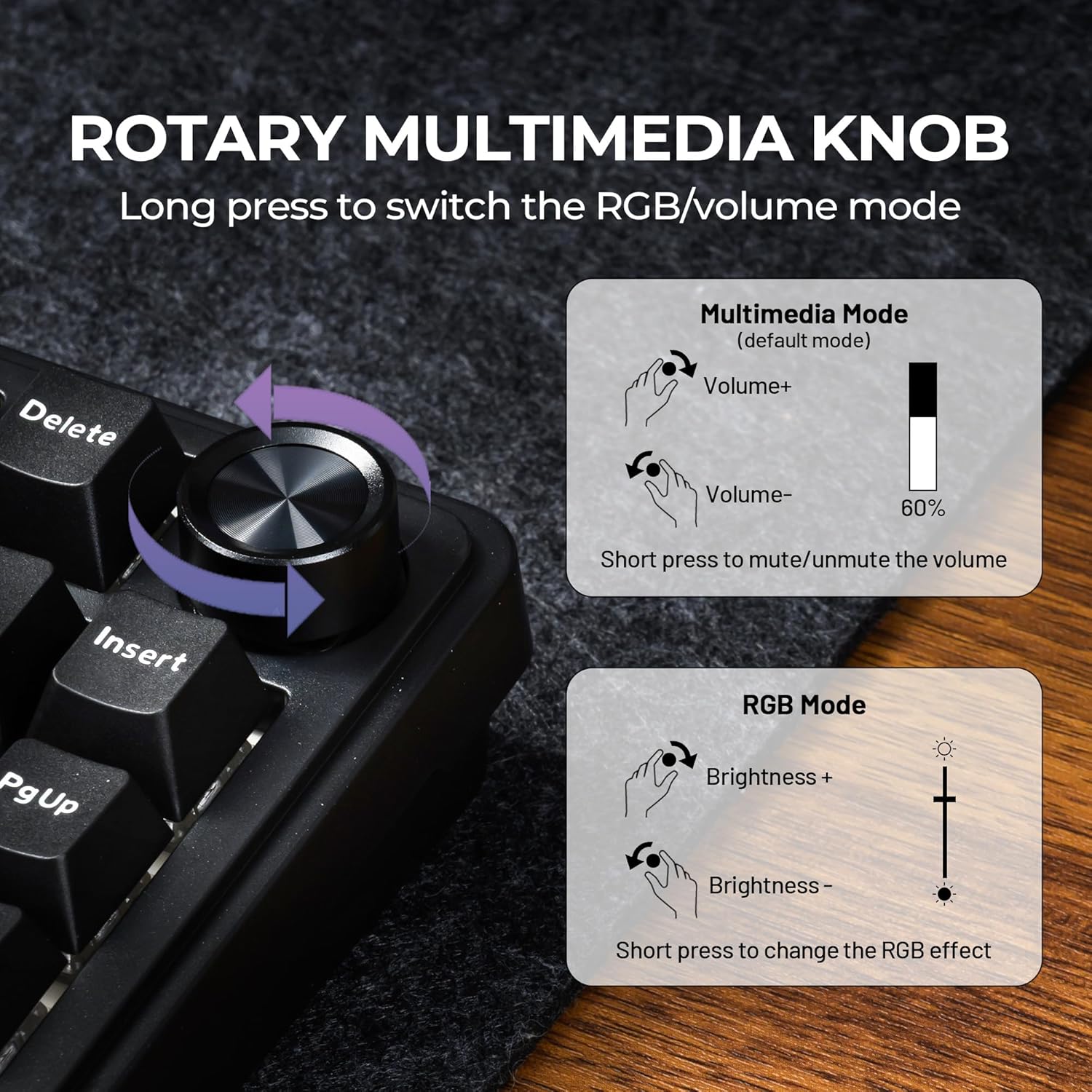
Image 10: Detailed functions of the rotary multimedia knob.
5.2. RGB Backlight Control
The M75 features 16.8 million RGB colors and multiple dynamic effects. Control the backlighting using the knob or shortcut keys:
- Fn + Left/Right Arrow: Adjust backlight speed.
- Fn + Up/Down Arrow: Adjust backlight brightness.
- Fn + INS: Switch backlight mode.
- Fn + DEL: Switch backlight color.
- Fn + Backspace: Turn backlight on/off.
- Fn + CTRL: Switch left and right side lights.

Image 11: Shortcut keys for controlling the RGB backlighting and side lights.
5.3. Battery Level Check
To check the current battery level, press Fn + Alt. The number keys (1-0) will light up to indicate the charge percentage.
- 55H: Backlit-ON Working Time
- 365H: Backlit-OFF Normal Use

Image 12: Instructions for checking the keyboard's battery level.
6. Customization
6.1. Hot-Swappable Switches
The M75 keyboard features hot-swappable sockets, allowing you to easily change mechanical switches without soldering. It supports most 3-pin or 5-pin mechanical switches.
- Use the provided 2-in-1 keycap puller to carefully remove the keycap.
- Use the switch puller to gently extract the switch from its socket.
- Align the pins of the new switch with the holes in the socket and press firmly until it clicks into place.
- Replace the keycap.

Image 13: Illustration of the hot-swappable switch feature.

Image 14: Details on the included Ice Creamy switches, including travel and operating force.

Image 15: Information about the double shot PBT keycaps and additional themed keycaps.
6.2. Custom Software
The M75 keyboard supports custom software for advanced personalization. This software allows you to:
- Redefine key mappings.
- Create and assign macros.
- Customize RGB backlight effects and colors.
Please visit the official HITIME website to download the latest version of the custom driver software.

Image 16: Screenshot of the driver customization software interface.
7. Maintenance
To maintain your keyboard's performance and appearance:
- Cleaning: Use a soft, dry cloth to wipe the keyboard surface. For deeper cleaning, remove keycaps and use compressed air to clear debris. Avoid harsh chemicals.
- Storage: Store the keyboard in a cool, dry place away from direct sunlight and extreme temperatures.
- Battery Care: For optimal battery life, avoid fully discharging the keyboard frequently. Charge it when the battery indicator is low.
8. Troubleshooting
Common Issues and Solutions:
- Keyboard not responding:
- Ensure the keyboard is charged.
- Check the connection mode (2.4G, Bluetooth, or wired) and ensure it matches your device.
- For wireless modes, ensure the receiver is properly plugged in or Bluetooth is paired.
- Try connecting via USB-C cable to rule out wireless issues.
- RGB lights not working/incorrect:
- Ensure the backlight is turned on (Fn + Backspace).
- Adjust brightness using Fn + Up/Down Arrow or the knob in RGB mode.
- Cycle through modes/colors using Fn + INS/DEL or the knob.
- Check if custom software settings are overriding onboard controls.
- Keys not registering:
- Ensure the switch is properly seated in its socket. Remove the keycap and switch, then reinsert.
- If using custom switches, ensure they are compatible (3-pin or 5-pin).
- Clean any debris around the switch.
- Bluetooth connection unstable:
- Ensure the keyboard is within range of your device.
- Remove and re-pair the keyboard in your device's Bluetooth settings.
- Ensure no other devices are causing interference.
9. Specifications
| Brand | HITIME |
| Model | M75 |
| Connectivity Technology | 2.4G, Bluetooth, USB-C |
| Keyboard Description | Gaming |
| Special Feature | Bluetooth/Type-C/2.4GHz Wireless, Hot-Swappable |
| Compatible Devices | PC, Laptop, Xbox, PS4, PS5 |
| Battery | 8000mAh Lithium Polymer (included) |
| Item Weight | 2.64 pounds |
| Package Dimensions | 14.29 x 7.24 x 2.05 inches |
10. Warranty and Support
For warranty information and technical support, please refer to the warranty card included in your package or visit the official HITIME website. Our customer service team is available to assist you with any questions or issues you may encounter.
11. Product Video
Video 1: An official product video from HITIME Shop showcasing the features and functionality of the XVX M75 75% Wireless Gaming Mechanical Keyboard.
Related Documents - M75
 |
MCHOSE K99 96% Wireless Gaming Keyboard User Manual User manual for the MCHOSE K99 96% Wireless Gaming Keyboard, detailing its features, connectivity options (2.4GHz, Bluetooth 5.0, USB-C), gasket mount design, hot-swappable switches, and battery specifications. Includes setup instructions and troubleshooting tips. |
 |
RK ROYAL KLUDGE M75 Wireless Mechanical Keyboard: User Manual & Specifications Comprehensive user manual and technical specifications for the RK ROYAL KLUDGE M75 Wireless Mechanical Keyboard. Learn about its 75% layout, 81 keys, gasket mount, OLED display, RGB backlighting, and connectivity options (2.4Ghz, Bluetooth 5.1, USB-C). |
 |
EPOMAKER RT100 Keyboard User Guide and Features A comprehensive guide to setting up and using the EPOMAKER RT100 mechanical keyboard, including instructions on driver installation, language settings, display customization, time synchronization, CPU monitoring, temperature display, and firmware updates. |
 |
EPOMAKER RT100 Mechanical Keyboard User Guide and Features Comprehensive guide to setting up and using the EPOMAKER RT100 mechanical keyboard, including driver installation, firmware updates, syncing time, CPU, and temperature, and customizing the mini display. |
 |
EPOMAKER GALAXY 100 Mechanical Keyboard Quick Start Guide Get started with your EPOMAKER GALAXY 100 1800-layout mechanical keyboard. This guide covers setup, Bluetooth/2.4Ghz/wired connectivity, QMK/VIA customization, RGB lighting, switch replacement, and technical specifications. |
 |
Ajazz AK870 PLUS Wireless Mechanical Keyboard User Manual Comprehensive user manual for the Ajazz AK870 PLUS wireless mechanical gaming keyboard, covering features, specifications, setup, operation, and troubleshooting. |
Ask a question about this manual
Ask about setup, troubleshooting, compatibility, parts, safety, or missing instructions. Manuals+ will review the question and use this page’s manual context to help answer it.