
XH202
Generic 1080P Triple Dash Cam User Manual
Model: XH202
Welcome
Thank you for choosing the Generic 1080P Triple Dash Cam. This device is designed to provide comprehensive video surveillance for your vehicle, featuring front, rear, and cabin recording capabilities. Equipped with a 4.0-inch IPS screen, G-Sensor for emergency recording, loop recording, night vision, and motion detection, it serves as a reliable witness on the road. This manual will guide you through the setup, operation, and maintenance of your new dash cam.
Product Overview
The Generic 1080P Triple Dash Cam integrates three cameras to capture a wide field of view around and within your vehicle. Its compact design ensures minimal obstruction to your driving view, while the intuitive interface allows for easy navigation and settings adjustment.

Generic 1080P Triple Dash Cam showing its main unit and key feature icons, including motion detection, view angle, three cameras, G-Sensor, loop recording, and 3-inch IPS screen.
Setup Guide
Package Contents
- 1 x Generic 1080P Triple Dash Cam
- 1 x Cable Clip
- 1 x Car Charger
- 1 x Suction Mount
- 1 x User Manual (this document)
Installation
- Prepare the Memory Card: Insert a Class 10 or higher Micro SD card (up to 64GB, not included) into the dash cam's memory card slot. Ensure the card is formatted before first use (refer to the Maintenance section).
- Mount the Dash Cam: Attach the suction mount to a clean, dry area on your windshield, preferably behind the rearview mirror to avoid obstructing your view. Secure the dash cam to the mount.
- Connect Power: Plug the car charger into your vehicle's cigarette lighter socket and connect the other end to the dash cam's power input. Route the cable neatly along the windshield edge using the provided cable clip.
- Adjust Camera Angle: Power on the dash cam and adjust the lens angles (front, rear, and cabin) to ensure optimal coverage.

The main unit of the Generic 1080P Triple Dash Cam with its 4.0-inch IPS screen displaying a road scene, illustrating its compact design for windshield mounting.
Operating Instructions
Basic Operation
- Power On/Off: The dash cam will automatically power on and begin recording when your vehicle's ignition is turned on. It will power off automatically when the ignition is turned off. You can also manually power it on/off using the power button.
- Screen Navigation: Use the buttons located on the side or bottom of the device to navigate through menus and settings on the 4.0-inch IPS screen.
Recording Modes and Features
Loop Recording
The dash cam continuously records video in short segments (e.g., 1, 3, or 5 minutes). When the memory card is full, the oldest unlocked footage will be automatically overwritten by new recordings. This ensures continuous recording without manual intervention.

Diagram illustrating the loop recording function of the dash cam, showing how older footage is automatically overwritten by new recordings to ensure continuous operation.
G-Sensor (Emergency Recording)
The built-in G-Sensor detects sudden impacts or collisions. When triggered, it automatically locks the current video segment, preventing it from being overwritten by loop recording. These locked files are stored in a separate folder on the memory card.

Diagram explaining the G-Sensor function, showing how collision events are detected and the corresponding video footage is locked to prevent overwriting.
Motion Detection
When enabled, the dash cam will automatically begin recording if it detects motion in front of the vehicle while parked. This feature is useful for monitoring your vehicle when it's unattended. Ensure the dash cam is powered (e.g., via a hardwire kit for 24/7 monitoring) for this feature to function.
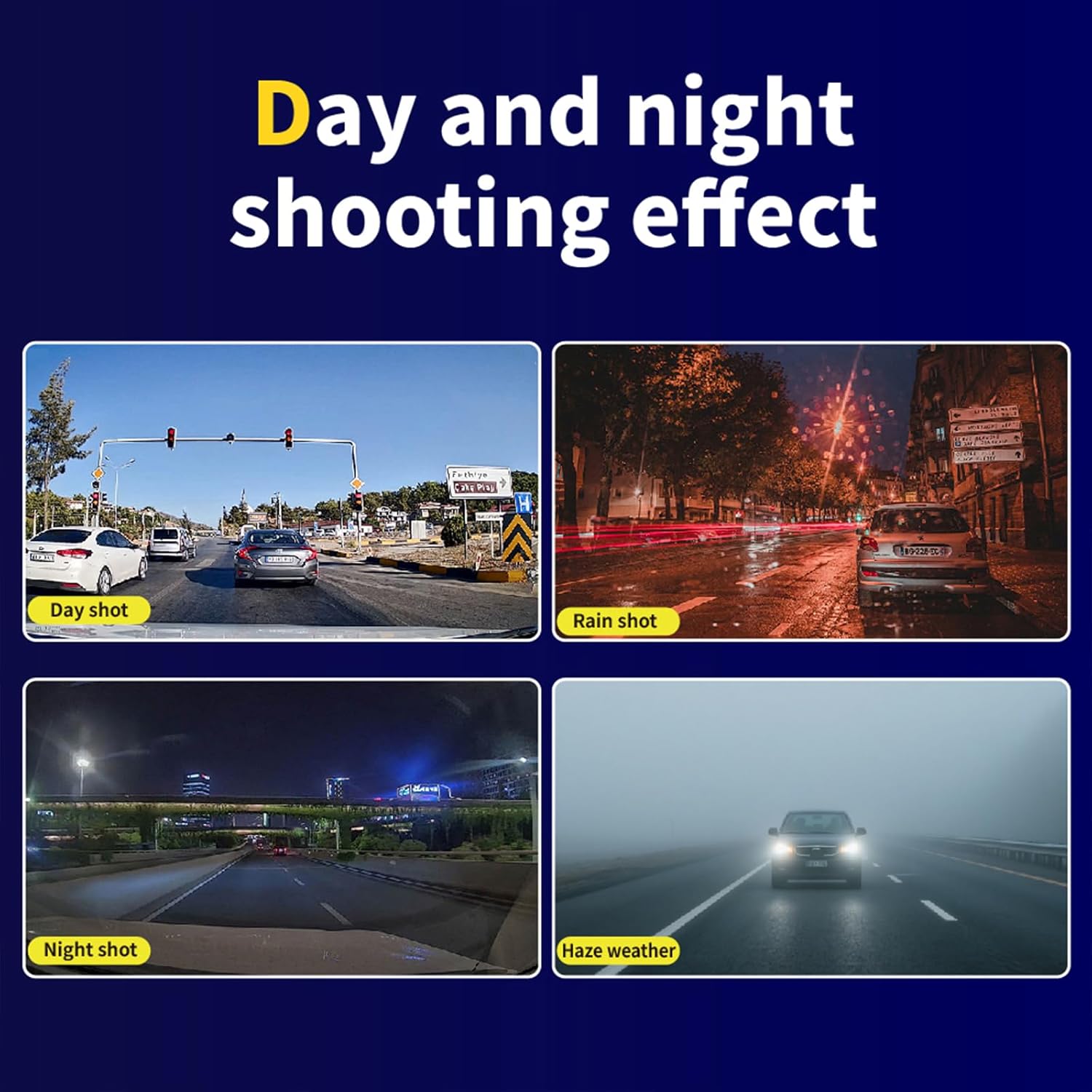
Image demonstrating the motion detection feature, where the dash cam automatically begins recording when an object moves towards the vehicle in a parking environment.
Triple Lens Coverage
The dash cam features three lenses: one for the front road view, one for the rear view (typically an external camera), and one for the cabin interior. This provides comprehensive 360-degree coverage, eliminating blind spots and capturing all critical angles.

Overhead diagram illustrating the wide angle of view provided by the triple lens dash cam, capable of covering multiple lanes for enhanced safety.
Night Vision
Equipped with advanced sensors, the dash cam provides clear video recording even in low-light conditions, ensuring critical details are captured during nighttime driving or in dimly lit environments.

Comparison images demonstrating the dash cam's effective shooting performance in various lighting conditions, including day, rain, night, and haze.
Maintenance
- Cleaning: Regularly clean the camera lenses and the IPS screen with a soft, lint-free cloth. Avoid using abrasive cleaners that could scratch the surfaces.
- Memory Card Formatting: It is recommended to format the Micro SD card once a month to ensure optimal performance and prevent data corruption. This can usually be done through the dash cam's settings menu. Formatting will erase all data on the card, so back up any important files first.
- Temperature Considerations: The dash cam is designed to withstand a range of temperatures. However, prolonged exposure to extreme heat or cold can affect its lifespan. If the vehicle is parked in extreme conditions, consider removing the dash cam or parking in a shaded area.
Troubleshooting
- Dash Cam Not Powering On:
- Check the power connection to the car charger and the vehicle's cigarette lighter socket.
- Ensure the vehicle's ignition is on.
- Try a different power source or car charger if available. - Recording Stops or Freezes:
- Ensure you are using a Class 10 or higher Micro SD card.
- Format the memory card (back up data first).
- The memory card may be full; enable loop recording or replace the card.
- The card may be faulty; try a new one. - Video Footage is Blurry/Unclear:
- Clean the camera lenses.
- Ensure the protective film has been removed from the lenses.
- Check if the dash cam is securely mounted and not vibrating. - G-Sensor Too Sensitive/Not Sensitive Enough:
- Adjust the G-Sensor sensitivity setting in the dash cam's menu. - Motion Detection Not Working:
- Ensure the motion detection feature is enabled in the settings.
- Confirm the dash cam is receiving continuous power (e.g., via a hardwire kit) when the vehicle is off.
Technical Specifications
| Feature | Specification |
|---|---|
| Model Number | XH202 |
| Video Capture Resolution | 1080p |
| Display Screen | 4.0" IPS Screen |
| Camera Configuration | Triple Lens (Front, Rear, Cabin) |
| Special Features | Loop Recording, G-Sensor, Night Vision, Motion Detection, Reverse Assist |
| Connectivity Technology | USB |
| Supported Memory Card | Micro SD, Max 64GB (Class 10 or higher) |
| Product Dimensions | 8 x 3 x 4.5 inches |
| Mounting Type | Windshield Mount |
Warranty and Support
Specific warranty details for this product are not provided in this manual. For warranty claims, technical support, or any product-related inquiries, please contact the retailer or manufacturer directly. Retain your purchase receipt as proof of purchase.
Related Documents - XH202
 |
Zenfox T3 3-Channel Dash Cam User Manual: Setup, Operation & Features Comprehensive user manual for the Zenfox T3 3-channel dash cam. Learn about installation, operation, system settings, GPS, Wi-Fi, and app connectivity for your 2K front, 1080P interior, and 1080P rear recording device. Includes setup guides and customer support information. |
 |
WOLFBOX G900 Tripro Mirror Dash Cam User Manual User manual for the WOLFBOX G900 Tripro Mirror Dash Cam, detailing features, installation, and troubleshooting. This dash cam offers 4K front, 2.5K rear, and 1080P cabin recording with advanced features like voice control and Wi-Fi connectivity. |
 |
Installation Guide for Triple Lens Dash Cam System Detailed installation instructions and tips for a Triple Lens Front Interior Rear Dash Cam, covering main unit placement, rear camera wiring, and power connections. |
 |
WOLFBOX G900 Tripro Mirror Dash Cam User Manual User manual for the WOLFBOX G900 Tripro Mirror Dash Cam, detailing features, installation, operation, and troubleshooting for this 4K front, 2.5K rear, and 1080P bumper camera system. |
 |
REDTIGER F7N 4K Dash Cam User Manual User manual for the REDTIGER F7N 4K Dash Cam, detailing installation, features, operation, and troubleshooting for enhanced road safety and recording. |
 |
LOTUS Dash Cam User Manual: Specifications, Installation, and Features Comprehensive user manual for the LOTUS Dash Cam. This guide covers product specifications, installation instructions for front and rear cameras, detailed feature explanations including G-sensor, loop recording, motion detection, and parking monitoring, along with a Q&A and FAQ section. |
Ask a question about this manual
Ask about setup, troubleshooting, compatibility, parts, safety, or missing instructions. Manuals+ will review the question and use this page’s manual context to help answer it.