1. Introduction
Thank you for purchasing the Acogedor Wireless Bluetooth Remote Control. This remote is designed to provide convenient and reliable control for various action cameras and smartphones, enhancing your photography and videography experience. Its lightweight design, long battery life, and versatile compatibility make it an ideal accessory for adventurers and content creators.

Figure 1: Acogedor Wireless Bluetooth Remote Control with various action cameras and smartphones.
2. Package Contents
Please check the package for the following items:
- Acogedor Wireless Bluetooth Remote Control
- USB-C Charging Cable
- Wrist Strap
- Mounting Strap
- 1/4-inch Screw Mount
- User Guide (with QR code for online resources)

Figure 2: Package Contents. For online documents and videos, scan the QR code or visit http://www.yoctop.com/ysg07_en.
3. Product Overview
The remote control features a compact design with three main buttons for easy operation.

Figure 3: Close-up of the Remote Control.
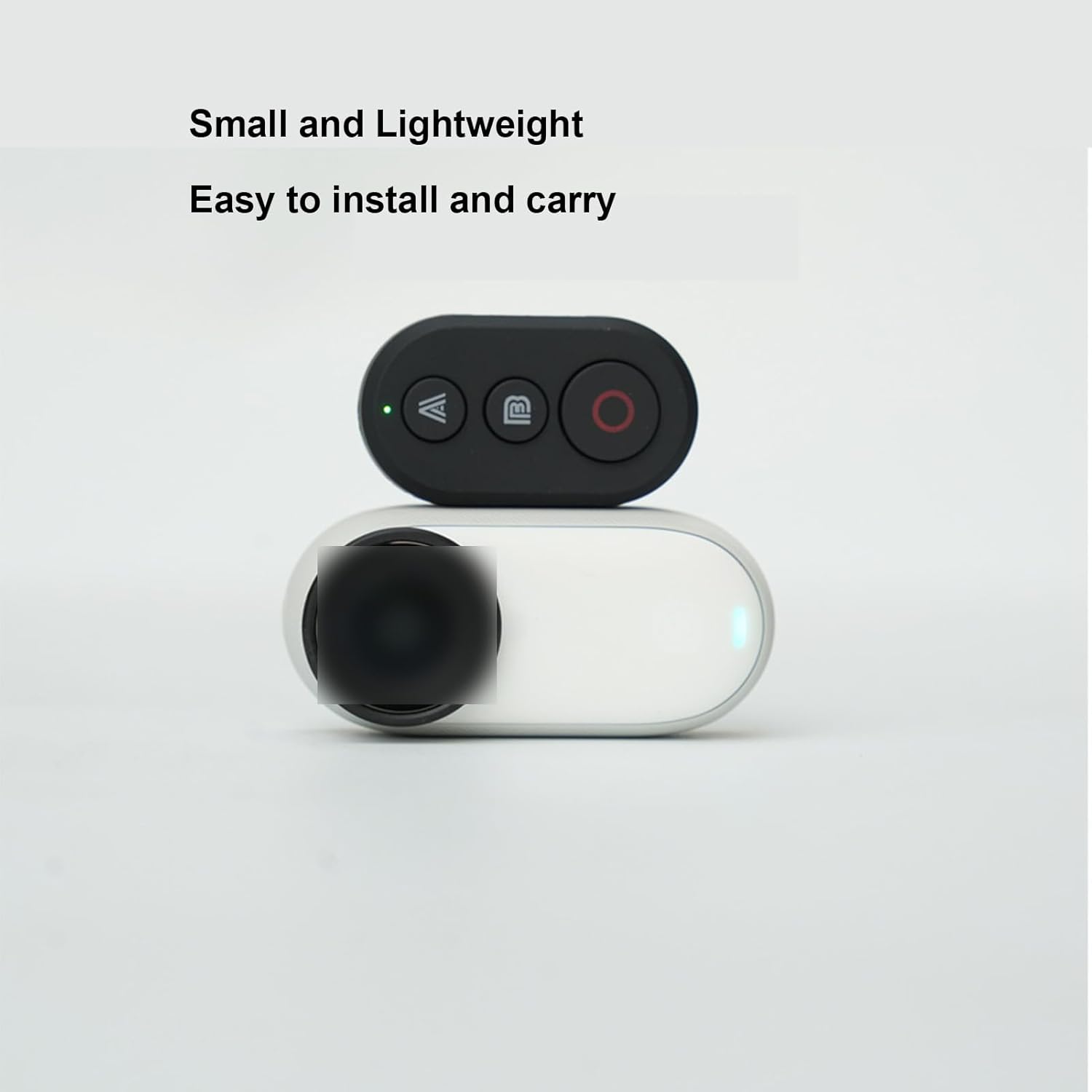
Figure 4: Small and Lightweight Design.
Key Features:
- Lightweight and Portable: Ultra-light design for easy carrying and attachment.
- Long Battery Life: Built-in rechargeable battery provides up to 8 hours of continuous operation.
- Wide Compatibility: Compatible with GoPro Hero 8-13 series, Insta360 X2, X3, X4, X5, GO3, Ace Pro/Ace Pro 2, and smartphones (Android/iOS).
- Easy Operation: Remotely trigger photo and video recording.
- Versatile Mounting: Includes wrist strap, mounting strap, and 1/4-inch screw mount for flexible attachment.

Figure 5: Compatible Devices.
4. Setup
4.1 Charging the Remote Control
Before first use, fully charge the remote control using the provided USB-C cable.
- Connect the USB-C cable to the remote control's charging port.
- Connect the other end of the cable to a USB power source (e.g., computer, wall adapter).
- The indicator light will show charging status. A full charge provides up to 8 hours of use.

Figure 6: Charging the Remote Control via Type-C USB port.
4.2 Pairing with Action Camera / Smartphone
Follow these steps to pair your remote control with your device:
- Ensure the remote control is charged.
- Turn on your action camera or enable Bluetooth on your smartphone.
- On the remote, press and hold the main power button (usually the red circle) until the indicator light flashes, indicating pairing mode.
- On your camera/smartphone, go to Bluetooth settings and search for available devices.
- Select "Acogedor Remote" or a similar name from the list to connect.
- Once connected, the indicator light on the remote will become solid.
Note: For specific pairing instructions for your action camera model (GoPro, Insta360), please refer to your camera's user manual or the online resources provided via the QR code.
5. Operating Instructions
The remote control features three buttons: 'A', 'B', and the main 'Shooting' button (red circle).
5.1 General Button Functions
- Shooting Button (Red Circle): Press to capture a photo or start/stop video recording.
- Button 'A': Wakes up the camera without initiating shooting.
- Button 'B': Wakes up the camera and immediately starts shooting.

Figure 7: Remote Control Wake-up and Shooting Functions.
5.2 Camera Specific Functions (GoPro & Insta360)
When paired with GoPro or Insta360 cameras, the 'A' and 'B' buttons also serve mode switching functions:
- Button 'A': Sub-mode switching (e.g., changing between photo modes, video resolutions).
- Button 'B': Main mode switching or marking (e.g., switching between photo and video modes, adding highlight tags).
- Shooting Button (Red Circle): Initiates photo capture or starts/stops video recording.

Figure 8: Button Functions for GoPro and Insta360 Cameras.
5.3 Controlling Mobile Phones
When paired with a smartphone, the remote can control camera functions:

Figure 9: Remote Control for Mobile Phone Photography.
- Shooting Button (Red Circle): Triggers photo capture or starts/stops video recording.
- Button 'A': Typically functions as "Zoom In" or similar.
- Button 'B': Typically functions as "Zoom Out" (Shrink) or similar.
Note: Specific button functions for mobile phones may vary depending on the camera app used. Some apps may not support all remote functions.
5.4 Mounting Options
Utilize the included accessories for flexible mounting:
- Wrist Strap: Attach the remote to your wrist for easy access during activities.
- Mounting Strap: Secure the remote to handlebars, poles, or other equipment.
- 1/4-inch Screw Mount: Use this mount to attach the remote to tripods, grips, or other accessories with a 1/4-inch screw.
6. Maintenance
- Keep the remote control dry. Do not expose it to moisture or liquids.
- Clean the remote with a soft, dry cloth. Avoid using harsh chemicals or abrasive cleaners.
- Store the remote in a cool, dry place when not in use.
- Avoid extreme temperatures.
7. Troubleshooting
| Problem | Possible Cause | Solution |
|---|---|---|
| Remote not turning on. | Low battery. | Charge the remote control using the USB-C cable. |
| Cannot pair with camera/smartphone. | Remote not in pairing mode; Bluetooth off on device; device out of range. | Ensure remote is in pairing mode (flashing light). Turn on Bluetooth on your device. Move remote closer to the device (within 82 feet/25 meters). |
| Remote connected but not controlling device. | Incorrect camera mode; app compatibility issue (for smartphones). | Check your camera's settings. Ensure your smartphone camera app supports external Bluetooth remotes. Try restarting both the remote and the device. |
| Short battery life. | Frequent use; aging battery. | Ensure the remote is fully charged. Reduce continuous usage if possible. |
8. Specifications
| Feature | Detail |
|---|---|
| Brand | Acogedor |
| Model Number | Acogeszn7y648cd |
| Color | Black |
| Battery Type | Lithium Ion Polymer |
| Operating Range | Up to 82 feet (25 meters) |
| Battery Life | Up to 8 hours (continuous operation) |
| Charging Port | USB Type-C |
| Dimensions (L x W x H) | 4 cm x 2 cm x 1 cm (1.6 in x 0.8 in x 0.4 in) |
| Weight | 38 g |
| Compatibility | GoPro Hero 8, 9, 10, 11, 12, 13; Insta360 X2, X3, X4, X5, GO3, Ace Pro/Ace Pro 2; Smartphones (Android & iOS) |

Figure 10: Remote Control Dimensions.
9. Warranty and Support
Acogedor products come with a standard warranty. For warranty claims, technical support, or further assistance, please contact your retailer or visit the official Acogedor website. You can also refer to the online resources linked via the QR code in the user guide for additional information and video tutorials.
Online Resources: http://www.yoctop.com/ysg07_en