
1. Introduction
This manual provides detailed instructions for the setup, operation, and maintenance of your BENYAR SMART Military Smart Watch EF12-F. Please read this manual thoroughly to ensure proper usage and to maximize the features of your device.

Image: The BENYAR SMART Military Smart Watch EF12-F displaying various features and watch faces.
2. What's in the Box
Upon unboxing your BENYAR SMART Military Smart Watch EF12-F, you should find the following items:
- Smartwatch (EF12-F)
- Charger Cable
- Watch Straps (3 included: metal, grey silicone, black silicone)
- Watch Setting Tools (for metal strap adjustment)
- Smartwatch Manuals

Image: All components included in the product packaging.
3. Setup
3.1. Charging the Smart Watch
Before initial use, fully charge your smartwatch. The device is equipped with a 1000 mAh battery. Connect the magnetic charging cable to the charging points on the back of the watch and plug the USB end into a power source. A full charge typically takes approximately 2 hours.

Image: The smartwatch connected to its charging cable, illustrating the charging process.
3.2. Strap Installation and Adjustment
The EF12-F comes with three interchangeable straps: a metal strap, a grey silicone strap, and a black silicone strap. Each strap features quick-release pins for easy attachment and removal.
- To attach a strap, align the pin with the lug holes on the watch body.
- Pull the small lever on the pin inwards to retract it, then slide the strap into position.
- Release the lever, ensuring the pin clicks securely into both lug holes. Gently tug the strap to confirm it is locked.
For the metal strap, a watch setting tool is provided to remove or add links for a customized fit. Identify the pins on the side of the links. Use the tool to push the pin out in the direction of the arrow on the underside of the link. Remove the desired number of links, then reinsert the pin to secure the strap.
Video: Demonstrates how to change watch straps and adjust the metal strap length using the provided tool.
3.3. App Installation and Device Pairing
To unlock the full potential of your smartwatch, install the companion application, "FitCloudPro," on your smartphone. The app is compatible with Android 4.4+ and iOS 8.0+ devices.
- Scan the QR code displayed on your watch or in the manual, or search for "FitCloudPro" in your smartphone's app store (Google Play Store for Android, Apple App Store for iOS).
- Download and install the application.
- Open the FitCloudPro app and follow the on-screen instructions to create an account or log in.
- Enable Bluetooth on your smartphone.
- In the FitCloudPro app, navigate to the device binding section and select "EF12" from the list of available devices.
- Confirm the pairing request on both your smartphone and the smartwatch.
Once paired, ensure all necessary permissions (e.g., for calls, messages, contacts, notifications) are granted within the app settings for full functionality.
Video: Illustrates the process of installing the companion app, pairing the smartwatch, and enabling notifications.
4. Operating Instructions
4.1. Basic Navigation
The EF12-F features a 1.75" HD touchscreen display and a rotatable crown for navigation.
- Touchscreen: Swipe left, right, up, or down to navigate through menus, notifications, and quick settings. Tap to select items.
- Rotatable Crown: Rotate the crown to scroll through lists or adjust settings. Press the crown to return to the home screen or confirm selections.
- Side Buttons: The watch has additional side buttons for specific functions, such as power on/off or quick access to sports modes.

Image: The smartwatch highlighting its large HD screen and rotatable crown.
4.2. Watch Faces
Customize your watch's appearance with various pre-loaded watch faces or download more through the FitCloudPro app. You can also create custom watch faces using your own images.
- Changing Watch Faces: From the home screen, long-press the display or use the rotatable crown to browse and select different watch faces.
- Downloading More: Access the "Dial Library" section in the FitCloudPro app to explore and download additional watch faces.
- Custom Watch Faces: The app allows you to upload personal photos to create unique watch faces.
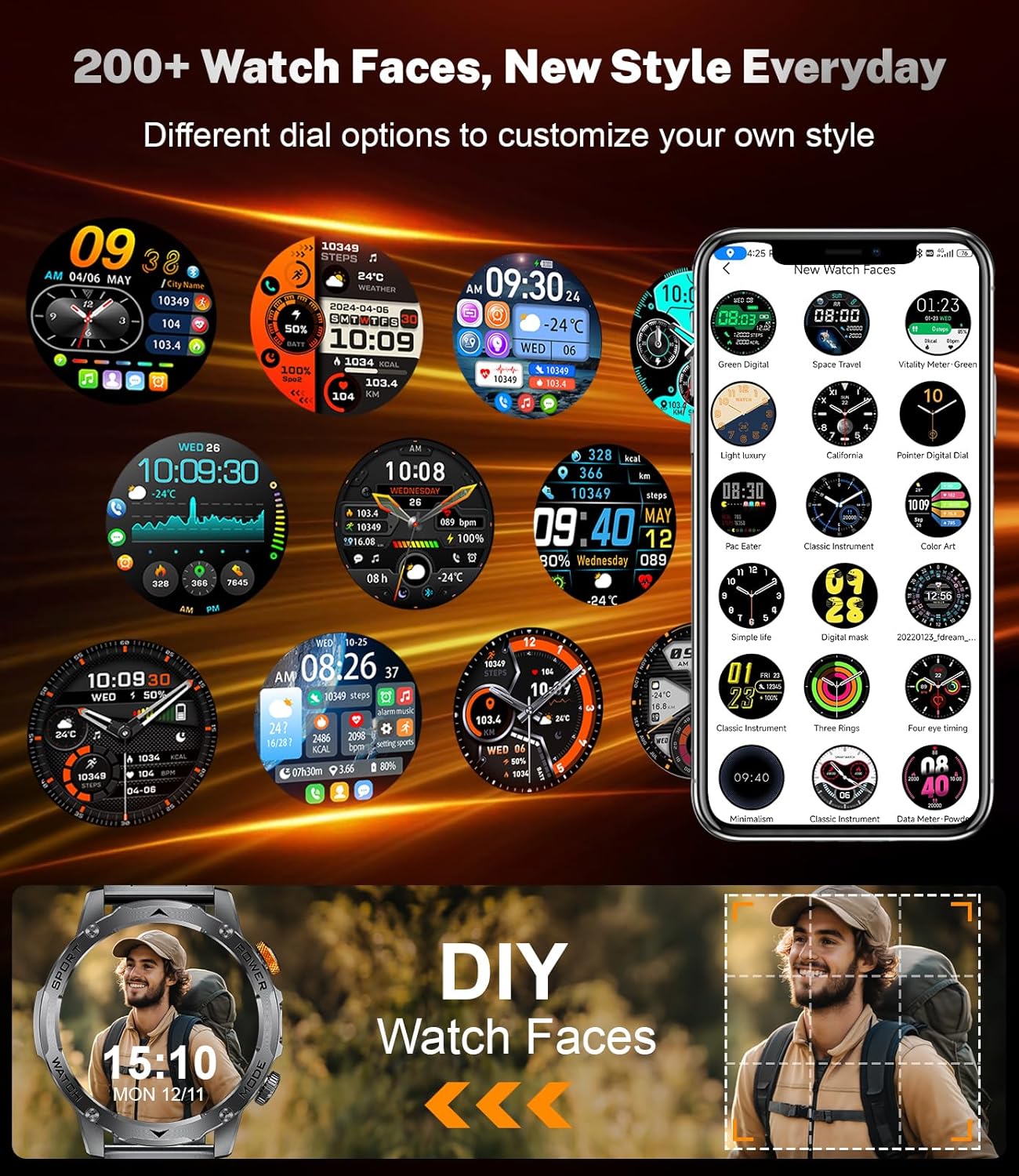
Image: A selection of watch faces available for the smartwatch, including custom options.
4.3. LED Flashlight Function
The smartwatch includes a built-in LED flashlight for convenience.
- Activation: Press and hold the lower right button (often labeled 'MODE') for approximately 3 seconds to activate the LED flashlight.
- Modes: Swipe down on the watch screen and tap the flashlight icon to cycle through three modes: Steady, Warning, and SOS.

Image: The smartwatch flashlight in use, demonstrating its brightness and different modes.
4.4. Bluetooth Calling and Smart Notifications
Stay connected by making and receiving calls directly from your watch, and get instant notifications from your smartphone.
- Bluetooth Calling: Once paired, you can dial numbers or select contacts from your watch to make calls. Incoming calls can be answered or rejected directly on the watch.
- Notifications: Receive alerts for SMS, emails, and social media apps (e.g., Facebook, WhatsApp, Instagram). Ensure notification permissions are enabled in the FitCloudPro app.

Image: The smartwatch showing Bluetooth call functionality and message reminders.
4.5. Sports Modes and Workout Tracking
The EF12-F supports over 110 sports modes to help you track your fitness activities.
- Activity Tracking: The watch records steps, distance, calories burned, and active minutes.
- Sports Modes: Select your desired sport from the watch's menu (e.g., running, swimming, cycling, hiking) to get real-time data and detailed performance insights.
- GPS: The watch uses your smartphone's GPS for accurate route tracking during outdoor activities.

Image: The smartwatch interface showing different sports modes and activity metrics.
4.6. Health Monitoring
Monitor your health with continuous tracking features.
- Heart Rate Monitoring: Tracks your heart rate throughout the day, providing real-time data and historical trends in the app.
- Blood Oxygen (SpO2): Measures your blood oxygen levels.
- Sleep Monitoring: Analyzes your sleep patterns, including deep sleep, light sleep, and awake times, to help you understand and improve your sleep quality.
- Breath Training: Guided breathing exercises to help reduce stress.

Image: The smartwatch showing health monitoring features like heart rate and sleep tracking.
4.7. Daily Assistant Features
The EF12-F integrates several features to assist with your daily routine.
- Music Control: Control music playback on your smartphone directly from your watch.
- Remote Camera: Use your watch as a remote shutter for your smartphone's camera.
- Weather Forecast: Get real-time weather updates.
- Alarm Clock: Set alarms to wake you up or remind you of important tasks.
- Sedentary Reminder: Alerts you to move after periods of inactivity.
- Drink Water Reminder: Prompts you to stay hydrated.
- Voice Assistant: When connected to your phone, use the AI voice assistant for various commands.

Image: The smartwatch showcasing its smart assistant capabilities.
5. Maintenance
5.1. Durability and Water Resistance
The EF12-F is designed for rugged use, tested to military-grade standards for shock and pressure resistance. It features an IP68 waterproof rating, meaning it is protected against dust ingress and can withstand immersion in water up to 1.5 meters for 30 minutes. It is suitable for daily use, hand washing, and light rain, but prolonged immersion or hot water exposure should be avoided.

Image: The smartwatch highlighting its military-grade durability and IP68 water resistance.
5.2. Cleaning and Care
- Regularly clean your watch and straps with a soft, damp cloth to remove dirt and sweat.
- Avoid using harsh chemicals or abrasive materials, as these can damage the finish.
- Ensure the charging contacts are clean and dry before charging to prevent corrosion.
6. Troubleshooting
If you encounter issues with your BENYAR SMART Military Smart Watch EF12-F, consider the following common solutions:
- Connectivity Issues: Ensure Bluetooth is enabled on your phone and the watch is within range. Try unpairing and re-pairing the device in the FitCloudPro app.
- Notifications Not Appearing: Verify that all necessary notification permissions are granted to the FitCloudPro app in your phone's settings. Check that specific app notifications are enabled within the FitCloudPro app.
- Inaccurate Data: Ensure the watch is worn snugly on your wrist. For GPS-dependent activities, ensure your phone's GPS is active and the phone is with you.
- Watch Not Responding: Try restarting the watch by holding down the power button. If unresponsive, ensure it is charged.
For persistent issues or further assistance, please refer to the customer support section.
7. Specifications
| Feature | Specification |
|---|---|
| Model Number | EF12-F |
| Screen Size | 1.75 Inches HD AMOLED |
| Battery Capacity | 1000 mAh (Lithium Polymer) |
| Standby Time | Up to 65 days |
| Operating System Compatibility | Android 4.4+ and iOS 8.0+ |
| Connectivity | Bluetooth |
| Water Resistance | IP68 |
| Memory Storage Capacity | 256 MB |
| Item Weight | 10.8 ounces |
| Special Features | 110+ Sport Modes, Sleep Monitor, Alarm Clock, Music Player, Sedentary Reminder, Activity Tracker, Calorie Tracker, Distance Tracker, Multisport Tracker, Bluetooth calls, Notifications, Weather Forecast, Built-in LED Flashlight |
8. Warranty and Customer Support
Your satisfaction is important to us. If you have any questions, require assistance with your smartwatch, or encounter any issues, please do not hesitate to reach out to our customer support team. We are committed to providing a smooth and enjoyable experience.
Please refer to your purchase documentation or the product packaging for specific warranty details and contact information for customer support.