
T50 Beige
Safedoorbell T50 Beige Smart Wireless Video Doorbell Camera User Manual
Model: T50 Beige | Brand: Generic
1. Introduction
Thank you for choosing the Safedoorbell T50 Beige Smart Wireless Video Doorbell Camera. This manual provides essential information for setting up, operating, and maintaining your device to ensure optimal performance and security for your home.
Package Contents
Please verify that all items listed below are included in your package:
- 1 x Safedoorbell T50 Beige Video Doorbell
- 1 x Wireless Chime (Ding Dong)
- 1 x Charging Cable
- Mounting Screws
- 1 x Instruction Manual (this document)

Image 1.1: Safedoorbell T50 Beige Video Doorbell, accompanying wireless chime, and smartphone screens demonstrating live view and night vision capabilities.
2. Setup and Installation
2.1 Initial Charging
Before first use, fully charge the video doorbell using the provided charging cable. Connect the cable to the doorbell's charging port and a standard USB power adapter (not included). The indicator light will show charging status and turn off when fully charged.
2.2 App Download and Account Creation
Download the official Safedoorbell application from your smartphone's app store (iOS App Store or Google Play Store). Follow the on-screen instructions to create an account and log in.
2.3 Connecting to Wi-Fi
- Open the Safedoorbell app and tap "Add Device" or the "+" icon.
- Select "Video Doorbell" from the device list.
- Follow the app's prompts to connect the doorbell to your home's 2.4GHz Wi-Fi network. Ensure your smartphone is connected to the same Wi-Fi network during setup.
- The app will generate a QR code. Present this QR code to the doorbell camera lens at a distance of 15-20 cm (6-8 inches) until you hear a confirmation sound.
- Once connected, the doorbell's indicator light will change, and the app will confirm successful pairing.
2.4 Mounting the Doorbell
Choose a suitable location near your front door, ensuring a clear view and good Wi-Fi signal strength. Use the provided mounting screws to securely attach the doorbell to the wall or door frame. Ensure the doorbell is mounted at an appropriate height for optimal viewing of visitors.
2.5 Pairing the Wireless Chime
Plug the wireless chime into a standard wall outlet indoors. Press the pairing button on the chime (refer to chime's specific instructions if available). Within the Safedoorbell app, navigate to the doorbell settings and initiate chime pairing. Press the doorbell button to test the connection. The chime should ring.

Image 2.1: Key features of the Safedoorbell T50 Beige, including AI Human Detection, 1080p video, night vision, two-way audio, wide-angle lens, and cloud storage capabilities.
3. Operation
3.1 Live View
Open the Safedoorbell app and select your doorbell device to access the live video feed. This allows you to view your doorstep in real-time from anywhere.
3.2 Two-Way Audio
When viewing the live feed or answering a doorbell press, tap the microphone icon in the app to speak to visitors at your door. Tap it again to mute. This feature enables seamless communication with anyone at your entrance.
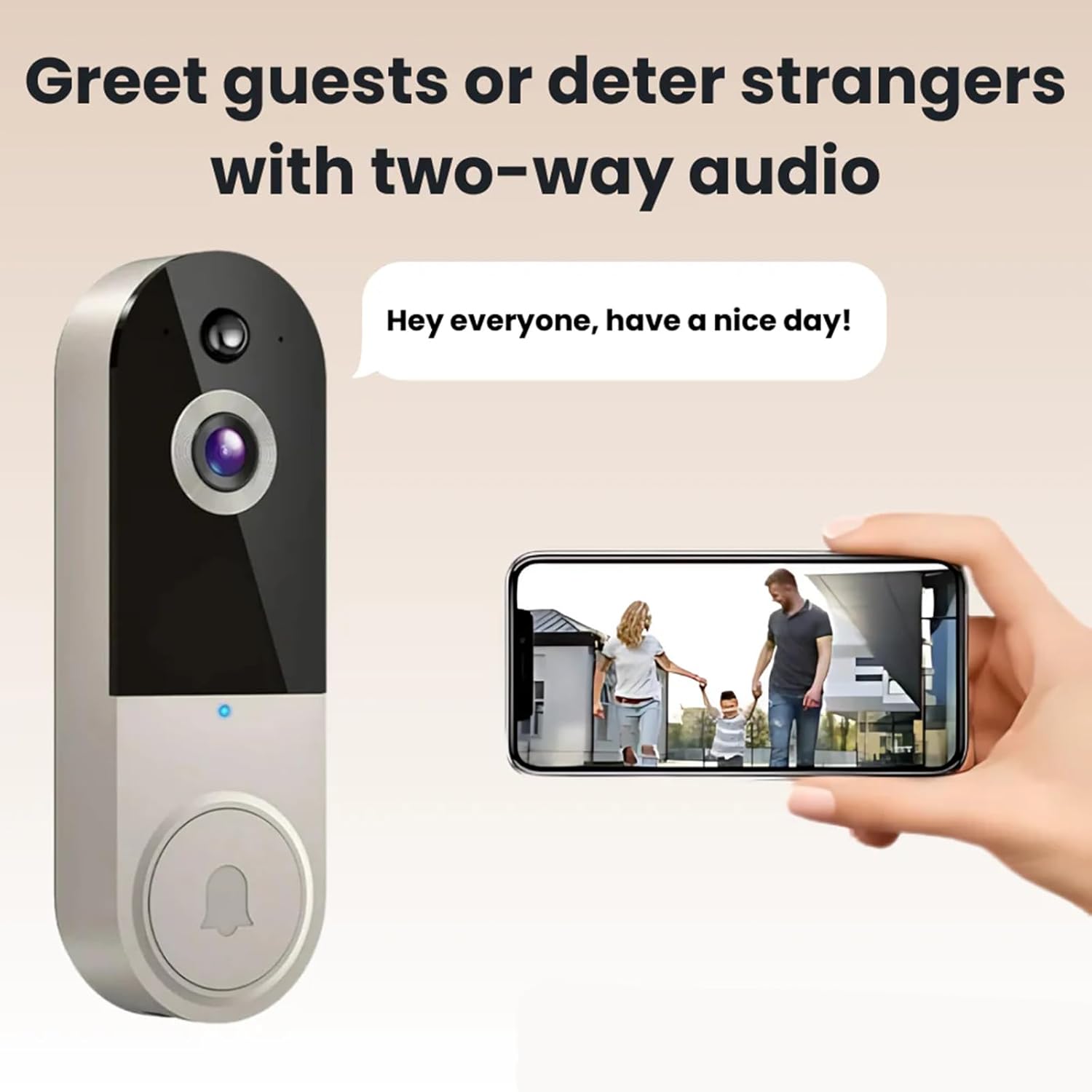
Image 3.1: The two-way audio feature allows for direct communication with visitors, as shown with a family at the door and a user speaking through the app.
3.3 AI Motion Detection
The doorbell is equipped with advanced AI motion detection. When motion is detected, you will receive an instant notification on your smartphone. You can adjust the motion detection sensitivity and set activity zones within the app to minimize false alerts.
3.4 Night Vision
The doorbell automatically switches to night vision mode in low-light conditions, providing clear black-and-white video footage. This ensures continuous monitoring of your property 24/7.

Image 3.2: Visual comparison illustrating the clarity of both Day Vision (color) and Night Vision (black-and-white) capabilities of the doorbell camera.
3.5 Video Recording and Storage
All detected motion events and doorbell presses are recorded. These recordings are stored securely, typically in cloud storage (subscription may be required for extended storage). You can access and review past events through the app's history or event log.
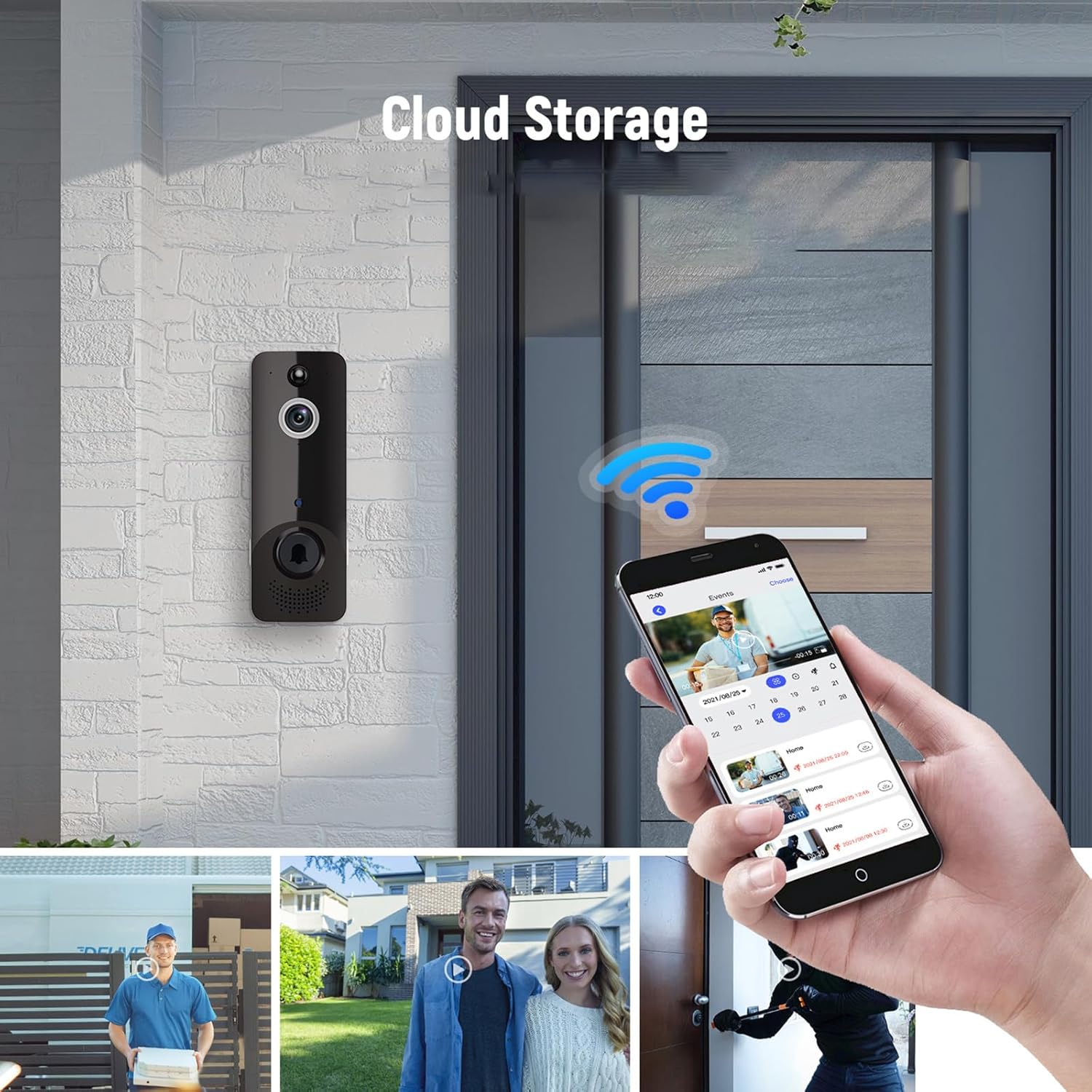
Image 3.3: The doorbell in action, showing its integration with the mobile app for cloud storage access and event review, including various scenarios captured by the camera.
4. Maintenance
4.1 Battery Charging
The doorbell is powered by a built-in rechargeable battery. When the battery level is low, the app will send a notification. Remove the doorbell from its mounting bracket and charge it using the provided USB cable. A full charge typically takes several hours.
4.2 Cleaning
To ensure clear video quality, periodically clean the camera lens with a soft, dry, lint-free cloth. Do not use harsh chemicals or abrasive materials, as these can damage the lens or device surface. Wipe the body of the doorbell with a slightly damp cloth if needed.
5. Troubleshooting
| Problem | Possible Cause | Solution |
|---|---|---|
| Doorbell not connecting to Wi-Fi | Incorrect Wi-Fi password; Doorbell too far from router; 5GHz Wi-Fi network selected. | Ensure correct 2.4GHz Wi-Fi password is entered. Move doorbell closer to router. Ensure you are connecting to a 2.4GHz network. Restart doorbell and router. |
| No motion detection alerts | Motion detection disabled; Sensitivity too low; Activity zones not set correctly. | Check app settings to ensure motion detection is enabled. Increase sensitivity. Adjust activity zones to cover desired areas. |
| Two-way audio not working | Microphone/speaker muted in app; Network connectivity issues. | Ensure microphone icon is not muted in the app. Check Wi-Fi signal strength. Restart the app and doorbell. |
| Night vision is unclear | Lens is dirty; Insufficient ambient light for IR. | Clean the camera lens with a soft cloth. Ensure no obstructions are blocking the IR sensors. |
| Battery not charging | Faulty charging cable/adapter; Charging port damage. | Try a different USB charging cable and power adapter. Contact customer support if the issue persists. |
6. Specifications
| Feature | Detail |
|---|---|
| Model Name | T50 Beige |
| Brand | Generic |
| Indoor/Outdoor Usage | Outdoor |
| Compatible Devices | Smartphone |
| Power Source | Battery Powered (Built-in battery) |
| Connectivity Protocol | Wi-Fi (2.4GHz) |
| Controller Type | Push Button |
| Mounting Type | Wall Mount |
| Video Capture Resolution | 1080p HD |
| Color | T50 Beige |
| Item Dimensions (L x W x H) | 2 x 2 x 4 inches |
| Video Capture Format | MP4 |
| Special Feature | Night Vision, AI Motion Detection, Two-Way Audio |
| Manufacturer | generic |
| Country of Origin | China |
7. Warranty and Support
7.1 Product Warranty
Specific warranty details for your Safedoorbell T50 Beige device are typically provided with your purchase documentation or can be found on the manufacturer's official website. Please retain your proof of purchase for warranty claims. Optional protection plans may be available for extended coverage.
7.2 Customer Support
For technical assistance, troubleshooting beyond this manual, or warranty inquiries, please contact the manufacturer, Generic, through their official support channels. Refer to the product packaging or the manufacturer's website for contact information.
Related documentsT50 Beige

Ask a question about this manual
Ask about setup, troubleshooting, compatibility, parts, safety, or missing instructions. Manuals+ will review the question and use this page’s manual context to help answer it.