
Introduction
Welcome to the user manual for your FRONTECH FT-1603A Ultra-Slim Wireless Mini Bluetooth Keyboard. This manual provides essential information for setting up, operating, maintaining, and troubleshooting your device. Please read these instructions carefully before use to ensure optimal performance and longevity of your keyboard.
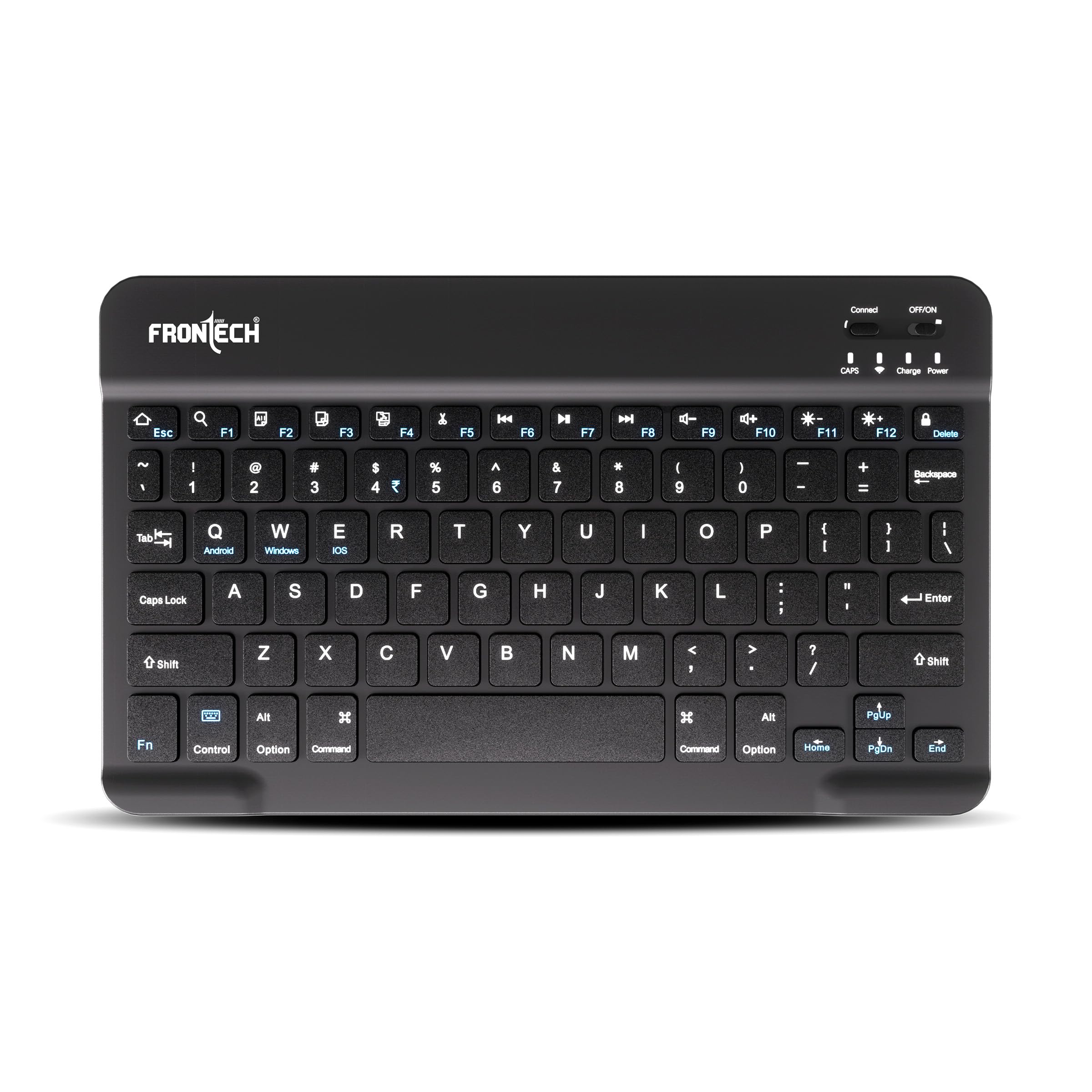
Image: The FRONTECH FT-1603A Ultra-Slim Wireless Mini Bluetooth Keyboard, showcasing its compact design.
Package Contents
What's Included
- 1 x FRONTECH FT-1603A Wireless Mini Bluetooth Keyboard
- 1 x USB to Type-C Charging Cable

Image: The FRONTECH FT-1603A keyboard shown with its included USB to Type-C charging cable.
Product Overview
Key Features
- Compact, ultra-slim design for portability.
- 78-key layout including dedicated function keys.
- Built-in 120mAh rechargeable battery.
- Wireless Bluetooth connectivity.
- Universal compatibility with Windows, Mac, Android, and iOS operating systems.
- Silent click scissor-switch keys for comfortable typing.

Image: A close-up view of the FRONTECH FT-1603A keyboard, showcasing its 78-key layout and multimedia function keys.

Image: The FRONTECH FT-1603A keyboard with an inset showing the scissor-switch mechanism for silent key presses.
Setup
Charging the Keyboard
- Connect the provided USB to Type-C charging cable to the charging port on the keyboard.
- Plug the other end of the USB cable into a USB power source (e.g., computer, USB wall adapter).
- The "Charge" indicator light will illuminate during charging. It will turn off or change color when fully charged.
Image: A detailed view of the keyboard's charging port, indicating where to connect the Type-C cable.
Bluetooth Pairing
- Power On: Locate the ON/OFF switch on the keyboard and slide it to the "ON" position. The "Power" indicator light will turn on.
- Activate Pairing Mode: Press the "Connect" button on the keyboard. The Bluetooth indicator light will start blinking, indicating it's in pairing mode.
- Enable Bluetooth on Your Device: On your computer, tablet, or smartphone, go to the Bluetooth settings.
- Search for Devices: Your device will scan for available Bluetooth devices. Look for "Bluetooth Keyboard" or "FT-1603A" in the list.
- Connect: Select "Bluetooth Keyboard" or "FT-1603A" to initiate the pairing process. Your device may prompt you to enter a code on the keyboard.
- Confirmation: Once successfully paired, the Bluetooth indicator light on the keyboard will stop blinking and remain solid or turn off, depending on the model.

Image: Visual guide showing the power switch, connect button, and the process of selecting the keyboard from a device's Bluetooth menu.
Video: This video demonstrates the unboxing, key features, and Bluetooth pairing process for the FRONTECH FT-1603A Wireless Mini Bluetooth Keyboard with various devices.
Operating Instructions
Switching Operating Systems
The keyboard is compatible with multiple operating systems. To optimize key functions for your specific OS, use the following key combinations:
- For Android: Press Fn + Q
- For Windows: Press Fn + W
- For iOS/Mac: Press Fn + E

Image: The keyboard displaying the Fn key combinations for switching between Android, Windows, and iOS modes.
Function Keys
The keyboard features dedicated function keys (F1-F12) that can be accessed by pressing the Fn key in combination with the desired function key. These keys provide quick access to multimedia controls and other system functions.
| Key Combination | Function |
|---|---|
| Fn + F7 | Previous Track |
| Fn + F8 | Play/Pause |
| Fn + F9 | Next Track |
| Fn + F10 | Mute |
| Fn + F11 | Volume Down |
| Fn + F12 | Volume Up |
Maintenance
Cleaning
- Use a soft, dry cloth to wipe the surface of the keyboard.
- For stubborn dirt, slightly dampen the cloth with water or a mild cleaning solution. Avoid excessive moisture.
- Do not use harsh chemicals, abrasive cleaners, or solvents.
Storage
- Store the keyboard in a cool, dry place away from direct sunlight and extreme temperatures.
- If storing for an extended period, ensure the keyboard is fully charged and then turn it off to preserve battery life.
Troubleshooting
Common Issues and Solutions
- Keyboard not connecting via Bluetooth:
- Ensure the keyboard is powered on and fully charged.
- Make sure Bluetooth is enabled on your device.
- Press the "Connect" button on the keyboard to enter pairing mode.
- Remove any previous pairings of the keyboard from your device's Bluetooth settings and try pairing again.
- Restart both the keyboard and your device.
- Keys not responding:
- Check if the keyboard is connected to your device.
- Ensure the battery is not depleted. Charge the keyboard if necessary.
- Restart the keyboard and your device.
- Lag or delayed input:
- Ensure there are no obstructions between the keyboard and your device.
- Move closer to your device to improve signal strength.
- Check for interference from other wireless devices.
Specifications
| Feature | Detail |
|---|---|
| Model | FT-1603A |
| Connectivity | Bluetooth |
| Number of Keys | 78 |
| Battery | 120mAh Rechargeable |
| Compatibility | Windows, Mac, Android, iOS |
| Dimensions (WxDxH) | 24.7 x 15.0 x 0.8 cm (approx.) |
| Weight | 186 grams |
| Material | Plastic |
| Color | Black |
Warranty and Support
Warranty Information
This FRONTECH FT-1603A Wireless Mini Bluetooth Keyboard comes with a 1-year limited warranty on manufacturing defects. Please retain your proof of purchase for warranty claims.
Customer Support
For further assistance, technical support, or warranty inquiries, please contact FRONTECH customer service. Refer to the product packaging or FRONTECH's official website for contact details.