1. Product Overview
This manual provides essential instructions for the Generic 6300mAh Li-ion Polymer replacement battery, specifically designed for the Blackview Tab 6 (Model: 3210099). This high-capacity, 0-cycle battery is engineered to provide extended usage and reliable performance for your tablet.
Key features include:
- High Capacity: 6300mAh for longer operating times.
- 0-Cycle Product: Ensures optimal battery health and longevity from the start.
- Advanced Safety Features: Equipped with multiple protection mechanisms.
- Durable Design: Utilizes A-class lithium-ion/polymer cells for extended cycle life.
- Efficient Charging: Supports intelligent fast charging technology.

Image 1.1: Illustration of the battery's internal structure, demonstrating performance improvements through double Li-ion technology, leading to faster charging and higher conversion efficiency.
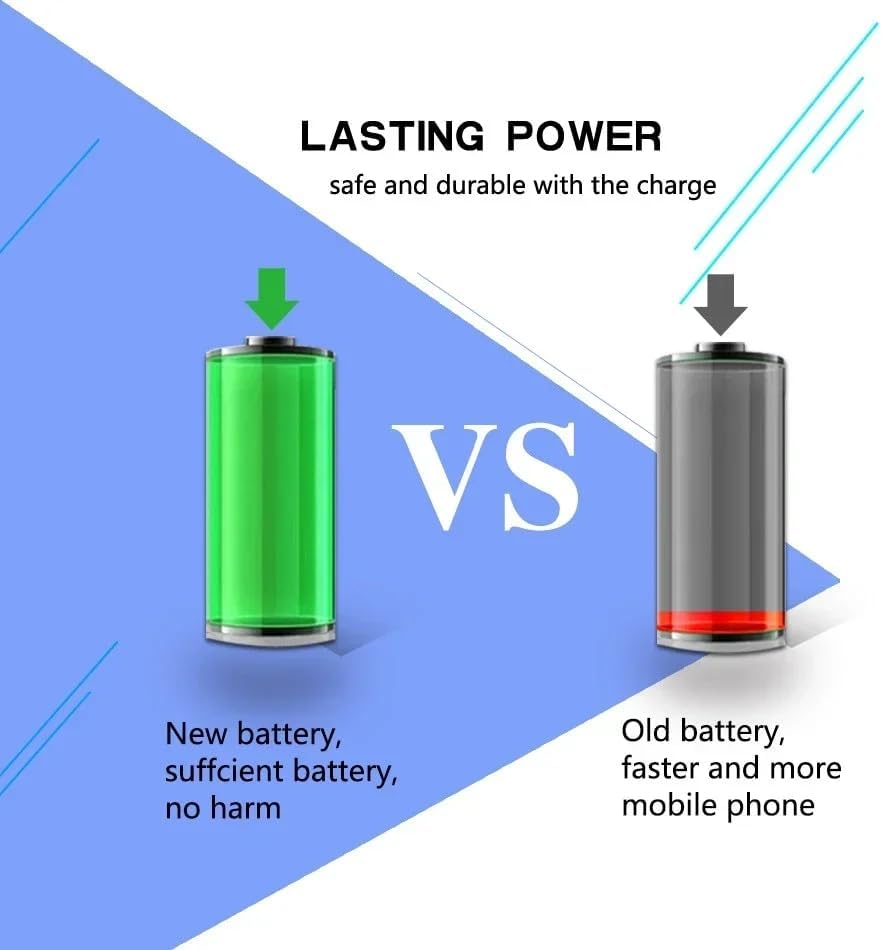
Image 1.2: Visual comparison highlighting the difference between a new, fully charged battery and an old, depleted battery, emphasizing the lasting power of a new replacement.
2. Compatibility and Package Contents
2.1 Compatibility
This replacement battery is precisely compatible with the Blackview Tab 6. The specific battery model is Tab 6(3210099). Before installation, please verify that your tablet's model number matches to ensure proper fit and function.
2.2 Package Contents
Your package includes the 6300mAh Li-ion Polymer replacement battery and a set of essential tool kits to assist with the replacement process.

Image 2.1: The included repair tool kit, containing various screwdrivers, pry tools, and a suction cup, designed to facilitate the battery replacement process.
3. Installation and Setup
Replacing a tablet battery requires technical skill and careful handling of delicate internal components. It is highly recommended to seek professional assistance for installation to avoid damage to your device or the new battery. If you choose to proceed with self-installation, please follow a reliable guide specific to your Blackview Tab 6 model and exercise extreme caution.
3.1 Initial Battery Activation
After successful installation of the new battery:
- Completely discharge the battery until the device powers off.
- Connect the original charger and charge the device uninterrupted for 8 hours.
- Repeat steps 1 and 2 for 3-5 cycles. This process helps activate the battery's full capacity and optimize its performance.
4. Operating and Maintenance Tips
Proper care and usage will extend the lifespan of your battery.
- Avoid Deep Discharge: Charge your device when the battery level is low. Allowing the battery to drain completely (below 2.5V) can cause permanent damage. Avoid consistently draining the battery to 0%.
- Long-Term Storage: If storing the battery or device for an extended period, maintain the battery level between 40% and 60%. Avoid storing it fully charged or completely empty. Recharge the battery every three months to prevent degradation.
- Avoid Overcharging: Disconnect the charger once the battery is fully charged. Prolonged charging after reaching 100% can lead to battery swelling and reduced lifespan.
- Use Original Charger: Always use the original charger provided with your tablet. Non-original chargers may have incompatible voltage or current, potentially damaging the battery and posing safety risks.
5. Safety Information
Your battery is equipped with advanced safety features, including insulating separators and intelligent IC chips, to ensure safe operation. These mechanisms provide overcharge protection, over-discharge protection, short-circuit protection, and thermal management.
- Do Not Disassemble or Squeeze: Lithium batteries contain flammable and potentially explosive substances. Non-professional disassembly or physical damage can lead to explosion or fire.
- Temperature Range: The battery operates safely within a temperature range of -20℃ to 60℃ (-4℉ to 140℉). The system automatically reduces frequency or cuts off power in high-temperature environments to prevent damage.
- Visual Inspection: Regularly inspect the battery. If you observe any signs of bulging, deformation, leakage, or oxidation at the interface, discontinue use immediately and safely dispose of the battery.
- Recycle Properly: Dispose of the battery according to local regulations for electronic waste. Do not discard with household waste.

Image 5.1: The battery itself, displaying critical safety warnings regarding disassembly, temperature exposure, and proper disposal.

Image 5.2: An illustration of the battery's intelligent IC core, detailing its integrated over-voltage protection, fuse, and real-time temperature sensor for enhanced safety.

Image 5.3: A visual representation of the short circuit protection mechanism, featuring memory metal fuses that self-repair at normal temperatures, preventing short circuits, fire, or explosions.
6. Specifications
| Specification | Detail |
|---|---|
| Battery Model | Tab 6(3210099) |
| Compatible Device | Blackview Tab 6 |
| Battery Capacity | 6300 Milliamp Hours (mAh) |
| Battery Cell Composition | Lithium Polymer |
| Number of Batteries | 1 (included) |
| Item Weight | 6 ounces |
| Package Dimensions | 3.94 x 3.94 x 1.54 inches |
| Manufacturer | Changsha Changsheng Electronic Technology Co.,Ltd |
7. Troubleshooting
If you encounter issues with your new battery, consider the following common troubleshooting steps:
- Battery Not Charging: Ensure the charger is securely connected to both the tablet and a working power outlet. Verify that you are using the original charger. If possible, test with another compatible charger.
- Short Battery Life: Review the maintenance tips in Section 4. Ensure no excessive background applications are running. Perform the initial battery activation cycle (Section 3.1) if not already done.
- Device Not Powering On: Ensure the battery is correctly installed and fully charged. If the issue persists, it may indicate a problem beyond the battery itself.
- Battery Swelling or Deformation: This is a critical safety concern. Immediately discontinue use of the battery and device. Do not attempt to charge or use the battery further. Seek professional advice for safe removal and disposal.
8. Warranty and Support
Specific warranty information for this product is not provided in the available documentation. For any warranty claims, technical support, or further assistance, please contact the seller or manufacturer directly through your purchase platform.


