
1. Product Overview
The POWMUS 11-inch Android 15 Tablet (Model T606) is designed for versatile use, offering a high-performance octa-core processor, a vibrant 2K FHD display, and ample memory and storage. This tablet is suitable for work, study, and entertainment, providing a seamless user experience with its latest Android 15 operating system.

Image: The POWMUS 11-inch Android 15 Tablet, shown with its included keyboard and mouse, highlighting its productivity features.
2. What's in the Box
Upon opening your POWMUS Tablet package, you should find the following items:
- 11-inch Android 15 Tablet
- Bluetooth Keyboard
- Mouse
- Touch Pen (Stylus)
- Tablet Case
- USB-C Cable
- OTG Cable
- User Manual (this document)

Image: All components included in the POWMUS Tablet package, neatly arranged.
3. Setup Guide
3.1 Initial Power On and Language Selection
To begin using your tablet, press and hold the power button located on the side of the device until the screen illuminates. Follow the on-screen prompts to select your preferred language and complete the initial setup process.
Video: This video demonstrates the unboxing, initial power-on, and language selection process for the POWMUS 11-inch Android 15 Tablet, along with a brief overview of its accessories and usage scenarios.
3.2 Connecting Accessories
Your tablet comes with a Bluetooth keyboard and mouse for enhanced productivity. To connect them:
- Enable Bluetooth: Go to Settings > Connected devices > Bluetooth and turn it on.
- Pair Keyboard: Turn on the Bluetooth keyboard. Press the 'Connect' button on the keyboard. On your tablet, select the keyboard from the list of available devices and follow any pairing instructions.
- Pair Mouse: Turn on the Bluetooth mouse. On your tablet, select the mouse from the list of available devices and follow any pairing instructions.
3.3 Charging the Tablet
Before first use, ensure your tablet is fully charged. Connect the provided USB-C cable to the tablet's USB-C port and the other end to the power adapter. Plug the adapter into a wall outlet. The battery indicator on the screen will show charging status.
4. Operating the Tablet
4.1 Android 15 Operating System
The tablet runs on the latest Android 15 OS, offering enhanced privacy controls, seamless multitasking, and a user-friendly interface. Key features include:
- Privacy and Security: Advanced controls to manage app permissions and data access.
- Taskbar: Convenient multitasking with quick access to frequently used apps.
- Digital Wellbeing: Tools to monitor and manage screen time and app usage.
- Parental Controls: Features to help manage content and usage for children.

Image: A visual representation of the Android 15 Tablet OS interface, highlighting its smooth, clean, and stylish UI with privacy and parental control features.
4.2 Display and Eye Protection
The 11-inch IPS screen features a 2000x1200 (2K FHD) resolution, providing clear and vibrant visuals. It includes multiple eye-comfort modes such as dark mode, reading mode, and blue light reduction to minimize eye strain during prolonged use.

Image: The tablet's 11-inch 2K FHD IPS display showcasing vivid imagery.
4.3 Performance and Storage
Equipped with an octa-core Unisoc T606 processor and 36GB RAM (12GB physical + 24GB virtual expansion), the tablet ensures smooth multitasking and efficient operation. It offers 256GB of internal storage, expandable up to 2TB via a microSD card, providing ample space for applications, media, and documents.

Image: A graphic detailing the tablet's memory and storage capabilities, including RAM, ROM, and expandable storage.
4.4 Connectivity
The tablet supports dual-band WiFi 6 (2.4GHz/5GHz) for stable and high-speed internet connectivity, and Bluetooth 5.0 for connecting wireless peripherals. It also includes a USB-C 2.0 port for charging and data transfer, and a 3.5mm audio jack for headphones.
4.5 Cameras
Capture photos and videos with the tablet's 8MP front camera and 13MP rear camera. The rear camera is capable of FHD 1080p video capture.
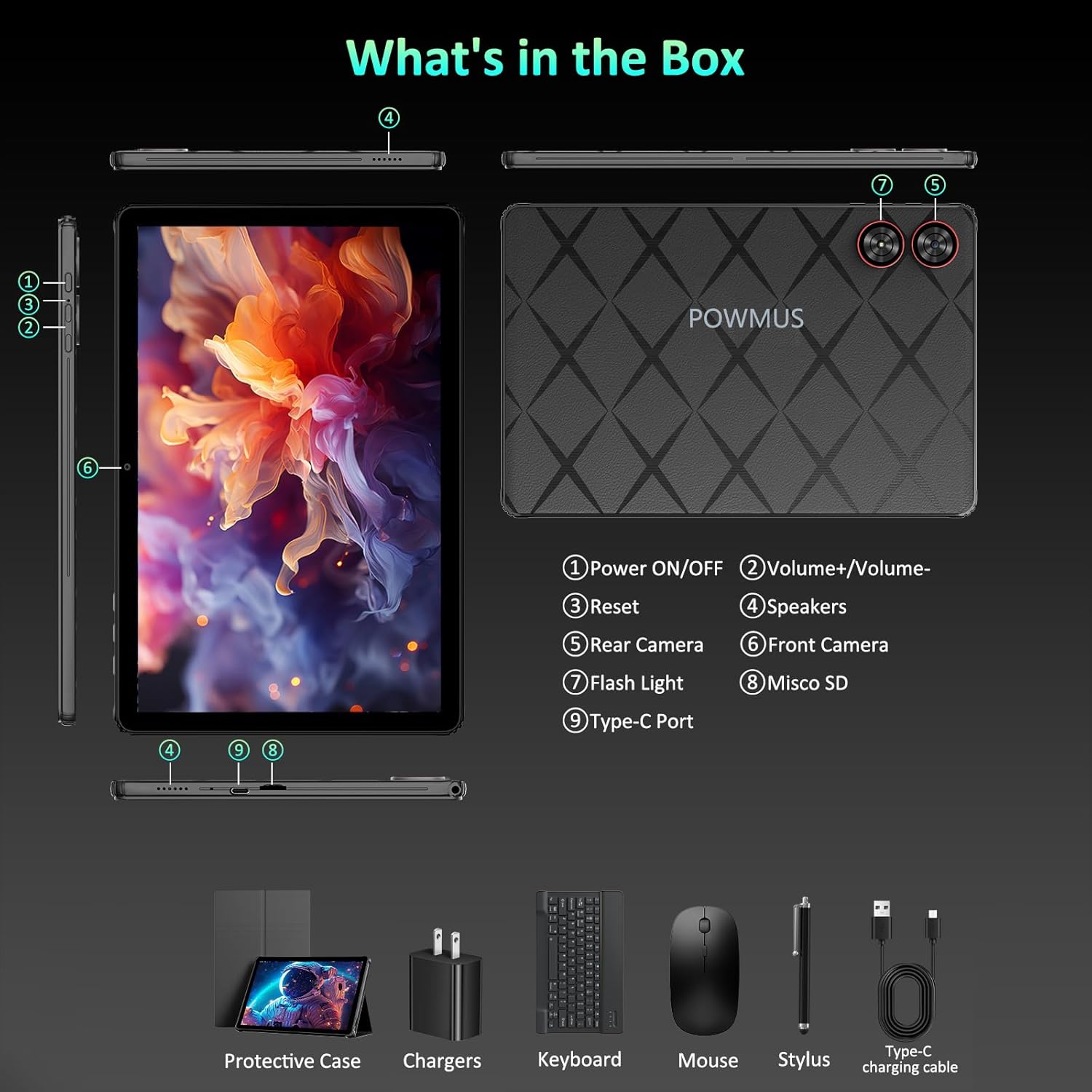
Image: A detailed view of the tablet's dual rear camera setup.
4.6 Audio
Experience immersive audio with the built-in dual speakers. The tablet supports various audio formats including MP3, MP2, AMR, AWB, APE, M4A, MIDI, OGG, WAV, FLAC, and 3GP.

Image: Users engaging with the tablet for various activities like reading, chatting, streaming, and gaming, emphasizing the immersive audio experience.
5. Specifications
| Feature | Description |
|---|---|
| Brand | POWMUS |
| Model Name | LS1111 |
| Model Number | T606 |
| Operating System | Android 15 |
| Processor | Octa-Core Unisoc T606, 2 GHz |
| RAM Memory Installed | 36 GB (12GB physical + 24GB dynamic expansion) |
| Memory Storage Capacity | 256 GB |
| Flash Memory Supported Size Maximum | 2 TB (via microSD) |
| Screen Size | 11 Inches |
| Display Resolution Maximum | 2000 x 1200 Pixels (2K FHD IPS) |
| Rear Facing Camera Photo Sensor Resolution | 13 MP |
| Front Photo Sensor Resolution | 8 MP |
| Video Capture Resolution | FHD 1080p |
| Wireless Technology | Bluetooth 5.0, Wi-Fi 6 (2.4GHz/5GHz) |
| Connectivity Technology | Bluetooth, USB-C 2.0, Wi-Fi |
| Headphones Jack | 3.5 mm |
| Battery Capacity | 8000 Milliamp Hours |
| Battery Average Life | 6 Hours (usage dependent) |
| Item Dimensions L x W x Thickness | 10.21"L x 6.73"W x 0.38"Th |
| Item Weight | 1.42 Kilograms |
| Special Features | GPS, Supports USB OTG, Accelerometer |
6. Maintenance
6.1 Cleaning
To clean your tablet, use a soft, lint-free cloth. For stubborn smudges, slightly dampen the cloth with water or a screen-safe cleaner. Avoid using harsh chemicals or abrasive materials, as these can damage the screen and finish.
6.2 Software Updates
Regularly check for and install software updates to ensure optimal performance, security, and access to the latest features. Go to Settings > System > System update to check for available updates.
6.3 Battery Care
To prolong battery life, avoid exposing the tablet to extreme temperatures. It is recommended to keep the battery charge between 20% and 80% for daily use. If storing the tablet for an extended period, charge it to about 50%.
7. Troubleshooting
7.1 Tablet Not Powering On
- Ensure the tablet is charged. Connect it to the charger and wait a few minutes before attempting to power it on again.
- Press and hold the power button for at least 10-15 seconds to perform a forced restart.
7.2 Wi-Fi Connectivity Issues
- Check if Wi-Fi is enabled in Settings.
- Restart your Wi-Fi router and the tablet.
- Forget the network in tablet settings and reconnect.
7.3 Accessories Not Connecting
- Ensure Bluetooth is enabled on the tablet and the accessory is in pairing mode.
- Check the battery level of the accessory.
- Try restarting both the tablet and the accessory.
7.4 Slow Performance
- Close unnecessary background applications.
- Clear cache data for frequently used apps.
- Ensure sufficient storage space is available.
- Restart the tablet periodically.
8. Warranty and Support
Your POWMUS 11-inch Android 15 Tablet comes with a 1-year warranty. For technical assistance, troubleshooting beyond this manual, or warranty claims, please contact POWMUS customer support. Refer to the contact information provided with your purchase or visit the official POWMUS website for support details.